You can copy single or multiple documents from one folder to another in iManage Work. When documents are copied and pasted into another folder, both the metadata and the security are copied from the parent destination folder.
Copying a single document
Select the document you wish to copy.
On the context menu or kebab menu, select Copy and then select Copy Item.
Figure: Copying a document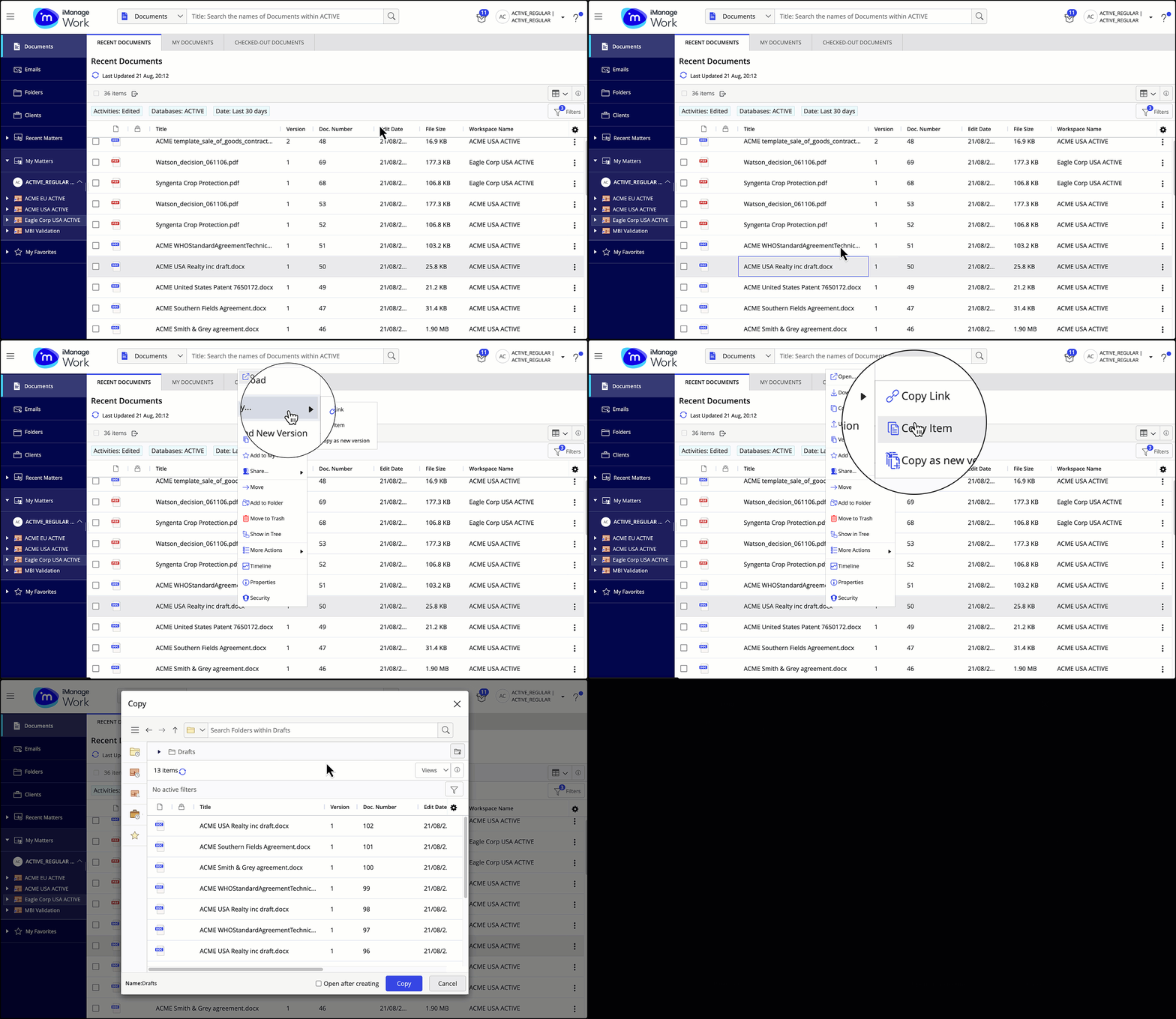
In the Copy dialog, browse to the destination folder where you want to copy the document.
You can now either choose to continue with just copying the document or copying the document and having it opened immediately after creation:
To copy a document, select Copy. To browse to the location where you’ve copied the document, select Go to folder in the progress dialog.
Figure: Just Copying a single document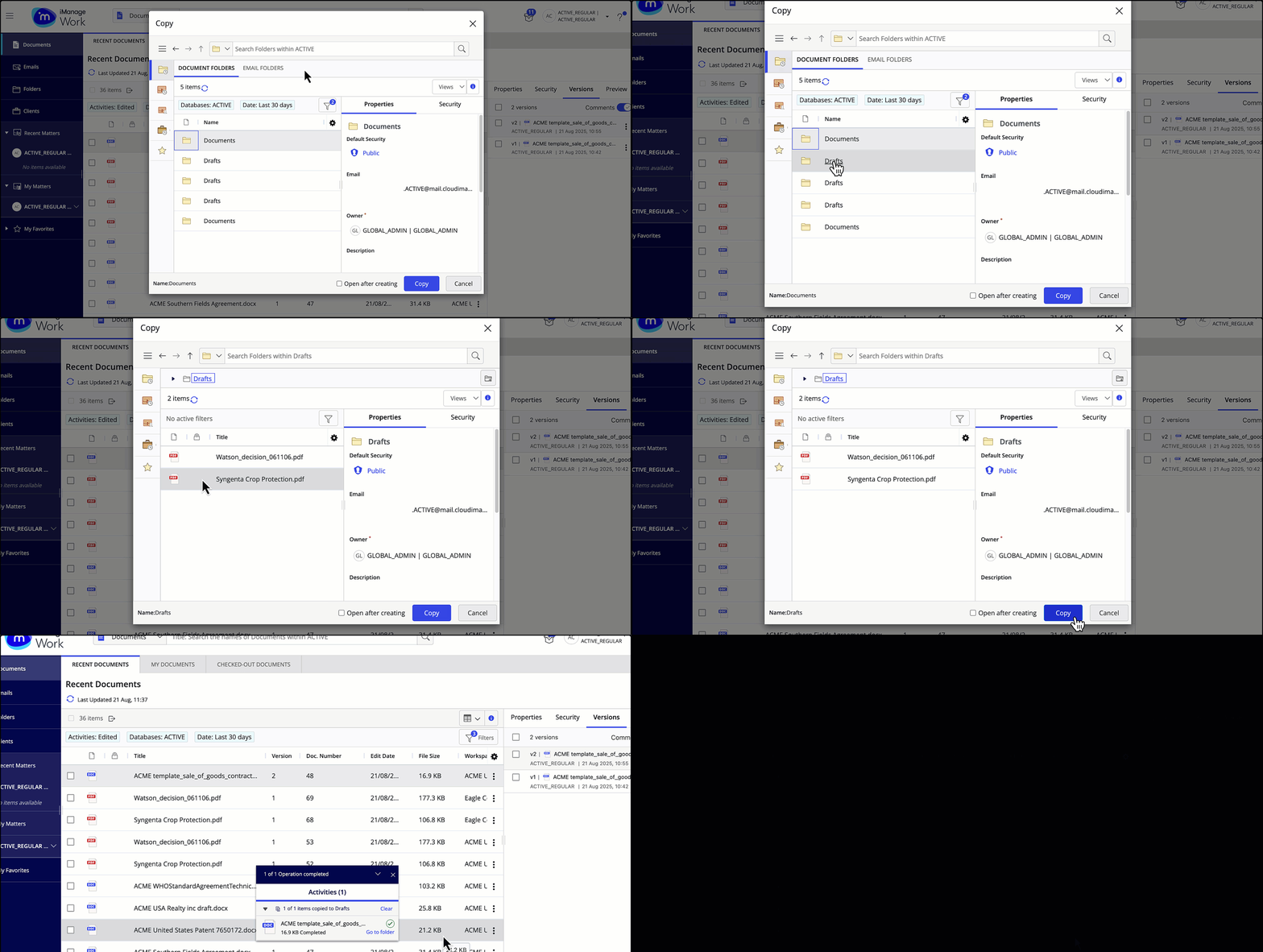
To copy a document and open it after creating, select the Open after creating check box and then select Copy & open.
Figure: Copying a single document and opening it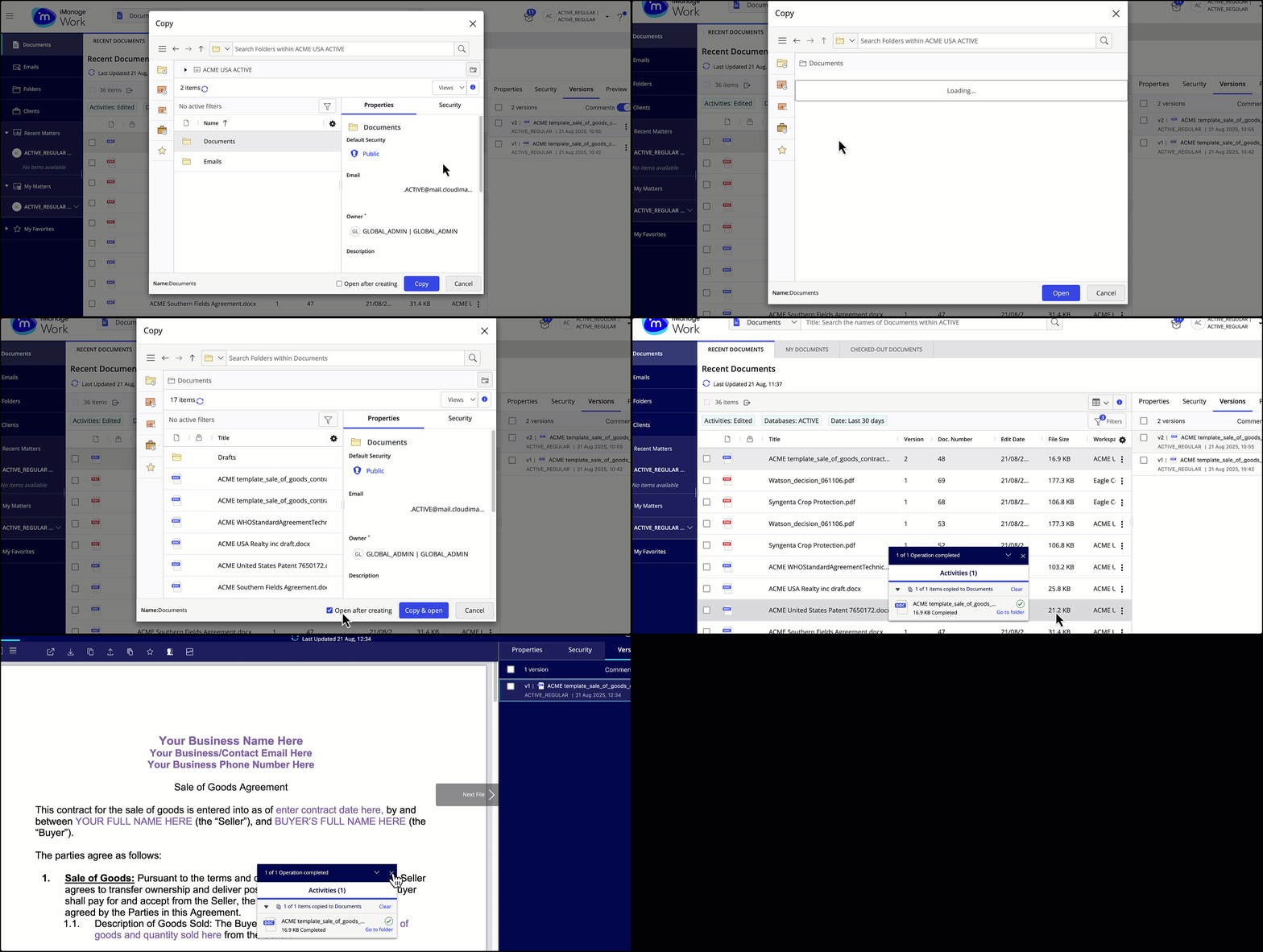
NOTE: The open action follows your Title click settings for the File open or Microsoft 365 file open option as configured under User Settings in iManage Work. For more information, refer to Configuring title and row double-click actions.
Copying multiple documents
Select the documents you wish to copy.
On the multi-select toolbar, select Copy and then select Copy Item.
The Copy dialog opens. Browse to the destination folder where you want to copy the documents.
Figure: Copying multiple documents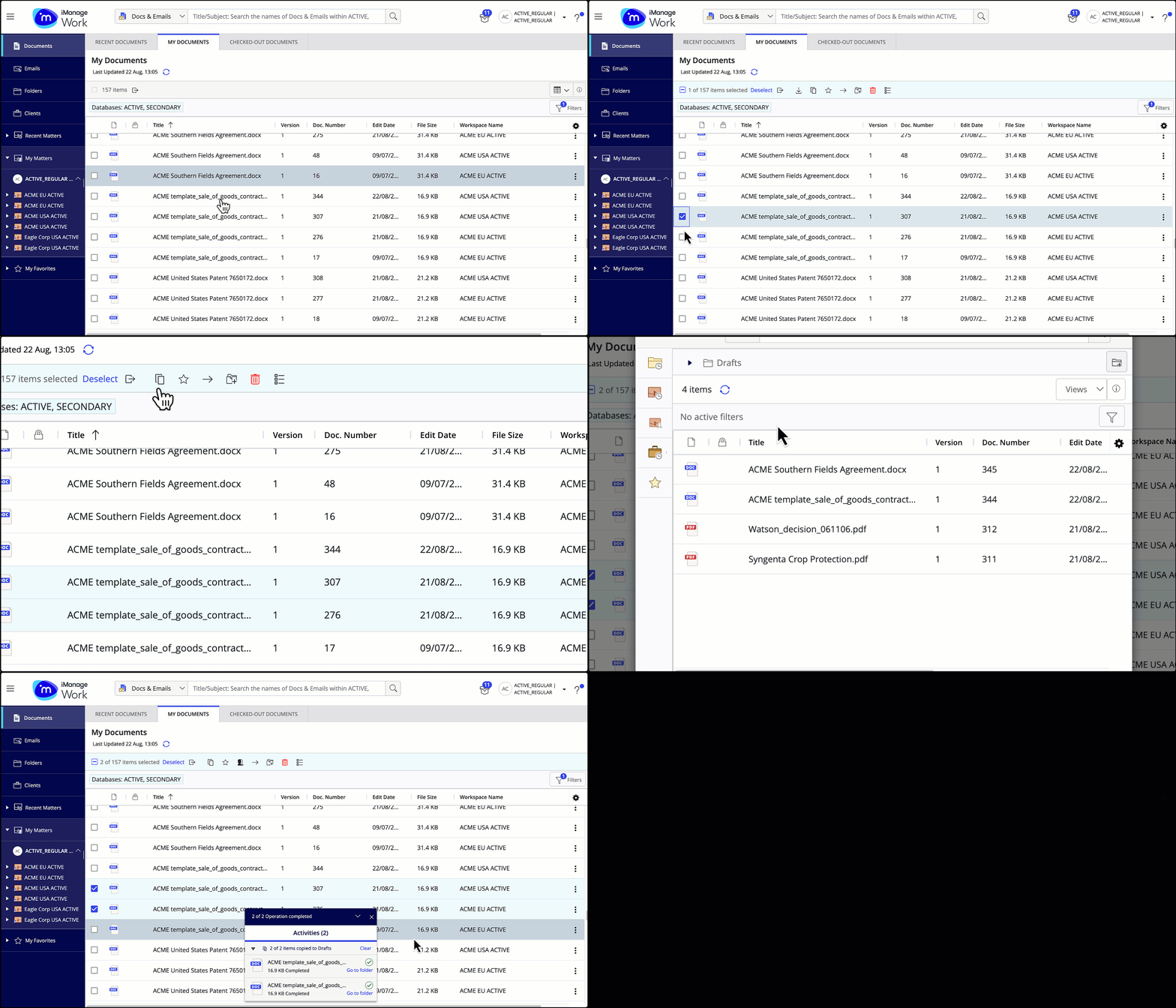
Select Copy. To browse to the location where you’ve copied the documents, select Go to folder in the progress dialog.
NOTE:
You can't copy documents between two different databases.