You can copy one or more emails from one location to another in iManage Work.
Copying a single email
Select the email you wish to copy.
Select Copy and then select Copy Item from the context menu or kebab menu. The Copy dialog appears.
Browse to the destination folder where you want to copy the email.
You can now either continue with just copying the email or copying the email and have it opened immediately after creation.
To copy an email:
Select Copy. Select Go to folder in the progress dialog to browse to the location where you’ve copied the email.
And open it after creating, select the Open after creating check box and then select Copy & open.
Figure: Copying and opening an email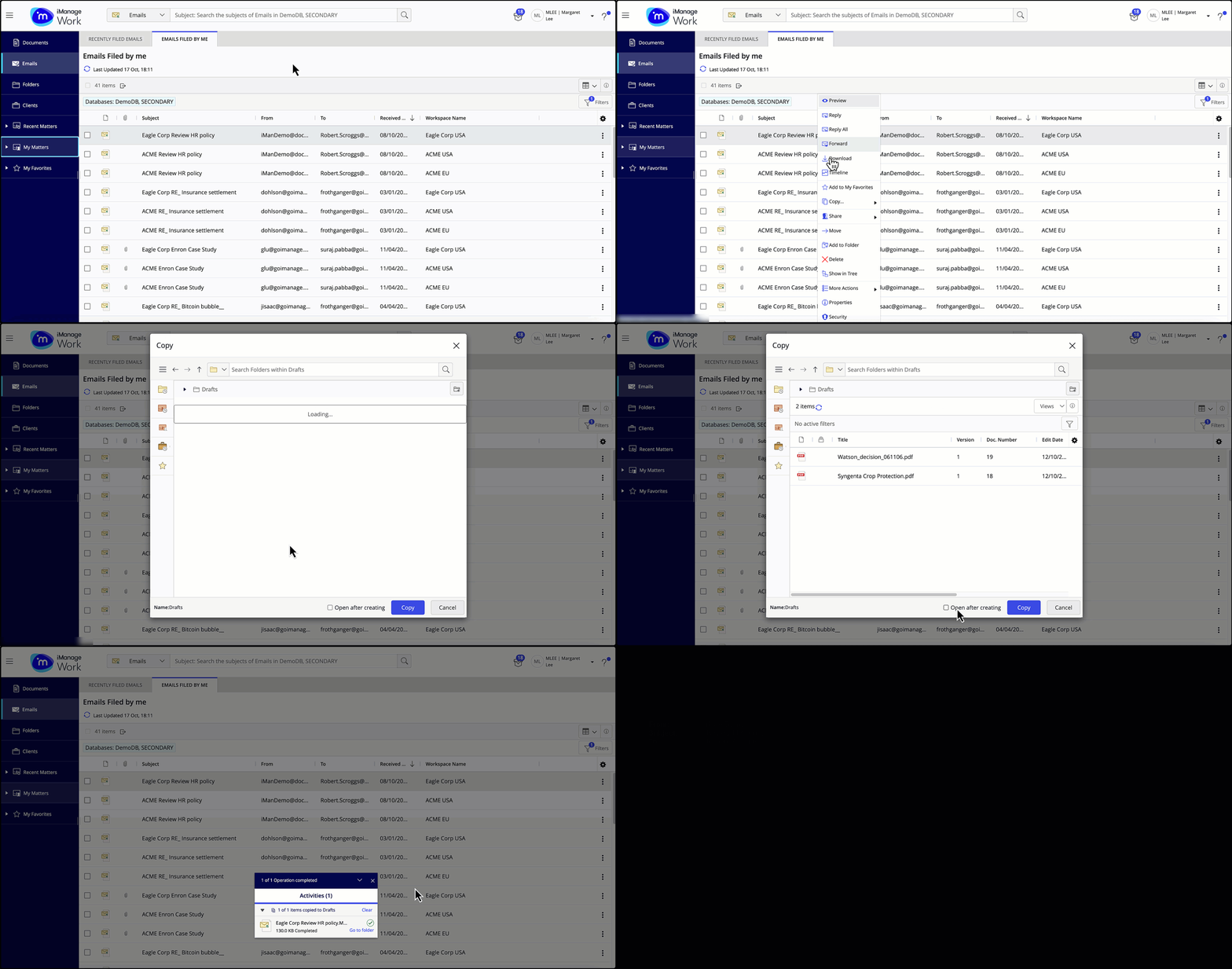
NOTE: Duplicate emails won’t be copied to the new location within the same workspace even if the user interface suggests that the operation was successful instead, a reference to the same email is added in the new location.
Copying multiple emails
Select the emails you wish to copy.
From the multi-select toolbar, select Copy and then select Copy Item. The Copy dialog appears.
Browse to the destination folder where you want to copy the emails.
Figure: Copying multiple emails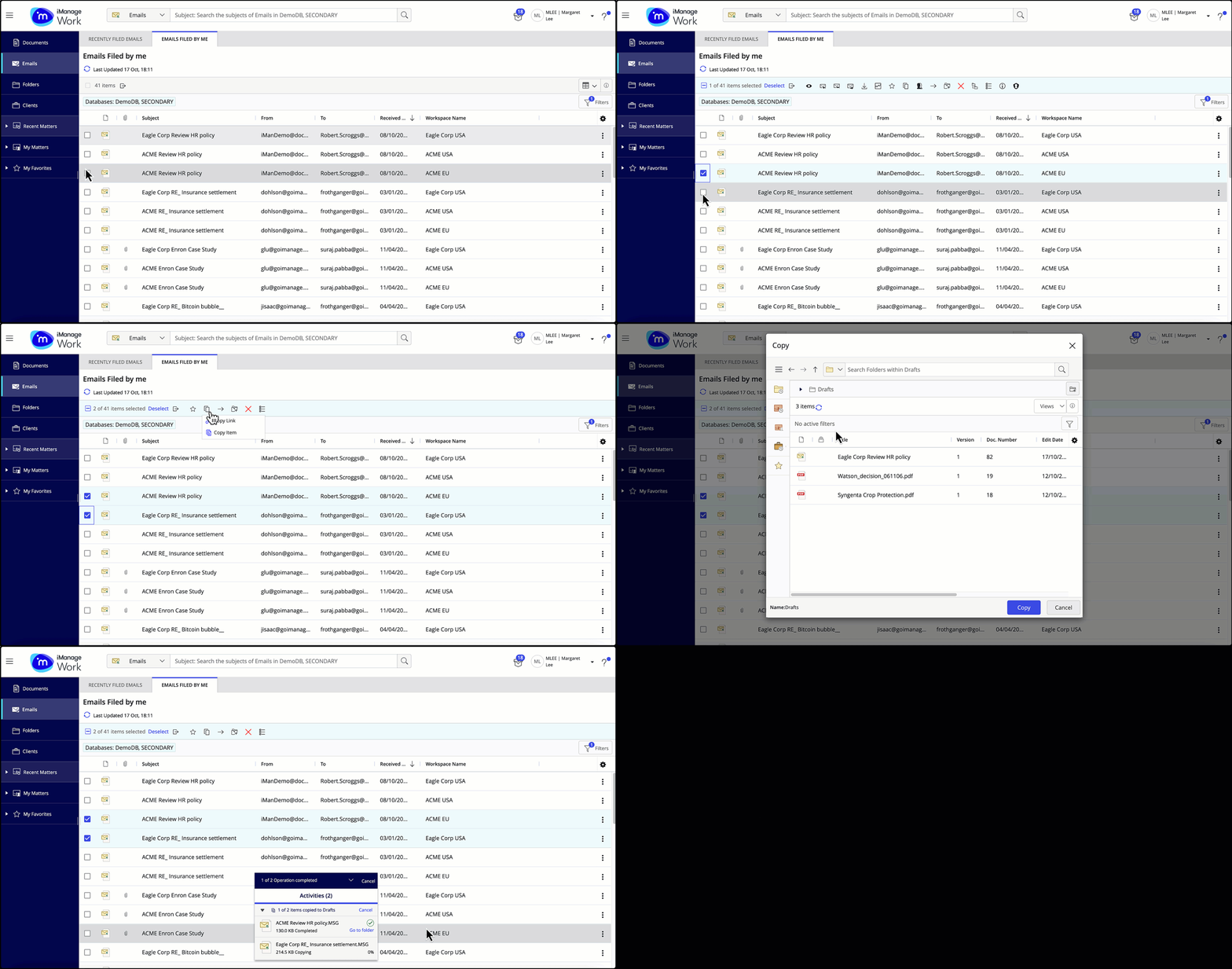
Select Copy. Select Go to folder in the progress dialog to browse to the location where you’ve copied the emails.