NOTE:
This feature is available only in select iManage Work environments.
Duplicate shortcuts to the same target aren't allowed in the same container.
When creating a folder shortcut using drag-and-drop, dropping the selected folder on a search folder or folder shortcut on the tree isn't supported.
Template-based (Flexible Folders) restrictions apply when creating or moving folder shortcuts.
Document folder shortcuts can be created from the right-click context menu or kebab menu and also using a drag-and-drop action under the following locations:
Workspace
Tab
Folder
Sub-folder
To create document folder shortcuts using the the right-click context menu or kebab menu:
Select the document folder for which you wish to create a shortcut in another location.
Right-click and select Create shortcut.
or
From the kebab menu, select Create shortcut.
The Create shortcut dialog appears.
Figure: Create shortcut in right-click context/kebab menu
If you select multiple document folders, the option is available on the toolbar.
Figure: Create shortcut on the toolbar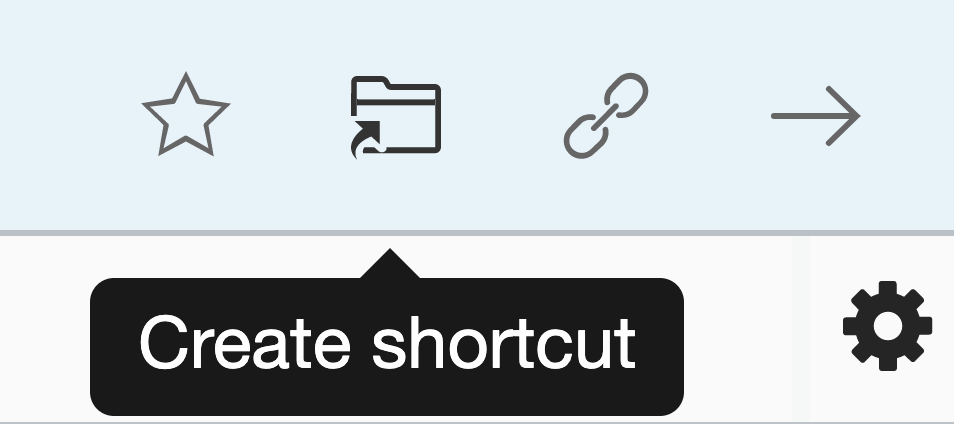
Browse to the desired location.
Select Add Shortcut. A progress dialog appears.
Figure: Progress dialog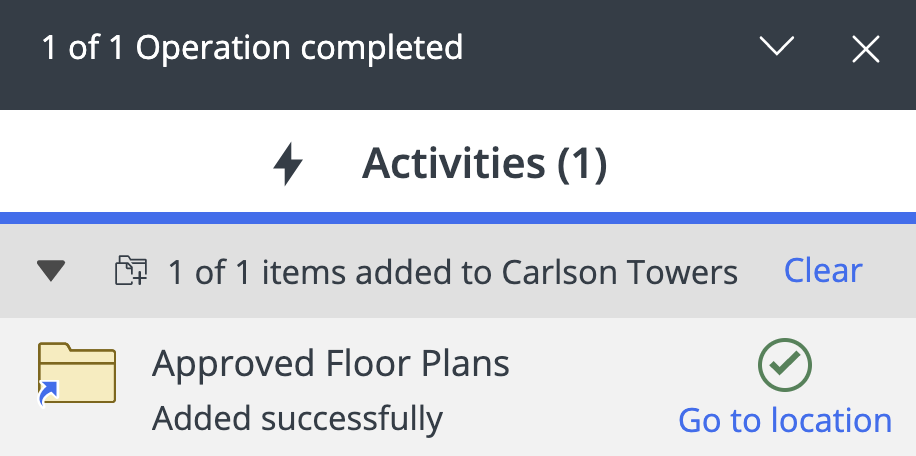
Select Go to location in the progress dialog box to browse to the newly created document folder shortcut in the workspace/tab.
To create document folder shortcuts using drag-and-drop:
Select the document folder(s) for which you wish to add a shortcut.
Hover over the tree nodes to expand the containers within.
When you locate the target container where you wish to add a shortcut to the document folder(s) press the Shift key and then drop.
Figure: Creating folder shortcuts using drag-and-drop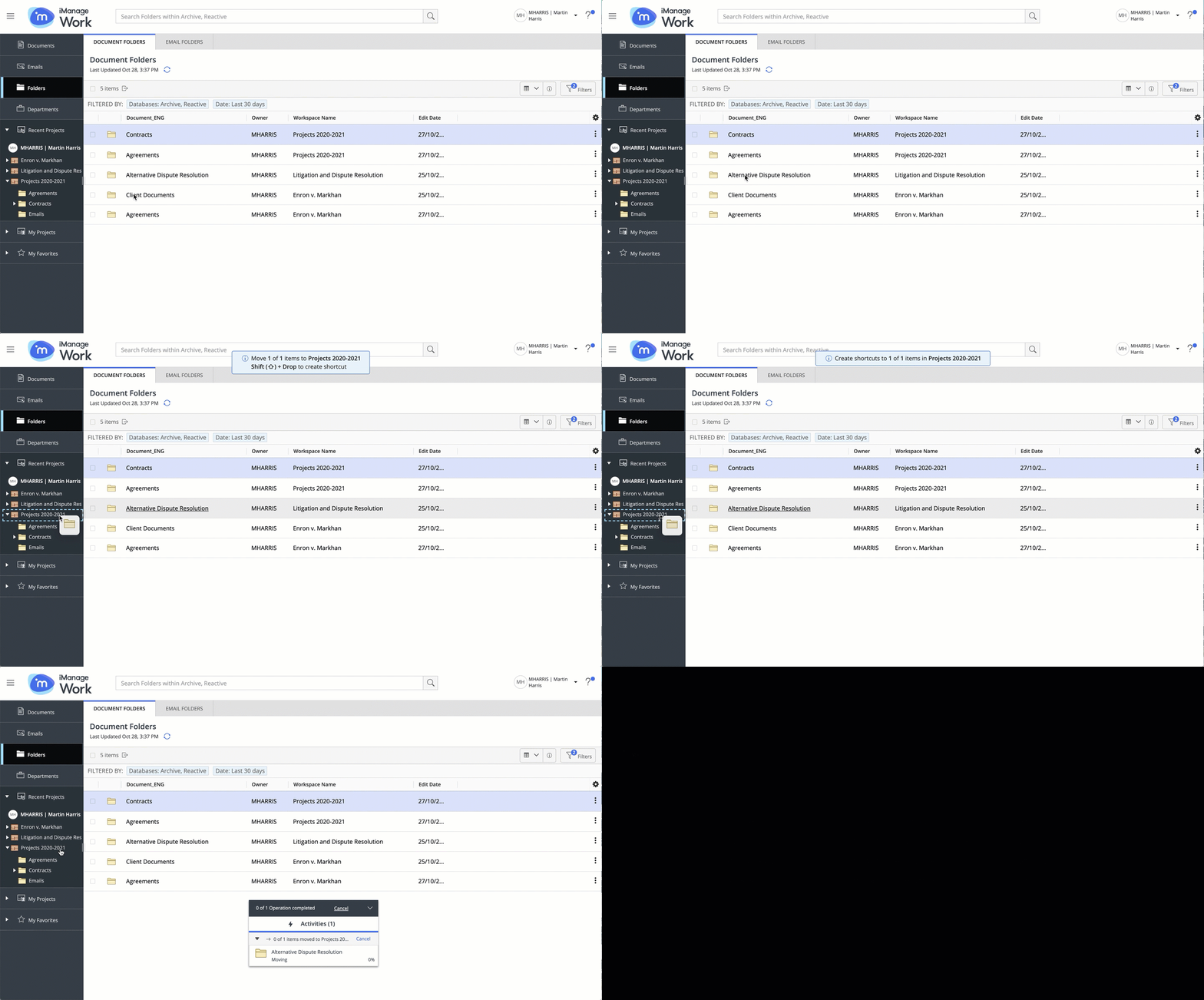
A progress dialog appears.
Selecting Go to location directs you to the container containing the newly created folder shortcut and the newly created shortcut is highlighted.