To effectively use the information available within iManage Work, you can choose either the List view or Grid view. The List view presents information in rows and the Grid view presents information in rows and columns. Use the view type selector available in the toolbar to switch between the two.
Both views support progressive scrolling without pagination. Progressive scrolling applies to all containers (Folders, My Favorites, Recent Filed Emails, and so on) that contain many items as well as to searches that return many results. When a container or list of search results includes more than 500 items, select Load more items in the toolbar to load an additional 500 items. You can view up to 5000 total items in a container or list of search results.
Figure: List view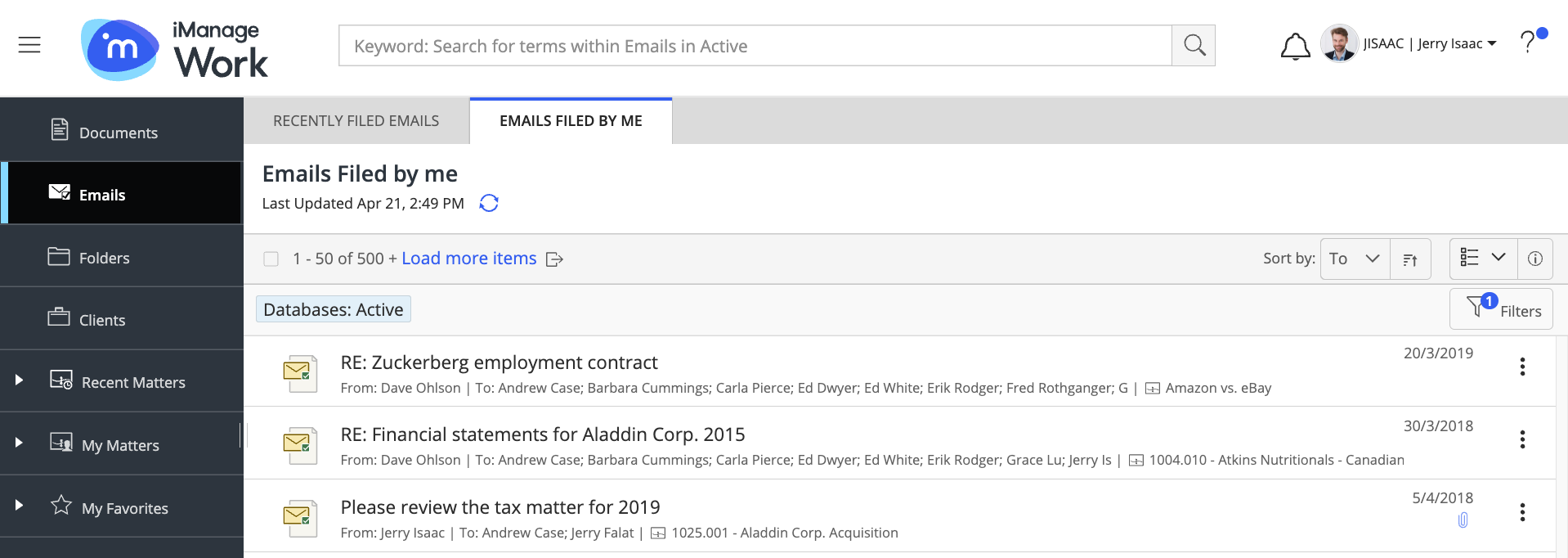
Figure: Grid view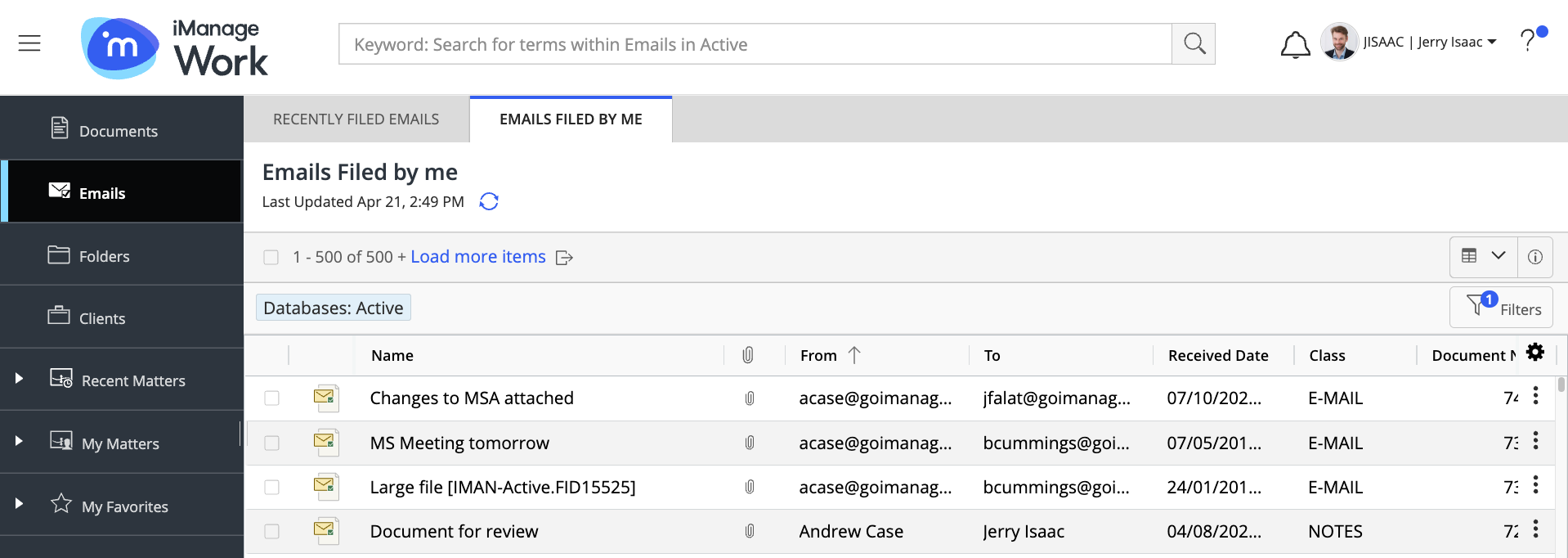
iManage Work supports maintaining your sort criteria in the List or Grid view. When you switch from one view to the other, the sort criteria and the order in which the sort was done persist. Active Grid view sorting is shown on the Sort by button when switching to the list view. List view sorting is indicated in the Grid view by an arrow over the correct column if it's available.
When the column used in the Grid view isn't an available option in the List view, then the primary sort column name from the Grid view is shown as the selected sort criteria in the List view, but this sort criteria isn't available if you sort the List view for different metadata. If the sort criteria selected in the List view isn't an available option in the Grid view, then no sort column in shown in the grid, but the sort order from the list view is maintained.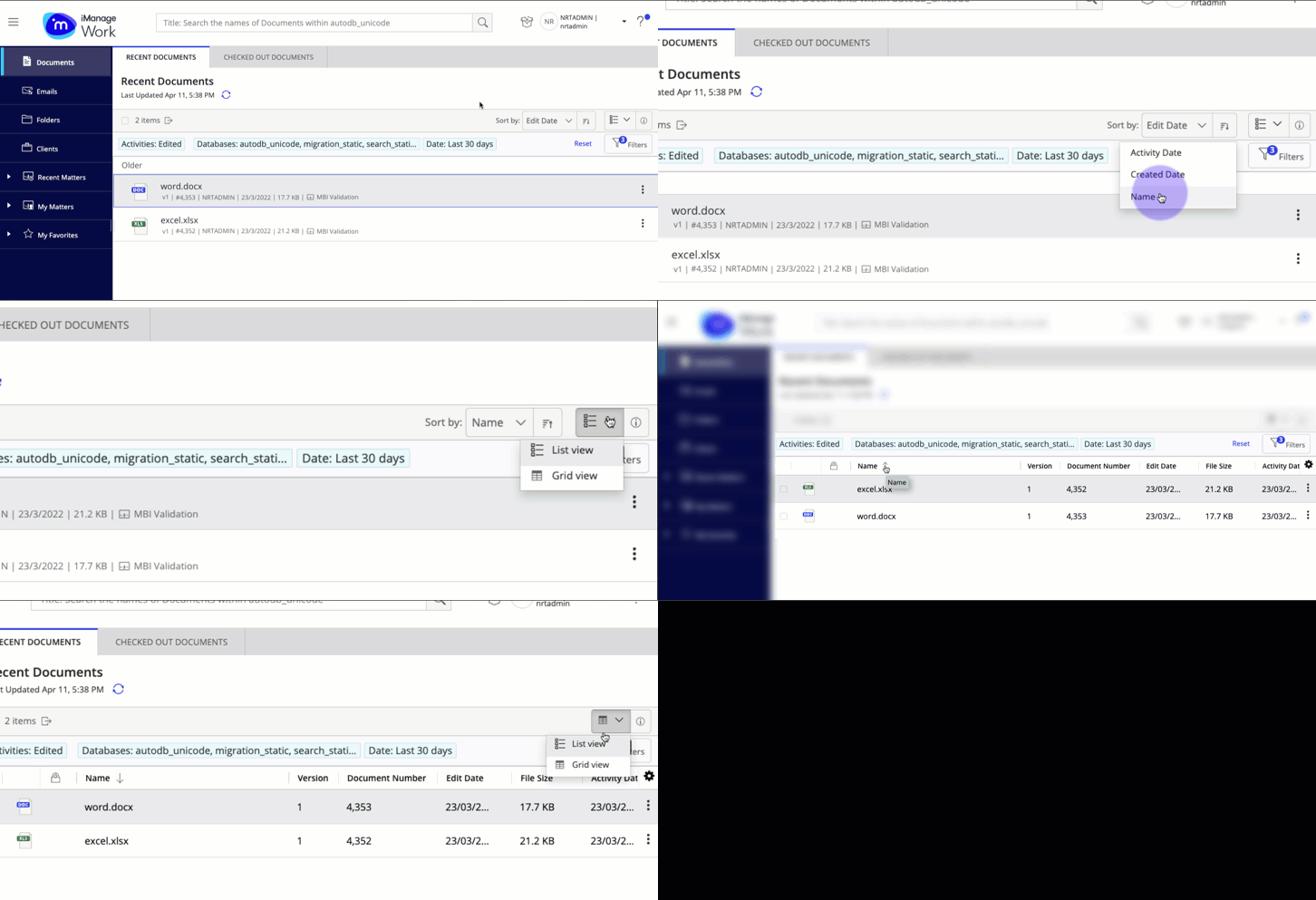
Configuring the Grid view
Sorting: You can sort any column based on your preferences.
Figure: Sorting the grid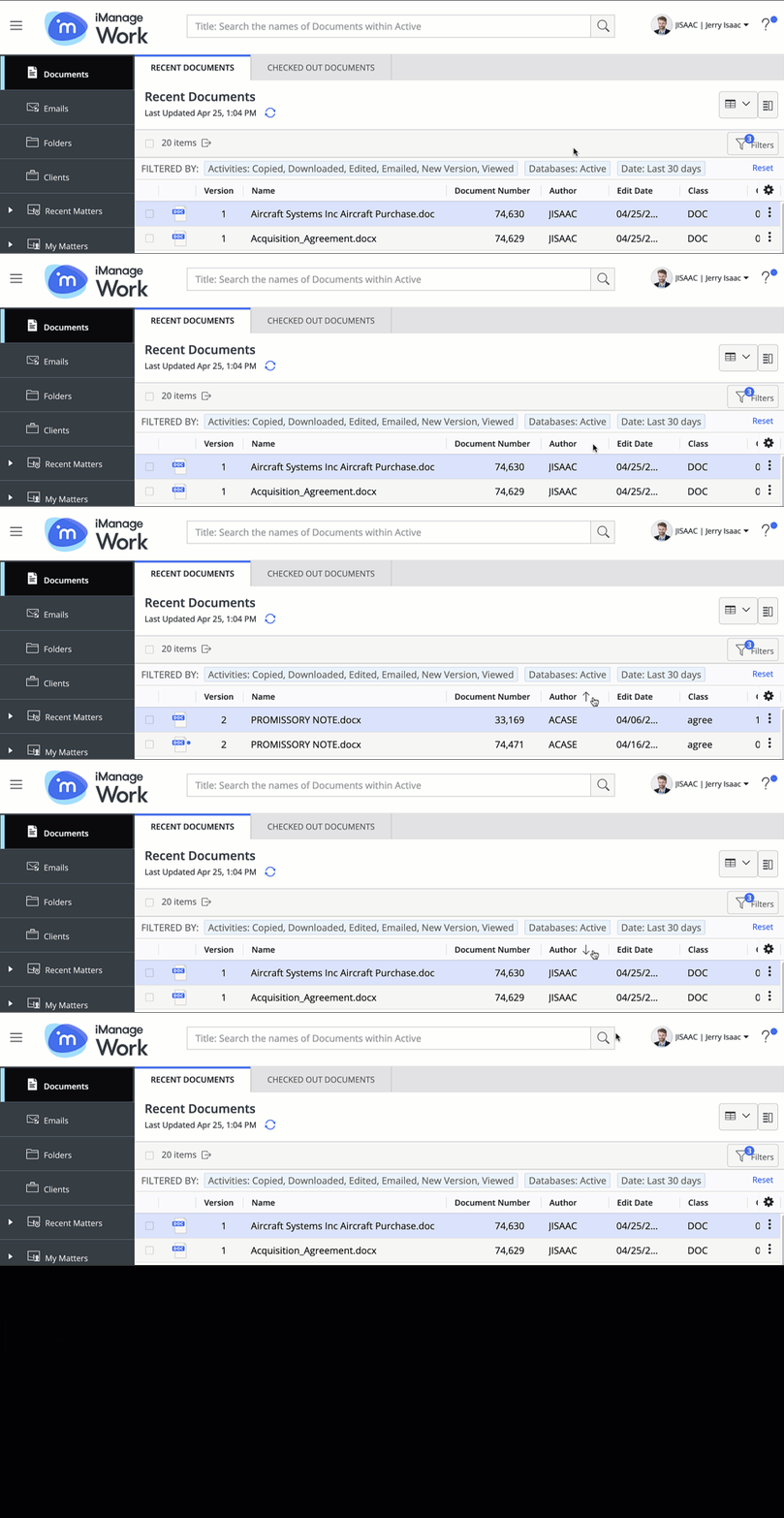
Select once to sort the grid.
Select again to reverse the sort order.
Select once again to remove the sort.
Any changes you make to the sort order persist for the said view type—for example, Recent Documents, Recent Matters, and so on. The sorting behavior and preference differs based on the various lists as explained in the table below.
Table: Sorting behavior
View | Sorting behavior |
|---|---|
Recent Documents | Independent |
Checked Out Documents | Independent |
Recently Filed Emails/Emails Filed By Me | Sort order that you select persists between the lists. For example, if you set the sort order to be Name on the Recently Filed Emails, then selecting the emails filed by you maintains the same sort order. |
Recent Matters | Independent |
My Matters | Independent |
Recent Clients | Independent |
Favorites | Independent |
Folders in workspace | Same for any workspace |
Workspaces in client | Same for any client |
Latest documents | Independent |
Latest email | Independent |
Document folder | Independent |
Email folder | Independent |
Search results | Independent |
Independent suggests that the sort option is applicable only to selected lists. For example, if you select Recent Documents by Created date, and then browse to the Checked Out documents, the checked out documents can have a different sort applied, such as Author. When you toggle back to Recent Documents, the list is sorted by Created Date.
NOTE: Search results are always returned according to importance, but can then be sorted using the available columns. After a search result is sorted on a column, that sort criteria is remembered and automatically applied to all future searches of the same type.
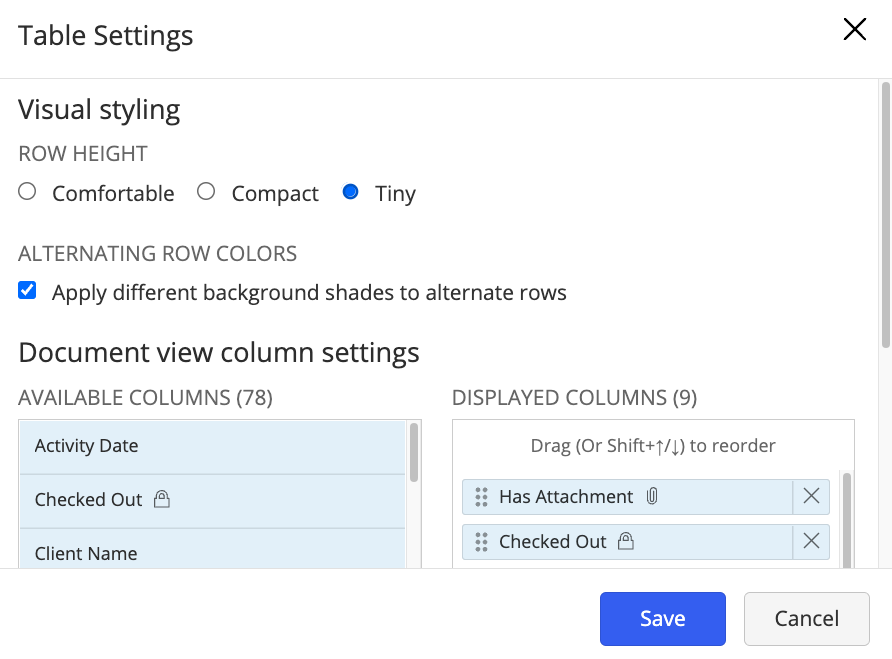
Adjusting row height: Select View Settings and then choose one of the following options to set the grid row height based on the available screen space:
Compact
Comfortable
Tiny

The Compact option is selected by default.
Alternating row colors: Select View Settings and then select the Apply different background shades to alternate rows option to apply alternate colors to the rows in the grid. The available colors are white and light gray.
Grid columns: The columns in Grid view can be configured for all views in iManage Work.
NOTE: If the Enable Additional Tab option is enabled in iManage Control Center, an additional tab appears in the iManage Work client. This additional tab can also be configured in Grid view.
The following columns in the Grid view display the date and time in the format of the browser locale specified:
Created Date
Edit Date
Activity Date
Date Received
Date Sent
You can add new columns to Grid view from the Available Columns list in the Table Settings dialog and reorder the columns as well.
Figure: Available and displayed column