You can move one or more item(s) using a simple drag-and-drop between the center panel and the tree.
To move a document or an email:
Select the document or email (items) you wish to move.
Figure: Moving emails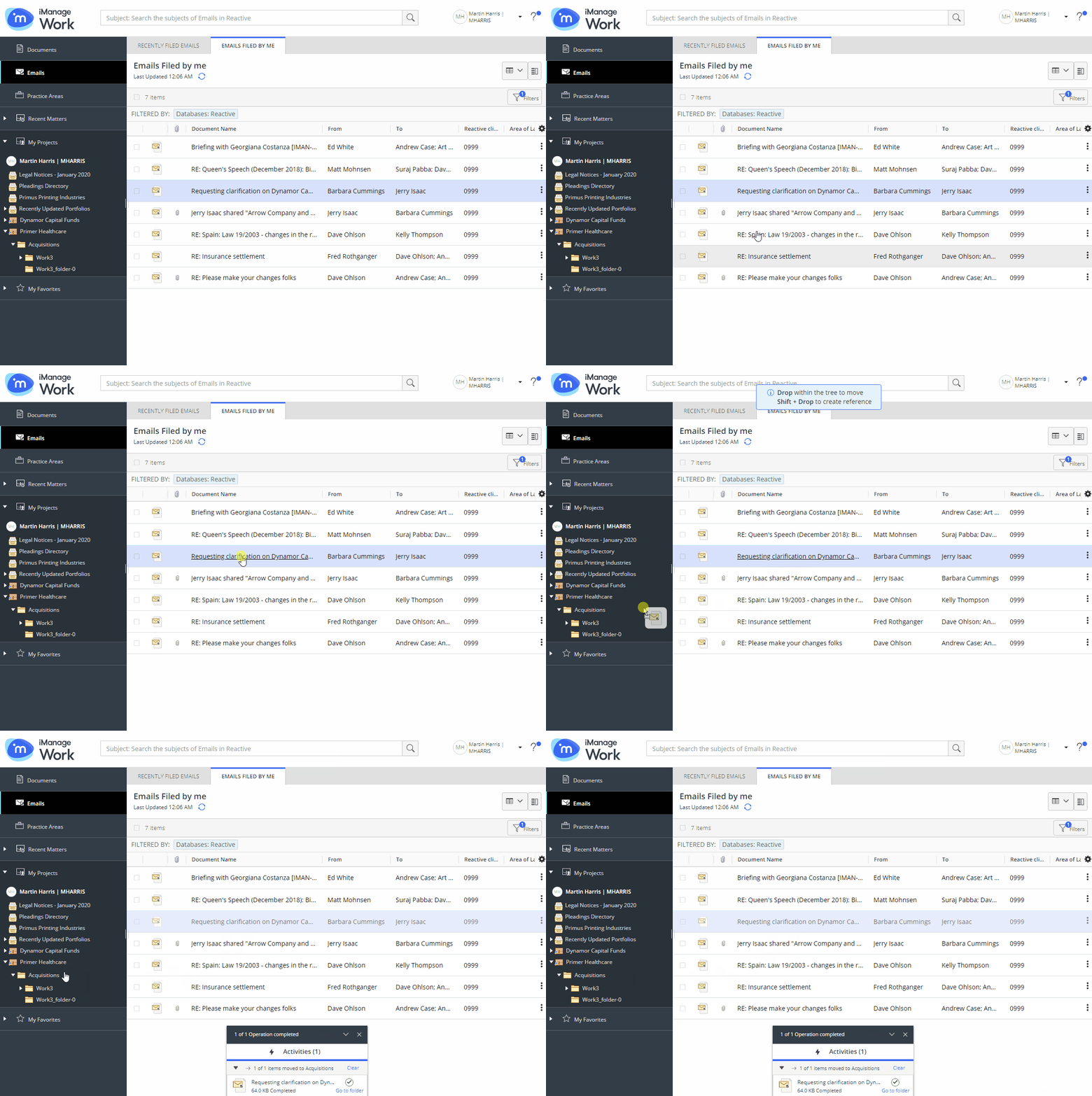
If the destination folder is valid, it is highlighted by a blue outline when you hover over it and a notification message appears above the center panel:
Figure: Notification message
A progress dialog appears.
Figure: Progress dialog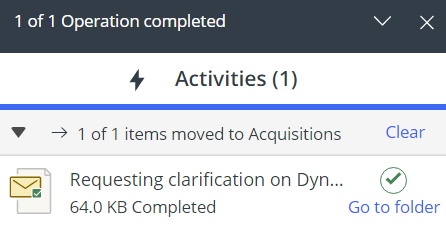
Select Go to folder in the progress dialog to browse to the new location of the item.
If the item is present in multiple locations, the move operation fails and the following dialog is displayed indicating that your intervention is required to proceed further:
Figure: Error message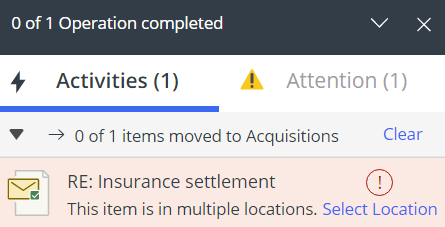
When you select Select Location in the above dialog, the Select location to move from dialog appears:
Figure: Select location to move from dialog box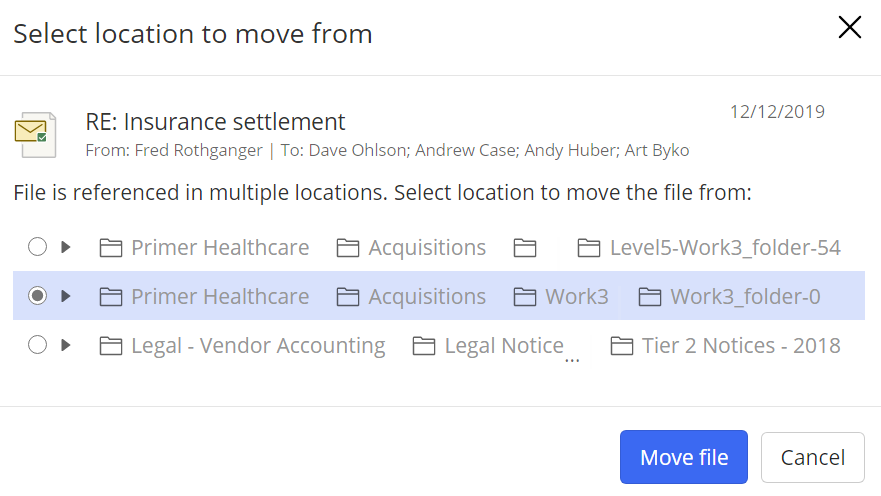
Select the location from the available list of locations from where the item can be moved and then select Move File.
When an item is moved from Recent Documents or Search Results, all functions for that item are temporarily greyed out.
NOTE:
Moving documents or emails across databases isn't supported.
Moving documents and emails isn't supported and is indicated with a red outline when moved to a:
Workspace
Tab
Search folder
Category
iManage Share folder