NOTE: Advanced search is enabled by default. If you prefer to conduct a simple search, simply toggle off the Advanced Search option.
From the search type drop-down list, select Documents.
Use the scope and the language drop-down lists to predefine the search scope and search language.
From the search field drop-down lists, select the filters for the search. In the text fields, enter the text you want to search for. The following figure shows the results for a document search where:
The document must have the word apple only in the title and
Only the keyword litigation must appear in the title, description, content, or any metadata of the document.
Figure: Performing advanced search for documents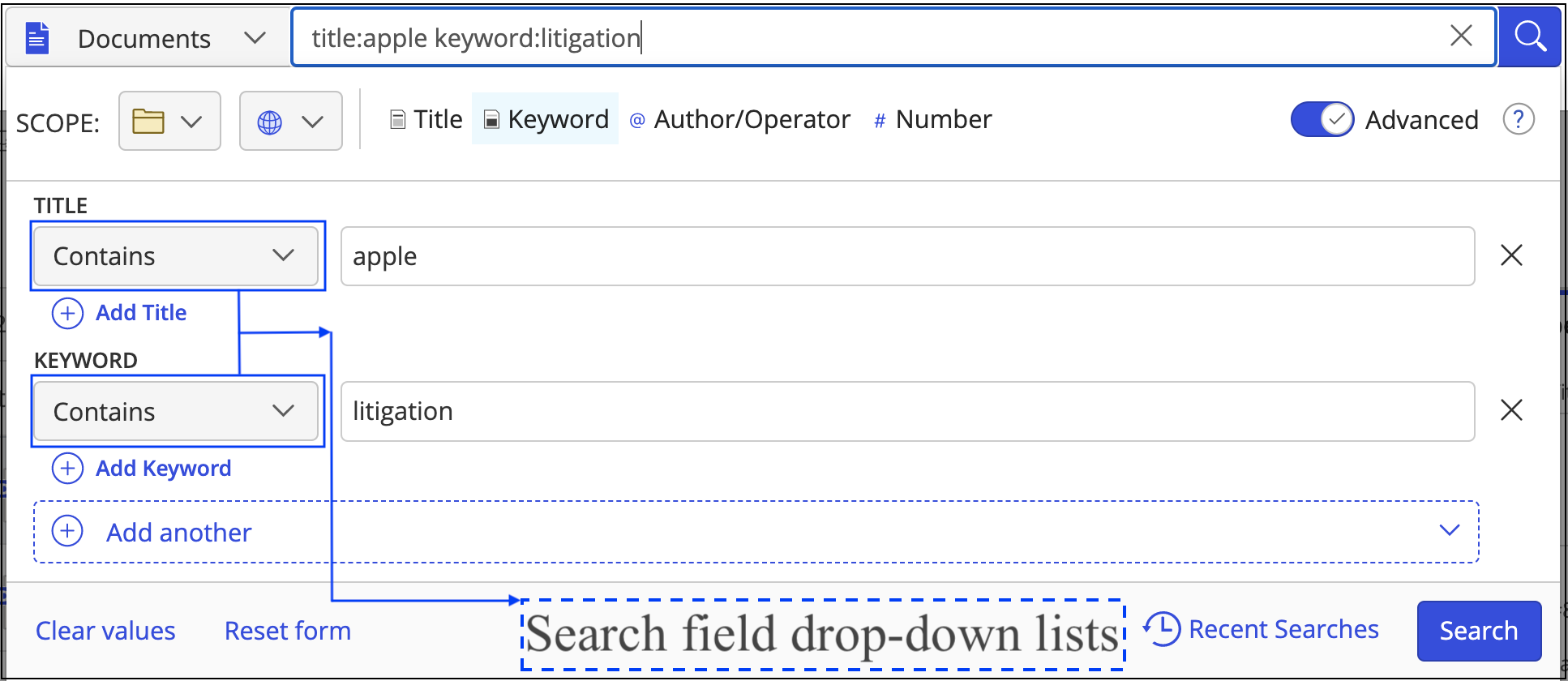
Optional:
Select the Add <field name> button or press the Shift+Enter keys to add more levels of search criteria and narrow your search.
Select
 next to a search criteria to remove it.
Select Clear values to clear all text fields.
Select Reset form to reset the search form to the default search fields.
Select:
In Recent Matters: To display results from your Recent Matters list, which is content that you have accessed in your matters in the past 30 days.
Expanded Search: To display matching documents by all authors in the search results.
In the search results list, select the required document and then:
Select Show Details to display the Properties, Versions, and Preview tabs for the document.
Select the kebab menu to open the document right-click menu that contains options for the various document tasks that you can perform.