The User Settings option in iManage Work contains a list of configurations that can be changed based on your workflow preferences.
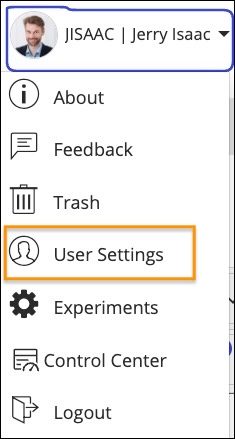
To access these settings, select your <user name> and then select User Settings.
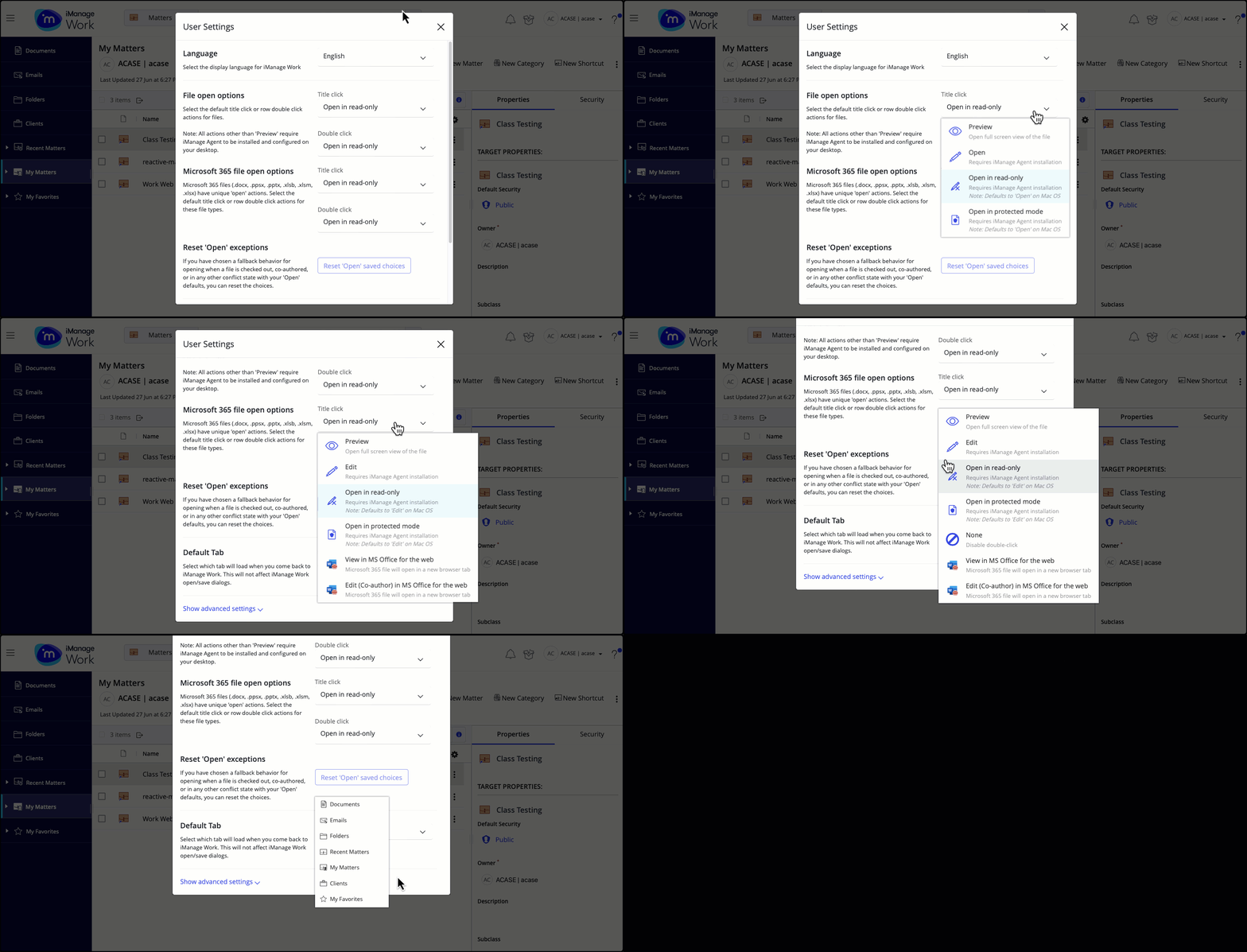
The User Settings dialog appears with the following options:
Language: Lets you set your preferred language.
File open options: Lets you set the file open behavior for title click, and row double-click for old Microsoft Office file extensions like .doc, .ppt, .xls, other file extensions like .pdf, .txt, .zip, .png, .jpeg, and so on, and emails.
Microsoft 365 file open options: Let you set the file open behavior for title click, and row double-click for Office 365 file extensions like .docx, .pptx, .ppsx .xlsx, .xslb and .xlsm.
Reset ‘Open’ Exceptions: Lets you reset device specific choices that you’ve set as a fallback option when any of your File open option or Microsoft 365 file open options don't work.
For more information about title click and row double-click behavior and a detailed list of fallback option situations, refer to Configuring title and row double-click actions.Default Tab: Use this to configure the default tab which you want to view when you sign in to iManage Work.
My Favorites
Documents
Emails
Clients
Folders
Matters
My Matters
Email View: Lets you set the option to view a large email and its replies as a conversation.
Clear local cached settings: Lets you clear the local cache and reload the client without the locally stored settings. iManage Work locally saves select settings made by you to quickly load the Work client, which decreases the initial load time.
Later, when you launch the iManage Work, the locally stored settings are used to load the client. In parallel, a background communication is also established with the server to check for any updates or changes made by administrators from Control Center.