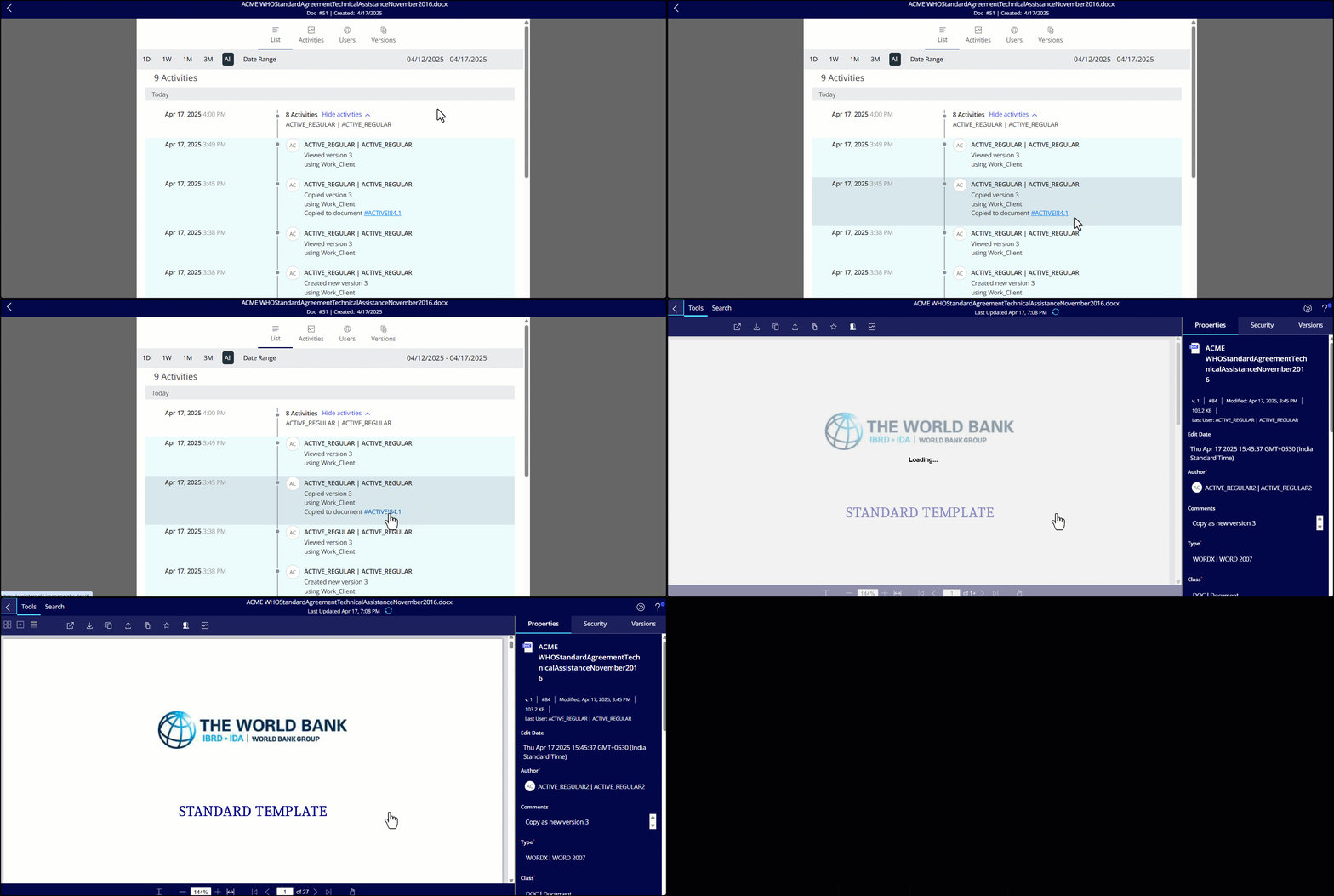
A document timeline shows document details such as views, edits, profile changes, downloads and so on. Select a document and select Timeline from the kebab menu. The document’s timeline opens in the List tab by default.
There are four tabs in a document’s timeline:
List: Displays activities performed on the selected document in list form, such as downloads, edits, profile changes, synchronizations and so on. You can select a revision from an edit event and export it as a new document or version.
Figure: List tab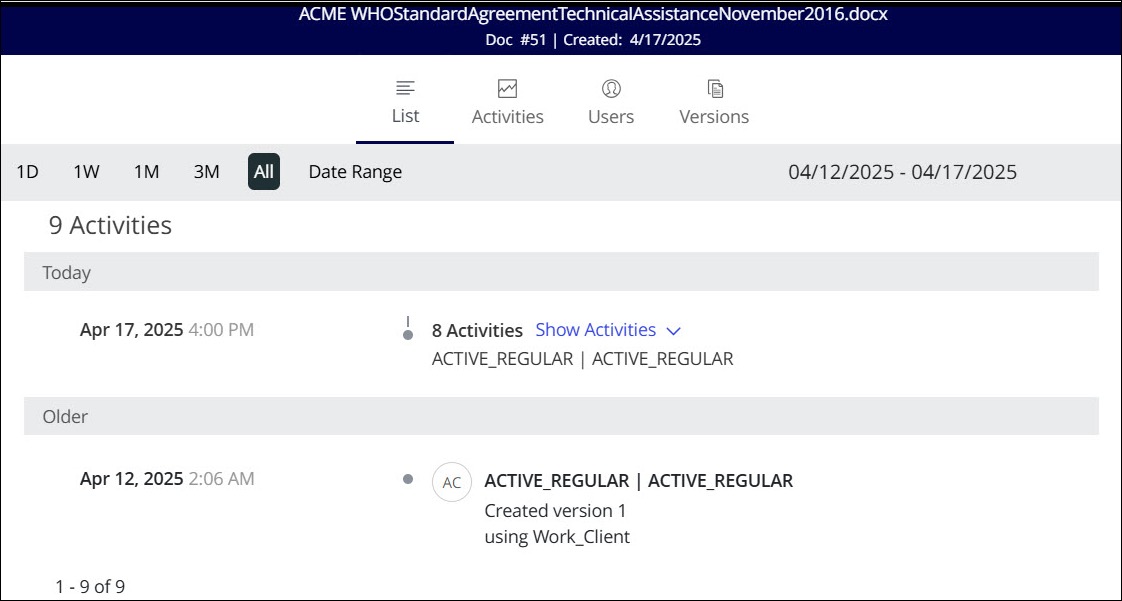
Activities: Displays a graphical representation of the following document activities:
Edits
Emails
Views
Downloads
Prints
Figure: Activities tab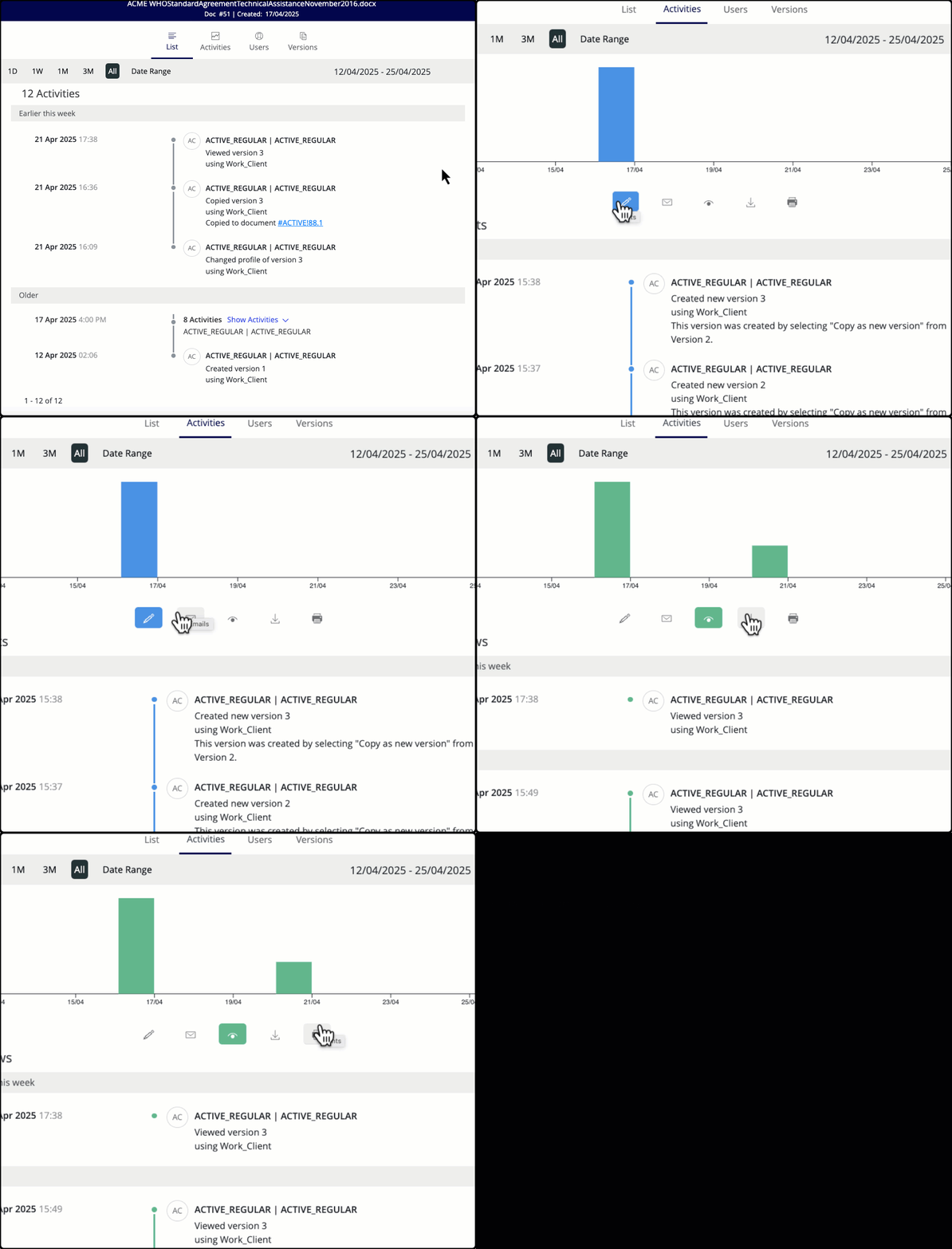
Users: Lets you view all user activity on the selected document. You can also use the filter option to look for other users.
Figure: Users tab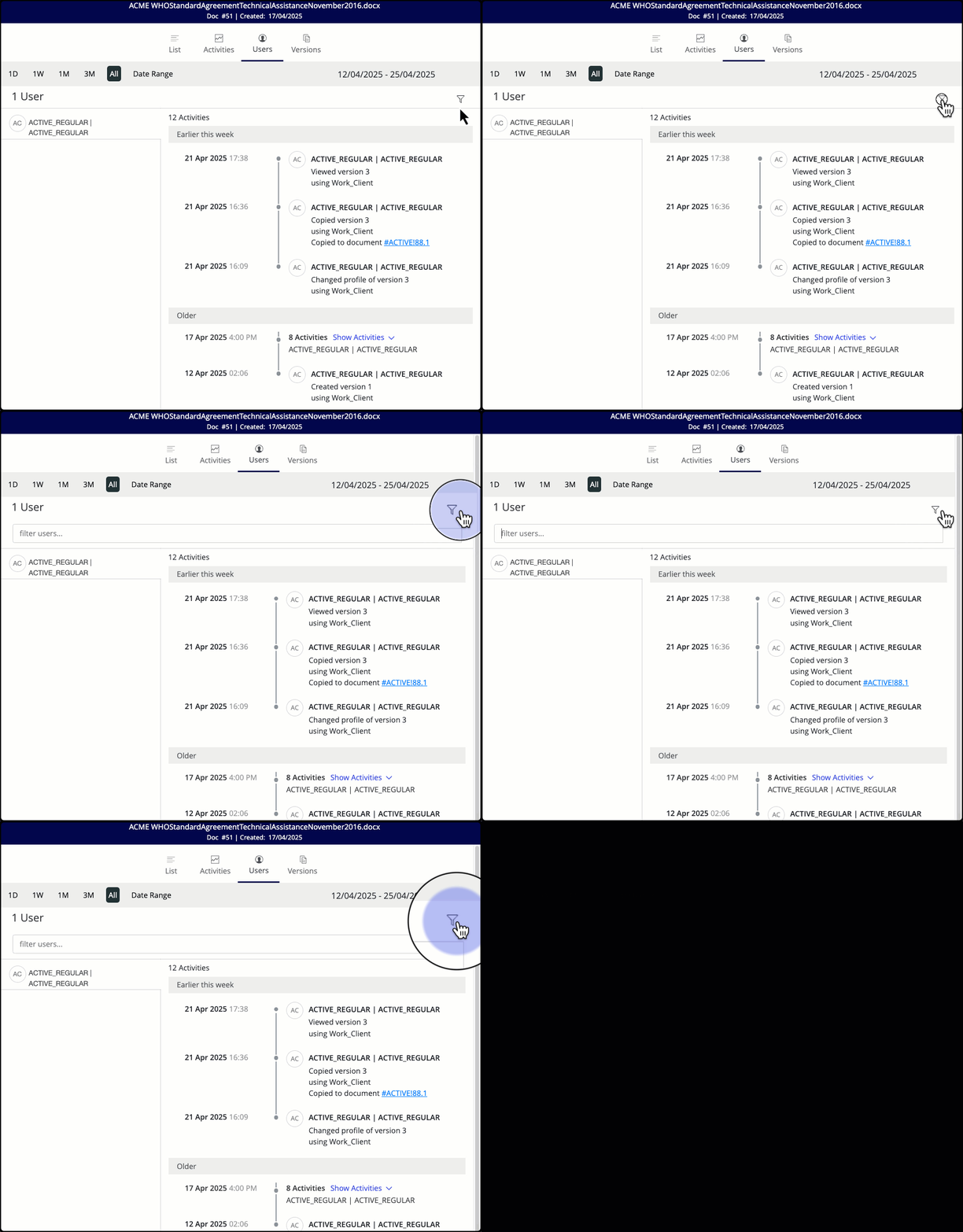
Versions: Displays activities for all the available versions of a document. Select the desired version to view a list of activities separated by timelines. Select the message icon to view any version’s comments.
Figure: Versions tab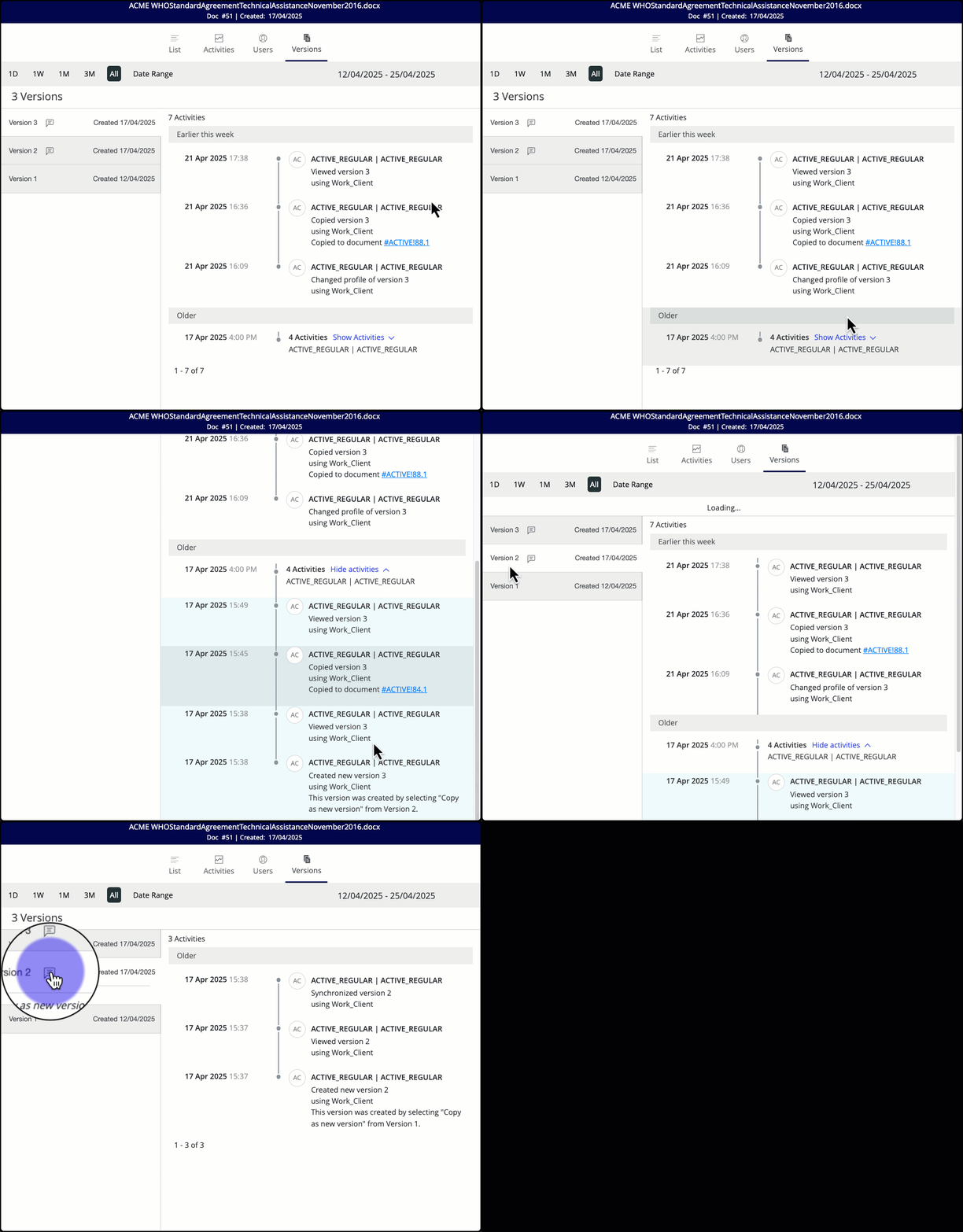
When any one of these four tabs is selected for a document, the default timeline is All. You can fine-tune the timeline using the following options:
1D: Displays the document's activity on a day.
If you're currently not on the most recent activity date, you can use Go to beginning or Go to end options to skip to the first or last days, or use the Go back and Go forward options for the previous and next days, respectively.
NOTE: The date when the document was created is the first day.1W: Displays the cumulative data for a week.
1M: Displays the cumulative data for a month.
By default, the timeline is set to one month.3M: Displays the cumulative date for three months.
All: Displays the history of the document since its creation. When you select the timeline option for any document, the All option is displayed by default.
Date Range: Enables an online calendar that you can use to select a specific time frame.
If a document has undergone multiple activities within an hour, then those activities are grouped together under the List, Users, and Versions tabs.
More than three activities identified within a one-hour period are grouped together.
Any four activities identified within a one-hour period are shown independently.
Figure: Grouping activities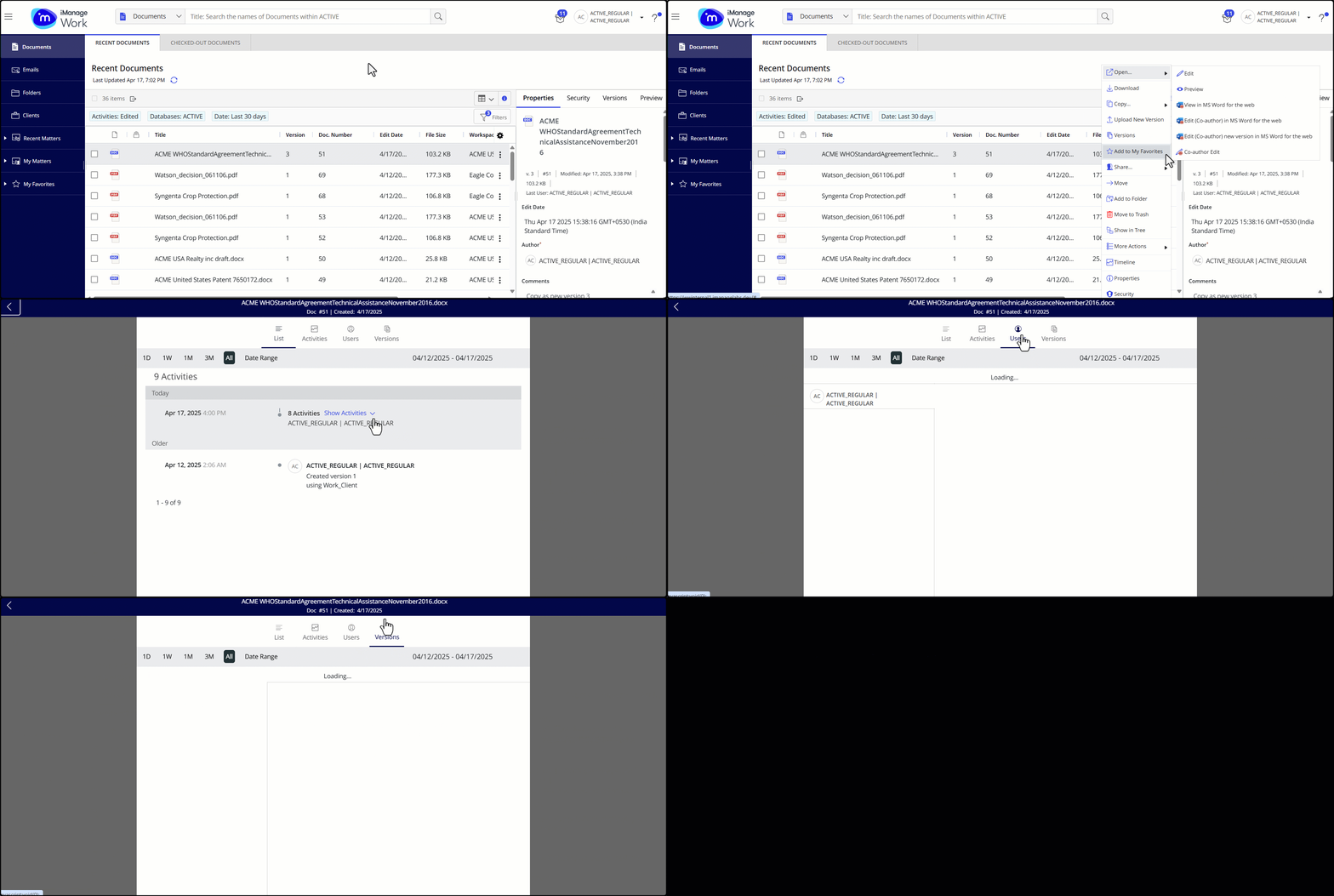
When a new version of a document is copied, a link to the new version is displayed in the timeline, which when clicked on opens the new document version in preview mode.