From iManage Drive 10.13.0 onward, when you open and edit any file with a collaboration link added to it, iManage Drive recognizes the link and shows the Sync confirmation dialog with the following options:
Keep sharing file with others & save to iManage Work: The collaboration link is retained and all edits are saved to iManage Work. This is the default value.
Stop sharing file with others & save to iManage Work: The collaboration link is removed, but edits are saved to iManage Work. No notification is displayed when the collaboration link is removed.
Discard any changes & revert to last synced state: All the changes made are discarded and reverted to the last synced state.
View in iManage Work: View the file in iManage Work.
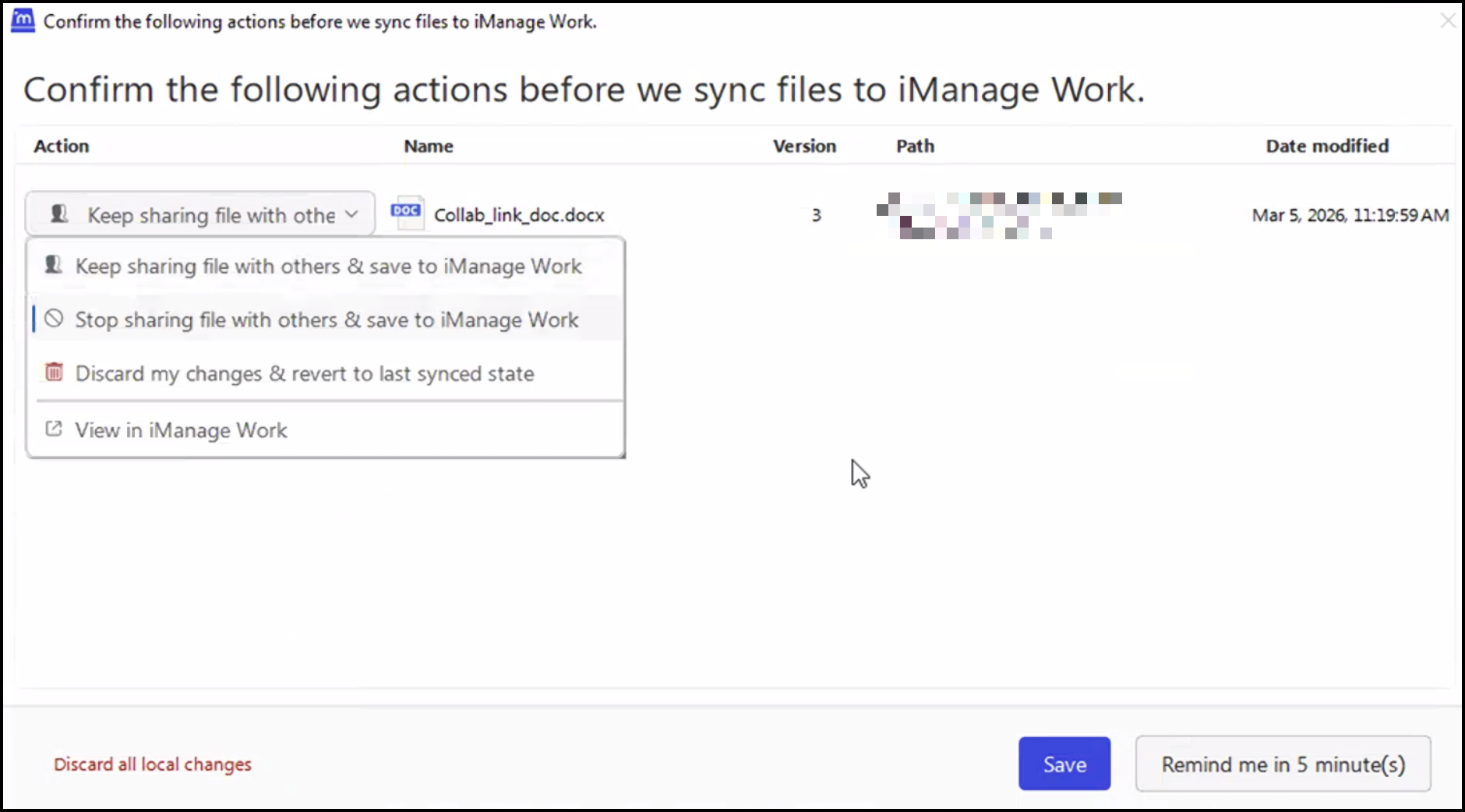
You can also toggle between the Reset actions back to default and Discard all local changes buttons in the Sync confirmation dialog. After you select Save, based on the selection, the relevant action is taken by iManage Drive.
Administrators can use the enable_collaboration_link_sync_confirmation admin setting in the admin_settings.yaml file to either display or hide the Sync confirmation dialog for users. The default value is true and possible values are true or false.
NOTE: You can’t create collaboration links using iManage Drive.
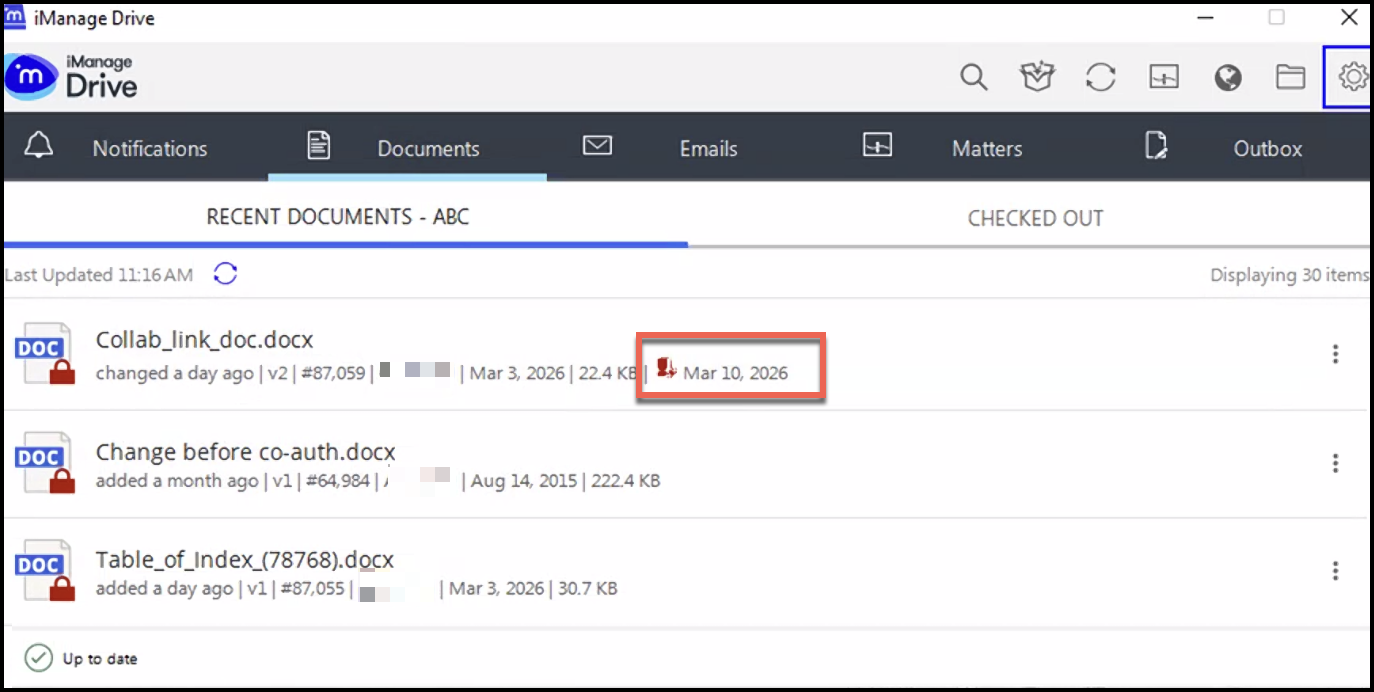
The Recent Documents tab in the iManage Drive panel has also been updated to display the collaboration link icon next to the document that has a collaboration link.
Additionally, a pop-up is displayed in the lower right corner indicating that a document is being shared. You can close this pop-up by clicking on it or selecting the X mark. If not, the pop-up disappears after 1 minute.
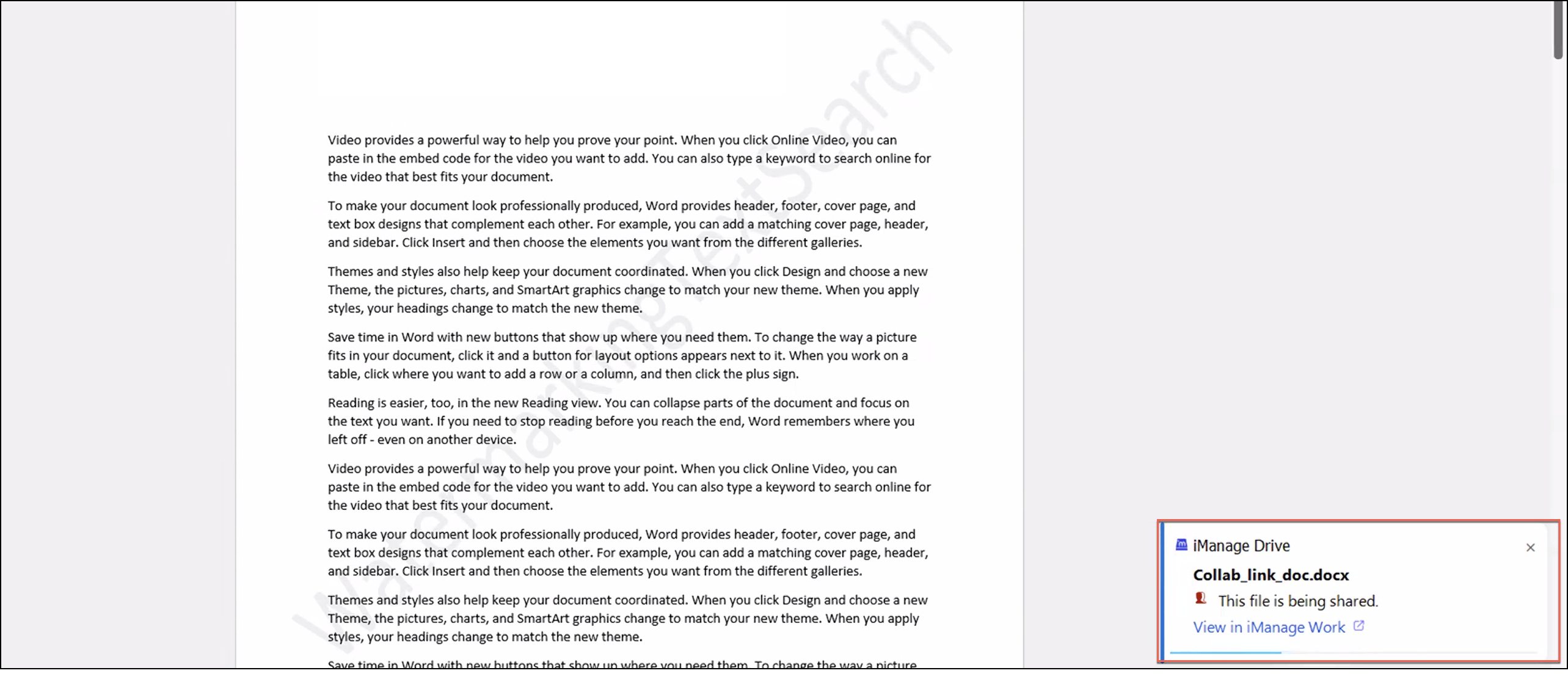
Administrators can use the enable_collaboration_link_open_doc_popup_dialog admin setting to either display or hide the popup. The default value for this setting is true and possible values are true or false.
For more information about how to use collaboration links, contact iManage Support team.