Search tips for iManage Work at imanage.work
Who should use this guide?
This article applies to iManage Cloud customers connected to the imanage.work, imanagework.co.uk, and imanagework-au.com endpoints. You're connected to one of these endpoints if you're assigned to a non-numbered data center pod (A, B, C, and so on). You can confirm your pod assignment in Trust Center.
For more information, refer to the following:
Summary
This guide details the best practices for users searching for content in iManage Work 10 clients, namely, iManage Work Desktop for Windows, iManage Work Desktop for Mac, and iManage Work Web. It's also intended for IT help desks and training departments building tip sheets for their user communities.
Search techniques covered include how to search with wildcards, Boolean, and special characters. Examples are provided for each technique.
In this guide:
Default search behavior
Before you begin searching, it is important to understand the default search behavior when conducting a full-text search. There are two base rules whenever you search in the full-text search fields:
First, each search term is separated by an implicit AND operator. The AND operator returns documents containing all the specified terms, in any order. For example, a search for credit agreement is treated as a search for credit AND agreement and returns documents that contain both terms in any order. This search doesn't return documents that have only one of the search terms. See Using Boolean operators for a search.
Second, it searches for stemmed variations of each search term. For example, a search for credit agreement returns documents with variations of the root of each word. That means that the search returns documents with credit as well as credits and credited. Likewise, agreement returns agreements as well as agree. See Stemming.
Search interface in iManage Work
In this section:
When performing a simple or advanced search, you can define the scope for each search type along with the search language in which you wish to perform the search.
Search type | Search Scope | Locale search support |
|---|---|---|
Documents | In Recent Matters | English, Spanish, Chinese, Japanese, German, French, Portuguese. |
Emails | In Recent Matters | English, Spanish, Chinese, Japanese, German, French, Portuguese. |
Docs & Emails | In Recent Matters | English, Spanish, Chinese, Japanese, German, French, Portuguese. |
Folders | In Recent Matters | Not Applicable |
Matters | In Recent Matters | English, Spanish, Chinese, Japanese, German, French, Portuguese. |
Clients | Scoped to a single library | Not Applicable |
Setting the search scope to In Recent Matters returns results from your Recent Matters list, which is content that you have accessed in your matters in the past 30 days.
Setting the search scope to In Selected Databases returns results from all selected libraries. If your organization has only one library, then the same is available to you under the search scope. If your organization has multiple libraries, then either all libraries or ones that you are granted access to are available in the search scope.
NOTE: Language search support is only available if your company administrator has enabled Enable Search Language Selection in iManage Control Center.
Simple Search
In this section:
Searching for Documents

From the search type drop-down list, select Documents.
Select inside the search box and the list of options is displayed:
Title: This is the default option. Title search is performed against document titles; that is, documents are returned in the search results only if the search term is a part of the document title. If you have been using iManage Work 9.x, the Title field corresponds to the Document Name or Document Description fields that you may be familiar with.
Keyword: The Keyword search for documents performs a full-text search; this means it looks for your search term anywhere in the document, including the text of the document, title of the document, and metadata fields used for the document. You can also manually enter Keyword:<search string> in the search bar to perform this type of search.
Author/Operator: This search is performed if you are searching for individuals associated with the document. While entering the name of the user, you can use the @ symbol followed by the user name to display the list of users with similar names. This helps you select the required user without having to type the name fully. For example—@Jo displays all names that have the string Jo in them, such as John, Joseph and Joe. Entering a space stops suggestions from being triggered.
Number: The Number search performs the search on the Document Number. It does an exact number search across the entire library, even if you are within a folder. As a quick search option, in iManage Work 10 clients, you can enter the pound (#) sign in the search bar, followed by the document number. For example—entering #10 would search for document number 10.
NOTE: You can either set Title or Keyword as the default search value by selecting it in the search box. The default is highlighted in blue. Your selection persists unless changed by you again. If Keyword isn't set as default, the default search criteria continues to be Title search for documents.
See Boolean Operators Search for the supported search operators.
Start by entering the search term in the Search box and press Ctrl+Enter or Enter. The results list is narrowed down to display the documents that meet your search criteria.
Searching for Emails

From the search type drop-down list, select Emails.
Select inside the search box and the list of options is displayed:
Subject: This is the default option. Subject search looks for the search terms in the subject line of the emails.
Keyword: The Keyword search for emails performs a full-text search; this means it looks for your search term anywhere in the email, including the email, subject of the email, attachments (if any), and metadata fields used for the email.
From: The From search looks for the users (sender) in the From field of an email. You can search using first or last names.
To: The To search looks for the users (recipient) in the To field of an email.
Number: The Number search performs the search on the Document Number. It does an exact number search across the entire library, even if you are within a folder. As a quick search option, in iManage Work 10 clients, you can enter the pound (#) sign in the search bar, followed by the document number. For example—entering #10 would search for document number 10.
NOTE: You can either set Subject or Keyword as the default search value by selecting it in the search box. The default is highlighted in blue. Your selection persists unless changed by you again. If Keyword isn't set as default, the default search criteria continues to be Subject search for emails.See Boolean Operators Search for the supported search operators.
Start by entering the search term in the Search box and press Ctrl+Enter or Enter. The results list is narrowed down to display the emails that meet your search criteria.
Searching for Docs & Emails

From the search type drop-down list, select Docs & Emails.
Select inside the search box and the list of options is displayed:
Title/Subject: This is the default option. Title search is performed against document titles; that is, documents are returned in the search results only if the search term is a part of the document title. Subject search looks for the search terms in the subject line of the emails.
Keyword: The Keyword search for emails performs a full-text search; this means it looks for your search term anywhere in the email, including the email, subject of the email, attachments (if any), and metadata fields used for the email. The Keyword search for documents performs a full-text search; this means it looks for your search term anywhere in the document, including the document, title of the document, and metadata fields used for the document.
Author/Operator/Filed By: This search is performed if you are searching for individuals associated with a document or email. While entering the name of the user, you can use the @ symbol followed by the user name to display the list of users with similar names. This helps you select the required user without having to type the name fully. For example—@Jo displays all names that have the string Jo in them, such as John, Joseph and Joe. Entering a space stops suggestions from being triggered.
Number: The Number search performs the search on the Document Number. It does an exact number search across the entire library, even if you are within a folder. As a quick search option, in iManage Work 10 clients, you can enter the pound (#) sign in the search bar, followed by the document number. For example—entering #10 would search for document number 10.
NOTE: You can either set Title/Subject or Keyword as the default search value by selecting it in the search box. The default is highlighted in blue. Your selection persists unless changed by you again. If Keyword isn't set as default, the default search criteria continues to be Title/Subject search for docs and emails.
Start by entering the search term in the Search box and press Ctrl+Enter or Enter. The results list is narrowed down to display the docs and emails that meet your search criteria.
Searching for Folders

From the search type drop-down list, select Folders.
Select inside the search box and enter the name of the folder that you want to search and press Ctrl+Enter or Enter. The results list is narrowed down to the folders that meet your search criteria.
Searching for Matters

From the search type drop-down list, select Matters.
Select inside the search box and the list of options is displayed:
Title: This is the default option. Title search is performed against the matter names; that is, matters are returned in the search results only if the search term is a part of the matter name.
Keyword: The Keyword search for matters performs a full-text search; this means it looks for your search term anywhere in the Matter, including:
Workspace Name
Workspace Description
Custom metadata fields
NOTE:
Full-text search is limited only to the above-mentioned fields.
You can either set Title or Keyword as the default search value by selecting it in the search box. The default is highlighted in blue. Your selection persists unless changed by you again. If Keyword isn't set as default, the default search criteria continues to be Title search for matters.
Description: Description search is performed against the description of the Matter, which typically is used to outline particular information about a Matter that might not be covered using the name.
Owner: The Owner search looks for matters based on the owner of the matter.
Start by entering the search term in the Search box and press Ctrl+Enter or Enter. The results list is narrowed down to display the matters that meet your search criteria.
Searching for Clients

From the search type drop-down list, select Clients.
Select inside the search box and enter the name of the client that you want to search for and press Ctrl+Enter or Enter. The results list is narrowed down to clients that meet your search criteria.
NOTE:Client search performs a Contains search as opposed to a Begins with search. Searching with the string Go would return all clients with Go in the name. For example—Goldberg and Snider Go.
Client search is always set to a library and you can only select one library.
Recent Searches
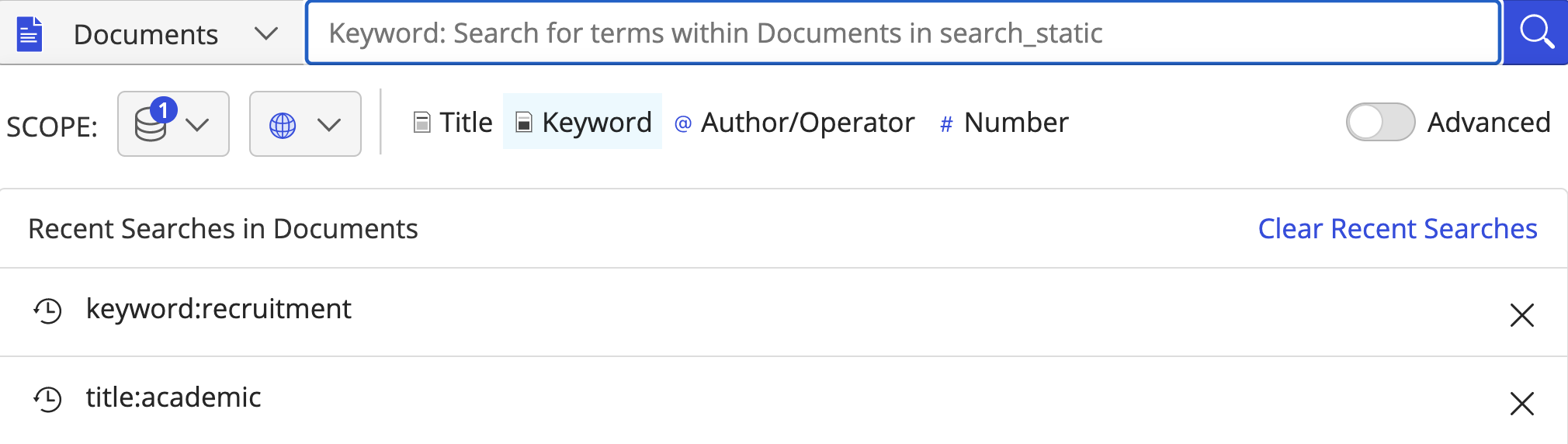
If you have previously searched for content, the Recent Searches list displays the last five searches. You can remove any of the displayed searches in the list by selecting X. You can also delete all the searches at once by selecting Clear Recent Searches.
NOTE:
You can select any of your recent searches to re-run that search.
The results displayed under Recent Searches are interface-dependent (iManage Work Desktop for Windows or iManage Work Desktop for Mac clients or iManage Work Web). You will see differences in the populated lists under each interface they access.
Simple Search behavior examples
NOTE: Title search is the default search used. Select the Keyword option if you want the entire document, including metadata fields to be searched.
Search Terms | Type of Search | Search Results | Applies to |
|---|---|---|---|
Agrees | Search for terms and their variations | Documents containing the stemmed variations of the terms. For example:
| Documents Emails Docs & Emails Matters Clients |
Credit Agreement | Search for phrases and their variations | Documents containing both the terms, irrespective of their location in the document, and their stemmedvariations.
For example: credit agreement, credit, creditor, agreement, agree, agreements, and agreed | Documents Emails Docs & Emails Matters |
Document#11 1233 12345 | Search for numbers or alphanumeric terms in the Title field and anywhere in the document | Documents containing the search string (all numbers as the default operator is AND) anywhere in them.
The difference between searching for numbers and alphabetical characters is that terms that are purely numeric or alphanumeric don't stem at all.
For example:
| Documents Emails Docs & Emails Folders Clients |
Search for numbers or alphanumeric terms in the document content | Documents containing the search string (all terms as the default operator is AND) anywhere in them.
The difference between searching for numbers and alphabetical characters is that terms that are purely numeric or alphanumeric don't stem at all.
When the search is performed in the document content, then only searches for numbers of four digits or less yield results.
For example: The results include documents that have Document#11, 1233 anywhere in the document content. | Documents Emails Docs & Emails Matters Folders Clients | |
553* | Number search with wildcards Operator: * (asterisk) | Documents containing the search number or alphanumeric term fragment.
For example: 5539 or 553A
| Documents Emails Docs & Emails Folders Matters Clients |
10/29/17 | Search for dates in full-text | When searching for dates in full-text, it's interpreted as a search for 10 OR 29 OR 07 and returns documents having one or any of these three numbers in any order.
For example: Documents containing 10/29/07, 10-29-07, 11-29-07, 10, 29, 07, 10-29, 10/07, and so on.
NOTE: Because slash is a special character, the search returns documents with numbers that include other special characters as well. | Documents Emails Docs & Emails Matters |
*rou* | Document search with wildcards Operator: * (asterisk) | Documents containing words that include the search string.
For example: Group and troupe
Use * as a wildcard in place of any number of unknown characters. You can use the * symbol at the beginning, middle, or end of a search term. | Documents Emails Docs & Emails Folders Matters |
Agree? | Search with wildcards Operator: ? (question mark) | Documents containing words that include the search term and the missing character ? in the exact location.
For example: Agree, Agreed, and Agrees
Use ? as a wildcard in place of a 0 or 1 unknown character. | Documents Emails Docs & Emails Matters |
Agreement AND Credit | Search for documents containing two specific terms in Title and Keyword searches. Operator: AND | Documents containing both the search terms in any order. The operator must be in uppercase (AND).
For example: Searching for a document with Agreement AND Credit returns:
| Documents Emails Docs & Emails Matters |
Agreement OR Credit | Search for documents that contain either (or both) of your search terms in Title and Keyword searches. Operator: OR | Documents containing at least one of the terms in any order. The operator must be in uppercase (OR).
For example: Searching for a document with Agreement OR Credit returns:
It increases the search scope and is normally used to look for terms that have similar meaning or refer to similar subjects. | Documents Emails Docs & Emails Matters |
Agreement NOT Credit | Search for documents that exclude a specific term. Operator: NOT | Documents containing the term Agreement and that don't contain the term Credit. The operator must be in uppercase (NOT).
For example: Searching for a document with Agreement NOT Credit returns:
| Documents Emails Docs & Emails Matters |
Logical Operator Combination (AND NOT, OR NOT) (Agreement AND Loan) NOT Credit | Search for documents by a specific combination of terms. Operator: (example) AND NOT | Documents containing the terms Agreement and Loan in any order but not containing the term Credit. The operators must be in uppercase (AND NOT).
For example: Searching for a document with (Agreement AND Loan) NOT Credit returns:
Credit Agreement with A&G and Revolving Facilities Agreement with Letter of Credit
Don't place any part of the search term in "" as an indication of priority. The system reads the order of the operators from left to right. Any terms placed within () are read as a unit. Example: (Agreement AND Loan) NOT Credit | Documents Emails Docs & Emails Matters |
~Agreement | Search for documents in the exact case as entered | Documents containing the term Agreement in the exact case.
Documents containing the term in different cases, such as agreement and AGREEMENT, aren't returned in the results. | Documents Emails Docs & Emails Matters |
Credit EOR Agreement Credit XOR Agreement | Search for documents containing only one of the search terms | Documents containing only one of the terms, Credit or Agreement, are returned. Any document that contains both terms is not returned in the results.
For example: A document that contains "Sales Agreement, Purchase Agreement, Credit Card Payoff Plan" doesn't return in this search as it contains both terms. | Documents Emails Docs & Emails Matters |
Credit NEAR5 Agreement | Search for documents where the search terms are within a specified distance n of one another. n defaults to 5, if not specified. NOTE: No maximum value is enforced, and the minimum is 1. Phrase Proximity isn't used with NEAR0. | Documents containing both the terms where the second term is within the specified distance of the first one on either side of its occurrence are returned in the search results.
For example: Looking for documents with the words Credit and Agreement within five words of each other would return the following:
Credit Note and Revolving Facilities Agreement with Letter of Credit
In the above example, Agreement appears 5 words after the first term Credit. | Documents Emails Docs & Emails Matters |
Credit DNEAR5 Agreement (Directed Near) | Search for documents where the search terms are within a specified distance n of one another and appear in the specified order. n defaults to 5, if not specified.
NOTE: No maximum value is enforced, and the minimum is 1. | Documents containing both terms, where the second term is within the specified distance of the first one and appears after the first one, are returned in the search results.
For example: Looking for documents with the words Credit and Agreement within five words of each other, where Agreement must appear after Credit, would return the following:
Credit Agreement with A&G
In this example, Agreement appears within five words after Credit.
This example search wouldn't return the following as Agreement appears before Credit:
Revolving Facilities Agreement with Letter of Credit
Another example of a document that wouldn't appear in the results as Agreement appears as the sixth word after Credit is:
Credit Letter Including Comprehensive Revolving Facilities Agreement | Documents Emails Docs & Emails Matters |
Credit WNEAR5 Agreement (Weighted Near) | Search for documents where the search terms are within a specified distance n of one another, and documents where the terms appear closer to each other are ranked higher in the results. n defaults to 5, if not specified. NOTE: No maximum value is enforced, and the minimum is 1. | Documents containing both terms where the relevance order of the displayed results is based on the proximity of the terms in the document. Documents in which the terms don't occur within n words of each other are returned with normal relevance.
For example: the search results below are listed in the following order based on the proximity of the terms:
| Documents Emails Docs & Emails Matters |
Advanced Search
In this section:
Advanced Search overview
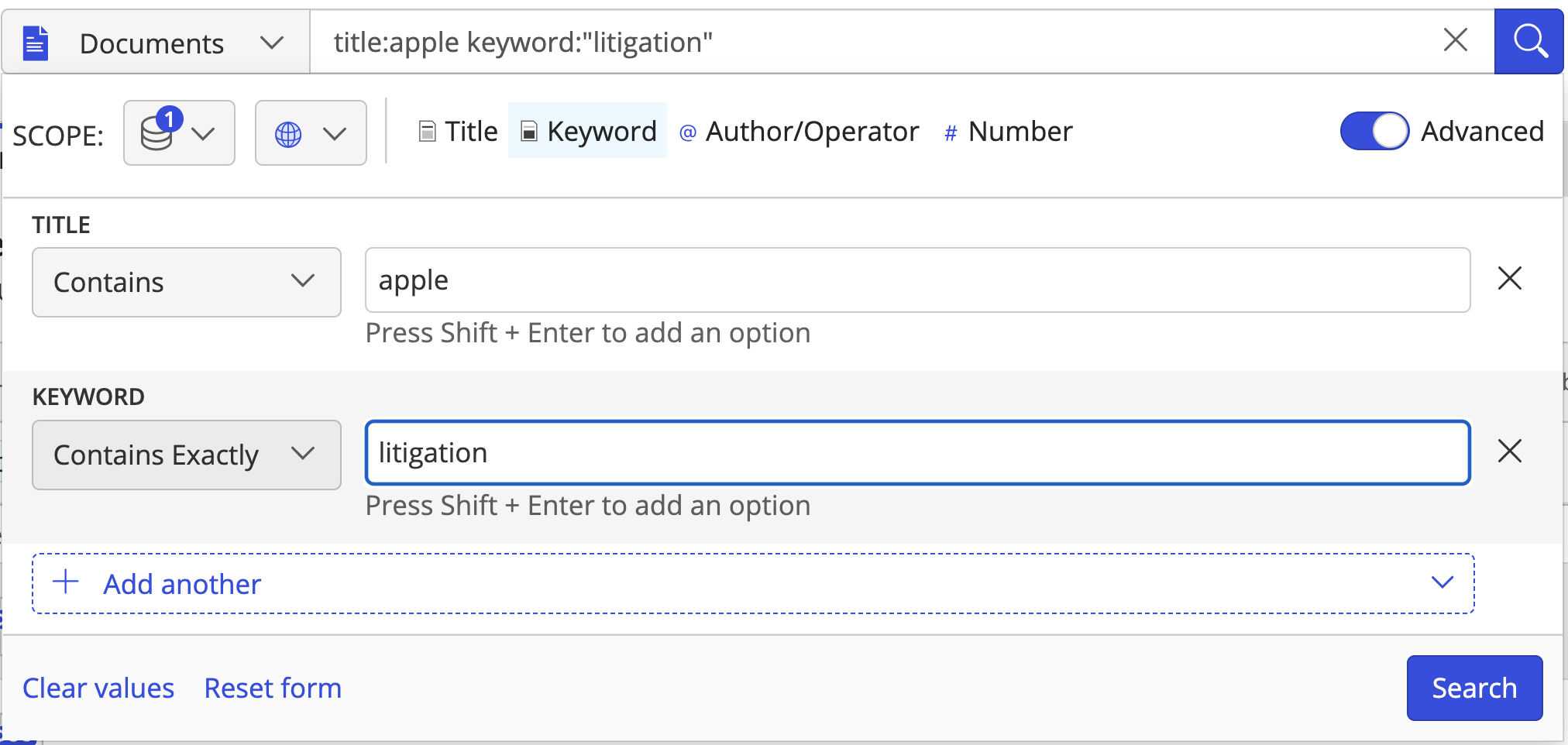
The Advanced Search interface provides search fields that you can use to refine the search results that iManage Work returns. When you enter a query in the Simple Search box and toggle (enable) to Advanced Search, the query is automatically entered into the respective field in Advanced Search.
Advanced Search in iManage Work Web client
Advanced Search in iManage Work Desktop for Windows client

From the search type drop-down list, select one of the following search types:
Documents
Emails
Docs & Emails
Matters
Folders
Select inside the search box and then enable the Advanced toggle.
Use the scope and the language drop-down to predefine the search scope and search language.
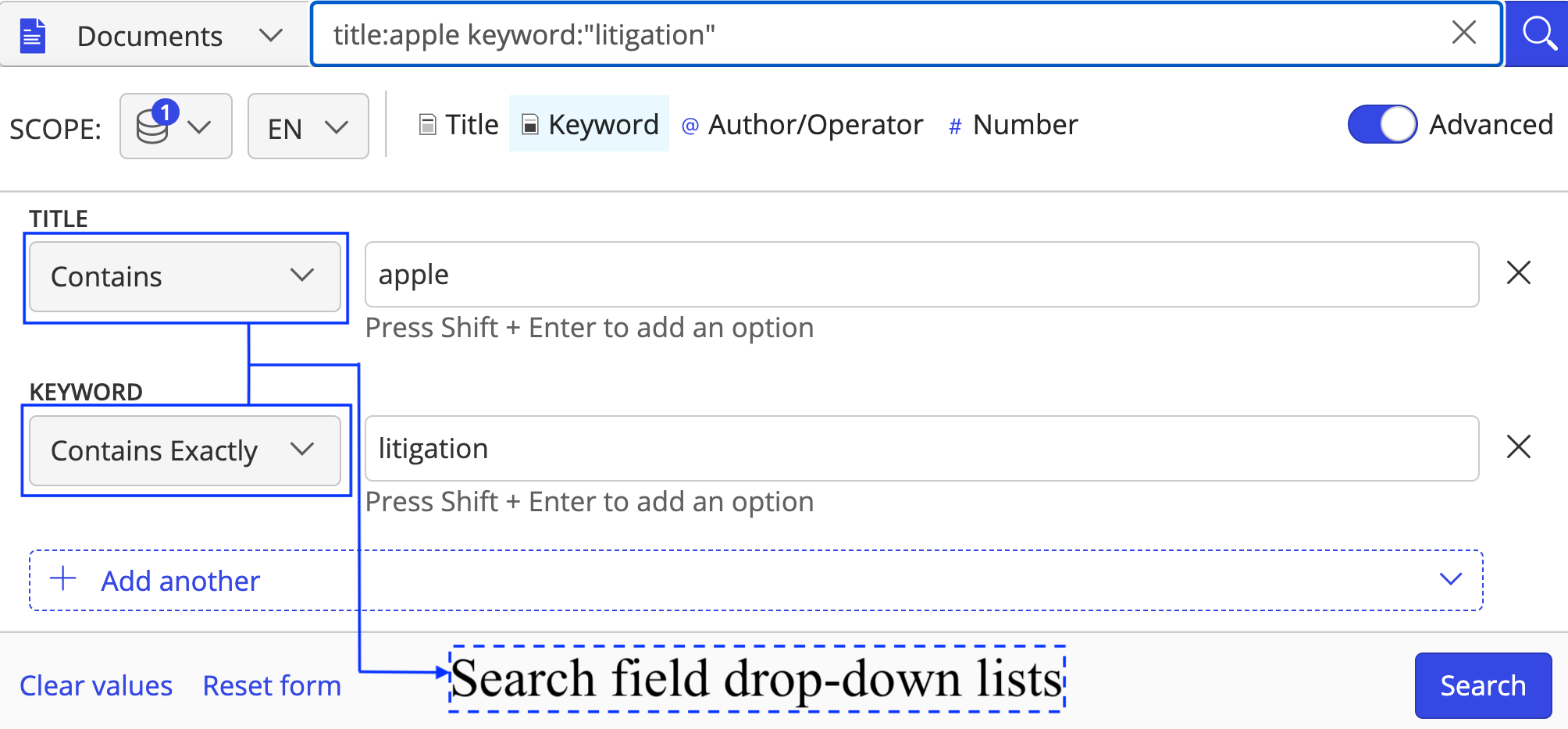
From the search field drop-down lists, select the type of search you want to run. In the text fields, enter the text you want to search for.
For example—The following figure shows the results for a document search where:The document must contain the word apple only in the Title and
The keyword litigation must appear without variations (Contains Exactly) in the title, description, content, or any metadata of the document.
Optional:
Select Add Another or Shift+Enter to add more levels of search criteria and narrow your search.
Select
 next to a search criteria to remove it.
Select Clear values to clear all text fields.
Select Reset form to reset the search form to the default search fields.
Select In Recent Matters to display results from your Recent Matters list, which is content that you have accessed in your matters in the past 30 days, or, select In Selected Libraries to display matching documents in the search results.
NOTE:
To perform a Number search separated by a comma in the new advanced search, you must select Doc. Number + Multiple Values as shown in the figure below, or if you type this in the simple search Number field, it'll auto-populate in advanced.

You can add a combination of logical operators (AND, OR, NOT) in one option. For example:
Keyword → Contains → apple NOT samsung
Or you can progressively use multiple options. For example:Keyword → Contains → apple & Keyword → Does Not Contain → samsung.
The results for the examples above are the same.
Advanced Search options and examples
To get targeted search results, the Advanced Search feature provides various options, as applicable in different search fields. Some of the important options are explained here:
User interface | Search Option | Search Description | Example |
|---|---|---|---|
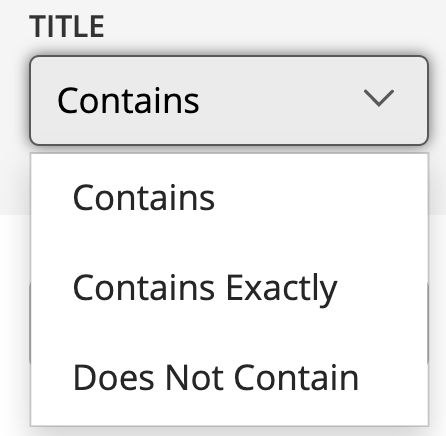 These options are available under Title. You can use a combination of one or more of these options, any number of times, to refine your results. For example:
| Contains (Stemming applicable) | Documents/Emails/Matters containing the term or variations of the term are returned in the search results. If you search for the term credit in the Title and select the Contains option, the system returns all the documents that contain the term or its variations in the Title of the documents. | Input: Credit Output: Credit Agreement with A&G and Revolving Facilities Agreement with Creditor. |
Contains Exactly (Stemming not applicable) | Documents/Emails/Matters containing the exact term or phrase are returned in the search results. If you search for the term Credit Agreement in the Title and select the Contains Only option, the system returns all the documents that contain the term/phrase in the Title of the documents. | Input: Credit Agreement Output: Credit Agreement with A&G | |
Does Not Contain | Documents/Emails/Matters that contain these terms are excluded from the search results. | Input: Credit Output: Every document that doesn't have the term credit is returned in the search results. | |
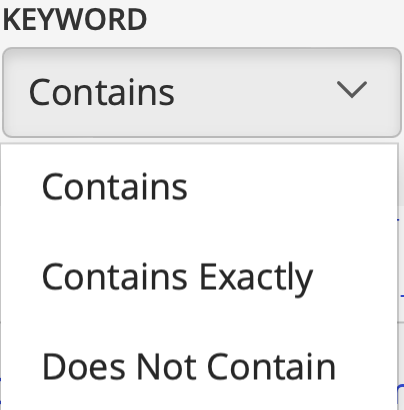 These options are available under Keyword. | Contains | Documents/Emails/Matters containing the term or variations of the term are returned in the search results. If you search for the term credit as the keyword and select the Contains option, the system returns all the documents that contain the term or its variations anywhere in the document. | Input: Credit Output: Credit Agreement with A&G and Revolving Facilities Agreement with Creditor. |
Contains Exactly | Documents/Emails/Matters containing the exact term or phrase are returned in the search results. If you search for the term Credit Agreement as the keyword and select the Contains Only option, the system returns all the documents that contain the term/phrase anywhere in the document. | Input: Credit Agreement Output: Credit Agreement with A&G | |
Does Not Contain | Documents/Emails/Matters that contain the keyword are excluded from the search results. | Input: Credit Output: Every document that doesn't have the term credit is returned in the search results. | |
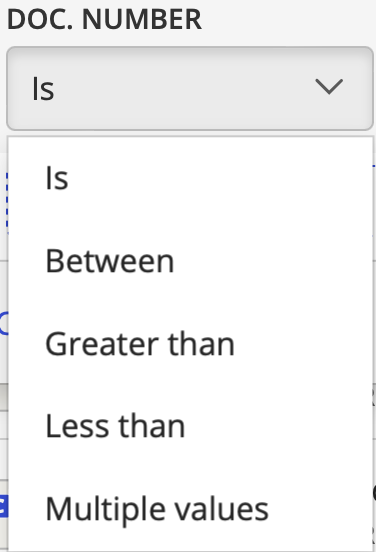 These options are available under Doc. Number. | Is | The document returned exactly matches the document number entered. If you search for the number 45678, and select the Is option, the system returns the documents whose ID is 45678. NOTE: Document numbers themselves must be entered without any commas. | Input: 45678 Output: Document Number 45678 |
Between | The documents with numbers falling between the specified document numbers are returned. If you search for documents within a range, then enter the document numbers within which you want to search, and select the Between option. The system returns the documents falling between those numbers. | Input: 45678 and 45690 Output: All documents from 45678 to 45690 are returned | |
Greater than | The documents with numbers greater than the entered document numbers are returned. If you want to search for documents with document numbers falling after the entered number, enter the document number, and select the Greater than option. The system returns the documents falling after the specified number. | Input: 45678 Output: Documents with numbers > 45678 | |
Less than | The documents with numbers lesser than the entered document numbers are returned. If you want to search for documents with document numbers falling before the entered number, enter the document number, and select the Less than option. The system returns the documents falling before the specified number. | Input: 45678 Output: Documents with numbers < 45678 | |
Multiple values | Multiple specific documents may be searched for, separated by a comma. If you search for ‘45678, 56789’ the system returns both the documents with those IDs. | Input: 45678, 56789 Output: Document Number 45678, Document Number 56789 | |
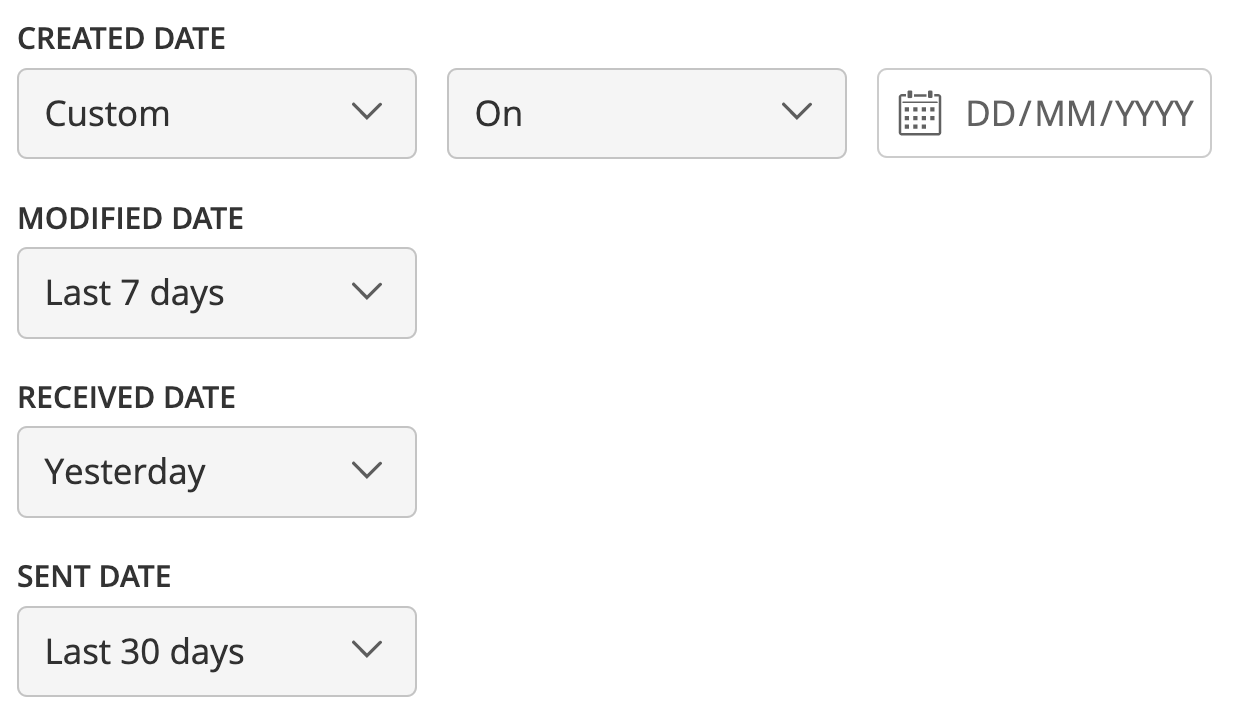 These options are available under the Date fields:
| Custom | Based on the field selected, say Created Date, all the documents that were created on a custom date are returned. | Input: 1/16/2019 Output: Documents that were created on the selected date. |
Today | Based on the field selected, say Created Date, all the documents that were created today (current date) are returned. | Input: No additional selection is required. Output: Documents created on the current date. | |
Yesterday | Based on the field selected, say Created Date, all the documents that were created yesterday are returned. | Input: No additional selection is required. Output: Documents created on the previous day. | |
Last 7 days | Based on the field selected, say Created Date, all the documents that were created over the last 7 days starting from the current date are returned. | Input: No additional selection is required. Output: Documents created over the last 7 days starting from the current date. | |
Last 30 days | Based on the field selected, say Created Date, all the documents that were created over the last 30 days starting from the current date are returned. | Input: No additional selection is required. Output: Documents created over the last 30 days starting from the current date. | |
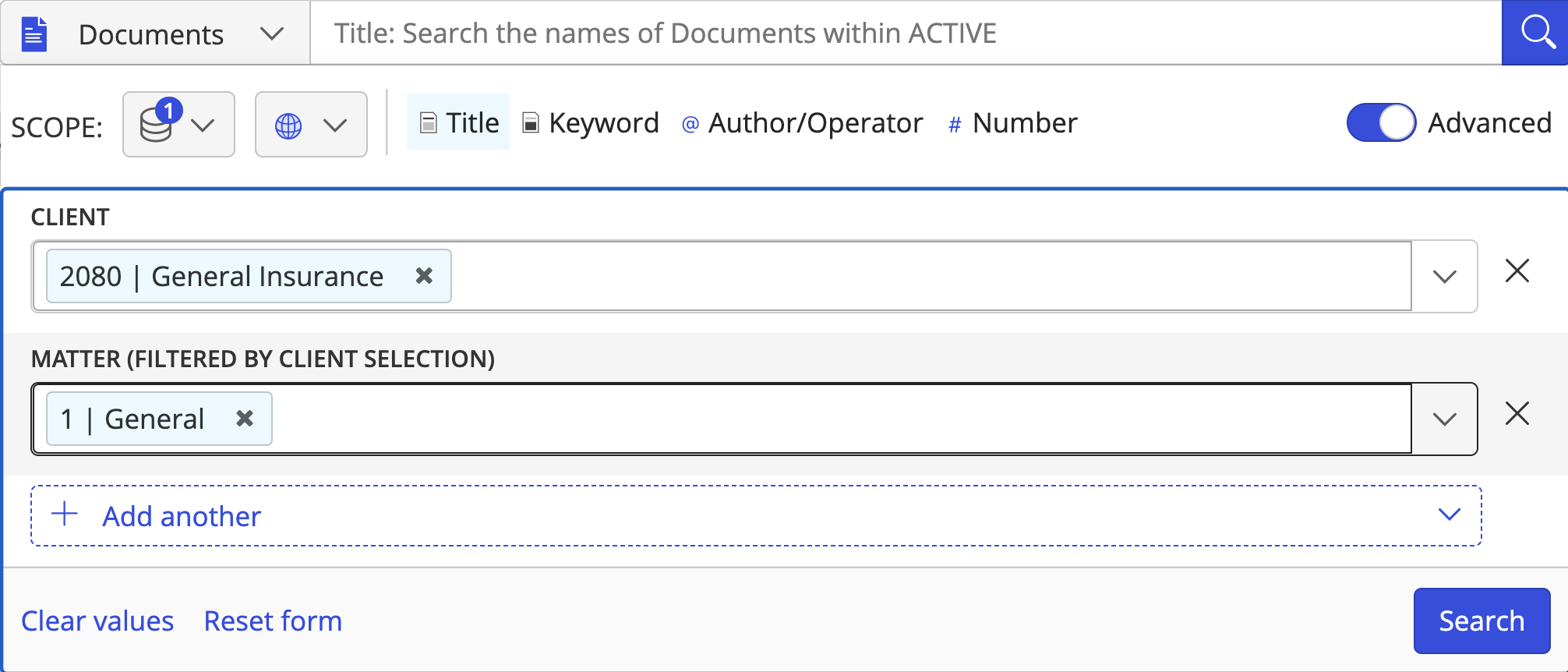 For example: Client and Matter, and Customer ID and Account ID | Validated Fields (Parent-Child Relationship) | These are drop-down lists displaying the values that you can choose from. Based on the value selected, all related documents are returned. There's a parent-child association here. For example, based on the Custom 1 selected, the list of Custom 2 values is populated in the drop-down list. NOTE:
| Input: General Insurance (2080) Output: Documents associated with the specified account ID. |
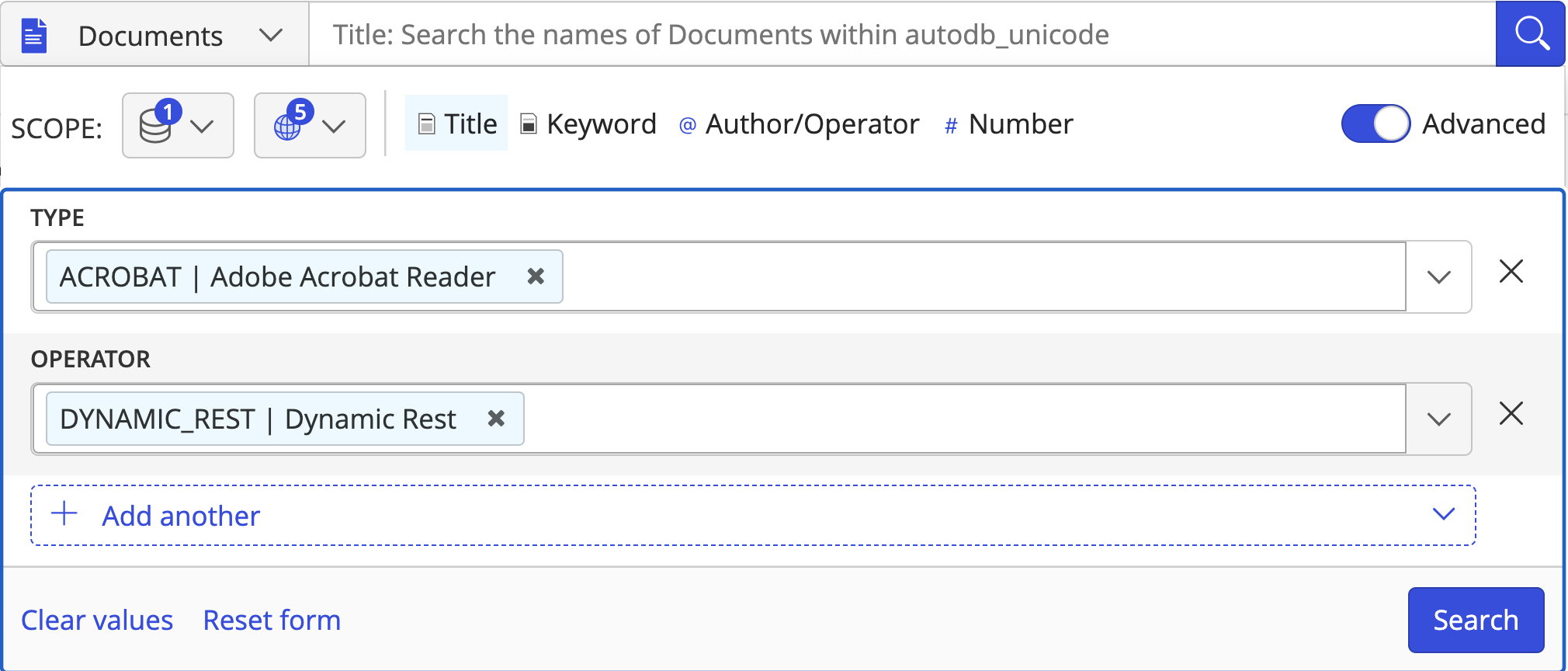 For example: Author, Operator, Type, and Status | Validated Fields | These are drop-down lists displaying the values that you can choose from. Based on the value selected, all the related documents are returned. | Input: Type and Operator Output: Documents in the acrobat type with operator DYNAMIC_REST are returned. |
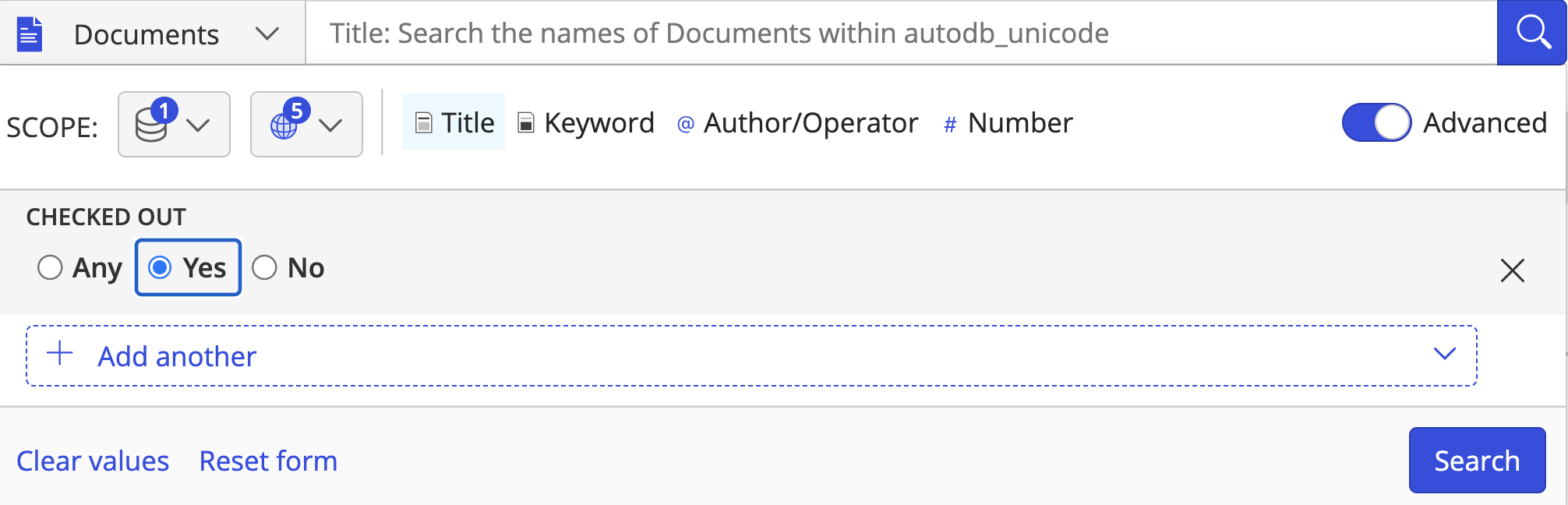 | Boolean Fields | If your instance of iManage Work is configured for fields that accept Boolean fields, then based on your selected response, all the related documents are returned. Selected response: Any: system skips the search. For example, when you use the Checked Out search field, the system returns all documents that have been checked out when you specify Yes in your search criteria for this field. | Input: Yes Output: Documents conforming to your selection are returned. |
Types of Search in iManage Work
In this section:
Full-text search
When searching through Documents, the search used most often is the Keyword or Title (default) search. When searching for Emails, it is Subject (default), From, To and Keyword. For Matter search, it's Title, Description, and Keyword. If you perform a client-level search, the client list conforming to your entered search criteria is displayed.
The default behavior returns documents that contain each search term, as well as variations, in any order.
Searching for an exact match (exact word or exact phrase)
Entering a search term in double quotes ("") using Simple Search (for example, "lease agreement") results in an exact search.
If you want to execute a search for the exact term or phrase, in Advanced Search, simply select the Contains Exactly option in the search options. Selecting this option cancels out wildcards, special characters, and other search operators (for example: AND, OR) that impact the search results. This option ensures that the search returns an exact match of the term(s).
When you select the Contains Exactly option, iManage Work searches for instances of that exact term without stemming it.
For example—a normal search for help, where the selected option is Contains, returns documents that contain the words helps, helpful, and helping. However, a search for help with the Contains Exactly option selected returns only documents with the exact term help.
For example—a phrase search for credit agreement, where the selected option is Contains, returns documents with variations of the root term for each word. That means that the search returns documents with credit as well as credits and credited. Likewise, agreement returns agreements or even agree. However, a search for credit agreement with Contains Exactly option selected returns only documents that contain the exact phrase credit agreement in that exact manner and order.
NOTE:
Searching for an exact match within double quotes isn't supported for Clients.
In addition to the Keyword field, Description field and the document content, non-validated custom text fields are also treated as full-text fields in a search. The custom text fields that are in use (or "used") can vary from firm to firm. For example, under Emails, To and From.
Searching for alphanumeric strings
The goal of any search is to find a particular document or set of documents. The more specific the criteria, the greater the likelihood of quick and accurate results. Therefore, the most commonly used search terms aren't real words, but are codes or numbers that represent clients, or numbers representing client or customer IDs, dates, invoices, and similar identifiers.
When searching for numbers or alphanumeric terms in iManage Work, please keep the following in mind:
Searching the Description and custom profile fields
It's possible to search for numbers or alphanumeric terms that are up to 250 characters long.
If the search term is for the exact number or alphanumeric term, you don't need to select Contains Exactly or add wildcards to return the document.
For example—If you were searching for a document with the title "Invoice #553739", then a Description search for 553739 would return that document.If the search term only contains a portion of the number or alphanumeric term, then wildcards are necessary to obtain a result.
For example—If you were searching for a document with the title "Style2020", but only knew the first 5 letters of the invoice, you'd use a search for Style* to retrieve documents with terms in the title that begin with "Style", including "Style2020.”When searching for dates in full-text, keep in mind that special characters are treated differently depending on whether the selected option is Contains or Contains Exactly.
For example—A Contains search for 10/29/07 is actually interpreted as a search for 10 OR 29 OR 07 and returns documents that have one or any of these three numbers in any order. Consequently, the best practice when searching for dates in full-text is to select Contains Exactly. This yields the best search results. For instance, a search for 10/29/07 with the Contains Exactly option selected returns documents with the exact date 10/29/07. However, because the slash is a special character, the search also returns documents with 10 29 07, 10.29.07, and 10-29-07.
Searching in the document content
The rules for searching for numbers or alphanumeric terms in the document content (that is, the actual document text) are the same as those mentioned above for the Description field.
Handling special characters in a search
When conducting full-text searches against the profile metadata or the document content, it's important to understand how special characters are interpreted in the context of the search. Special characters are non-alphanumeric characters, such as punctuation marks.
The following characters have special meaning within the context of a search and can be used as follows:
Wildcards (* and ?)
Use parentheses () to build more complex nested queries.
Example: A search for Jeff AND John AND (Ryan OR Steve) returns documents containing Jeff, John, and Ryan as well as documents containing Jeff, John, and Steve.
The following special characters behave differently within a search depending on whether the search term is a phrase search (which is enclosed in quotation marks) and whether the special character is separated from the search term(s) by spaces or other special characters:
~ ! @ # $ % ^ & * () _ + {} | [] \ : ; <> = _ ? , . /
Special characters in a phrase search are ignored when searching in iManage Work. As a general rule, all special characters (including * and ?) are essentially treated the same as spaces between words. When executing a phrase search that includes a special character in the phrase, that character is ignored.
For example—A search for self-evaluation with the Contains Exactly option selected returns documents with self-evaluation as well as self evaluation, self - evaluation, self--evaluation, and self\evaluation, and so on.Special characters included in a search term without interceding spaces or quotation marks are interpreted as an AND operator.
For example—A search for the term self-evaluation is the equivalent of a search for self AND evaluation.
So a search for self-evaluation returns documents containing both self and evaluation (and the variants of each).
The one exception to this rule is the Underscore (_), which is treated as if it were an alphanumeric character in this case.
Using wildcards for a search
iManage Work supports wildcard characters. A wildcard search in iManage Work is designed to return expanded variations of search term(s). This is a powerful search technique that allows users to search for a term where some of the characters are unknown.
NOTE:
Wildcard searches may take longer to run than non-wildcard searches.
Wildcard searches aren't applicable for Client and Folder.
iManage Work supports single and multiple character wildcard searches within single terms. You can apply wildcard characters to single terms, but not to search phrases.
There are two wildcard characters – the question mark (?) and asterisk (*).
Use a question mark (?) as a wildcard in place of a single unknown character.
For example—if you are uncertain whether a name is Smith or Smyth, entering Sm?th returns documents that contain either name variation. Similarly, a search for b?rn returns documents that match the word born, barn, or burn.Use an asterisk (*) as a wildcard in place of any number of unknown characters.
For example—a search for m*or returns all documents that contain words such as major, mayor, and mentor. Wildcards can be used in the beginning, middle, or end of a search term. A search for *vert* returns documents that contain convertible, inverted, vertigo, and covert. Similarly, a search for auto* matches the words automobile, autograph, and autobiography.
Using Boolean operators for a search
iManage Work Indexer accepts simple or complex Boolean and bracketed Boolean expressions, and it returns a list of matching documents. You can form Boolean expressions using a range of Boolean operators:
Boolean Operator | Description | Example |
|---|---|---|
AND | Requires both terms on either side of the Boolean operator to be present for a match. | Input: cat AND dog Output: This query returns documents that contain the terms cat and dog. |
OR | Requires that either term (or both terms) be present for a match. | Input: cat OR dog Output: This query returns only documents that contain either cat, dog, or both terms. |
NOT | Requires that the specified term not be present. | Input: cat NOT dog Output: This query returns only documents that contain cat and not dog. |
EOR XOR | Requires only one of the terms to be present in the document. If both terms appear in the document, it isn't returned in the search results. | Input: cat XOR dog Output: This query returns only documents that contain either the term cat or the term dog. Documents that contain both cat and dog don't return. |
NEARn | In case of a phrase search, the second term must be within n words of the first term; that is, the terms are n or fewer words apart in either direction. If you don't specify n, it defaults to 5. | Input: red NEAR1 green Output: This query returns only documents in which the term red is next to the term green. For example, documents that contain red green or green red return. Documents that contain red orange green don't return (because the terms aren't close enough to each other). |
DNEARn | In case of a phrase search, the second term must be within n words of the first term, in the specified order. If you don't specify n, it defaults to 5. | Input: red DNEAR2 green Output: This query returns only documents in which the term green follows the term red, and is no more than two words away from the term red. For example, documents that contain red orange green return, but documents that contain green orange red or red orange blue green don't return. |
WNEARn (Weighted Near) | The WNEAR operator promotes relevance when terms are less than the specified n words distance. The closer together the words are in the document, the higher the relevance of the document. If you don't specify n, it defaults to 5. Documents in which the terms don't occur within n words of each other are returned with normal relevance. | Input: dog WNEAR7 cat Output: This query returns documents that contain either dog or cat. It gives extra relevance to documents in which dog and cat appear seven or fewer words apart in a piece of text. This weight increases as the terms get closer to each other. Documents in which the terms occur more than seven words apart, or in which only one term occurs, return with normal relevance. |
Logical Operator Combination: iManage Work Indexer supports multiple Boolean connector searches. For example, (landlord OR tenant) AND guarantor, landlord OR (tenant OR guarantor), (landlord OR tenant) NOT guarantor, and more.
NOTE:
When specifying Boolean operators with keywords such as AND or NOT, the keywords must be in all uppercase.
You must not place any part of the search term in "" as an indication of priority. The system reads the order of the operators from left to right. Terms placed within () are read as a unit.
Stemming
By default, full-text searches in iManage Work return variations of the search term. This behavior is known as stemming. iManage Work Indexer automatically stems the search term when it processes a search and returns variations of the search term.
Stemming is a sophisticated search technique wherein the search term is reduced to its base root to broaden the search to include terms that share the same root. For example, a search for test would return documents with test as well as testing, tested, and tester. However, the search wouldn't return the word testament. This process can broaden searches to include all variations of a term.
Stop words
Stop words are common words that typically modify the meaning of other words but carry no inherent meaning themselves, such as adverbs, conjunctions, and prepositions. Words such as the, or, a are used too frequently to carry any significance within a search query. As a result, such terms are generally excluded, or stopped, and effectively ignored when entered as search criteria. Entering a search that contains only stop words returns zero results, even though the word may in fact exist in all documents.
In iManage Work Indexer, the language-specific stop words files are pre-populated with a default list of stop words. The stop words present in the list are omitted when searching. Entering a search term that contains only stop words doesn't return results.
NOTE:
A firm can add, if desired, a custom list of terms to be considered as stop words when performing full-text search in the stop words file. Stop word lists are configurable and can vary from firm to firm.
A Contains search (the default Advanced search) with stop words returns documents that contain each search term, as well as variations, in any order within the document, but the stop words are ignored.
For example—In a search for look at the cars, the words at and the are considered stop words, so the actual search submitted by iManage Work will be for look cars. It returns documents with both look and car (along with stemmed variations) regardless of whether at or the exists in the text.A Contains Exactly search with stop words returns documents that contain the exact phrase in the exact manner and order quoted, but the stop words are ignored.
For example—In a search for look at the cars, the words at and the are considered stop words, so the actual search submitted by iManage Work will be for look cars. It'll return documents containing look at the cars, look at those cars, and look cars.
Search guidance for better results
If a search doesn't return the document you want to retrieve, try the following tips before running the search again:
Search for the document using profile fields (metadata), such as the document number without any full-text criteria. If the document isn't retrieved, it might be due to reasons other than search, such as the document being deleted or restricted security access.
However, if the document is retrieved with a simple document number search, then it's possible that the document has not yet been full-text indexed, which implies that full-text indexing is in progress.Check the search query for potential stop words or special characters. Try to reformulate the query with other terms in the target document.
Select the correct library (libraries) for better results.