
You can add tasks and subtasks using the following methods:
Checklist in iManage Work
Add tasks to a checklist using any of the following options:
In the upper right corner of any checklist, select
 .
Hover your pointer over an existing task and select the
 icon. Figure: Add button

Add text in the Tasks (required) and other fields. The task is automatically added to the checklist.
NOTE: While adding tasks using the New task button, the task must contain text. A task can't be created or saved without a task name or title.
Right-click a task row or select More options
 and select an insert option to add a task or subtask next to the current row.
NOTE: To avoid disrupting task hierarchies, the Insert task below option is unavailable for tasks that have subtasks.
Return/Enter shortcut key: With the Tasks field in edit mode, press the Return/Enter key to create a task below the current task at the same level.
After the task is added, enter the data for the desired columns and assign the task.
Files in iManage Work
You can select multiple files in iManage Work—including files from more than one folder—and add them as a single task to the checklist for the matter in which the files reside.
Select the checkbox next to each file you want to include.
Right-click the selection and select Add as tasks in Tracker. Alternatively, select the
 icon from the top-right corner in the toolbar.
In the Add as tasks in Tracker dialog, enter a Task name and select the Matter.
Select the Tracker name (the checklist the task is added to), and optionally set Assignees (up to five) and a Due date. All the files you selected are added to this single task under Files & Folders.
NOTE: If the selected matter doesn't have a checklist yet, iManage Tracker automatically creates a default checklist named Tracker, for the matter when you add the first task. You don't need to create the checklist first.
If the matter already has more than one checklist, select the one you want in Tracker name. Each checklist is displayed as a tab, such as Tracker and Tracker 2, at the bottom of the matter's checklist view. New tasks get the default status configured for the checklist or library, if one is set.
Select New task. A dialog confirms the task is added, with links to Send email or View tasks. Select Close to close the dialog.
(Optional) To create more tasks in the same matter and tracker without reopening the dialog, select Create another before selecting New task. After each task is added, a confirmation banner is displayed at the top of the dialog (with Send email and View tasks links) and the form resets for the next task, keeping the Matter, Tracker name, and Assignees you already set.
Figure: Adding files as a task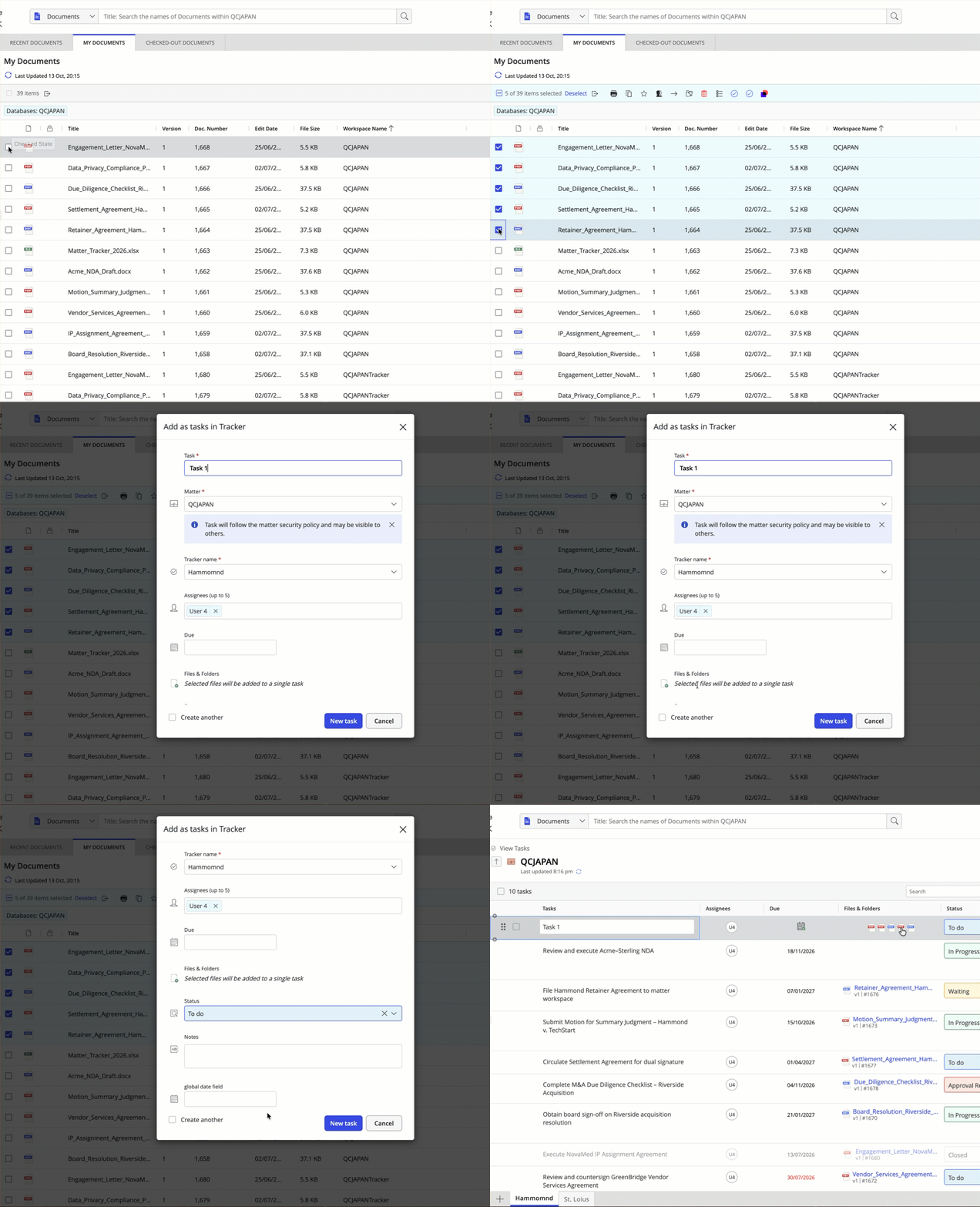
File preview in iManage Work
You can add a file in iManage Work as a task to the checklist for the matter in which the file resides, directly from using the option in the preview.
Sign in to iManage Work and browse to the file that you want to add as a task.
Select the file to preview it and then select the Add as task in Tracker
 icon.
(Optional) To view the checklist for the matter, select View this matter tracker. The checklist opens in a separate browser tab.
(Optional) To assign the task later, deselect the Assign to myself checkbox.
Select New task. A message confirms that the task is added.
Select View tasks.
Alternatively, select Close if you don't want to view the tasks.
iManage Tracker panel in Microsoft Outlook
You can add tasks using the iManage Tracker panel in Microsoft Outlook in either of the following ways:
Dragging emails into the panel. For more information about creating tasks from emails, refer to Creating tasks from emails.
Selecting the
 icon displayed on the Tasks tab for any matter in the list. Enter a name for the task and click somewhere in the panel to create it. Select the task to enter its details.