I see a permission prompt/error message about access while inserting iManage Work documents into Apple emails. What should I do?
macOS asks you to grant iManage Application Integration several permissions the first time it needs them. Respond to each prompt as follows:
If a dialog says permission is required to access the Documents folder, do the following:
Select Open System Settings.
Figure: Open System Settings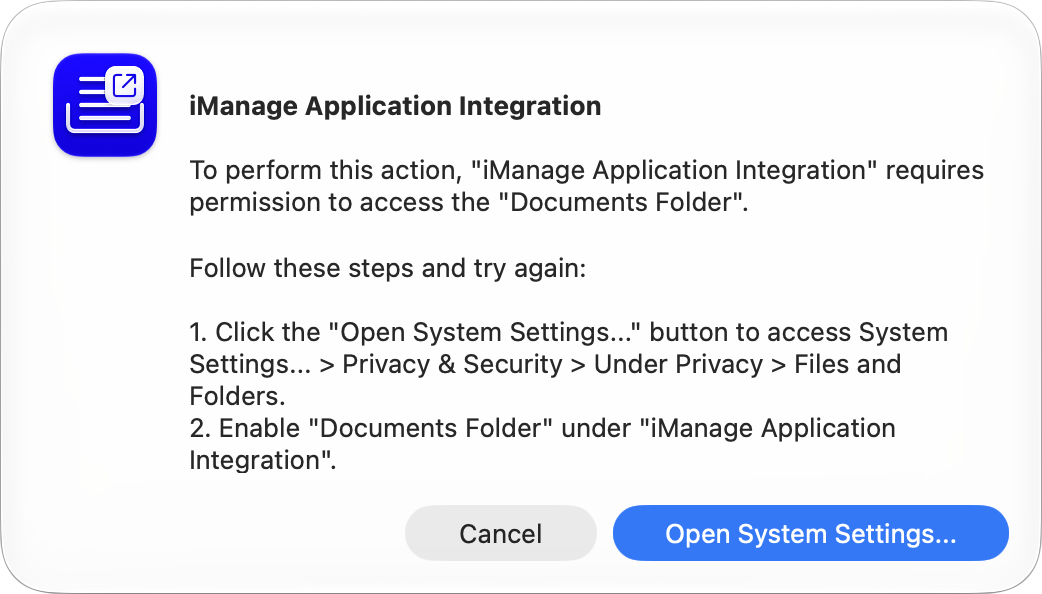
Under iManage Application Integration, slide the Documents toggle to the right.
Figure: Documents toggle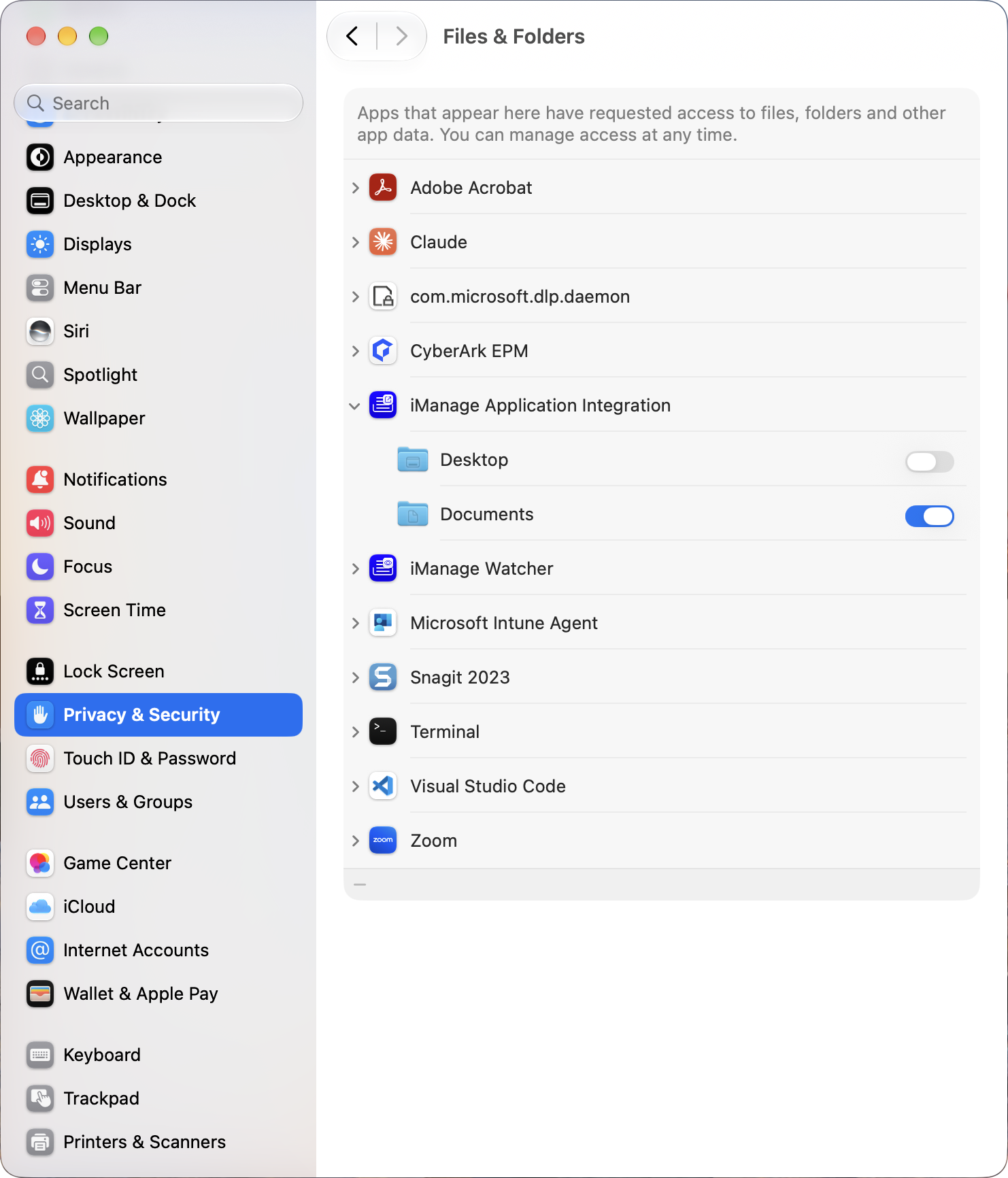
NOTE: Enable only the folders that macOS prompts for.
If the dialog says access is needed to control Mail, select Allow.
Figure: Mail access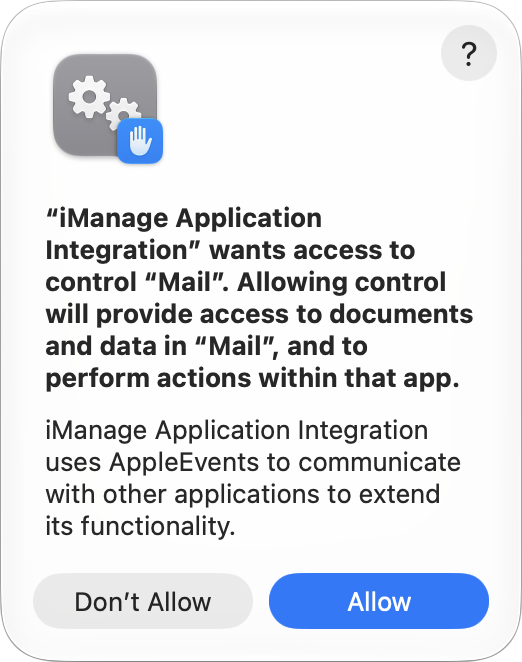
If a dialog says assistive access is required, do the following:
Select Open System Settings.
Figure: Assistive access needed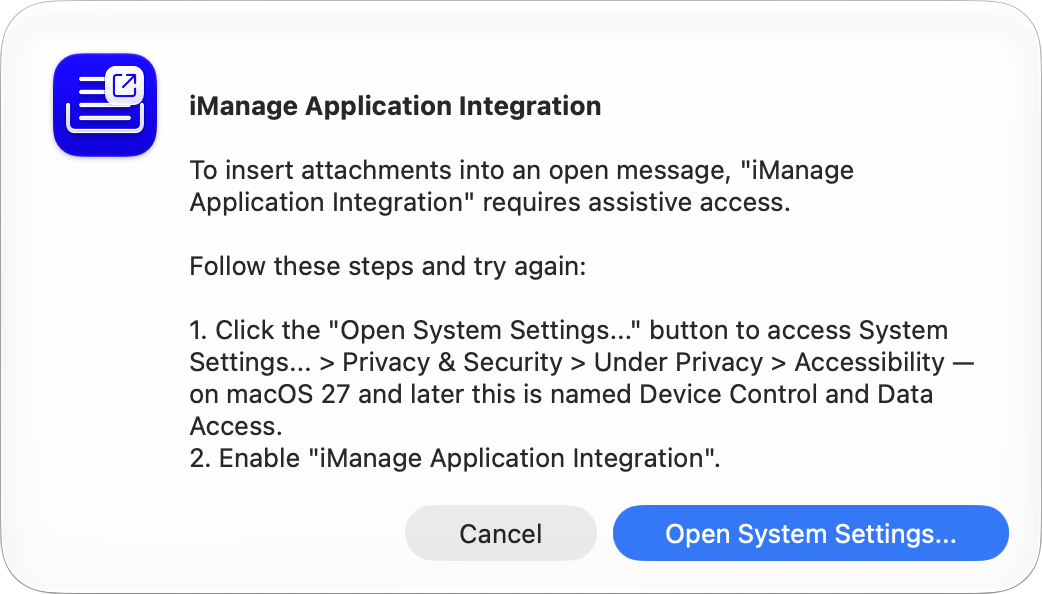
Under Privacy & Security, select Accessibility. On macOS 27 and later, select Device Control and Data Access.
Slide the iManage Application Integration toggle to the right.
Figure: Application integration toggle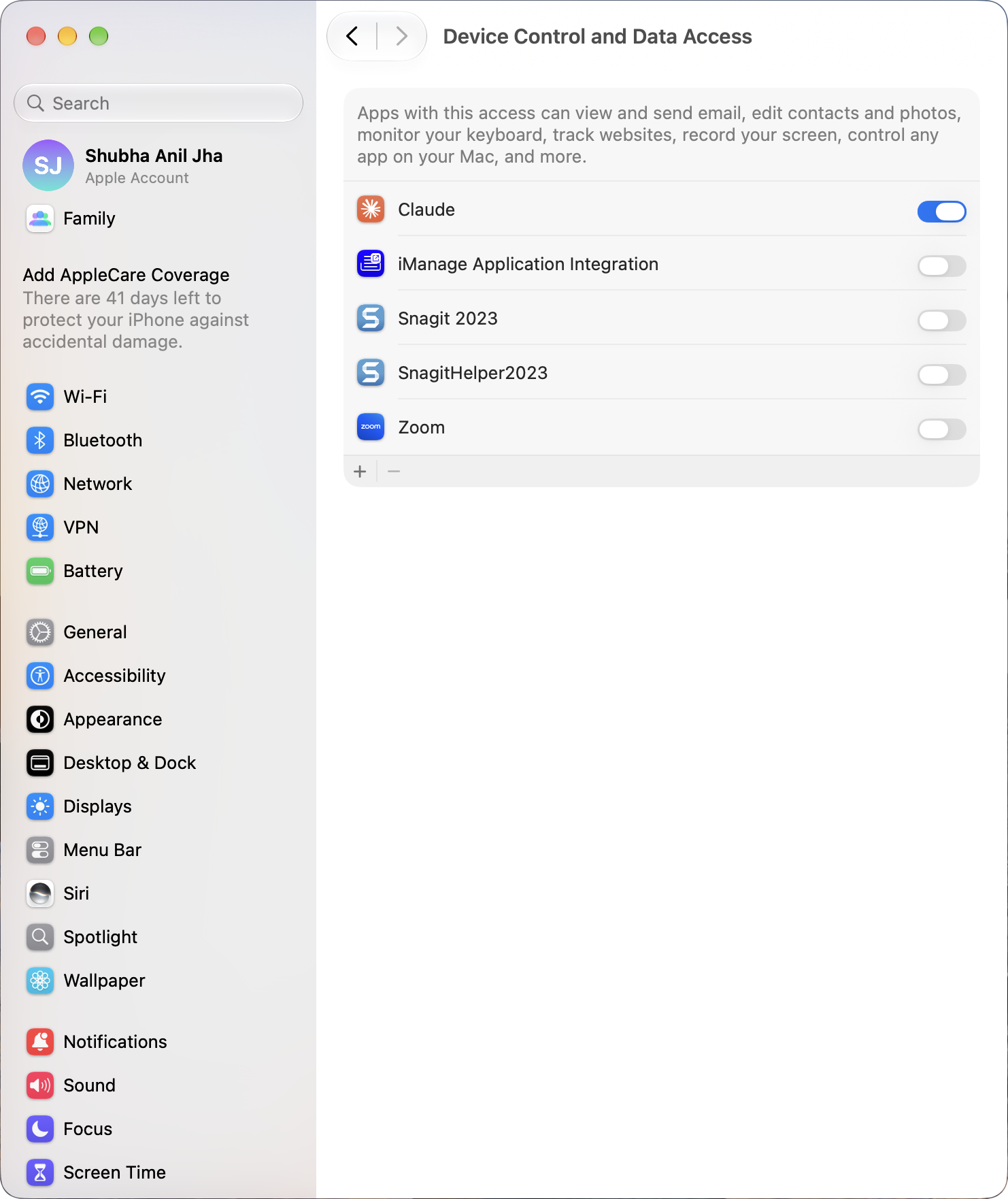
If the dialog says access is needed to control System Events, select Allow.
Figure: System Events access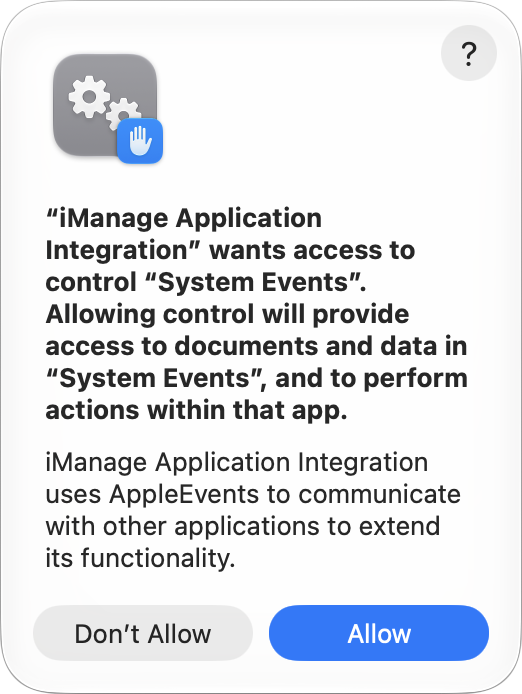
NOTE: After you select Allow in the prompt, iManage Application Integration is added automatically under System Settings > Privacy & Security > Automation, with access turned on. If you selected Don't Allow, expand iManage Application Integration in that list and slide the toggles to the right.
If left idle, the iManage Agent becomes unresponsive after some time. How can I resolve this?
Quit the iManage Agent using the Activity Monitor and then relaunch it by selecting the iManage Agent icon in the dock or the iManage Agent shortcut on the desktop. This resolves the issue without the need to restart the machine.