Grant permission to print emails
iManage Work Desktop for Mac 10.2.3 and later lets you print documents and emails from iManage Work. The first time you try to print an email, the following system message is displayed and you're prompted to permit iManage Application Integration to control Preview.
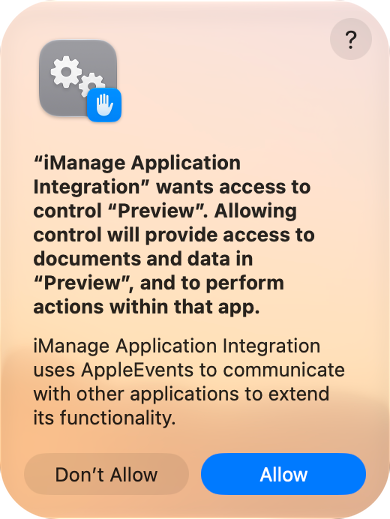
The following scenarios are possible based on what you select:
Allow: Permission is given to iManage Application Integration to control Preview. No additional message is displayed.
Don’t Allow: iManage Work Desktop for Mac displays the following dialog (for the current and all following instances until you give the required permission).
Figure: Permission required notification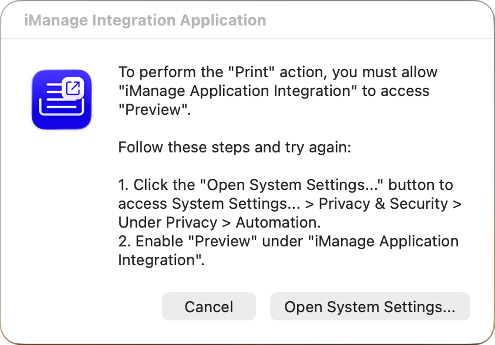
Select Open System Settings and browse to Privacy & Security > Automation.
Expand iManage Application Integration and slide the Preview toggle to the right.
Figure: Automation settings in System Settings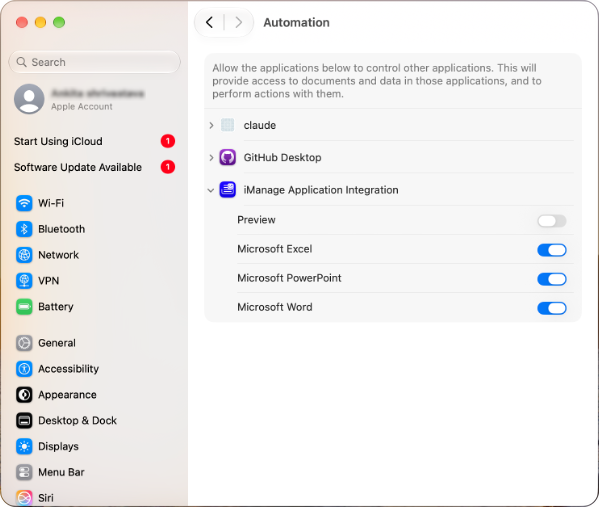
c. If you select Cancel in the dialog, iManage Work Desktop for Mac displays another dialog (for the current and all following instances until you give the required permission) with details about how to give the permission manually.
Figure: Permission required alert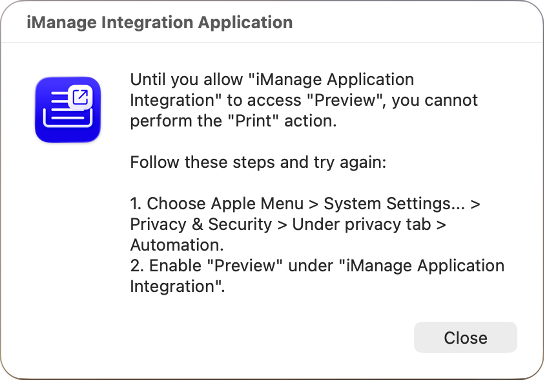
d. Select Close and browse to System Settings > Privacy & Security > Automation. Expand iManage Application Integration and slide the Preview toggle to the right. Then, print the email.
Directory permissions
iManage Work Desktop for Mac prompts for permission to the following directories during use:
Documents: To check out a document or open it for editing, iManage Work Desktop for Mac needs access to this directory.
Downloads: To download a document, iManage Work Desktop for Mac needs access to this directory.
Desktop: To upload a document from the desktop (for example, when you right-click and then select Upload to iManage Work), iManage Work Desktop for Mac needs access to this directory.
When prompted by iManage Watcher, iManage Agent, or iManage Application Integration, you can select Allow to grant access, or give access to these directories by browsing to System Settings.