macOS Tahoe and macOS Golden Gate require user consent before applications can access certain services on a Mac. When iManage Work Desktop for Mac is deployed on these operating systems, users need to provide permissions for the following actions:
Uninstalling the application.
NOTE: From 10.2.4 and later, users aren't prompted for approval to run the installer. This applies to macOS Tahoe and macOS Golden Gate for new installations as well as upgrades to 10.2.4 and later versions.
Accessing the Services menu options in integrated Microsoft and iWork suite applications, Adobe Acrobat, Microsoft Outlook and Apple Mail, Finder, and Preview app.
NOTE: The iManage Work options on the Services menu work only if you use the classic Microsoft Outlook view; the options don’t function in new Outlook.
Sending links, documents, or both from iManage Work.
Printing emails from iManage Work.
NOTE: The permissions that a user grants remain enabled even after iManage Work Desktop for Mac is uninstalled. If the user installs it again on the same Mac, the application doesn't re-prompt for the permissions granted during the previous installation and use of the application.
The following example explains the flow of events that occur when a user gives or denies permission to the application.
The user is working with Microsoft Excel and selects Services > Save As New. The following system message is displayed.
Figure: System message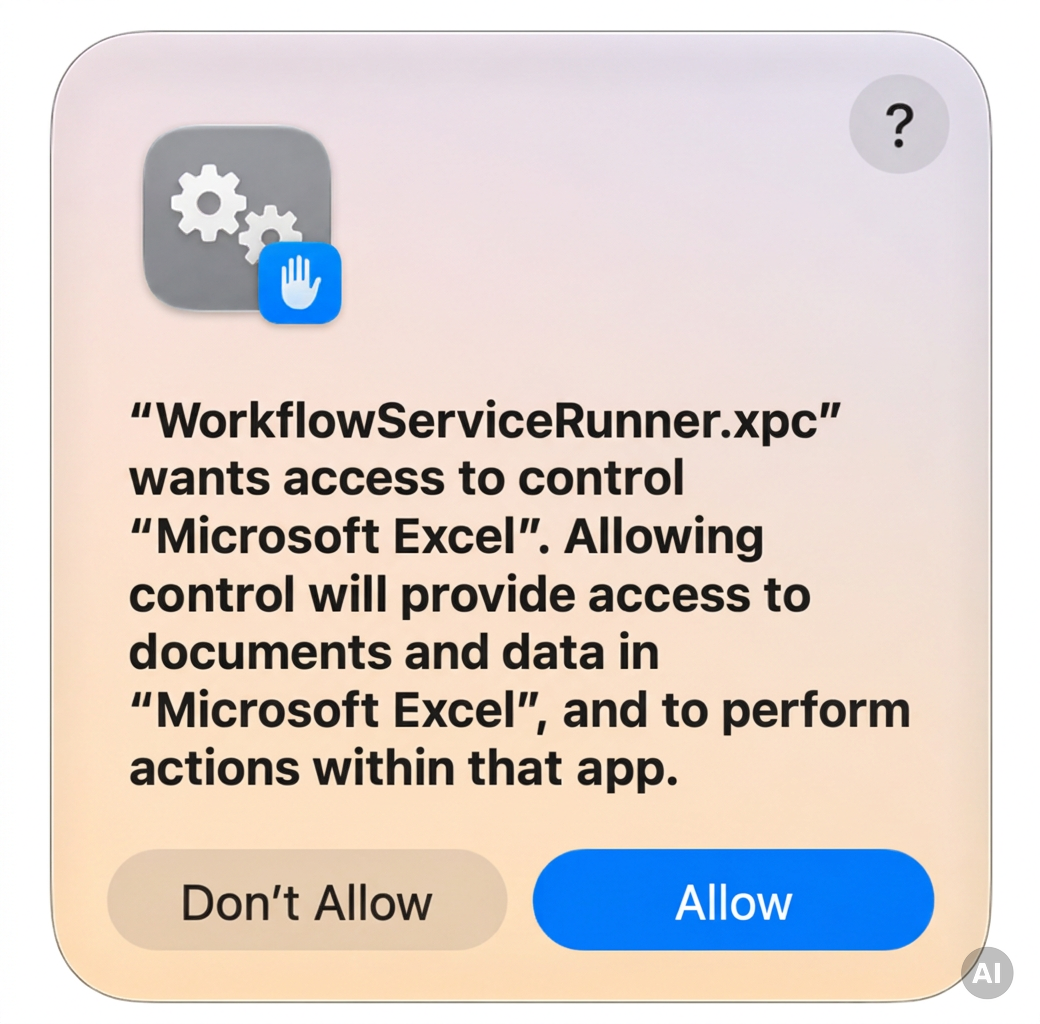
NOTE: This message is displayed only once for each integrated application or action mentioned previously in this section.
The following scenarios are possible based on what the user selects in Step 1:
Allow: iManage Work Desktop for Mac displays the following dialog, which asks the user to grant access to the Outbox folder.
Figure: Grant File Access dialog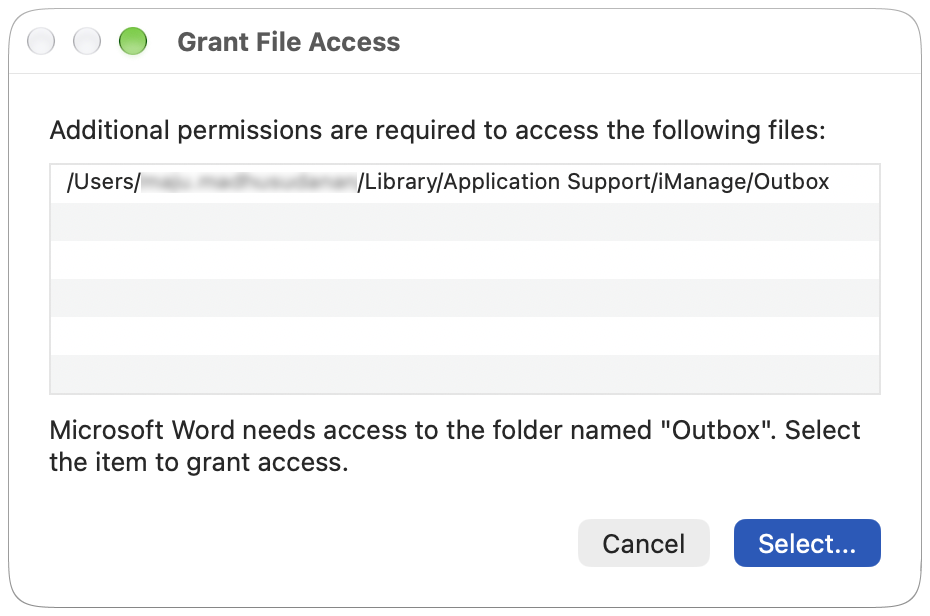
The user chooses Select, selects the Outbox folder in the dialog that opens, and then selects Grant Access.
Figure: Grant access button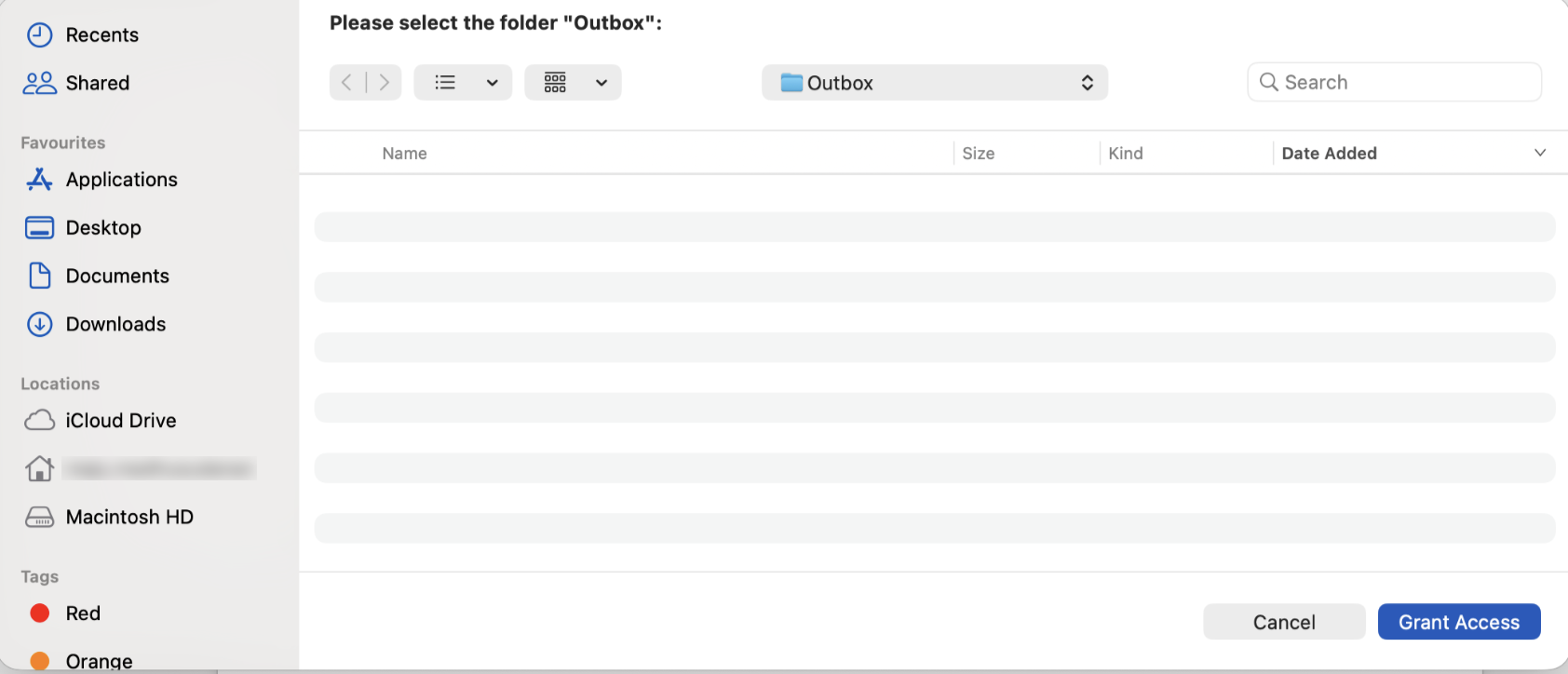
The following system message is displayed.
Figure: System message about permission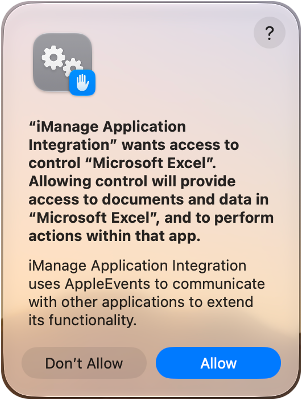
The user selects Allow. Permission is successfully given to iManage Work Desktop for Mac to control Microsoft Excel, which is required for the iManage Work Desktop for Mac integration with Excel.
Don't Allow: iManage Work Desktop for Mac displays the following dialog (for the current and all following instances until the user gives the required permissions).
Figure: User consent notification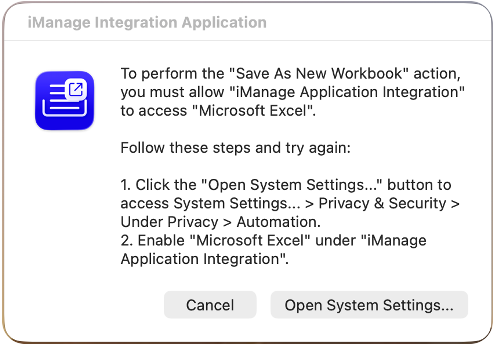
The following scenarios are possible based on what the user selects in Step 2b:
Open System Settings: The user can browse to the toggle as instructed, slide it to the right to grant the required permission, and perform the action again.
Cancel: iManage Work Desktop for Mac displays another dialog (for the current and all subsequent instances until the user gives the required permissions) with details about how to give the permission manually.
Figure: Closing the dialog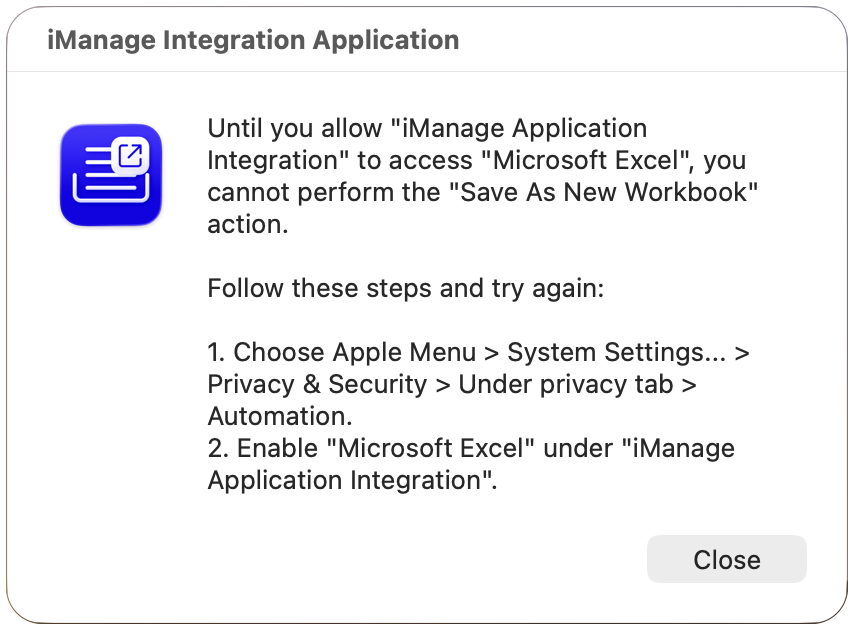
The user can select Close, browse to System Settings > Privacy & Security and under Privacy, select Automation. The user can then select the arrow icon beside iManage Application Integration to expand it and slide the Microsoft Excel toggle to the right.
Figure: Automation settings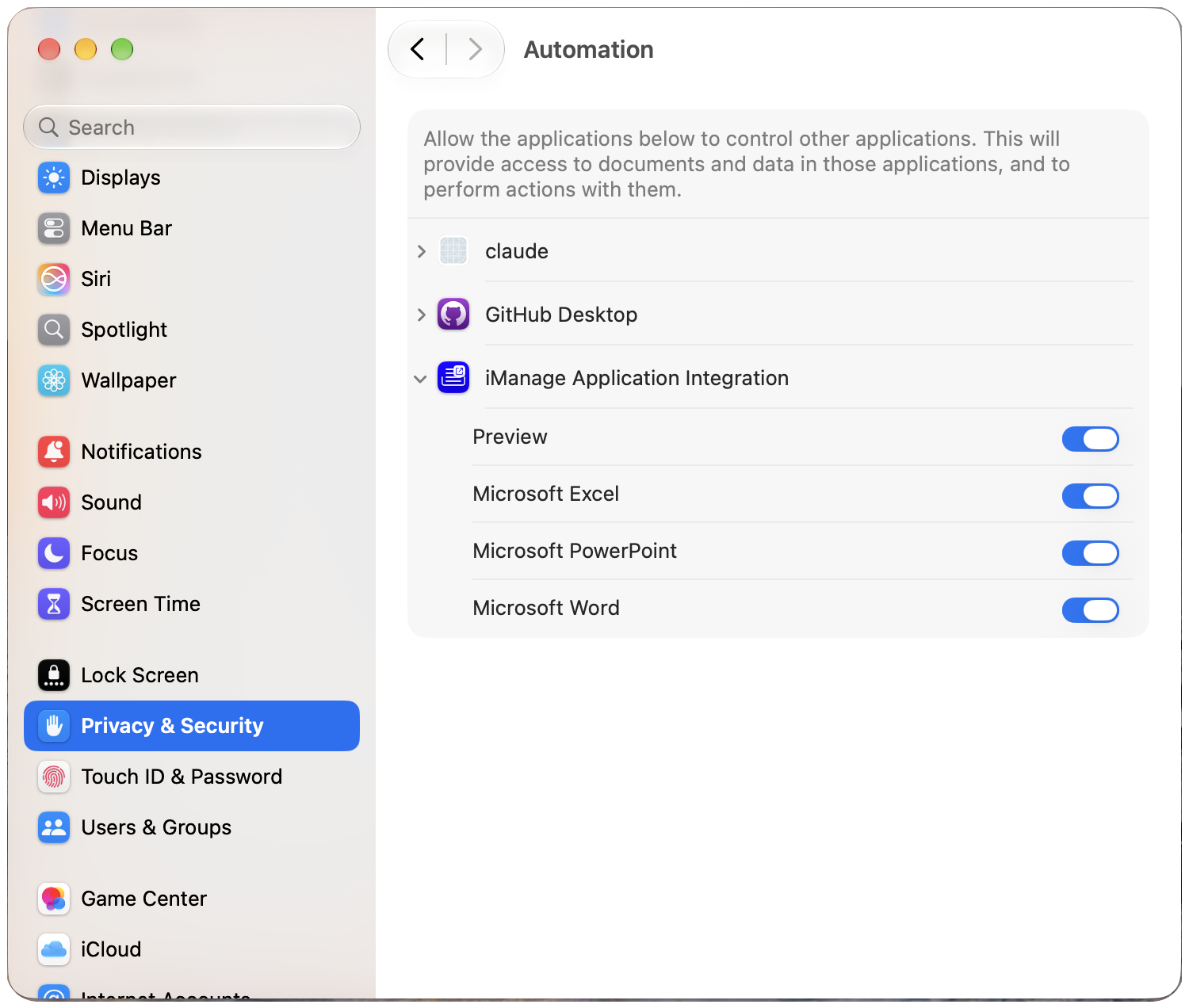
The user can now save the workbook by selecting Services > Save As New Version Workbook.
Permission for iManage Uninstall application
macOS Tahoe and macOS Golden Gate require user consent before the iManage Uninstall application can run in the background. For more information, refer to Uninstalling iManage Work Desktop for Mac.
Turn off permission prompts
You can turn off these permission prompts, which macOS Tahoe and macOS Golden Gate display, for all users in your organization by pushing the Work Desktop for Mac Alerts.mobileconfig file using a Mobile Device Management (MDM) application.
You can also turn off the permission prompt that is displayed for allowing iManage Work Desktop for Mac notifications in Notification Center (in macOS Tahoe and macOS Golden Gate) for all users in your organization by pushing the Work Desktop for Mac Notifications.mobileconfig file using an MDM application.
NOTE: In iManage Work Desktop for Mac versions earlier than 10.8.0, the Work Desktop for Mac Alerts.mobileconfig and Work Desktop for Mac Notifications.mobileconfig files were named Work for Mac Alerts.mobileconfig and Work for Mac Notifications.mobileconfig.
These files are available in the iManage Work Desktop for Mac installation package in the /Library/Application Support/iManage/MDM Payload folder. When deployed, they are added to System Settings > Privacy & Security > Profiles for all Mac users.