Use the imWorkOptions.xml file to customize the user experience of the iManage Work integration with Microsoft Word, Excel, PowerPoint, Visio, Project, and Adobe Acrobat.
- Common options
- DefaultOpen options
- Word options
- Excel options
- DocumentLinkCommands options
- Audit options
- Integration options
- Footer options
- Coauthoring options
- iManage Work Agent options
- Costrecovery options
- AdobeConversion options
- Web download options
- Email options
- Outlook options
- Shellexecute options
- iManFields options
- backstageView options
- NativeFilePickerSettings options
- Deprecated options
After customizing any settings in the imWorkOptions.xml file, refer to Making configuration files available to users to distribute this file to users.
Common options
<ws_option name="common">
Option | Description | Default value |
|---|---|---|
| Specifies the default document class when saving files to iManage Work as new documents or new versions. Example: If the NOTES:
|
|
| Specifies the default email class and subclass (optional) when saving emails to iManage as new documents or new versions. NOTE: This setting doesn't apply to file uploads of emails. Example: |
|
| Specifies the default email class subclass when saving emails to iManage Work Desktop for Windows as new documents or new versions. Example: NOTES:
|
|
| Used to map the Microsoft Office's File->Save (idMso) command to a predefined iManage Work command ID—for example, Example: NOTES:
|
|
| Used to validate the location of a checked-out file against the logged in user's current device. If this value is set to Example: NOTE: For users using a multi-user environment like Citrix, the value should be set to |
|
| This setting allows Admins to control the default behavior when users open iManage Work files in Word, Excel, or PowerPoint. The setting affects how documents are accessed and edited collaboratively. These file types can now be accessed in an open state in iManage Work Next Generation Co-authoring, in which the AutoSave feature is enabled, and co-authoring can occur, or files can be opened using the traditional exclusive check-out process:
NOTE: The Next Generation Co-authoring is only enabled when this setting is set to one of the two enabled states.
Example: |
|
| Ensures that only one version of the file is kept in the "Recent" directory. By default, whenever you save the document as a new version, the previous version of the document will be deleted from your local directory. Valid values:
Example: |
|
| Ensures version comments are copied over from previous version when a new version is created using Microsoft Office applications.
When the value is If users are saving a new version of a document by using smart documents or by saving attachments from an email, the comments from the previous version aren't carried over. This is because when using Microsoft Office integration, users are typically creating a new version of an existing document. However, when uploading a new version from the web, it's a new document. Similarly, uploading Smart Attachments is a new file. Hence, the comments aren't carried over from previous version. Instead, the sender information and date/time stamp are placed in the comments. NOTES:
Example: |
|
| Specifies the document caption format in the Microsoft Office applications: Word, Excel, and PowerPoint. The value can be combined with other text or characters. It uses the members of the Example: |
|
| Specifies the default disposition for documents that are saved as a PDF. The valid values are Example:
| |
| Used for displaying the first part of the document details string in the Backstage view. It uses the members of the Example: 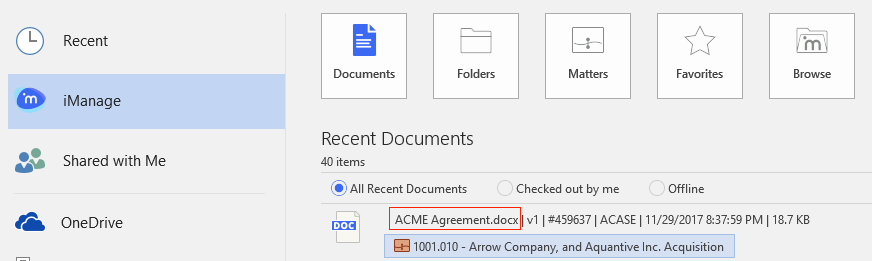 |
|
| Used for displaying the second part of the document details string in the Backstage view. It uses the members of the Example: 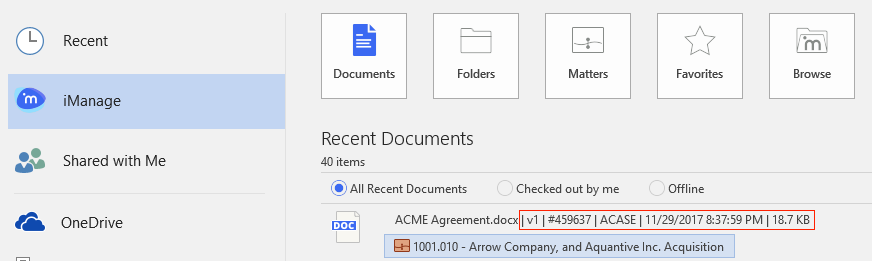 |
|
| Used for displaying the shortcut of files under My Favorites in the Backstage view; the default value will be the description only. It uses the members of the Example: |
|
| Used for displaying a shortcut document's target information. The same string can also be found in Example: 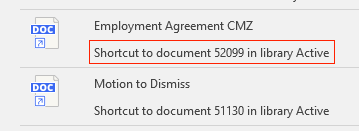 |
|
| Formats the file name information when sending it as an email attachment. This applies to both the NRL and the document attachment. Example: |
|
| This option ensures that all supported file formats are shown by default in the dialog used when saving a document. If not specified, the default behavior is to filter the document list based on the extension of the selected attachment. Example: |
|
| This provides the same functionality as |
|
| This option ensures that all supported file formats are shown by default in the Select a File dialog when saving a PDF file as a new version. Example: |
|
| Sets the new document version's description field based on the local file name, instead of using the description of the existing version. Valid values:
Example: |
|
| Whenever you open a file from iManage Work using the iManage Work Desktop for Windows application, a copy of the file is downloaded to the %AppData%\Roaming\iManage\Work\Recent folder. Unless deleted manually, the files remained in the folder. To prevent files from accumulating and unnecessarily increasing hard disk space usage and to prevent the risk of accidentally deleting files that were taken offline, the Purge feature automatically removes files that are older than a configurable number of days from the Minimum value: 1 Example: NOTES:
|
|
| This option can be used to control which web browsers are allowed to make direct iwl:// calls. Microsoft Edge, Chrome, and Firefox are enabled by default. This is for the integration between the browser and the iManage Work Desktop for Windows to function. Other browsers don't require this support and hence are disabled by default. Disabling this functionality when not required is advised for security reasons. This is a comma-delimited list of browser names. Valid values are: Example: |
|
| Determines the automatic re-enabling behavior for the disabled iManage add-ins for Microsoft Outlook, Word, PowerPoint, Excel, Visio, and Microsoft Project when you launch the applications the next time. Valid values:
Example: |
|
| iManage Work Desktop for Windows reminds users that they have documents checked out that they need to check in. By default, users see iManage Agent notifications if documents are left checked out for more than six hours. Specify the number of hours after which the user is reminded if documents remain checked out. Example: NOTE: Ensure that the value is not
|
|
| Enable or disable the reminder that warns the user about the documents that remain checked out. Valid values: Example: |
|
| Specify the time of the day when the user is reminded to close the checked out documents. For example, if the user generally leaves office at 6.30 pm, change the default time to 18:30. Valid values: hour:minute (24-hour format) Example: |
|
| Specify the duration in minutes after which the close documents reminder reappears if the user closes it. Value range: Example: |
|
| Specify the number of times the close documents reminder appears before being dismissed for the day. Value range: Example: |
|
| Enable or disable the reminder that warns the user to close the document that remain checked out after the specified time of the day. Valid values: Example: |
|
| Specifies other languages for which help file is available, other than the base set of languages. The value consists of comma-separated list of two-letter ISO language IDs. Example: |
|
| The value for this key is a unique identifier for that company (usually the firm ID). When enabled, it allows iManage profile fields to be manually inserted in the footer of a Microsoft Word document. The inserted fields are linked to the value specified. NOTES:
Valid values: English language characters. This has a character limit of 15. Example: A list of default fields available to add to the footer in Microsoft Word when the feature is enabled are specified below. The field names are specified in the value enclosed by curly braces. These are available under
You can add fields by adding the value to a key in the same syntax. For example, to add the
For a complete list of fields, refer to WSProfileAttributeID Enumerators. |
|
| Sets the locale for the iManage Work Desktop Windows in Microsoft Office and Microsoft Outlook. The value provided within the empty string overrides the configured Windows display language for Microsoft Windows. If the strings are empty (default setting), the Windows display language that is specified using the regional setting in the Control Panel in Microsoft Windows applies. The value can be any language that iManage Work Desktop for Windows supports. Empty strings (
Example: To display the application in Spanish, use the following setting:
Similarly, to display the application in Japanese, use the following setting:
NOTES:
|
|
| Used to identify non-production servers that have data analytics feature enabled. Example: |
|
| Enables authentication to iManage Work without user interference when iManage Work Agent starts. Valid values:
If enabled, you can also configure a delay in seconds before attempting authentication. Example:
|
|
| Enables or disables iManage Work enhanced accessibility functions in iManage Work Desktop for Windows. For example, tab-stoppable label in the message box. Valid values:
|
|
| This option controls whether cached WebView2 data is used when starting an integrated application. The WebView2 cache writes to "C:\Users\username\AppData\Local\Temp\iManage\WebView2" Valid values:
Example: |
|
| This option ensures documents with the specific matching type are opened as read-only. Users can add or remove any document type (separated by comma) which needs to be opened as read-only by using this setting. Example: NOTE: |
|
| Document NRLs open in Protected Mode/Protected View by default. Add the specific File Type Alias to this setting to make those associated NRLs open in Edit Mode. This setting replaces the previous NRL Shell Open Command modification in the registry. This setting applies to PDF and Office applications. Example: |
|
| Lets you turn on or turn off the smart attachment feature for Microsoft Office documents when custom XML with cloud information is embedded into the document attached to email. NOTE: If a user opens and edits a document that was opened using smart attachment, the user will be prompted to save their changes when closing the document, as shown in the following example. 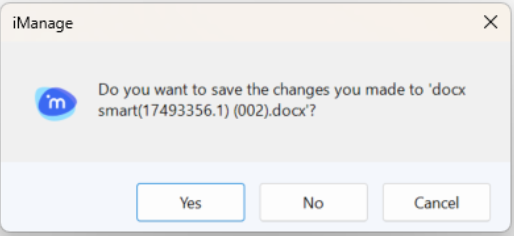 Valid options:
Example: |
|
| Clear the DNS cache and close the connection group before getting the refresh token. Could be useful for VPN users. Valid options:
|
|
DefaultOpen options
<ws_option name="DefaultOpen" >
Option | Description | Default value |
|---|---|---|
| Configures the on-screen text for the Open action available within the iManage Work Open dialog box. You can set the values of these keys to any desired string. For example, the Example: Default options: 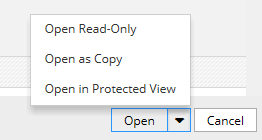 After setting the 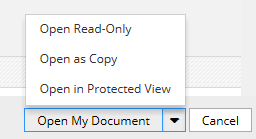 |
|
| Configures the on-screen text for the Open Read-Only action available within the iManage Work Open dialog. Example: |
|
| Configures the on-screen text for the Open As Copy action available within the iManage Work Open dialog. Example: |
|
| Configures the on-screen text for the Open in Protected View action available within the iManage Work Open dialog. Example: |
|
Word options
<ws_option name="word">
Option | Description | Default value |
|---|---|---|
| This option provides an optional workaround for the conflicting requirements for Microsoft Word. Use value Use value |
|
Excel options
<ws_option name="excel">
Option | Description | Default value |
|---|---|---|
| NOTE: This workaround causes the Use value Use value |
|
| This setting enables a workaround for currency and date formatting issues when working with Excel files across multiple different locales. |
|
DocumentLinkCommands options
<ws_option name="documentLinkCommands">
Option | Description | Default value |
|---|---|---|
| These settings provide the default options in the iManage Work Browse dialog box to insert the selected document as a hyperlink (IWL link). The first option inserts the link to the latest version of the selected document, and the second option inserts Example:
|
|
| Example: |
|
Audit options
<ws_option name="audit">
Option | Description | Default value |
|---|---|---|
| Enable audit history events related to the print operation for Microsoft Word. Example: |
|
| Enable audit history events related to the print operation for Microsoft Excel. Example: |
|
| Enable audit history events related to the print operation for Microsoft PowerPoint. Example: |
|
| Enable audit history events related to the print operation for Microsoft Project. Example: |
|
| Log the audit history events related to the print operation for Microsoft Word. Example: |
|
| Log the audit history events related to the print operation for Microsoft Excel. Example: |
|
| Log the audit history events related to the print operation for Microsoft PowerPoint. Example: |
|
| Enable audit history events related to the print operation for Microsoft Word. Example: |
|
Integration options
<ws_option name="integration">
Option | Description | Default value |
|---|---|---|
| Customize the document type filters that appear in the File Open dialog in Microsoft Word. The The The If no types are specified, then that filter will match any document type. NOTE: The pipe symbol and semicolon characters are reserved and can't be used in a filter name or its associated list of document types. |
|
| Customize the document type filters that appear in the File Open dialog in Microsoft Excel. |
|
| Customize the document type filters that appear in the File Open dialog in Microsoft PowerPoint. |
|
| Customize the document type filters that appear in the File Open dialog in Microsoft Visio. |
|
| Customize the document type filters that appear in the File Open dialog in Microsoft Project. |
|
| Use this configuration to display specific image file types when using the Picture option to insert pictures into Microsoft Word, Excel, and PowerPoint documents from iManage Work. |
|
| Use this configuration to display all the image types when using the Picture option to insert pictures into Microsoft Visio from iManage Work. |
|
| iManage Work Desktop for Windows supports passive integration mode with Microsoft Office. If PassiveMode is set to |
|
| Configure non-integrated mode with Adobe Acrobat Reader. When users check out PDF files from iManage Work, make necessary edits, and close files, all changes made are checked in to iManage Work. This integration helps users who run Adobe Acrobat Pro or Adobe Acrobat Reader in Protective mode to continue working seamlessly on PDF files saved to iManage Work. Set this value to Users can use non-integrated mode when the iManage Work add-in isn't installed in these applications. Non-integrated mode shouldn't be enabled if iManage Work add-in is already added and is used actively. |
|
| Configure non-integrated mode with Adobe Acrobat Pro. Set this value to For more information, refer to |
|
| When set to |
|
| iManage Work Windows for Desktop has a hard-coded list of integrated applications like Microsoft Office and Adobe Acrobat, and this option extends the list. Integrated processes are expected to check-in documents on their own when the document is closed. The value is the process names separated by a comma. Example: |
|
| Binding keyboard shortcuts to commands in Microsoft Word can cause changes to the Normal template. The iManage add-in for Microsoft Word doesn’t save this change by default. Use this option to disable resetting the Normal template's Saved status after keyboard binding. By disabling this option, a user might be prompted to save the changes in Normal template when closing the application. |
|
| Disable monitoring the Microsoft Word template's saved status when closing the file or Microsoft Word. |
|
| This option saves the Microsoft Office documents that have been changed from old file formats to the latest file formats to iManage Work. It replaces the old document with the latest version automatically. This option is enabled by default and can be disabled by setting the value to Example: NOTE: If this option is disabled, the converted file format won't be uploaded and the changes will exist only locally. If the file isn't saved to iManage Work, the file in the Recent directory may be corrupted even if the same user tries to download the file again. |
|
| Enables or disables iManage OLE linking feature in Microsoft Office integration. Valid values:
Example: |
|
| Enables or disables Microsoft Word and Microsoft Excel to prompt user to update links when opening a container file from iManage Work. Valid values:
Example: |
|
| Enable or disable Microsoft Word to show the iManage Open dialog when using mail merge (Step-by-Step Mail Wizard). Example: |
|
| Enable or turn off Microsoft Word’s unsafe save option. |
|
Footer options
<ws_option name="footer">
Option | Description | Default value |
|---|---|---|
| Specifies whether to update the footer when documents open. Possible values are Example: |
|
| Specifies the format of the document footer. It uses the members of the WSProfileAttributeID enumeration, with "{" and "}" around them. For the list of the members of the WSProfileAttributeID enumeration that is used in the More advanced footer integration can be achieved by writing your own custom Microsoft Office add-in, such as merging the iManage footer with your existing custom footers. For more information, refer to the iManage Work Desktop for Windows SDK Guide. |
|
| Specifies whether you want to automatically insert the iManage document profile information into the footer. The auto insert operation is triggered when a new version or a new copy of the document is saved to iManage Work. When this is enabled, the iManage footer replaces any existing custom footer in documents. |
|
| Specifies whether to use footer seek operation for footer content check. Use value |
|
| Name of the font to use for the footer. |
|
| Font size of the footer. |
|
| Alignment to apply to the footer. Possible values are |
|
Coauthoring options
<ws_option name="coauthoring" >
For more information, refer to the Customizing the User Experience in Office Applications section in the iManage Work Co-Authoring Guide.
iManage Work Agent options
<ws_option name="workagent">
Option | Description | Default value |
|---|---|---|
| Automatically cleans up old notifications from iManage Work Agent when the specified number is reached. Example: |
|
| Automatically cleans up old notifications from iManage Work Agent after the specified number of days. Example: |
|
| Automatically cleans up old error messages from iManage Work Agent when the specified number is reached. Example: |
|
| Automatically cleans up old error messages from iManage Work Agent after the specified number of days. Example: |
|
| Includes a comma-separated list of non-integrated applications that cannot lock the file while editing. Example: |
|
| When enabled, iwl calls through localhost are accepted from the URLs for the user's registered servers. Default is NOTE: If you have certain partner integrations, you must add the appropriate urls from the partner tools to the AllowedOrigins option (below), or set RestrictOriginstoRegisteredServers to " Example: |
|
| A comma-separated safe list of additional origins (server URLs) allowed to invoke IWLs through localhost. When not configured and the RestrictOriginsToRegisteredServers option (above) is set to " Example: NOTE: This must be configured if you have partner applications with URLs involved, and have set RestrictOriginsToRegisteredServers (above) set to " |
|
| When enabled, Auto Updates-related menu options in the Work Agent are not visible to your end-users. NOTES:
Example: |
|
| Range of TCP ports scanned by the iManage Work Agent to secure a free port for communication with iManage Work. Example: |
|
| Frequency in minutes with which the iManage Work Agent should check for auto updates in the background. Example: |
|
| Lists the third-party applications that can handle the file through iManage Work REST SDK. This allows iManage Work Desktop for Windows to recognize the application so that it can activate the REST SDK feature. This means once the document is checked out and is opened using a third-party application, the document remains checked out when it’s closed. It doesn't get checked in automatically as the third-party application is responsible for the check-in. Example: |
|
| When set to Example: |
|
| This option can be used to specify the number of days (grace period) that users should be allowed to install available software updates through iManage Auto Updates functionality. The countdown begins when an update is available. If users have the option selected to automatically install updates, then updates are installed as soon as they're available and this option doesn’t apply. Example: |
|
Costrecovery options
<ws_option name="costrecovery">
Option | Description | Default value |
|---|---|---|
| Enables the optional iManage Cost Recovery feature. The Cost Recovery module is available only for:
When a user opens an iManage Microsoft Word document and types in a few words, the Cost Recovery module records the time spent by the user editing the document based on the typing activity. The information is recorded in the DURATION column in the DOCHISTORY table of the iManage Work Server against the Edit Time activity, along with other history details:
Cost Recovery module documentation is available upon request for licensed customers. Valid values: |
|
| Specify an interval value in minutes. If the duration between two keystrokes exceeds the value, the time won't be counted as the edit time. The value range is 1 to 60 in minutes. |
|
AdobeConversion options
<ws_option name="adobeconversion">
Option | Description | Default value |
|---|---|---|
| Enables users to choose the Adobe convertor for saving documents as PDFs to iManage Work using the iManage > Save as PDF option in integrated Microsoft Office applications. Valid values: Example: |
|
Web download options
<ws_option name="webdownload">
Option | Description | Default value |
|---|---|---|
| When downloading multiple files locally, they'll follow this format. This doesn’t apply to single downloads. The files downloaded locally will have its name in the following format: Example: |
|
| When multiple versions of the same document are downloaded, their name will be formatted as Example: |
|
| Specify a folder where the iManage files will be downloaded when downloading multiple files. By default, the location will be the current user's Downloads directory. Users can also specify a windows directory which may or may not exist locally. For example, Example: |
|
| If this value is set as Example: |
|
Email options
<ws_option name="email">
Option | Description | Default value |
|---|---|---|
| Enable automatic correction of message properties for the Reply, Reply All, and Forward options in encrypted emails. Example: |
|
Outlook options
<ws_option name="outlook">
Option | Description | Default value |
|---|---|---|
| Configures the document filters that appear in the file selection dialog when performing an insert attachment action in Microsoft Outlook. Each filter is listed as a separate filter node with a name (label) and the set of document types that should be shown when selected. The list of types associated with a filter are expected to be a comma-delimited list of file types which should be allowed to appear when the filter is selected. NOTE: Dollar sign ($) and pipe symbol (|) can't be used in filter names or type lists. These are reserved characters. Example: | See example. |
| Specifies which filter should be selected by default in the file selection dialog when performing an Insert Attachment action in Microsoft Outlook. The value is a zero-based index of the filter to select. The default value is zero (that is, the first filter in the list). Example: |
|
| This specifies the maximum attachment size in megabytes that a user should be able to attach to an outgoing email. Example: |
|
| The default number of days before the secure send link should expire. Example: |
|
| Decides whether access to secure send links is restricted by default. Example: |
|
| This option enables Microsoft Azure single-sign on in the Work Panel when using the WebView2 browser control. Values are Example: |
|
| Enables support for JavaScript alerts and other default scripting dialogs in the Work Panel. Example: |
|
Shellexecute options
<ws_option name="shellexecute">
Option | Description | Default value |
|---|---|---|
| Enables you to reduce security vulnerabilities by blocking certain file types to prevent users from opening or printing these files using iManage Work Desktop for Windows or the iManage Work web client. Specify additional type of files from being shell executed. The value is a list of file extensions in lowercase separated by commas like NOTE: The following file types are automatically blocked. As a result, users can't open or print these type of files.
Example: |
|
| If whitelist values are provided, it only opens file types in the list. All other types will be blocked. Example: |
|
iManFields options
<ws_option name="iManFields">
Option | Description | Default value |
|---|---|---|
| You can add fields by adding the value to a key in the same syntax. For example, to add the For a complete list of fields, refer to Appendix C - WSProfileAttributeID Enumerators. Example: |
|
| Example: |
|
| Example: |
|
| Example: |
|
| Example: |
|
| Example: |
|
| Example: |
|
| Example: |
|
| Example: |
|
| Example: |
|
backstageView options
<ws_option name="backstageView">
Option | Description | Default value |
|---|---|---|
| This option enhances the performance on loading the items shown on the backstage when performing file open and save actions. It also loads the recent documents and folders in a background tasks once the server is connected. Example: |
|
| By default, users must manually refresh the backstage view. If this option is enabled, every time a file is opened (checked-out) or closed (checked-in or unlocked), the backstage view should be updated with the latest changes. Example: |
|
NativeFilePickerSettings options
<NativeFilePickerSettings>
These settings relate to the new and improved Open and Save dialogs in iManage Work Desktop for Windows 10.10.0 and later.
Option | Description | Default value |
|---|---|---|
| Enables users to opt in and opt out of the new and improved iManage Open and Save experience. Setting this option to If a user has already switched to the new interface, after setting this option to Example: 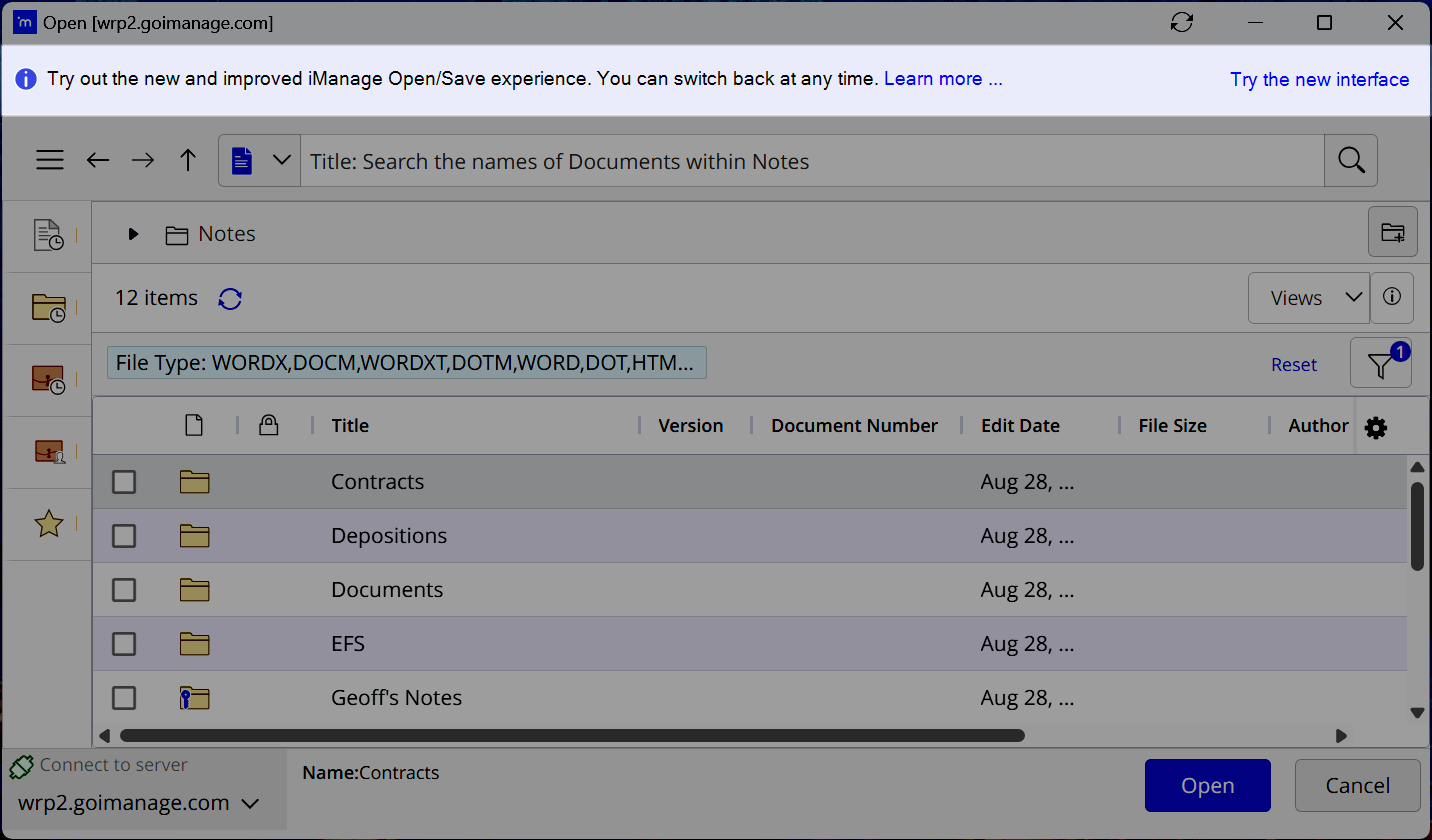 |
|
These settings control how information is displayed in the native file picker dialogs. | ||
| Configure the format of usernames to be displayed in iManage Work Desktop for Windows with the Native File Picker.
|
|
| Configure the display format of metadata fields in iManage Work Desktop for Windows with the Native File Picker.
|
|
| Show or hide the display of the custom metadata options in the new Open and Save experience dialogs. By default, this is enabled and displays the Recent Clients (custom1) in the list of Quick links and Clients tab in the Advanced Search. Setting this option to 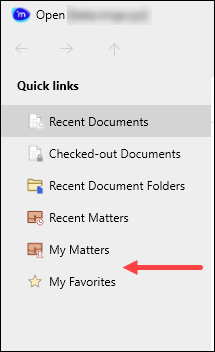 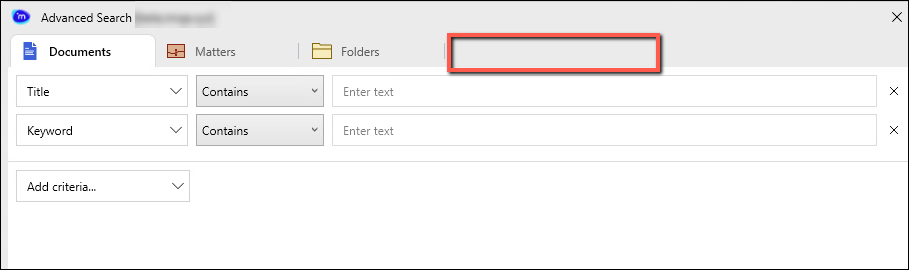
NOTE: To display a different custom metadata property, other than custom1, refer to the |
|
| When
|
|
| When enabled, displays the New Folder button to allow users to create a new folder within the new (native) file picker dialogs.
If blank or any other values are entered, it will be enabled. |
|
| Enables advanced searches in different languages.
If blank or any other values are entered, it will be enabled. |
|
The following settings control what columns are displayed for each of the respective views in the new iManage Open and Save dialogs. NOTE: iManage advises against removing columns from the respective | ||
|
|
|
|
|
|
|
|
|
|
|
|
|
|
|
|
|
|
|
|
(blank - no default columns are defined) |
The following settings control what fields are displayed when performing an advanced search in the new iManage Open and Save dialogs. NOTE: The criteria included in the respective | ||
|
|
|
|
|
|
|
|
|
|
|
|
|
|
|
|
|
|
Deprecated options
The
InsertiManageFieldoption that was introduced in iManage Work Desktop for Windows 10.2.4 for inserting custom fields in the footer in Microsoft Word documents is deprecated. This feature can now be enabled just by entering a firm name or ID using theiwFirmIDoption.The
iwFilePickerLocaleoption for specifying the country-region code to be used when displaying File Selection and File Save dialog boxes is deprecated. TheiwLocaleoption should be used instead. This option sets the language across all of iManage Work Desktop for Windows.The
iwFileNameSizeFormatoption that was used to format file formats in email templates is now deprecated.