We recommend you to deploy iManage Work Desktop for Windows with iManage Auto Updates using iManage Installer. The iManage Installer installation package automatically downloads the latest software versions and prerequisites and enables iManage Auto Updates to maintain the iManage Work Desktop for Windows going forward.
This section contains the following topics:
Downloading iManage Installer from iManage Help Center
Visit iManage Help Center and download the iManage Work Desktop for Windows Auto Update Installer package. The iManageInstaller.exe file downloads on your device.
Perform the steps provided in the Installing iManage Work Desktop for Windows section.
Downloading iManage Installer from iManage Work
Sign into iManage Work (web application). Notice the following banner:
Figure: iManage banner to download iManage Work Desktop for Windows
Select Download iManage Work for Windows. The iManageInstaller.exe file is downloaded to your machine, and the following screen appears. Select Close.
Figure: iManage Installer download confirmation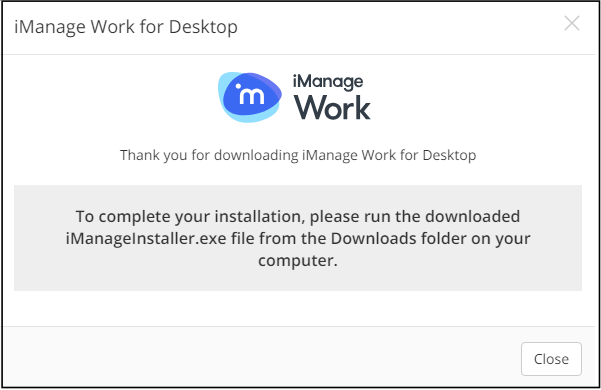
Perform the steps provided in the Installing iManage Work Desktop for Windows section.
NOTE:
If you close the banner in the browser, it won't be displayed again even if your machine doesn't have the iManage Work Desktop for Windows application. You can, however, anytime later, select your profile picture and then select Install iManage Work to download iManage Installer.
Installing iManage Work Desktop for Windows
NOTE:
To install the application, you don't have to be an administrator for your device. However, your account needs to have permissions to install the software only the first time it's installed using iManage Installer. After iManage Work Desktop for Windows is installed with elevated permissions using the iManage installer, any subsequent automatic updates are executed using the same elevated permissions, allowing even users with restricted installation permissions to update the software.
Make sure the device is connected to the internet when downloading and installing iManage Work Desktop for Windows.
Run iManageInstaller.exe. The iManage Installer Setup screen opens.
Select one of the options and then select Next.
Figure: iManage Installer setup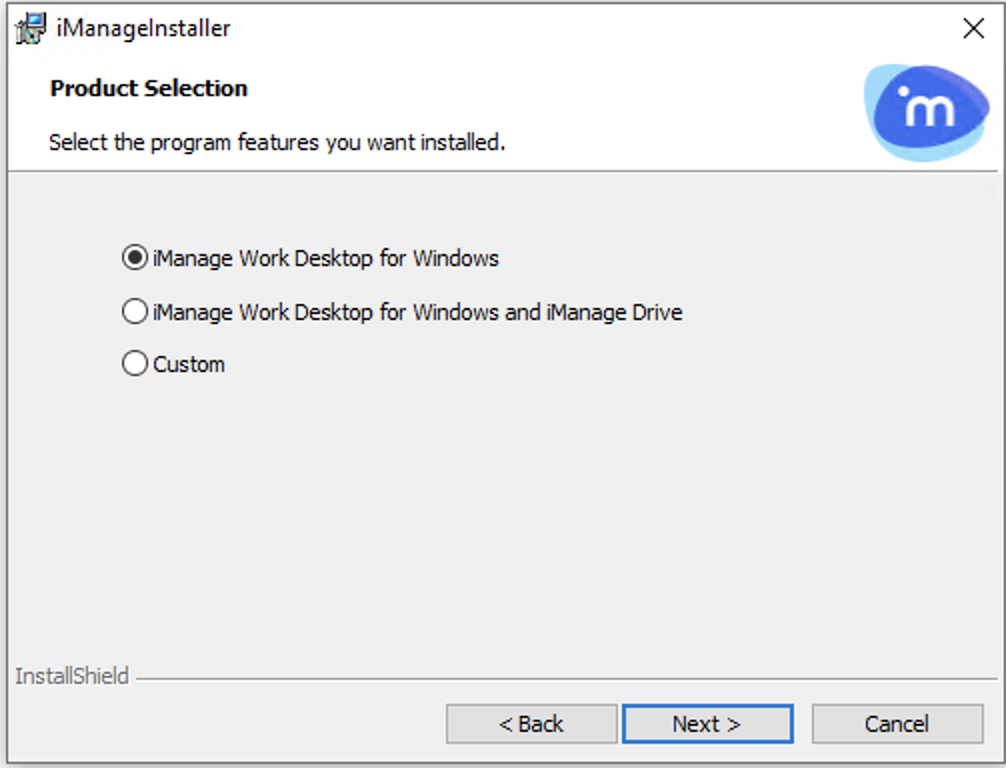
If you select Custom, the screen is pre-populated with the iManage Update Server location where the latest iManage software updates are hosted.
(Optional) To set up your own update server, you can configure this location.Select Install. iManage Installer starts the download.
Figure: Select Install to begin the installation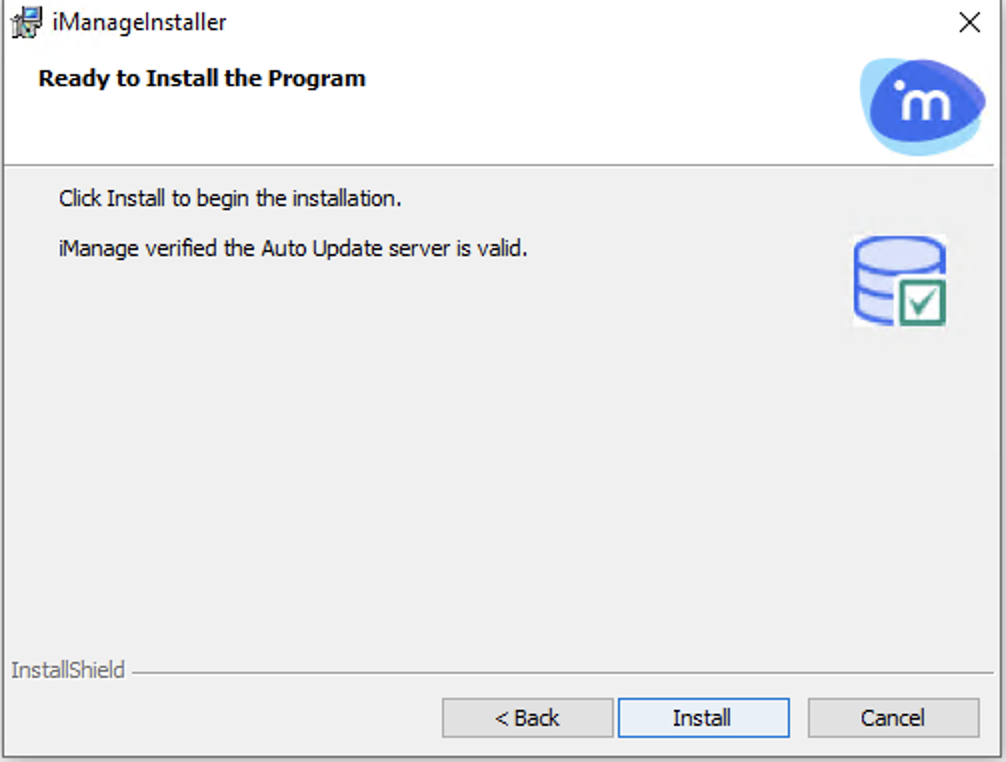
Select Finish on the following screen:
Figure: Installation complete confirmation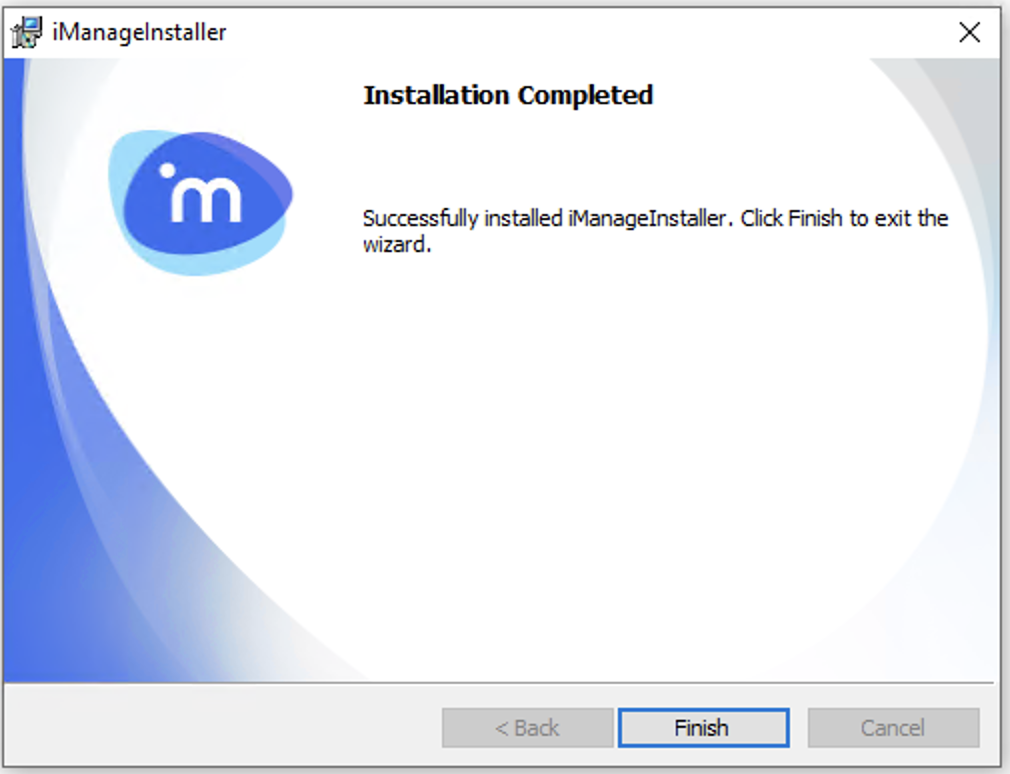
You may have to wait for a few minutes for the entire process to complete. It's an automated process and doesn't require any intervention (besides Windows confirmation to install updates).
If you've enabled Windows notifications on your machine, Windows notifications are displayed when the iManage Installer installs iManage Agent Services and iManage Work Desktop for Windows.Figure: Windows notification for downloading Figure: Windows notification for installing updates
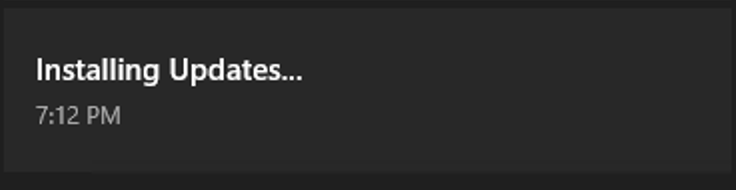 Figure: Windows notification after installation is completed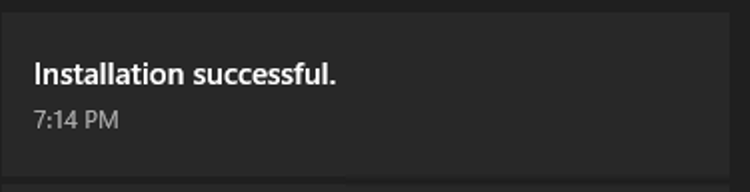
For more information about how to turn on Windows notifications, refer to Appendix D: Enabling Windows notifications.After the installation is completed, the What's New page is launched in your default browser. It provides information on the new features, enhancements, and issue fixes in the latest update.
Additionally, the following notification appears on iManage Work Agent indicating that iManage Work Desktop for Windows is successfully installed on your device. This message indicates that the latest version of iManage Work Desktop for Windows is installed on your device and you have to restart all Microsoft Office and Adobe Acrobat applications to use the latest version of iManage Work Desktop for Windows.
Figure: Updates installed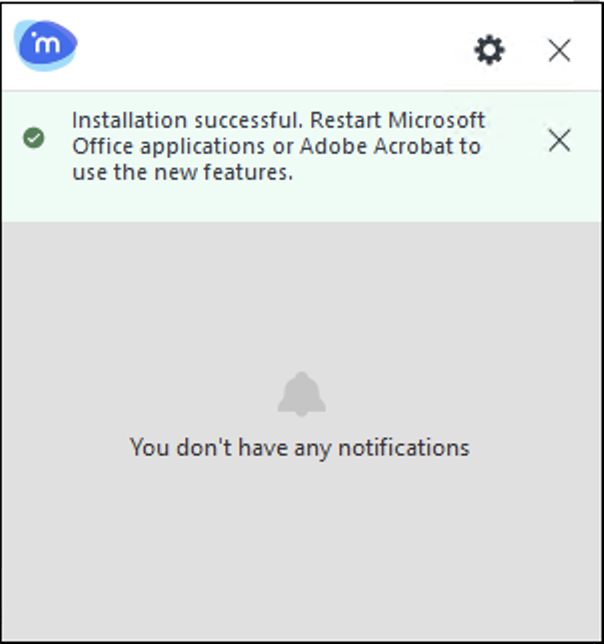
Errors when local security policy is turned on
On Windows 11 devices that have the local security policy (System Cryptography: Use FIPS compliant algorithms for encryption, hashing, and signing) turned on, iManage software may be blocked from being installed by the iManage Installer.
If you encounter this issue, the following message is reported in the iManageUpdater log file error: "Abort, reason: FIPS algorithm policy is enabled."
To avoid this issue, disable the System Cryptography: Use FIPS compliant algorithms for encryption, hashing, and signing setting in the Windows Local Security Policy, or by setting the following registry key:
Location: HKEY_LOCAL_MACHINE\SYSTEM\CurrentControlSet\Control\Lsa\FipsAlgorithmPolicy
Name: Enabled
Type: DWORD
Value: 1
Use command-line parameters to install or uninstall
iManage Work Desktop for Windows can be installed or uninstalled programmatically or from a command prompt. This lets you install or uninstall with preselected options and parameters.
For more information, refer to Appendix A: Command link parameters for iManage Work Desktop for Windows.