Only the user who initiated the checkout can complete the co-authoring session. All other users must close the document and you must also close the document if it's open on other devices; otherwise, you receive an error that the document is in use.
You can complete the session from the Microsoft Office desktop application by doing the following:
From the document list, select a checked-out co-authoring document.
On the iManage tab, in the Co-Authoring group, select Finish. In the dialog that opens, select one of the following check-in option and then select OK:
Replace original: Replaces the existing document in iManage Work repository, and there's no change in the version number.
New version (default option): Saves the latest document as an incremental version number of the document.
New document: Opens the iManage Save As dialog that lets you select the location where you want to save the document.
The document is checked in, and the users who are part of the co-authoring session are informed.
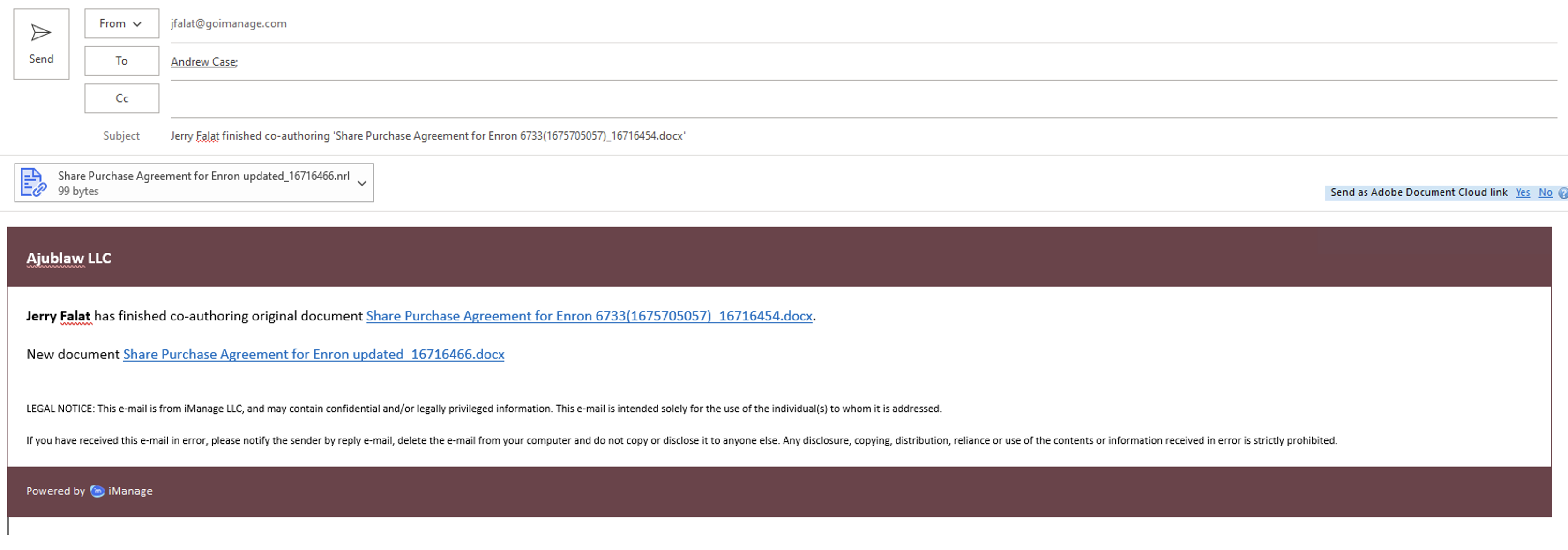
From iManage Work Desktop for Windows 10.9.0 or later, when you finish co-authoring a document and save it as a new document using the New Document option, the email that's sent to notify users who are part of the co-authoring session contains the link to both the original and new documents as shown in the following figure. You can modify the original document or the new document by selecting the appropriate link.