In iManage Work Desktop for Windows, co-authoring displays an email window in the default email client for your device if the Preview email before sending option is selected when inviting users. The default email client defined on the operating system generates an email when you:
Perform a right-click/Send document
Send a document from the local drive
Use the Share option from within a Microsoft 365 application
You can edit the HTML text (subject, body text, and so on) and customize the other values that are inserted in the co-authoring emails that are sent by iManage Work applications. The application automatically inserts NRLs which can't be changed for the documents. The following sections explain how to customize the email templates for Microsoft Outlook or other default mail editors installed on your device.
NOTES:
To prevent future product upgrades from overwriting your customized templates, store the customized templates in %localappdata%\iManage\Work\coauthoring. Co-Authoring first searches in the %localappdata% folder and the installation directory is probed only if no email templates are found.
Ensure that the template name remains the same after customization, otherwise the application won't load your custom templates.
Microsoft Outlook
There are several email templates that are necessary for the co-authoring workflows. For iManage Work Desktop for Windows, the following templates are available at <install directory>\iManage\Work10\<build number>\coauthoring:
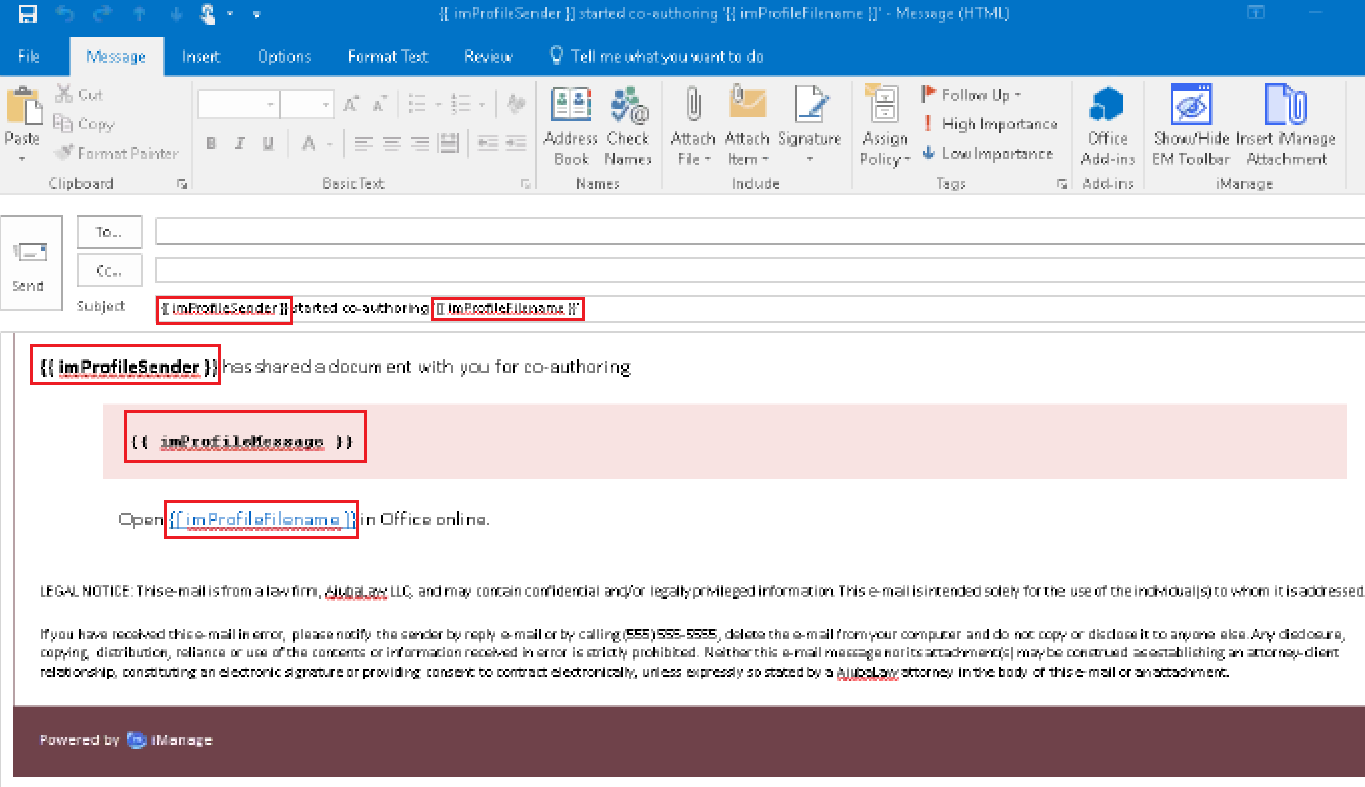
CoauthoringStart.oft: Start a co-authoring session.
CoauthoringRequestAccess.oft: Request access for co-authoring a document.
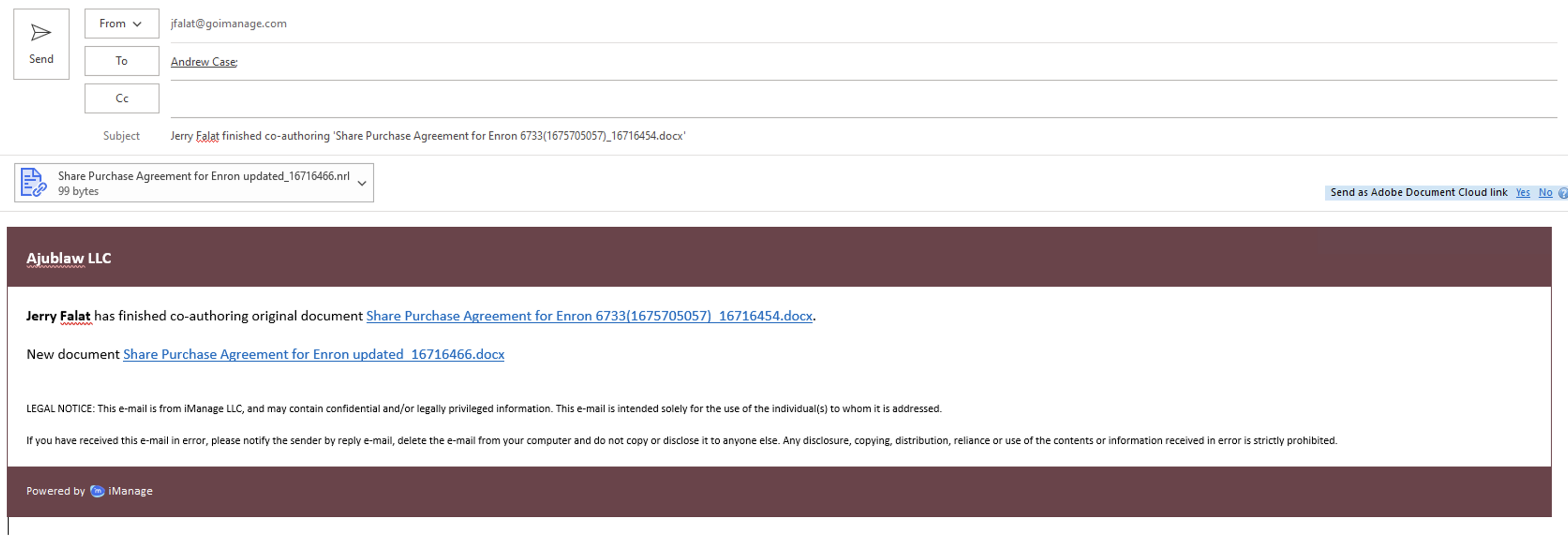
CoauthoringFinishAsNewDocument: Includes the link to the new document if the co-authored is saved as a new document.
CoauthoringUnlock.oft: Unlock a co-authoring session.
CoauthoringFinish.oft: Finish a co-authoring session.
The following figure displays (in red) the tokens that can be customized in the CoauthoringStart template.
When you edit a template, select File > Save As. From the Save as type format drop-down list, select Outlook Template and then select Save.
From iManage Work Desktop for Windows 10.9.0 onward, when a user finishes co-authoring a document and then saves the document as a new document using the New Document option, the email that is sent to notify other users who are part of the co-authoring session, contains the link to both the original and new documents as shown in the following figure. Users can modify the original document or the new document by selecting the appropriate link.
Other email editors
For sending co-authoring emails, use of the default email client on your device other than Microsoft Outlook is currently not supported.