Right-click the iManage Gmail extension
 logo displayed in the top-right corner of the browser and then select either of the following:
Options
Manage Extensions > Extension options
On the iManage Work for Gmail Extensions Settings page, in the iManage Work URL field, enter the URL of the iManage Work Server to which you want to connect.
Figure: Extension settings page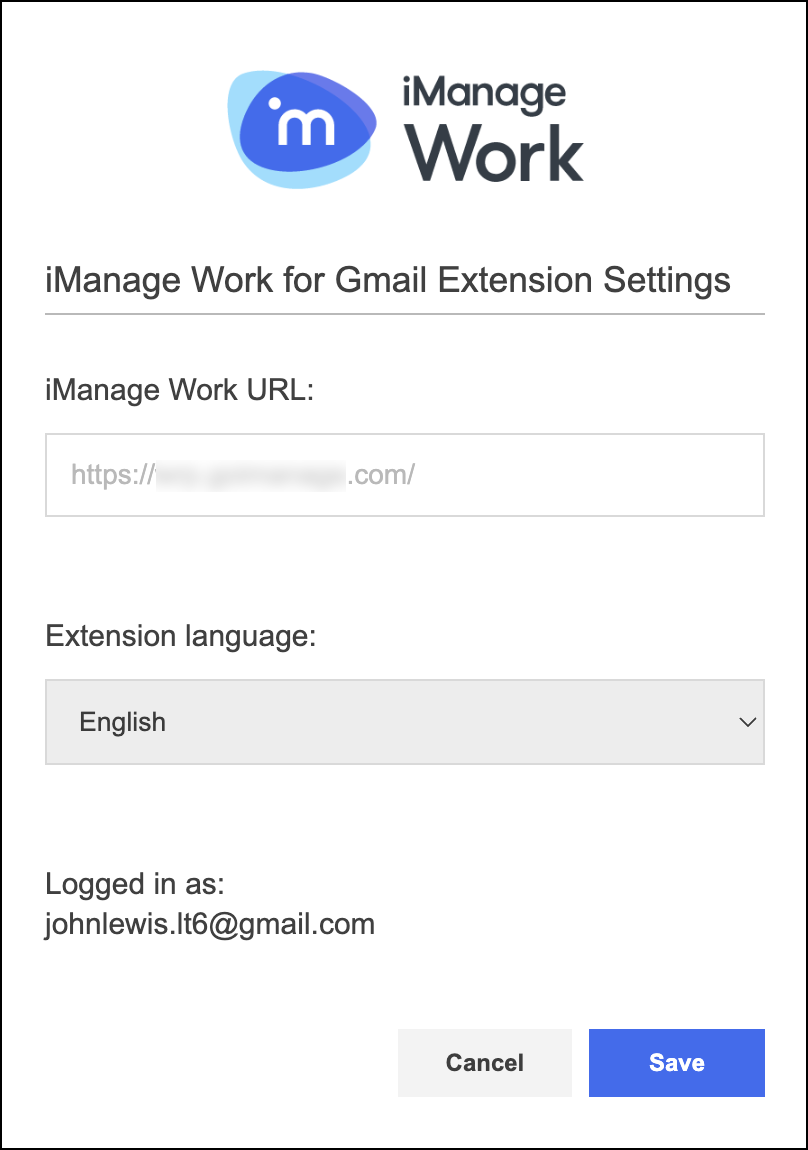
From the Extension language drop-down list, select a language for the iManage Work Email Management for Gmail extension.
Select Save. A message is displayed about the changes being saved and you’re asked to reload Gmail.
Permission prompt when adding non-default URLs
If you try to configure the extension to use an iManage Work URL other than the default URLs that your administrator has added, the “'iManage Work for Gmail' has requested additional permissions. It could: Read and change your data on <your domain>,” prompt is displayed as shown in the following figure:
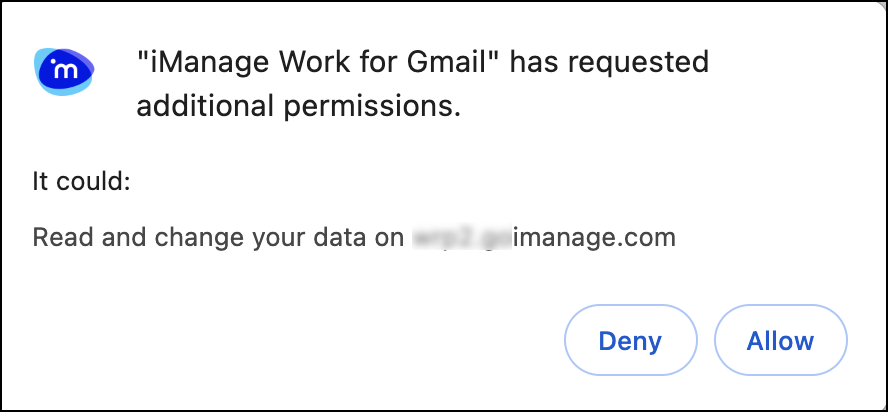
Select Allow and reload the Gmail page.
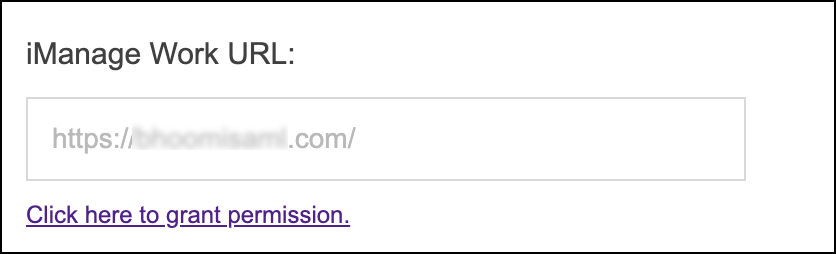
If you select Deny, the Click here to grant permission link is displayed below the iManage Work URL field:
Trying to access Gmail after denying permission displays the following message:

Select Configure now to go to the iManage Work for Gmail Extensions Settings page and then grant the permission using the Click here to grant permission link.