You can file a sent or received email to an iManage Work destination folder. The email is stored in a format supported by the Gmail export.
Open the email you want to file.
Alternatively, select one or more emails in your inbox.On the toolbar, select File
 to file the email.
In the iManage Work dialog, select the required folder.
To file the email privately, select the Private check box, and then choose Select.
Your email is filed in iManage Work.
NOTE: When you file an email to iManage Work that contains a link to a Google Docs file, the file is automatically downloaded and saved as an attachment.
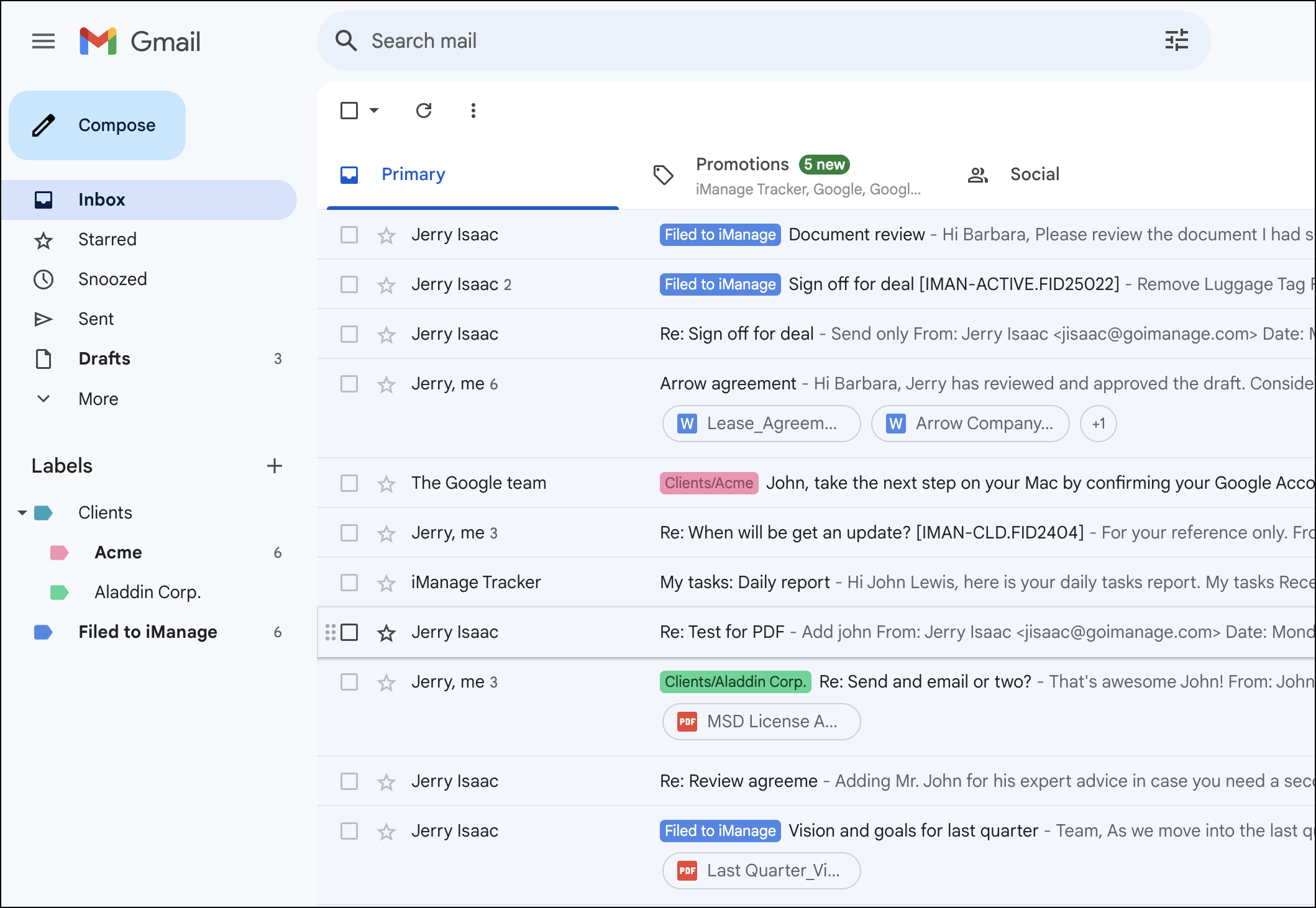
In your Inbox, the Filed to iManage label is displayed next to the recently filed email. Select the Filed to iManage label to view all the filed emails.
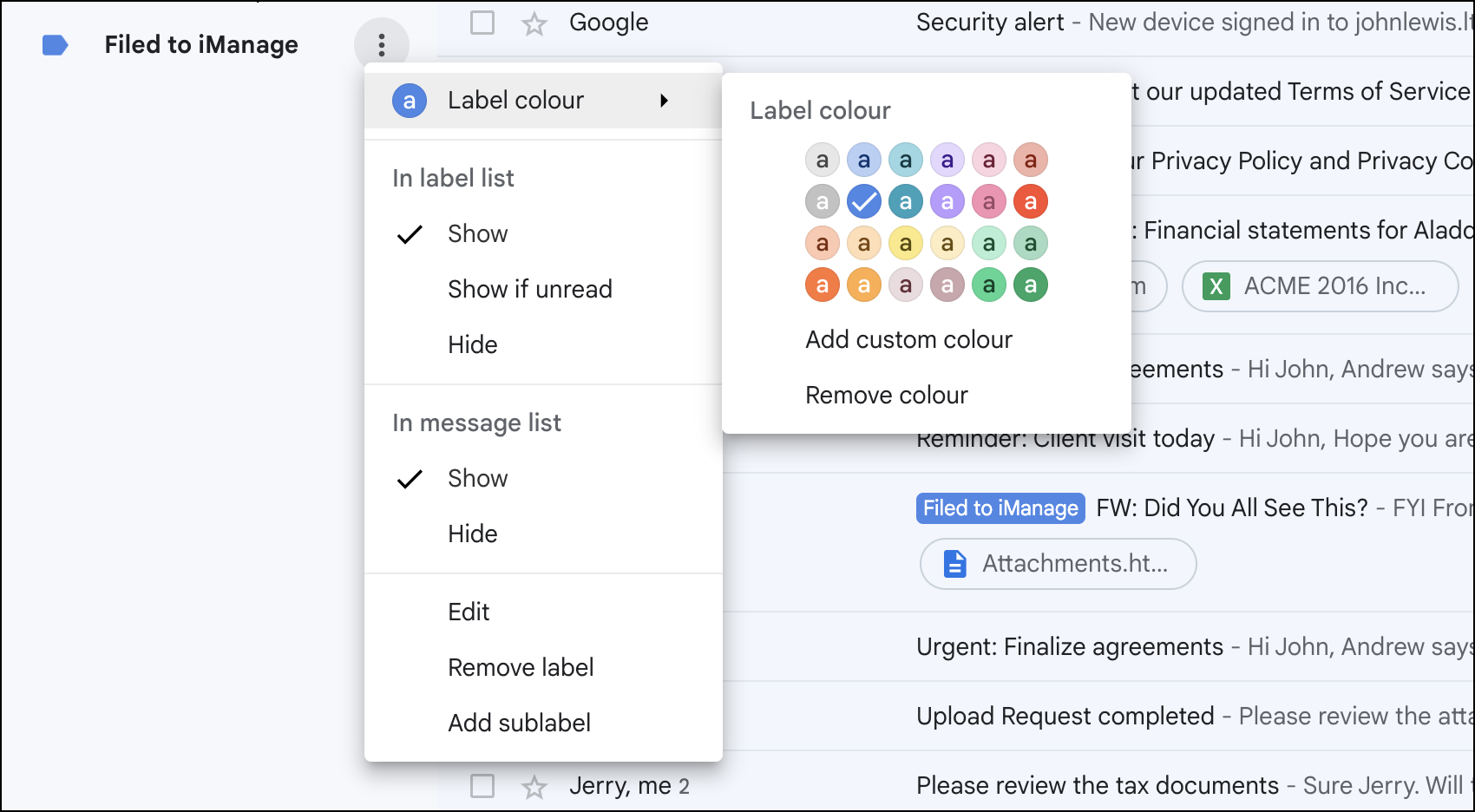
You can't remove the label from filed emails, but you can change the tag color and name to suit your preferences. To hide the label in your message list, select the  icon next to the Filed to iManage folder and then select Hide.