Check E-signature status
To access E-signature dashboard from the Folders view, select the folder name in iManage Work to open the documents in the folder. Right-click the document and select Check Docusign E-signature status. Alternatively:
Select the three dots
 icon on the right side of the document and then select Check Docusign E-signature status.
Right-click the workspace and select Check Docusign E-signature status.
E-signature dashboard for Docusign
The E-signature dashboard for Docusign contains all the information about documents sent for signing.
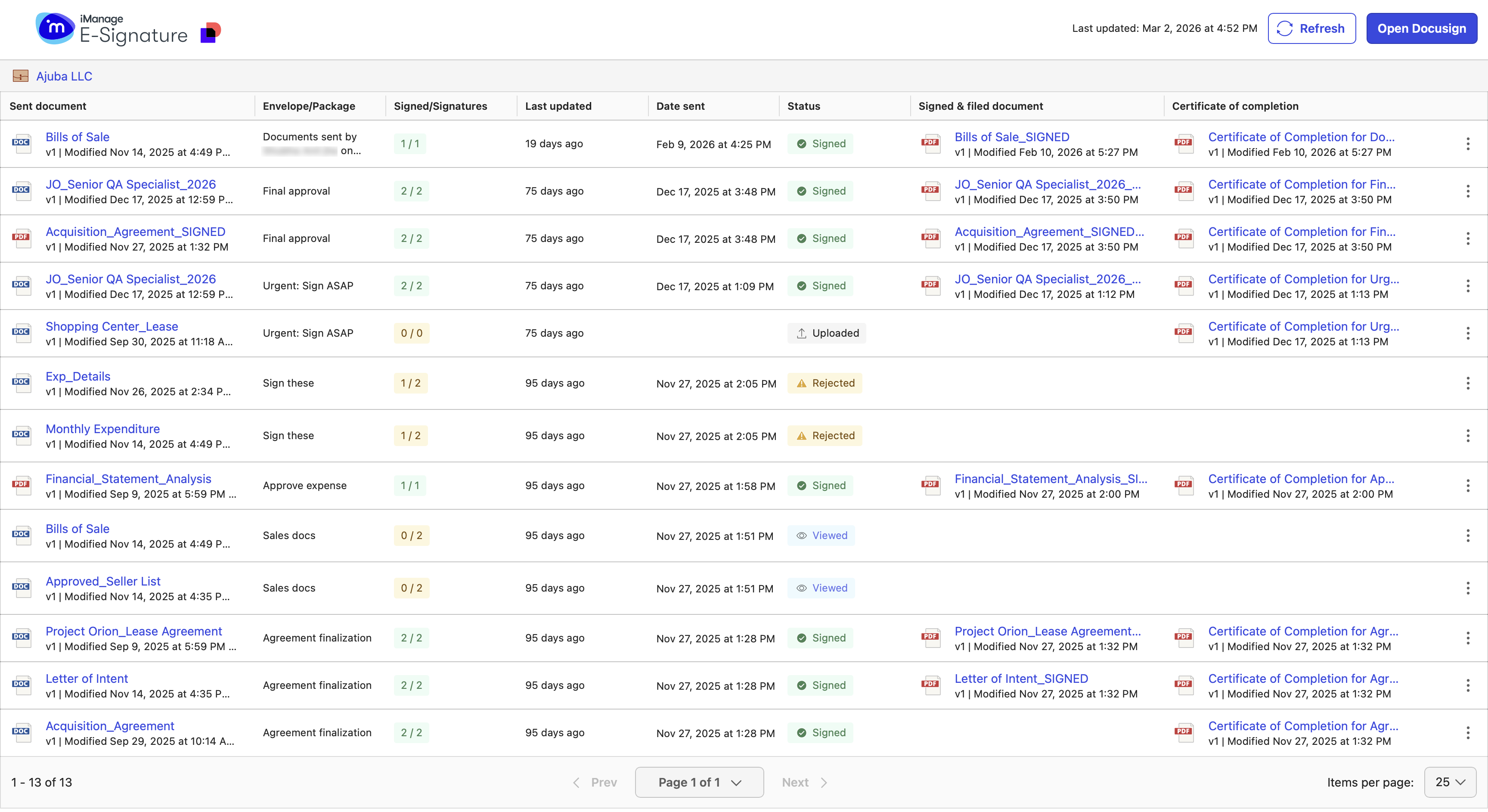
The dashboard provides the following information:
Sent document: The details of the document sent for signing. If you select the link, the document opens in iManage Work.
Envelope/Package: The Docusign envelope name containing the document for signing.
Signed/Signatures: The number of signatories out of the total count that have signed the document. Example: 0/2 means 0 signatories out of 2 have signed the document.
Last updated: The local time when any change or action happened in the signing process.
Date sent: The date when the envelope was sent for signing to the signatories.
Status: The current status of the envelope. For more information, refer to the following table.
Signed & filed document: Select the document link to open the signed document in iManage Work.
Certificate of Completion: Select the document link to open the certificate in iManage Work. For more information, refer to Accessing Certificate of Completion.
Document statuses in E-signature dashboard
Table: Meaning of envelope statuses in E-signature dashboard
Status | Meaning |
|---|---|
Uploaded | The sender has sent the document to E-signature for signing. They can open the document in Docusign and prepare the envelope. |
Sent | The envelope is sent to recipients for signing. |
Viewed | All the signatories have viewed the envelope. |
Signed | All the signatories have signed the documents in the envelope. |
Discarded | The sender has discarded one or more documents sent for signing. |
Rejected | One or more signatories have rejected signing one or more documents. |
Voided | The sender has voided the document and all signing activities are canceled. |
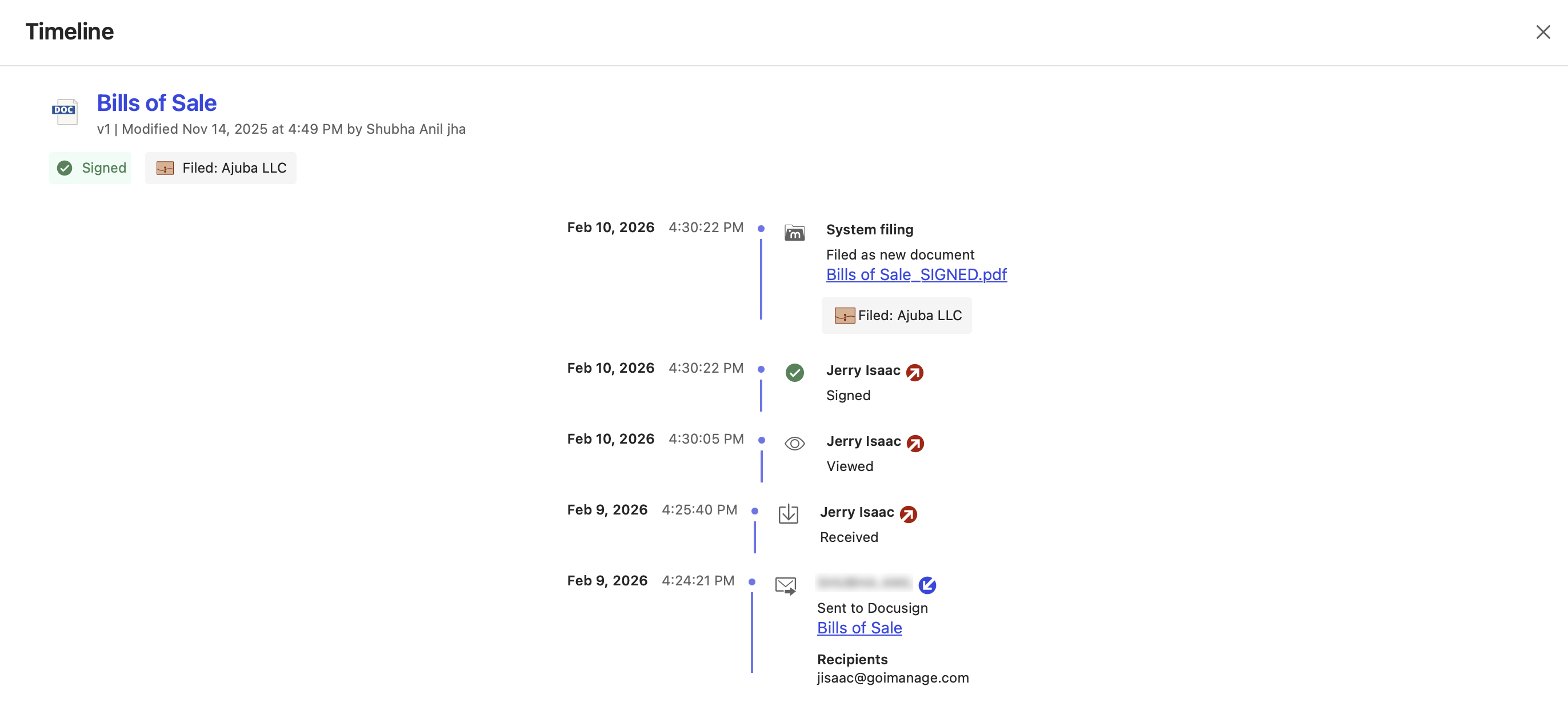
View the timeline of the document signing process
Select the three dots icon for the document row and then select Show timeline from the menu.
Open the document in Docusign
Select the three dots icon for the document row and then select Open in Docusign from the menu. Alternatively, select Open Docusign in the top-right corner of the page. For more information, refer to opening the document in Docusign.
Automatic filing of signed document to iManage Work
After all signatories have signed the document, E-signature saves a copy in PDF format in the same folder as the original document in iManage Work. This applies to every document in the envelope.
How the signed copy gets saved depends on the option selected while sending a document for signing:
New document: Saves the signed document as a new document (default option). This signed copy retains the name of the original document, with _SIGNED appended to the file name.
While previewing the signed document, both the Certificate of Completion and the sent document are listed in the Related Documents tab.New version of original: Saves the signed document as a new version of the sent document. The signed document has the same file name and security as the version that was sent for signing, an incremented version number, and a comment that it’s a Signed copy of v<version number of the document sent for signing>.
While previewing the signed document, the Certificate of Completion is listed on the Related Documents tab.
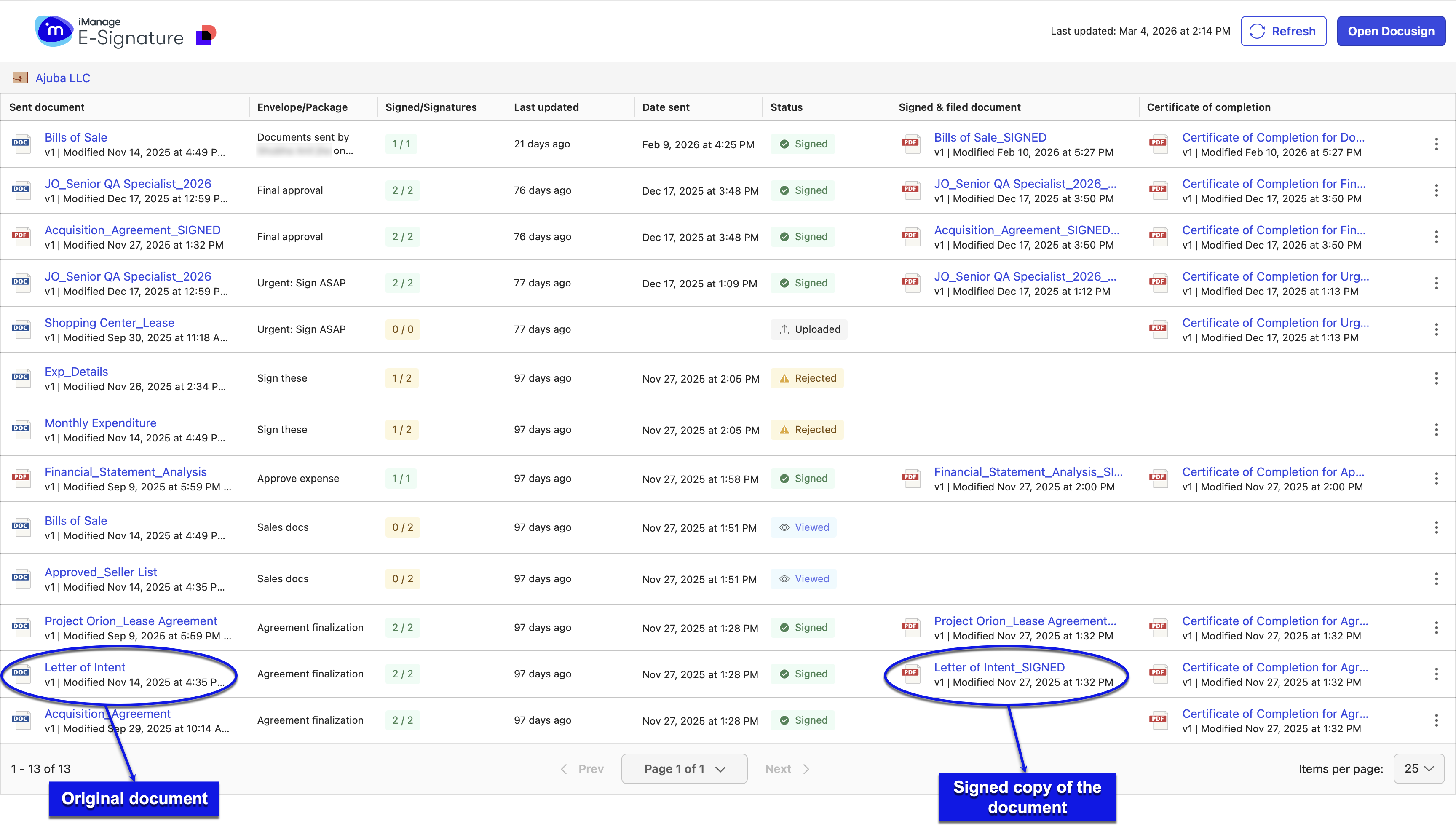
In the following figure, you’ll notice that the signed document has the same name as the document sent for signing, but the version number is changed/incremented.

Now let’s assume you sent version 1 (v1) of Bill of Sale to a client for signing. Before the client signs the document, a team member in your department updates it to include the details of another client and uploads it as version 2 (v2). After your client signs, the signed document will be saved as version 3 (v3) with the following comment:
Signed copy of v1
Saving the signed document as a new version from the dashboard
Regardless of whether you initially chose to save the signed copy as a new document or a new version, you can later save it as a new version of the original document (the one you sent for signing) at any time, and as many times as you need, using the context menu in the dashboard.
In the E-signature dashboard, select the three dots icon for the document row and then select Save signed document as new version from the menu. The Signed document saved as new version: message is displayed followed by a link to the original document. Selecting the link opens this latest version you’ve saved. It has the same name as well as the same metadata and security that the original document currently has. Also, the following comment is displayed:
Signed copy of v<version number of the document sent for signing>
This feature could be useful when the security and metadata of the original document got changed after it was sent for signing and you want the signed copy to inherit the same (latest) security and metadata.
Accessing Certificate of Completion
To complete the audit trail and to ensure that a record of the signing activity is available, Docusign provides Certificate of Completion (in PDF format) for every envelope that gets signed. For more information, go to https://support.docusign.com/.
This certificate is displayed in the Certificate of Completion column in the E-signature dashboard for each document in the signed envelope and saved in the same iManage Work folder where the first document in the envelope is located. It inherits the security of the folder it’s saved in and has the name of the envelope added after the words Certificate of Completion for. For example, the certificate for the Agreement finalization envelope is named Certificate of Completion for Agreement finalization (refer to the figure below).
When the documents are being sent to Docusign, the name of the iManage folder in which the certificate will be uploaded is displayed as a link. Select this link to open the folder in a new tab in the browser. Alternatively, hover over the link to view the folder path.
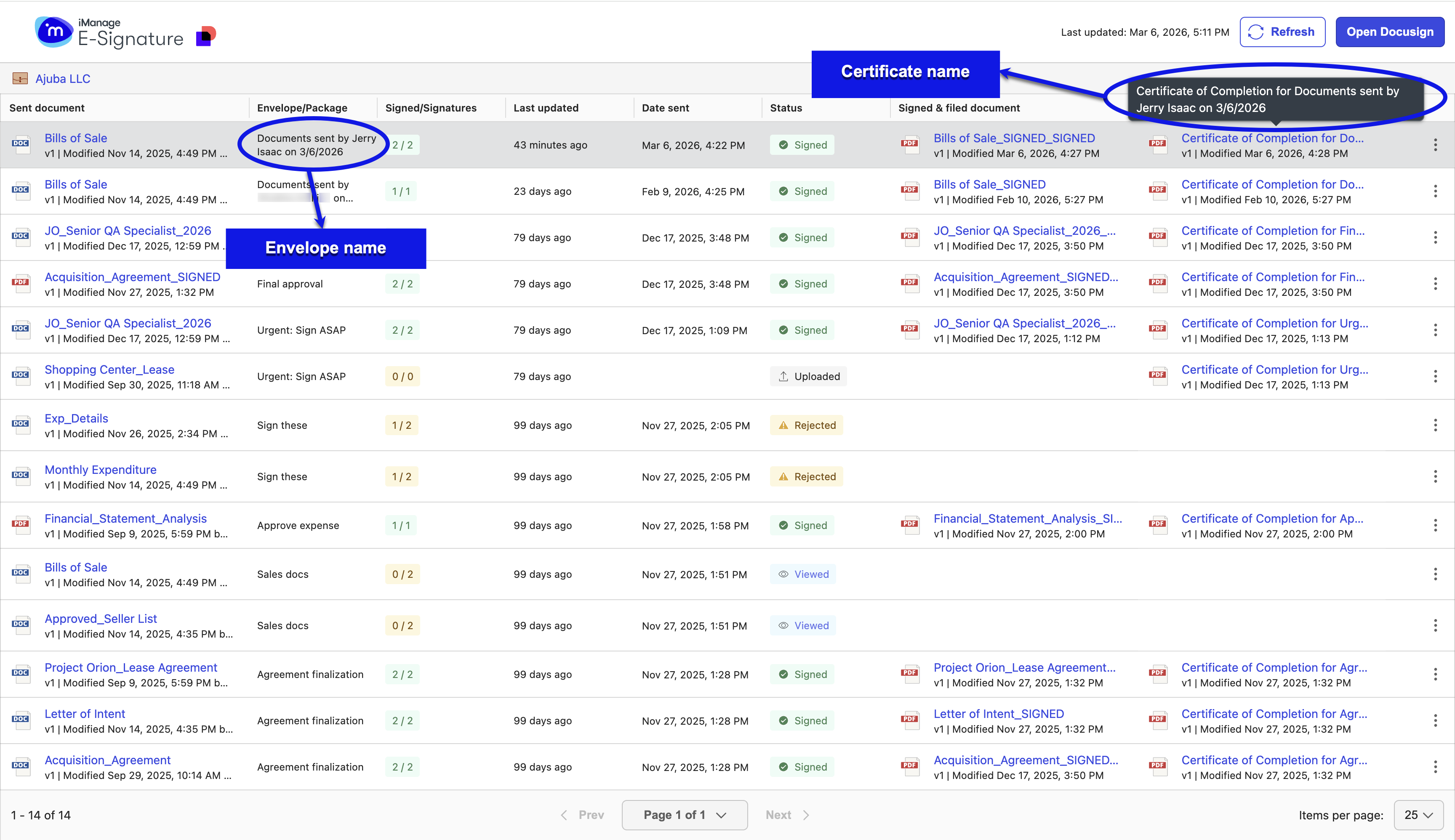
Select the certificate link in the dashboard to open the document in iManage Work. It's displayed in a new browser tab in preview mode, from which you can download it, copy the link, view the timeline of activities, and so on. While in this mode, select the Related Documents tab to view the signed documents in the envelope as they’re all linked to the certificate. Similarly, the certificate is linked to all the signed documents in the envelope and can be viewed using their Related Documents tab.