Use a browser to sign in to iManage Work.
Select the document you want to send for E-signature from Recent Documents tab on the Documents page. Alternatively, search for the document using the search bar at the top of the page. You can also browse to the folder in the required workspace by selecting Folders from the left pane and then select the folder in which your document resides.
NOTES:
Documents can’t be sent for signing from within a search folder.
When a document shortcut is sent for signing, the workspace and the folder of the target document are used.
iManage Work E-signature supports signatures, initials, date signed, and text as Docusign signature fields. Documents that contain only other field types (such as name, email, company, or title) can still be sent and returned through iManage E-signature; however, iManage doesn't track those documents for signing activity.
To use iManage Work E-signature with Adobe Acrobat Sign, you need an Acrobat Sign Solutions license. The integration doesn’t work with Acrobat Sign access bundled with Acrobat Pro/Studio plans. For more information, go to https://business.adobe.com/products/sign-solutions.html.
Currently, sending documents for signing is supported only for individuals with the Signer and Approver recipient roles in Adobe Sign; sending to groups isn't supported.
Send the document for digital signature in one of the following ways:
Right-click the document you want to send for digital signature and then select Send to Docusign for E-signature or Send to Adobe Sign for E-signature on the menu.
Select the three dots
 icon for the document you want to send for digital signature and then select Send to Docusign for E-signature or Send to Adobe Sign for E-signature on the menu.
 Select the document and then select the Send to Docusign for E-signature
 or Send to Adobe Sign for E-signature
  icon on the toolbar. Figure: Send to Docusign for E-signature/Send to Adobe Sign for E-signature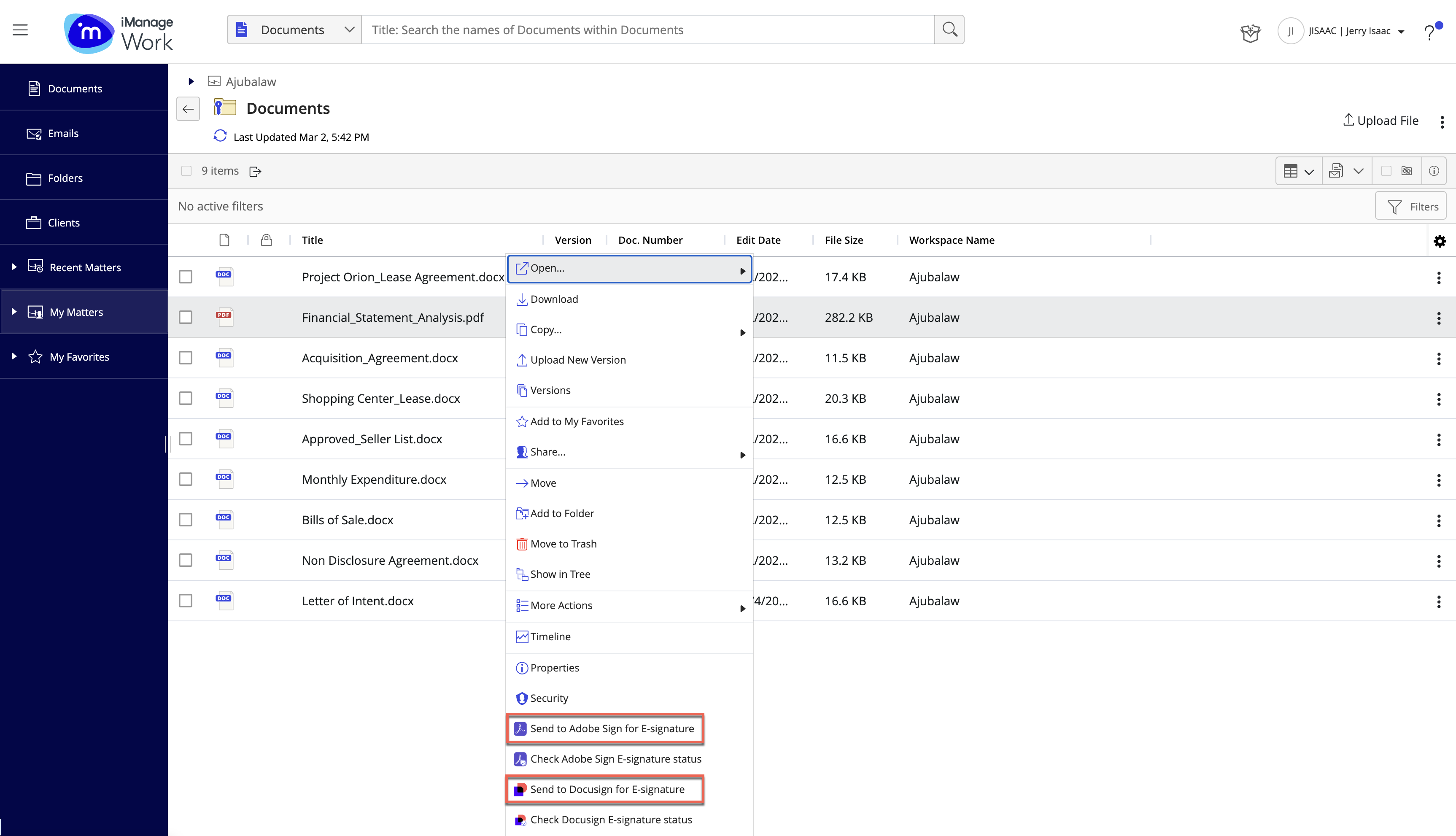
Enter the details of recipients in the Docusign envelope or Adobe Sign agreement and send it for signing. For more information, refer to Emailing documents to recipients for signing.
For more information about Docusign, go to https://support.docusign.com/.
For more information about Adobe Sign, go to https://helpx.adobe.com/sign/using/user-guide-landing.html.
Sending multiple documents for signing
To send multiple documents for signing, select the documents from the folder, and select the Send to Adobe Sign for E-signature or Send to Docusign for E-signature icon on the toolbar. You can send only the documents that belong to the same workspace at a time.
Document limits
Docusign
The size of each document can't exceed 35 MB.
You can send a maximum of 50 documents and 2000 pages for signing at one time.
The total size of all the documents combined can't exceed 200 MB.
Adobe Sign
Maximum file size is 10 MB (per file), 100 or 500 pages as per subscription, or a total of 50 documents. For more information, go to https://helpx.adobe.com/sign/using/transaction-limits.html.