Optimizing browsing time by remembering the last location
When you open a file, save a file, or insert an iManage attachment into an email, the location is saved. This way, the next time you perform any of those actions, you're brought to that last location. If you open the File Picker through any of those actions, and browse to a different location, but close the File Picker before completing the action, the last location won’t update.
If:
You haven’t yet performed any of those actions, or
You lost permissions to access the location, or
You switched to a different iManage environment from where the last location was, or
You filtered out the last location's library/filter, or
Your last location was any of the following: Recent Documents, Checked Out Documents, My Favorites, Recently Filed Emails, or Emails Filed By Me
Then the following will apply:
Open & Insert iManage Attachment dialog opens to Recent Documents.
Save As and Save as PDF dialog opens to Recent Document Folders.
Save As New Version dialog opens to Recent Documents.
Link Outlook sub-folders faster
When you link a sub-folder in Outlook to a folder in iManage Work, the File Picker should default to the immediate parent folder’s destination, if the immediate parent folder is already linked.
If the immediate parent folder isn’t linked, you'll be directed to Recent Workspaces, so you can browse to the desired iManage Work folder.
Improved control for displaying the EM Toolbar
A new configuration setting, PersistEMToolbarState has been added to imEMM.config and is enabled by default. When PersistEMToolbarState is enabled, this setting will remember the last state of the EM Toolbar (shown or hidden) in the main Outlook window for the next time you launch Outlook. When PersistEMToolbarState is disabled, the EM Toolbar will always be shown in the main Outlook window whenever you launch Outlook.
The conditions for PersistEMToolbarState are as follows:
When enabled, the EM Toolbar should either be shown or hidden in the main Outlook window when launching Outlook, depending on the last state of the toolbar in Outlook. For example, if the toolbar was open, it'd remain open.
If there is no last state because it’s the first time you are using Work Desktop for Windows, the EM Toolbar should be shown.
When disabled, the EM toolbar behaves as it does in 10.9.4 and before by being shown in the main Outlook window every time you restart Outlook.
No matter how this setting is configured, the changes have no impact on your ability to Show/Hide/Close the EM Toolbar at-will in the same session of Outlook.
A second new configuration setting, ShowEMToolbarForNewEmail has been added to imEMM.config. This setting will determine whether the EM Toolbar is shown or hidden when composing a new email. Note that in order to use the Secure Send feature control, the EM Toolbar must be shown.
The setting has 3 options:
Always (default):
When configured this way, the EM Toolbar will be shown for all new message windows. This is the behavior for 10.9.4 and before.
Never:
When configured this way, the EM Toolbar will be hidden for all new message windows.
Honor main Outlook window EM Toolbar status:
When configured this way, the EM Toolbar will be shown for new message windows when the EM Toolbar is shown in the main Outlook window and will be hidden when it is hidden in the main Outlook window.
This setting doesn't influence the behavior of the PersistEMToolbarState setting. It’s important to note, as mentioned above, that in order to use the Secure Send feature control, the EM Toolbar must be shown in the new message window toolbar.
Enable debug logging through the Work Agent
You can now enable Debug logging through the Work Agent’s settings menu. Select Troubleshoot then select Debug to access this functionality. After the Debug option is selected, this activates debug mode within 5 seconds for the following logs:
iwAgent
iwSingleton
iwWCS
iwAgentBackground
iwlBackground
iwSingleton
iwlnrl
all WSMAPIEx logs
Microsoft Office apps logs
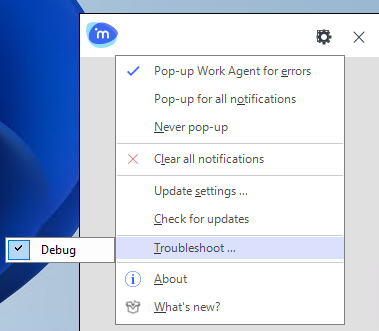
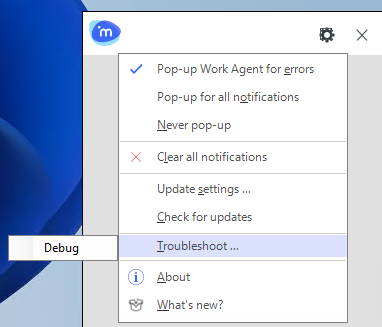
NOTE: For performance reasons, we don’t recommend leaving Debug logging on indefinitely. Selecting Debug doesn’t actually change the level value defined in LogConfig.xml, but it dynamically enables the log level. Deselecting Debug dynamically reverts back to the level value defined in LogConfig.xml before selecting Debug in the Work Agent.
If changes were made to the level value defined in LogConfig.xml while Debug was selected and then you deselect Debug, you need to either restart the application or save changes to LogConfig.xml for those changes to take effect. Until then, the level value defined in LogConfig.xml before selecting Debug in the Work Agent will be used.
Set File Create Date and File Edit Date for emails to the Sent Date of the email
A new configuration setting, UseSentDateForFiledEmails has been added to imEMM.config and is disabled by default for 10.9.5.
When this new setting is enabled, the date when an email was sent is now stored in the Create Date and Edit Date properties in iManage Work.
By storing the date and time an email was sent in the Create date and Edit date properties, users can now easily sort items within folders or search results using the Edit date column when both documents and emails are present.
Users can continue to view the date when an email was uploaded to iManage Work by viewing the Filed date in the properties panel.
NOTE: This new setting is dependent on the iManage Work environment to which you connect. This setting must not be enabled before the following releases or service updates:
On-premises: This functionality is available in iManage Work Server 10.5.0 and later. For more information about the changes in behavior related to this setting, refer to the iManage Work Server 10.5.0 Release Notes available on iManage Help Center.
iManage Work at imanage.work: This functionality is available in the Q4 2024 Cloud Service Update for cloud customers connecting to imanage.work. For more information, refer to the Q4 2024 Cloud Service Update.
iManage Work at http://cloudimanage.com : This functionality will be available in a future update.