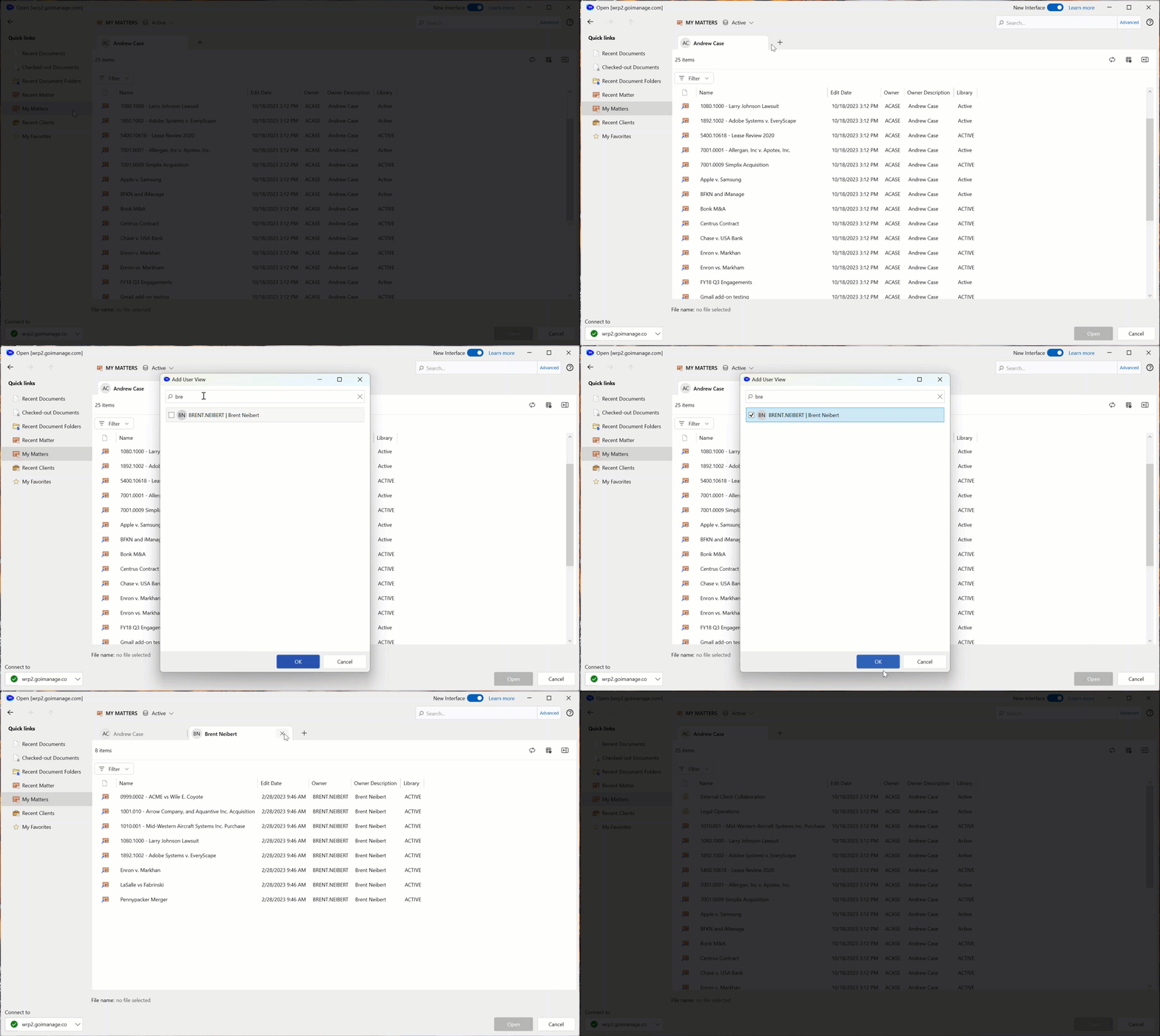
The dialogs you use to interact with files in iManage Work have been completely refreshed in iManage Work Desktop for Windows 10.10.0.
This new experience provides:
Improved performance.
Improved usability with key enhancements requested by users.
A modern interface that's consistent with Microsoft Office and Microsoft Windows.
Resolutions for isolated issues that caused the classic dialogs to appear blank or become unresponsive.
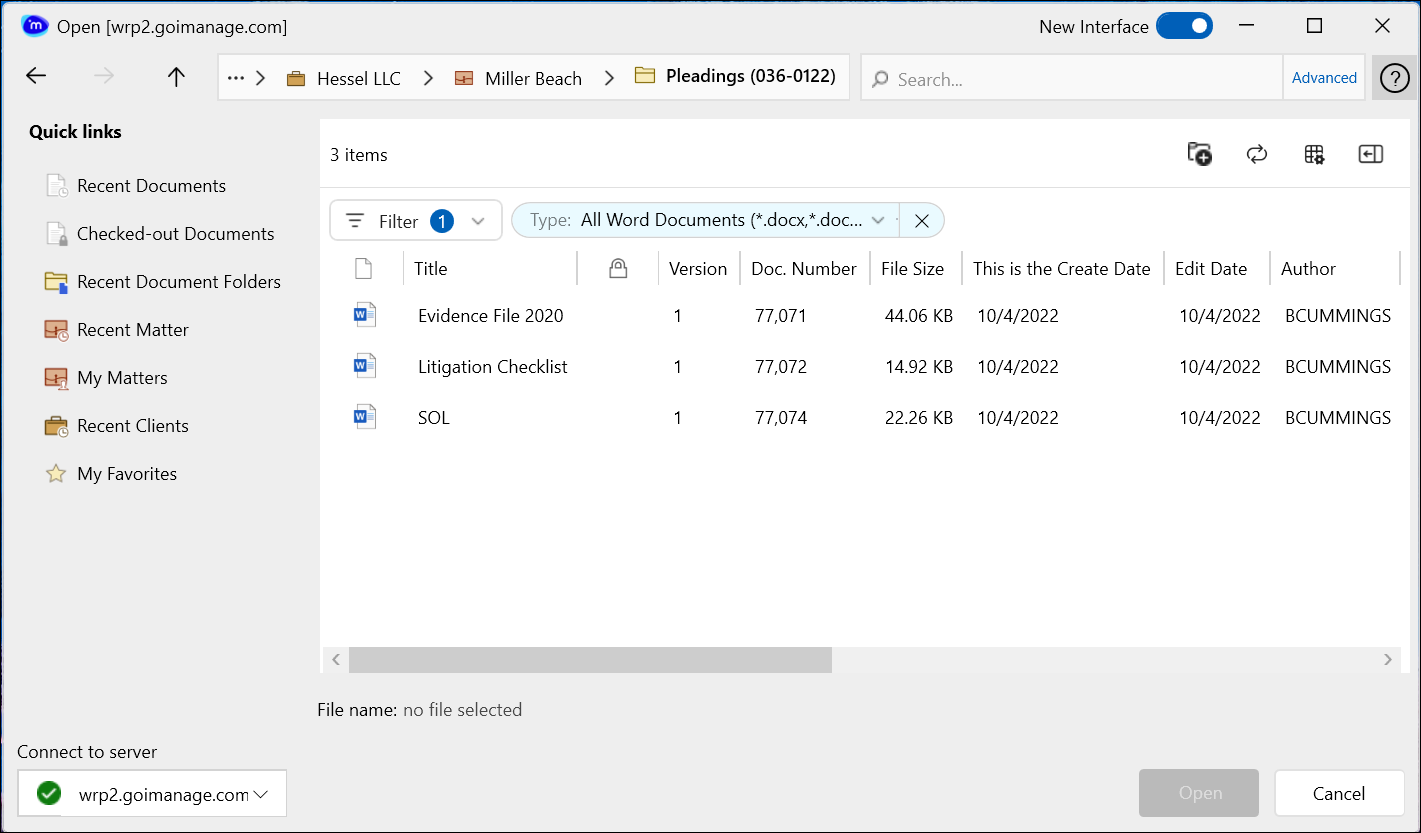
Switching to the new experience
Each user can opt for this new experience, and can switch back to the classic experience at any time.
To switch to the new experience, open the Open, Save As, or Insert Attachment dialogs from iManage Work Desktop for Windows.
Select Try the new interface at the top of the dialog and then select Switch now.
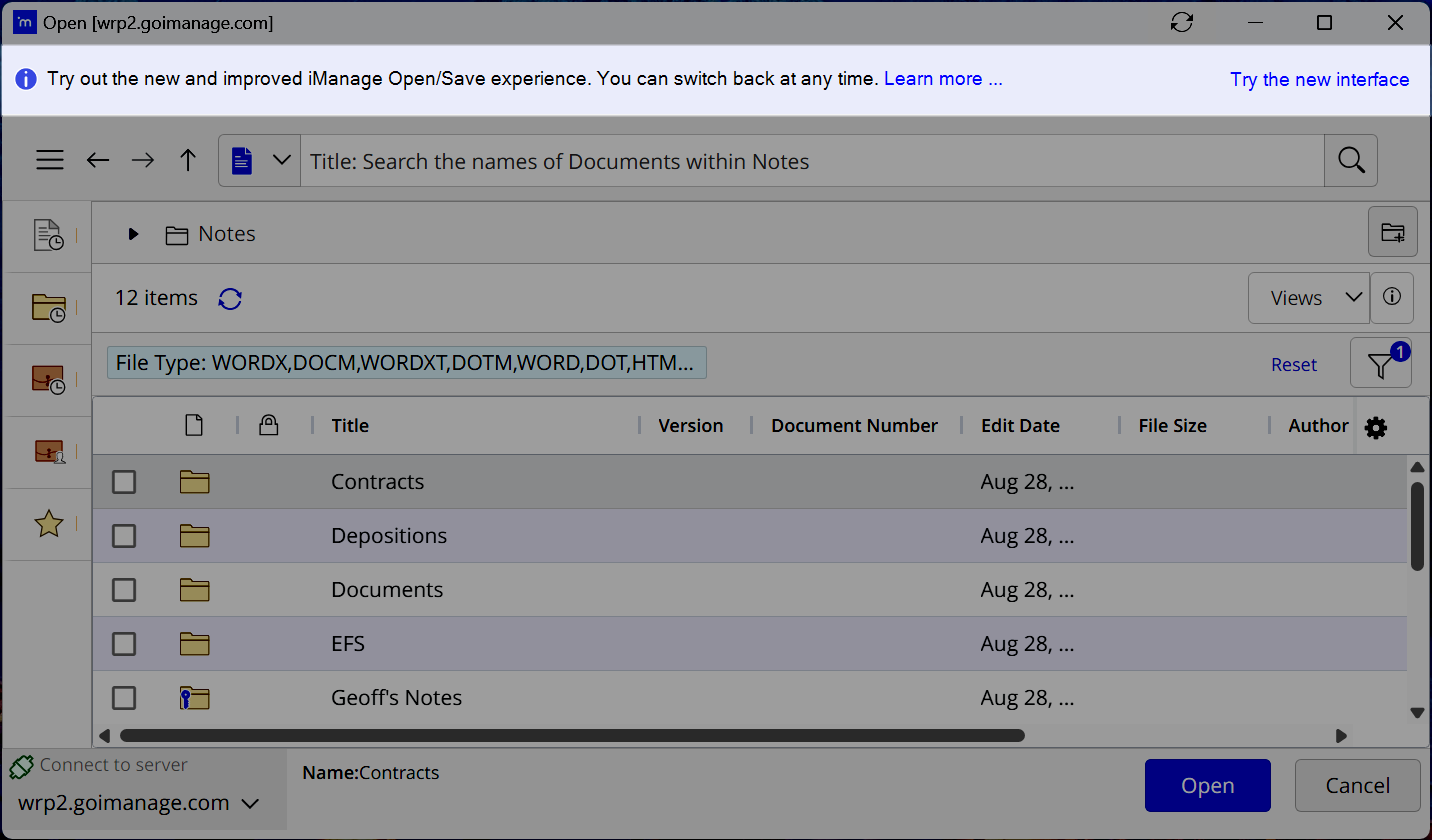
NOTE: If the Try the new interface option isn’t available, your iManage administrator has blocked this from being displayed.
To switch back to the classic interface, slide the New Interface toggle at the top of the dialog.
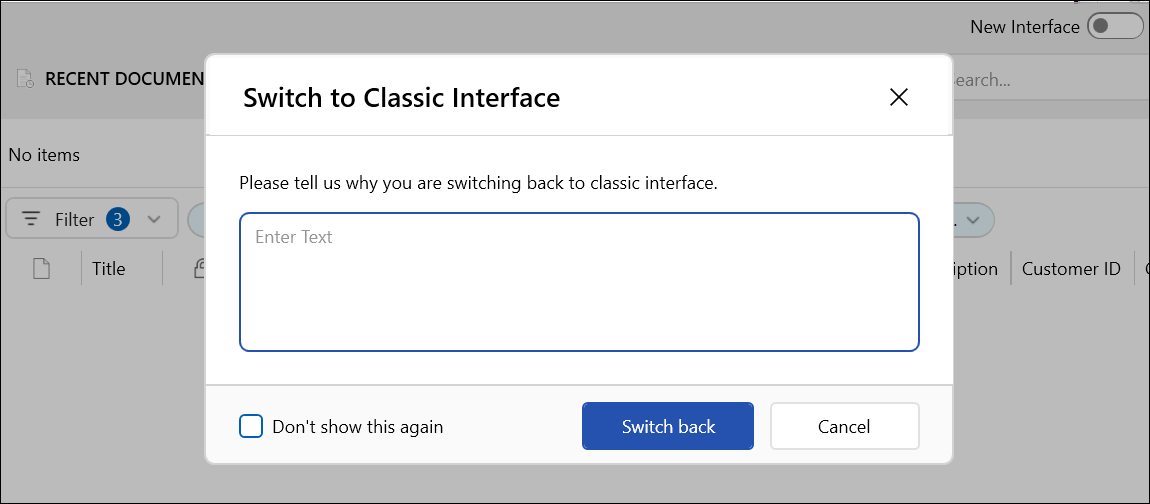
In the Switch to Classic Interface dialog that opens, enter feedback in the text field and then select Switch back.
Key enhancements
Quick links
Navigate directly to your Recent Documents, Checked-out Documents, and Recent Clients.
When you insert an iManage attachment to an email, Recent Email Folders, Recently Filed Emails, and My Filed Emails quick links are also available.
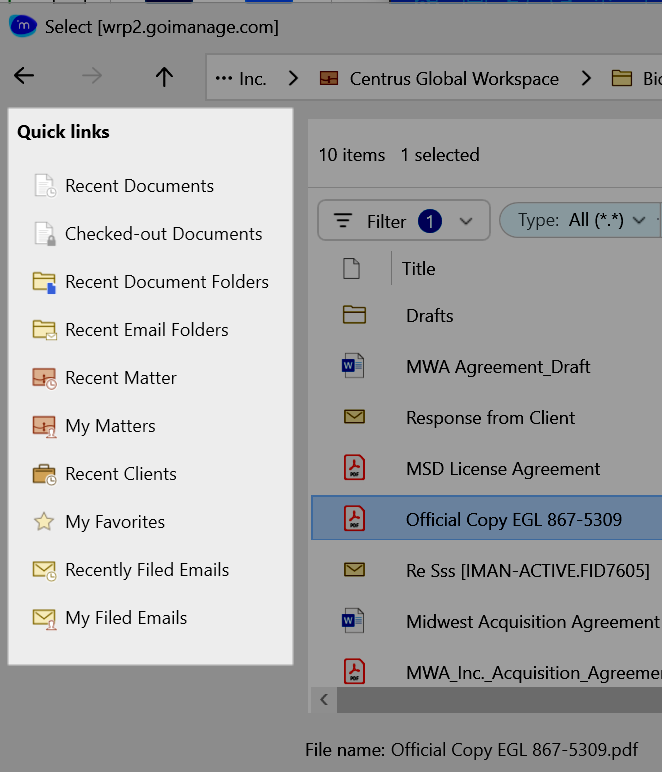
In the classic interface, these quick links were displayed as tabs at the top of the respective views.
Improved navigation
Use the new breadcrumb bar at the top of the screen to view your location in iManage Work and navigate within workspaces and folders. Select any folder or workspace in the breadcrumb to navigate directly to that location.
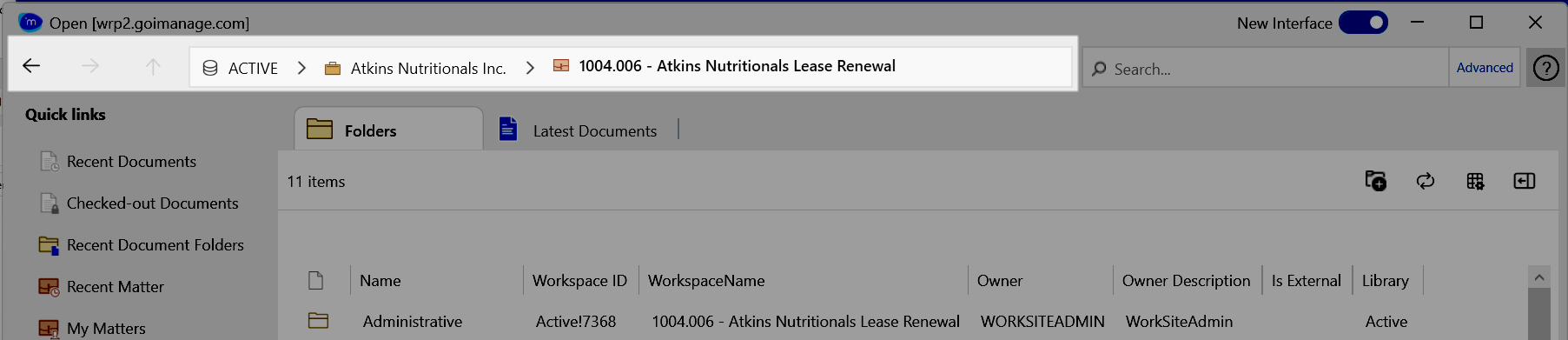
You can continue to use the arrows to move to the parent workspace or folder (up arrow), previous view (back arrow), or next view (forward arrow).
Search
Documents or Emails: Enter the title of the document or subject of the email in iManage Work, or enter any of the following shortcuts:
keyword: to search for content within a document or email—for example
keyword:franklin pleading@ to search for documents by the owner or operator, or emails by the filer—for example
@Barbara Cummings# to search for documents or emails by document number—for example:
A specific document number:
#88762Documents greater or less than a document number:
#>2000or#<10000Documents within a range of document numbers:
#900-1500
to: to search for emails by the recipient
fr: to search for emails by the sender
Workspace: Enter the name of the workspace (matter), or enter any of the following shortcuts:
keyword: to search for a workspace by its name, description, or other details
description: to search for a workspace by its description
@ to search for workspaces by the owner—for example
@Barbara Cummings
Folder: Enter the name of the folder.
After you perform a search, you can alter the scope to search for a different type of content in iManage Work, in a different iManage Work library, or in a specific language:
Use the tabs shown below the search bar to see the search results for different types of content in iManage Work.

To perform the search in a different iManage Work library, select the library
 icon, then select the appropriate iManage Work library.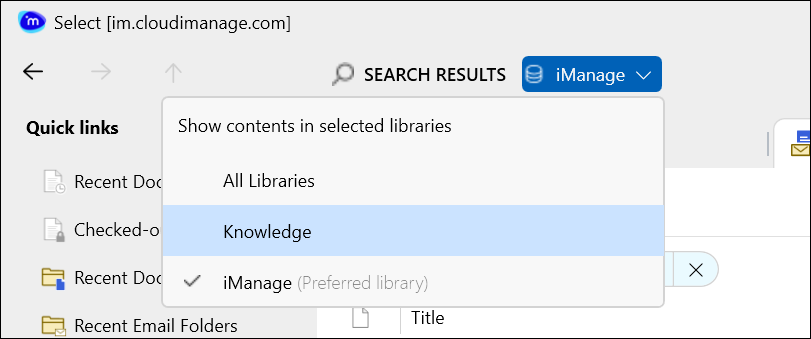
To search for content in a specific language, select Advanced, and then select the globe
 icon and select the language.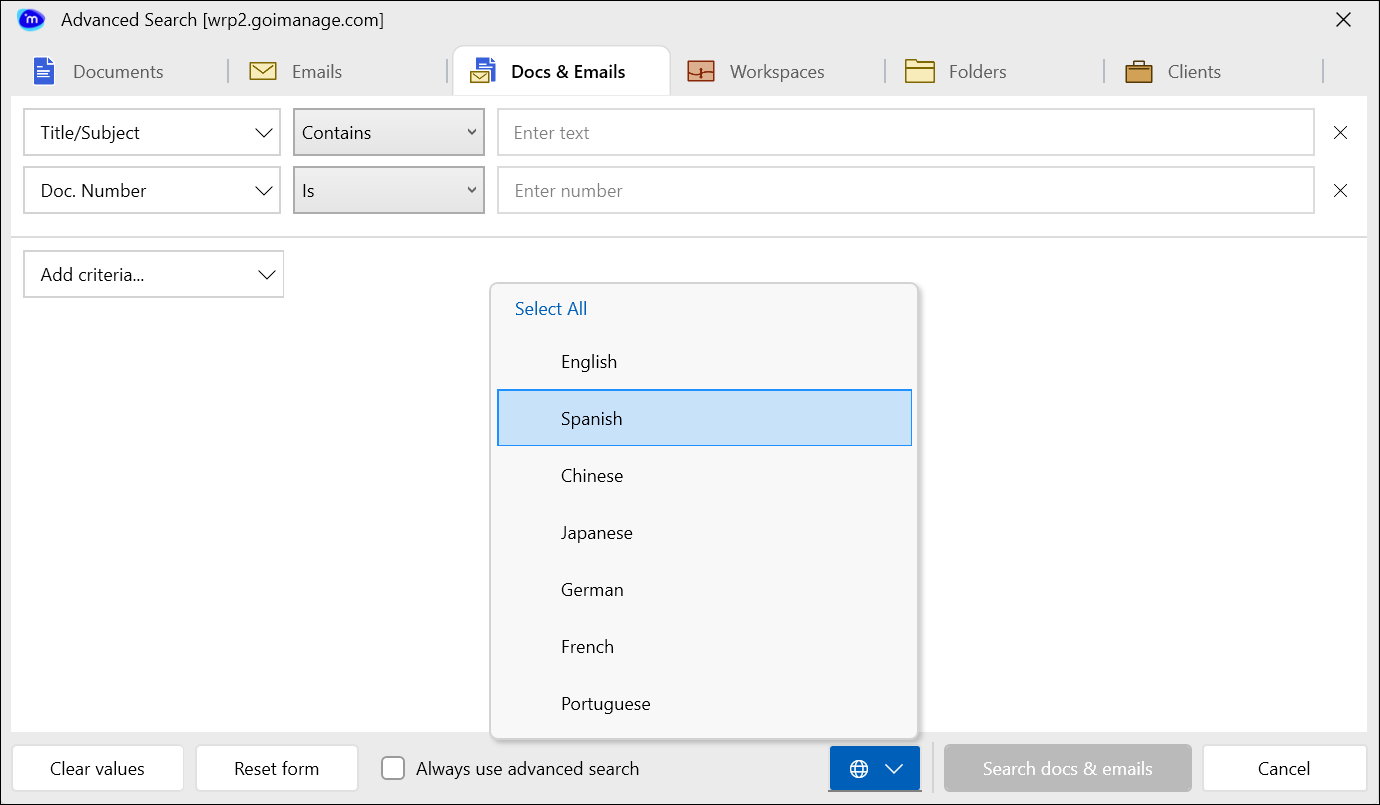
Filters and scope
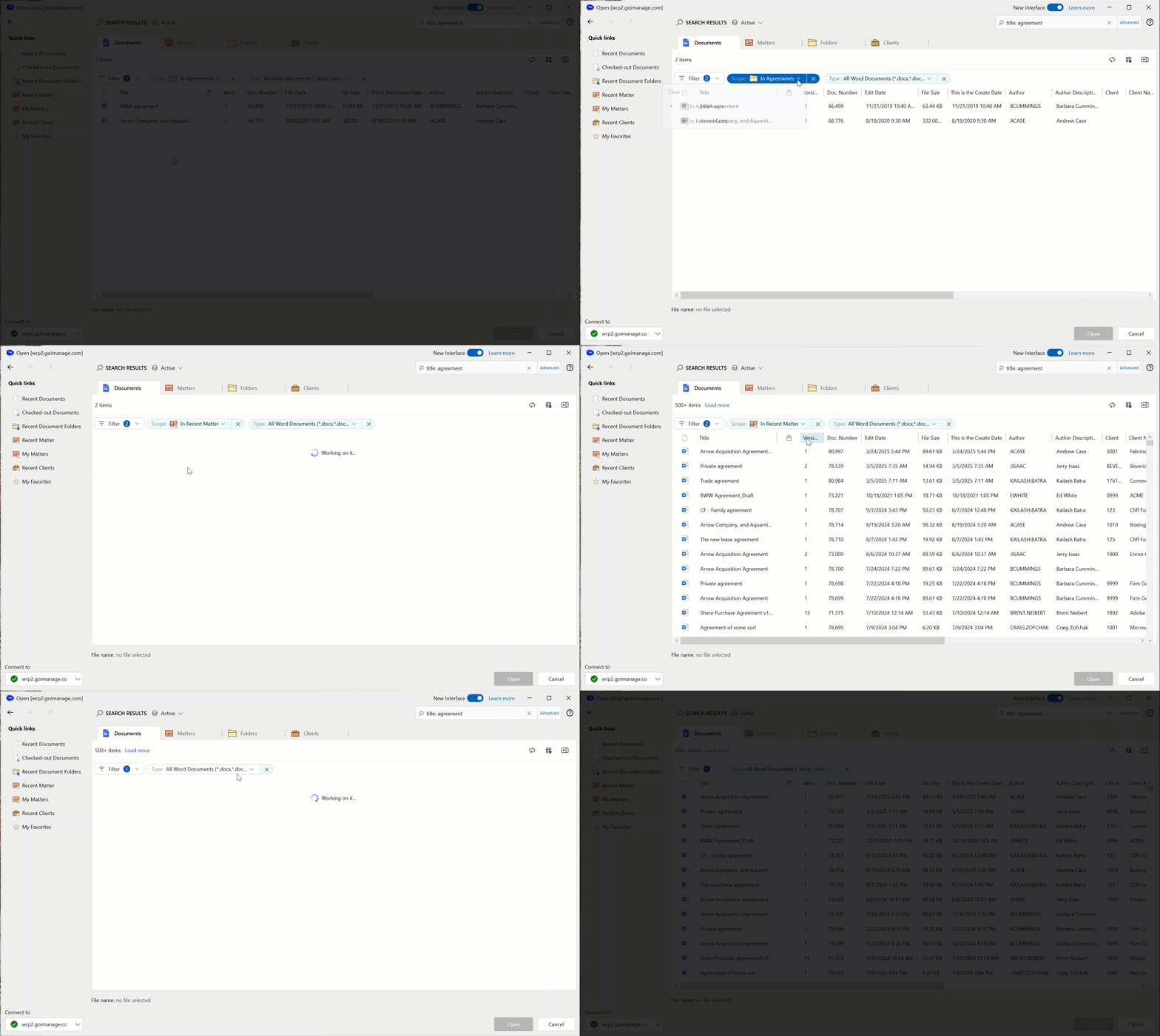
The improved filtering and scope options help you find the items you’re looking for quickly.
Filter on any available property.
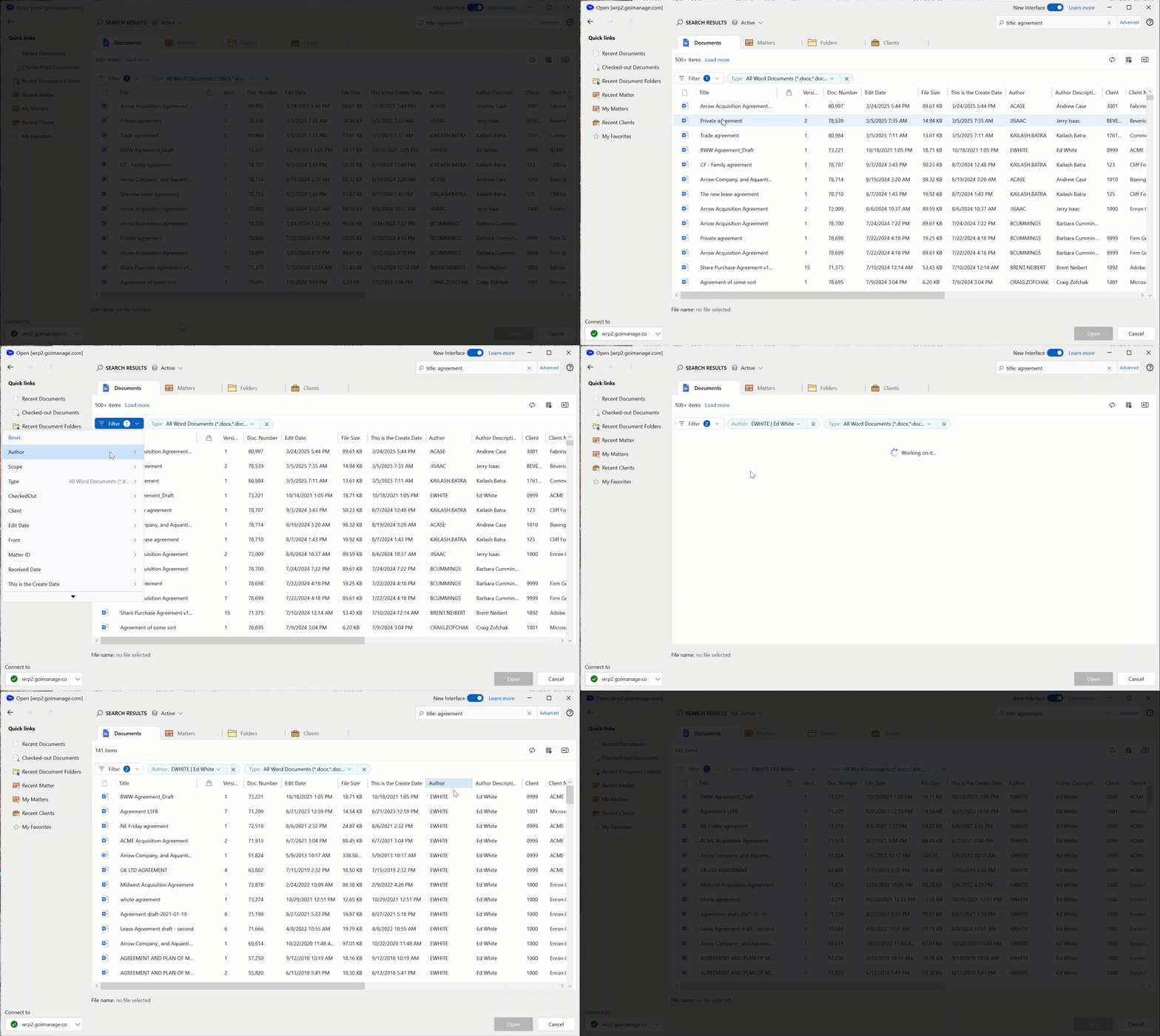
Change the scope of the items you’re viewing using the Scope filter. Or, remove the Scope entirely.
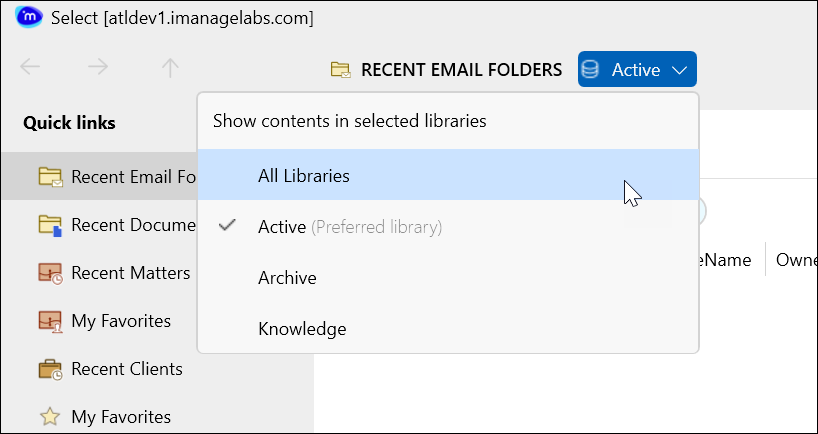
For customers that have multiple iManage Work libraries, quickly switch between them.
Grid view
Items are now displayed using an enhanced grid view. This view presents information in rows and columns.
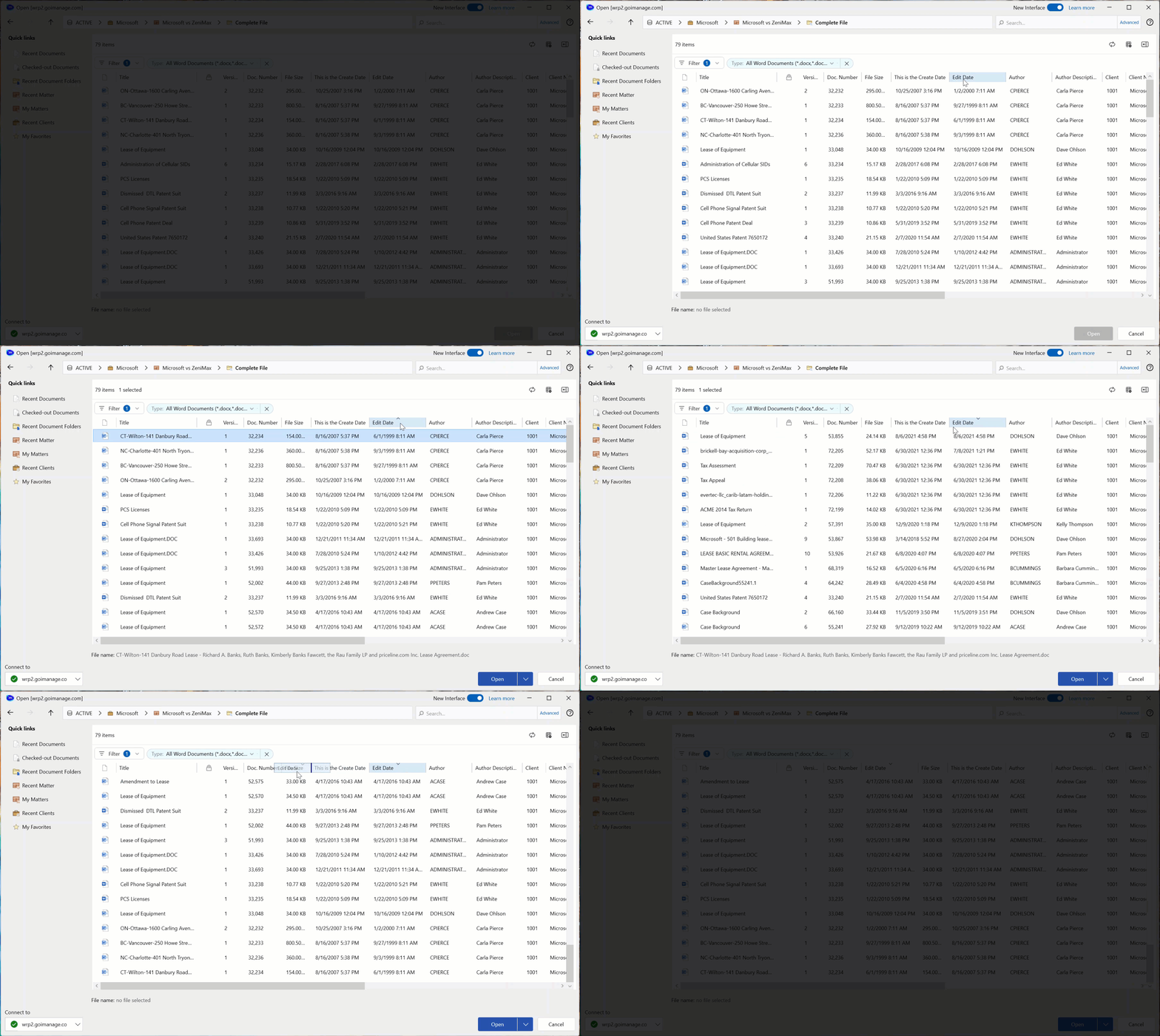
Select a column heading to sort the results in ascending or descending order.
Reorder columns by dragging the column heading.
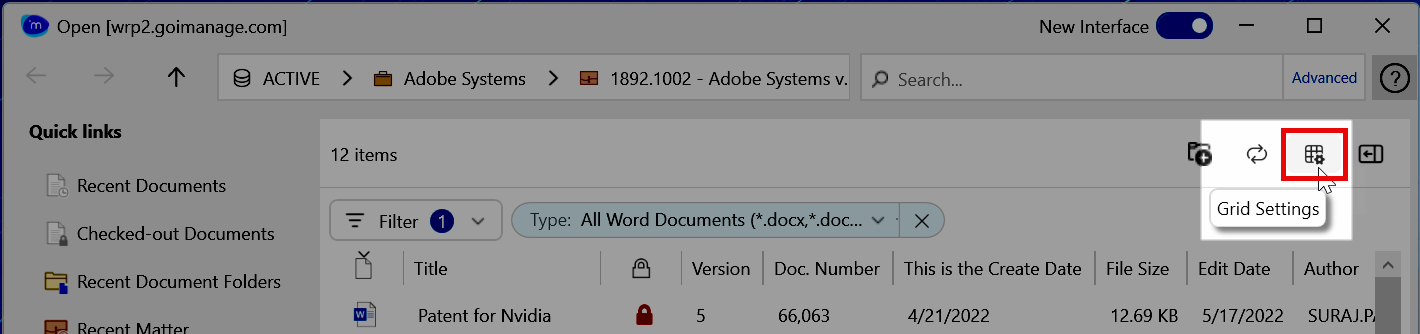
Add or remove columns using the Grid Settings option.
Other improvements
View other users' Recent Workspaces (Recent Matters) and My Workspaces (My Matters).