iManage Work Desktop for Mac supports the iManage Work integration with Microsoft 365 for the web, that is, when accessing iManage Work using the iManage menulet in the Mac menu bar. With this integration, you can create Microsoft 365 files (Word, Excel, and PowerPoint) directly in a folder in iManage Work even if you don't have Microsoft 365 desktop applications installed on your device. Additionally, you can also view or edit Microsoft 365 files directly from your browser when using Microsoft 365 for the web. This eliminates the need to check out files to edit them.
When you edit files using Microsoft 365 for the web, a globe  icon indicates that the file is being edited in Microsoft Office for the web. With Microsoft Office for the web, multiple users can edit the same file at the same time. For more information, refer to iManage Work with Microsoft Office for the web Co-authoring User Guide.
Working on multiple documents simultaneously using the tab view
When using the Open iManage Work option in the iManage Agent  menulet on the Mac menu bar, the Microsoft 365 documents that you open for online viewing and editing (including editing a new version online) display on a separate tab.
The right-click and kebab menus for the documents have the options for viewing and editing them online (on the web). The following figure highlights (in red) the kebab menu options for a viewing and editing a Microsoft Word document online.
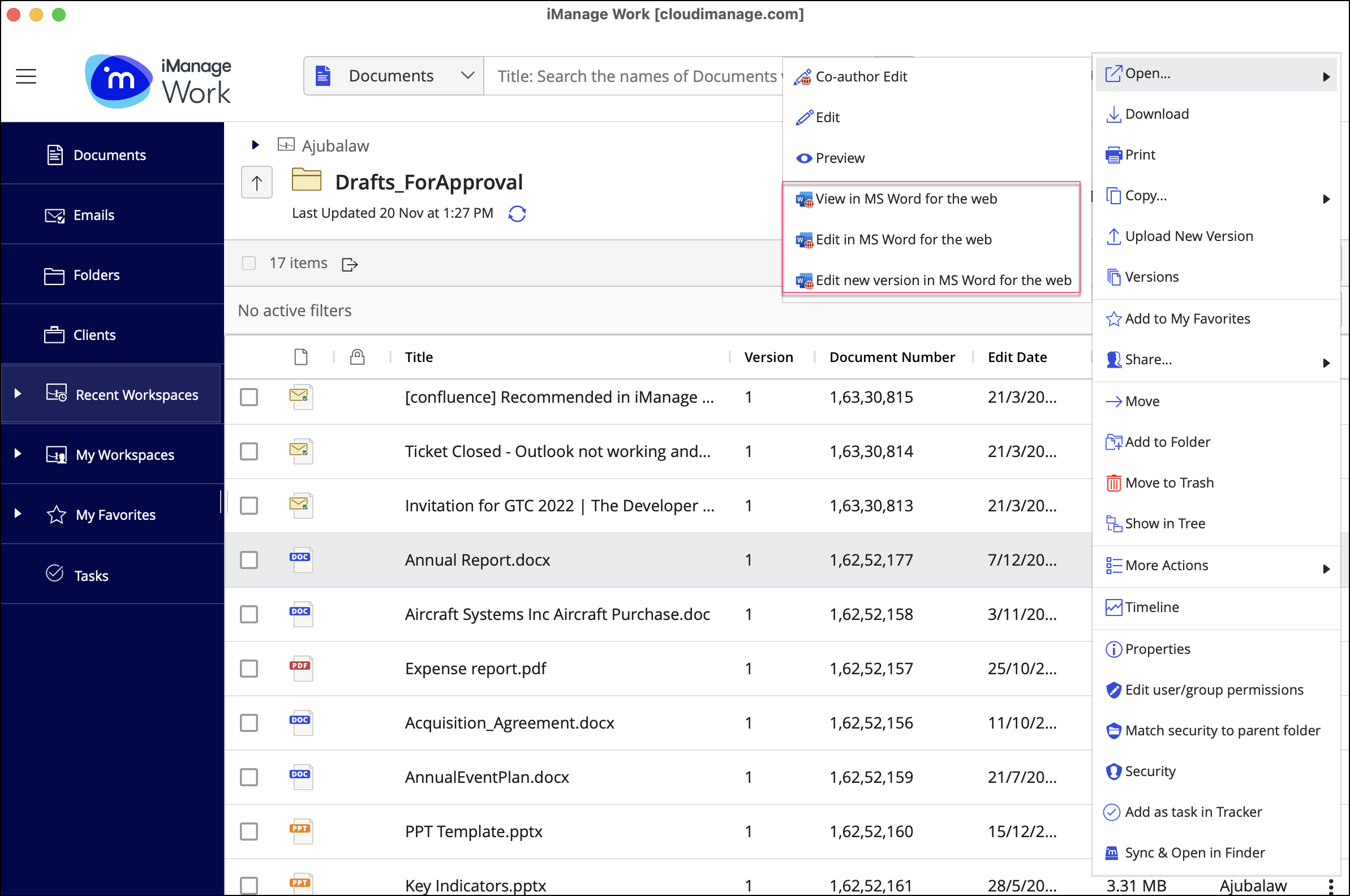
This feature, also available when opening documents using third-party applications integrated with iManage Work, does away with the need to open only one document at a time and then close it to switch to another. Just like in a web browser, you can parallelly view and work on as many documents as you want by alternating between the tabs.
NOTE: Before a document opens on the first separate tab, you’re prompt to sign in with your iManage domain credentials. No sign-in is required for all subsequent documents that you open during the session.
The iManage Work web view becomes the first tab (refer to the image below) when one or more documents are open on separate tabs. This lets you quickly access and open more documents and perform other activities in iManage Work simultaneously.
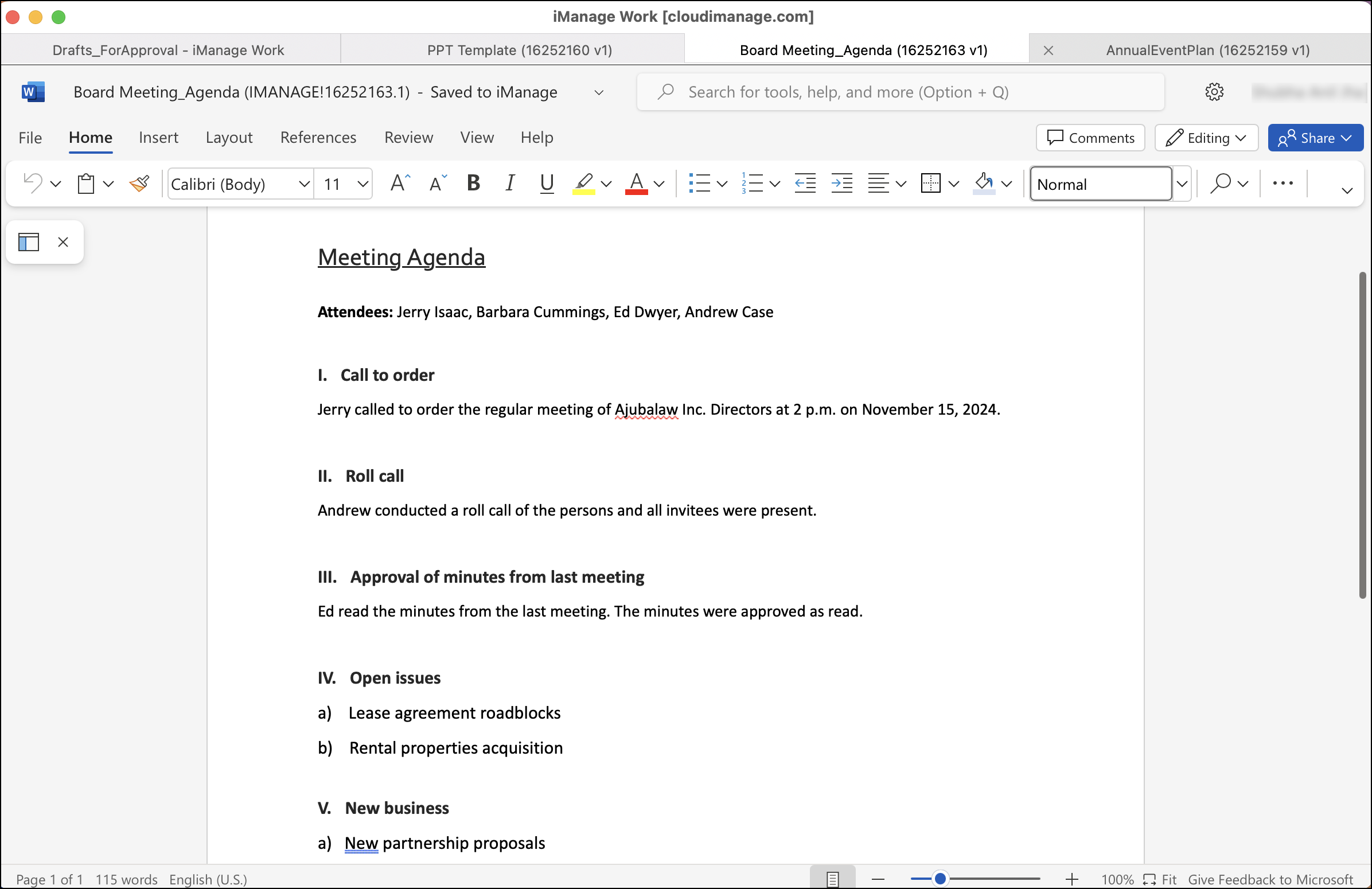
The tab you’re currently working on is highlighted in white. In the image above, the third tab (Board Meeting_Agenda) is active/open.
To open more documents for online viewing or editing, select the first tab, which takes you back to iManage Work. Browse to the desired folder and open the desired document in web using the available right-click or kebab menu options.
To close a document tab, hover over it and the select the x icon that’s displayed.