The following steps are required to enable device-level policy settings such as Passcode, Touch ID, and Device Out of Contact, as well as copying and pasting of information between apps.
- In the Ivanti administrator portal, select Configurations.
- Select Default iOS AppConnect Configuration.
- Select
 .
. - (Optional) Configure settings for:
- AppConnect Passcode - See http://mi.extendedhelp.mobileiron.com/49/all/en/desktop/AppConnect_Passcode.htm.
- Touch ID - See http://mi.extendedhelp.mobileiron.com/49/all/en/desktop/AppConnect_Device_Configuration.htm.
- Device Out Of Contact - See http://mi.extendedhelp.mobileiron.com/49/all/en/desktop/AppConnect_Device_Configuration.htm.
Under Data Loss Prevention Settings:
Enable the check box for Allow copy/paste to, and select AppConnect apps.
- (Optional) You can choose to allow printing (select Allow printing).
(Optional) To configure specific AppConnect apps to allow users to edit documents using the Apple Open In (document interaction) feature, select the check box for Allow open-in, and select Whitelist Apps only, then enter the apps to allow for documents to open and edit. For example, in the screen below, Microsoft Word, Adobe Acrobat Reader for PDF, and MobileIron Docs@Work have been added as Whitelist Apps:
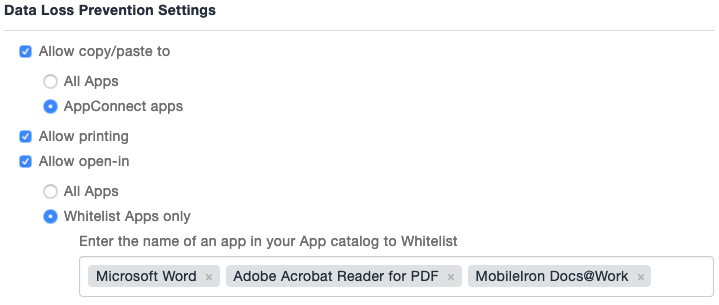
This allows opening of documents in their native app.
Select Done.
See Ivanti Neurons MDM for the overview of configuration steps.