Editing files using iManage Work at cloudimanage.com
Method 1
Select the kebab  menu next to the file you want to edit and then select one of the following; alternatively, right-click the file you want to edit and select one of the following:
Edit (Co-author) in MS Word for the web to edit a Microsoft Word file in your browser or browser tab.
Edit (Co-author) in MS Excel for the web to edit a Microsoft Excel file in your browser or browser tab.
Edit (Co-author) in MS PowerPoint for the web to edit a Microsoft PowerPoint file in your browser or browser tab.
IMPORTANT:
When co-authoring files using a mix of Microsoft 365 PowerPoint for the web and Microsoft 365 PowerPoint for the desktop with multiple users actively editing, it can take several seconds for all the user’s edits to be synced and saved back to the iManage Work.
We recommend that after making any edits, users wait a minimum of 5 seconds after the save icon appears before exiting your browser to close your co-authoring session.If users have installed Microsoft 365 apps from Microsoft’s Intune portal and then open a Microsoft PowerPoint file in a browser which isn't managed by Intune, then a blank file opens.
We recommend that users use an Intune managed browser to open files in such cases.
NOTE: Your administrator can configure the Edit (Co-author)in MS Word | Excel | PowerPoint for the web menus to appear anywhere in the context menu options. For example, they can configure these menus to appear under Open.. as shown in the following figure:
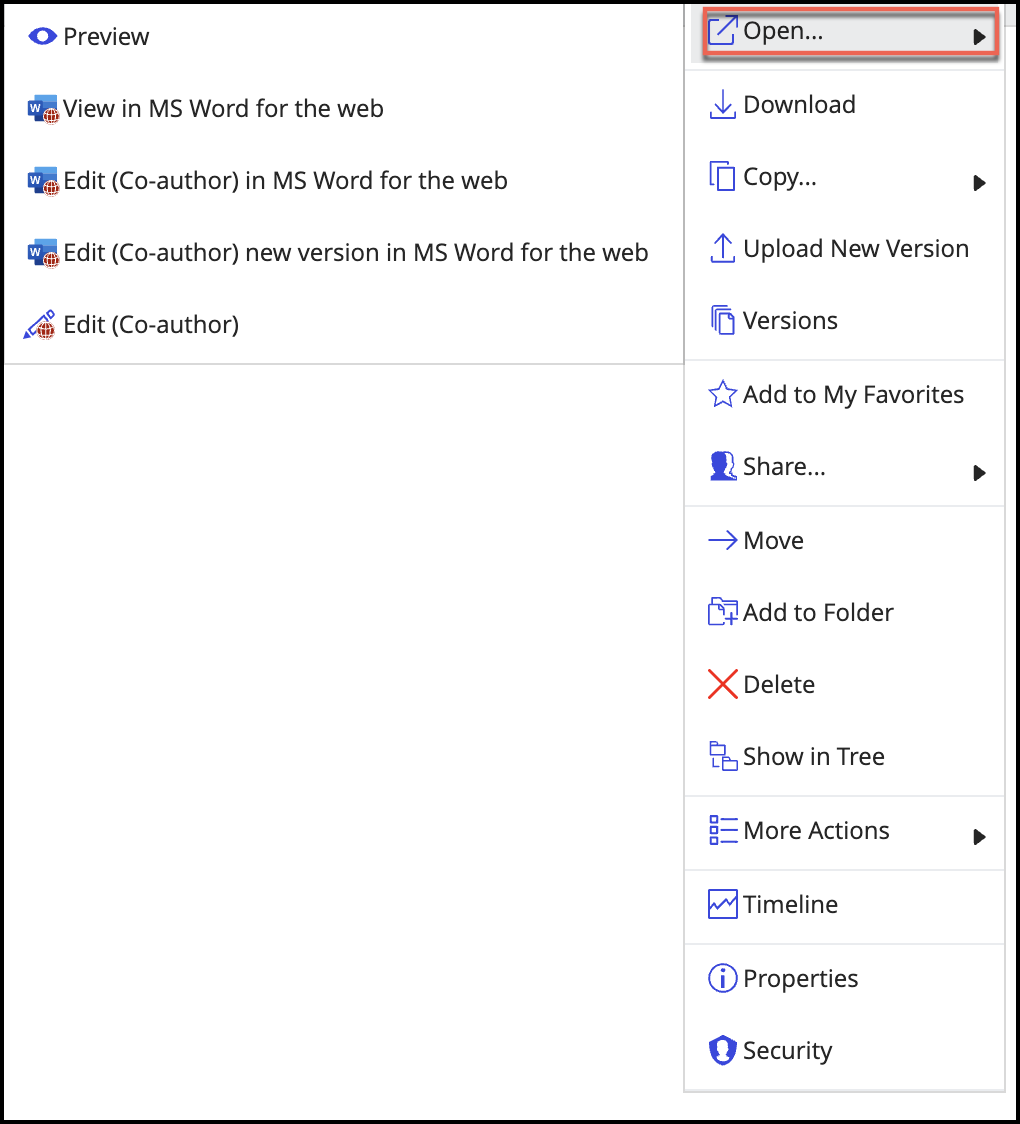
The selected file opens in your browser tab or browser window in edit mode and a red globe  icon appears next to the files checked out.
Legacy Microsoft Office file types cannot be co-authored using iManage Work Next Generation Co-authoring.
NOTE: If you leave a file open in Microsoft 365 for the web without making any edits for a certain time as mentioned below, then your editing session times out and you can no longer edit the file. If this happens, to continue editing the file, reload your browser or the browser tab in which you've opened the file using Microsoft 365 for the web. Alternatively, close your browser or browser tab in which the file is open and then start a new editing session.
The following is the expected inactivity period that causes your browser session to expire and the value is controlled by Microsoft:
Microsoft Word: Up to 2.5 hours
Microsoft Excel: Up to 2 hours
Microsoft PowerPoint: 15 minutes
Using the Open in Desktop app option in the web version of Microsoft 365 applications
To open the files in Microsoft 365 applications for the desktop, select Open in Desktop app from the Editing drop-down list. The file opens in the associated desktop version of Microsoft 365 application in either Microsoft Windows or macOS devices.
You can select Open in Desktop app from the Editing drop-down list if:
Your administrator has enabled Microsoft 365 for the desktop application in iManage Control Center.
You've installed the Microsoft 365 applications for the desktop (Microsoft Word, Microsoft Excel, and Microsoft PowerPoint) on your device.
You've added iManage using Add a Place in Microsoft Windows devices or Manage Storage Accounts in macOS devices and signed in.
NOTE: The Edit (Co-author) in Word | Excel | PowerPoint menu option is disabled if you've read-only access to this file.
Method 2
If your administrator has enabled Microsoft 365 for the desktop application in iManage Control Center and also added iManage using Add a place, you can edit the files using the Edit (Co-author) option available in iManage Work at cloudimanage.com. To edit files using Edit(Co-author) option, do the following:
Select the kebab
menu next to the file you want to edit and then select one of the following; alternatively, right-click the file you want to edit.Select one of the following:
Edit (Co-author)
 to co-author files using Microsoft 365 applications for desktop (Microsoft Windows and macOS devices).
 Edit (Co-author)
 to co-author files on a iOS device.
Editing files using iManage
Open the relevant Microsoft 365 application on your Microsoft Windows, macOS, or iOS device.
Browse to File > Open > Other locations and select iManage.
Sign in with your iManage Work account ID, if prompted.
Browse through iManage Work nodes that are displayed and select the file you want to edit. Additionally, you can also filter out the file you want to open from the list of the displayed files using the search field.
(Optional) On Microsoft Windows and iOS devices, if you’re opening this file for the first time, it may open in Protected Mode as a security measure. If this happens, select Enable Editing to edit the file.
NOTES:
If you don’t want a file, folder, or a workspace to be displayed in iManage node, add the file, folder, or workspace to My Favorities in iManage Work.
If you've installed iManage Work Desktop for Windows and if you use the Edit (Co-author) option in the iManage Work Panel in Microsoft Outlook, a blank browser window opens as part of the process and remains open after the document has successfully opened. Use the X in the browser header to close the browser window.
In iOS devices, if you don’t have the Microsoft 365 application for iOS installed on your device, the file opens in either the Microsoft Word, Microsoft Excel, or Microsoft PowerPoint for iOS app.