You may view files using Microsoft 365 for the web, or Microsoft 365 applications for the desktop (Microsoft Word, Microsoft Excel, and Microsoft PowerPoint), an iOS device, or a device on which iManage Work Desktop is installed, if you’ve enabled the corresponding options in iManage Control Center application.
You can view a file that's not checked out, exclusively checked out with a padlock  icon or checked out using iManage Work Next Generation Co-authoring with a global
  , icon or checked out using iManage Work with Microsoft Office for the web co-authoring options with a global icon , if they are enabled by your administrator.
For more information about the file types that are supported for co-authoring or viewing, visit https://learn.microsoft.com/en-us/microsoft-365/cloud-storage-partner-program/plus/extensions.
You can view files by doing any of the following:
In iManage Work at cloudimanage.com,
Select the
 kebab menu next to the Microsoft 365 file you want to view and then select Open. Alternatively, right-click the Microsoft 365 file you want to view and select Open.
 Select one of the following:
View MS Word for the web to view a Microsoft Word file.
View MS Excel for the web to view a Microsoft Excel file.
View MS PowerPoint for the web to view a Microsoft PowerPoint file.
The selected file appears in a new browser tab or browser window in read-only mode.
In Microsoft 365 applications for the desktop (Microsoft Windows and macOS devices):
Open the relevant Microsoft 365 application.
Browse to File > Open.
In Microsoft Windows devices, select Other locations and then iManage. Browse and select the iManage Work file you've added.
In macOS devices, select Other Storage and then iManage. Browse and select the iManage Work file you've added.
Sign in with your iManage Work account ID if prompted.
Browse through the folders that are displayed and select the file you want to view.
The file opens in edit mode in the relevant Microsoft 365 applications for the desktop.
On iOS devices, select the kebab
menu next to the file you want to view and then select View. The selected file opens in the relevant Microsoft 365 application for iOS.
If you don’t have Microsoft 365 applications for iOS or Microsoft Word for iOS, Microsoft Excel for iOS, or Microsoft PowerPoint for iOS, you'll be prompted to install Microsoft 365 applications for iOS from the App store.
If you don’t have Microsoft 365 applications for iOS, the files are opened in either Microsoft Word for iOS, Microsoft Excel for iOS, or Microsoft PowerPoint for iOS apps.
On devices on which iManage Work Desktop for Windows 10.10.1 or later is installed, do one of the following to open the file for viewing in read-only mode.
On the iManage ribbon bar:
Select Open.
In the iManage Open dialog, select the file you want to view.
Select the Open drop-down arrow and select Open as Read-Only.
In Microsoft 365 applications for the desktop backstage view:
Select File > Open.
In the iManage Open dialog, select the file you want to view.
Use the Open drop-down arrow and select Open as Read-Only.
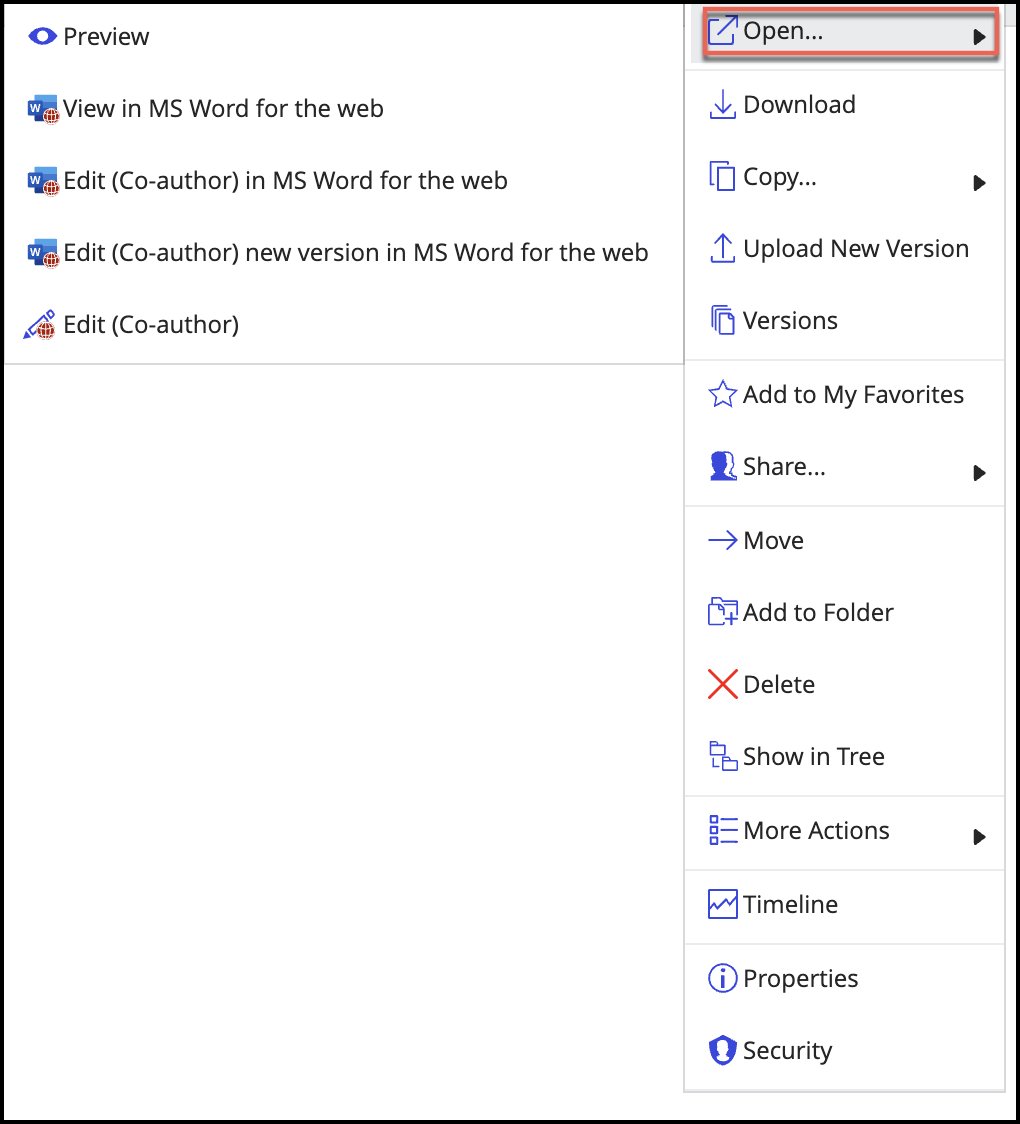
Your administrator can configure the View in MS Word | Excel | PowerPoint for the web menus to appear anywhere in the context menu options in iManage Work at cloudimanage.com. For example, they can configure these menus to appear in the Open… menu as shown in the following figure:
In the Microsoft 365 applications for the desktop, when the file is opened, it opens in edit mode by default, unless you have only read-only access to the file. You can however, switch to view mode by selecting Viewing in the Editing drop-down list available in Microsoft 365 applications for the desktop.
In Microsoft Windows devices, the file may open in Protected view initially, if you're opening the file for the first time in the Microsoft 365 applications for the desktop. If you leave the document in Protected Mode, you'll continue to view the file and can’t edit or co-author the file in this mode. Additionally, if you're the first person to open the document, it isn't displayed to the other iManage Work users that you have checked out the file as the file is open in protected mode.

If you have read/write or full access to the file in iManage Work and want to edit it, you can switch to editing mode by selecting the:
Edit option to edit in Microsoft 365 for the web.
Open in Desktop App option to edit in the Microsoft 365 applications for the desktop.
You can however, edit only the following file types: .docx, .xlsx, and .pptx.
NOTES:
You can edit the file in the Microsoft 365 applications for the desktop, only if your administrator has enabled Microsoft 365 for the desktop application in iManage Control Center and you've added iManage in the Microsoft 365 applications for the desktop. For more information, refer Signing into Microsoft 365 applications.
You can edit the file in iManage Work Desktop for Windows, only if your administrator has enabled the Microsoft 365 for the desktop application in iManage Control Center and set the
EnableMicrosoft365forthedesktopto Enable-M365forthedesktopAsDefault in the imWorkOptions.xml file. For more information, refer Enabling iManage Work Next Generation Co-authoring.