We’re committed to providing users with the best possible experience with our iManage Work Next Generation Co-authoring feature. Based on feedback gathered during our 8-month Early Access Program (EAP), we've identified device-specific settings and policies that have the most significant impact on feature deployment, configuration, and the experience you deliver to users in your organization.
These best practices are designed to:
Streamline the user experience: Learn which settings reduce unnecessary prompts and dialogs before they reach users in your organization.
Optimize your deployment: Get guidance on the policies and configurations that lead to the most successful outcomes across your organization.
Following these best practices will help you deploy and maintain iManage Work Next Generation Co-authoring effectively.
- Add iManage Work at cloudimanage.com to your trusted sites list
- Transitioning from iManage Work Desktop for Windows Co-authoring to iManage Work Next Generation Co-authoring
- Turning off browser notifications
- Ensure the Quick Access toolbar is enabled on your Microsoft 365 applications for the desktop
- Migrating from the iManage Microsoft Office for the web application to iManage Work Next Generation Co-authoring
- Configuring the Microsoft 365 feedback policy for users experiencing an issue with Microsoft 365 for desktop applications
- Resolving the scenario when a Microsoft 365 document opens to a blank screen
Add iManage Work at cloudimanage.com to your trusted sites list
When you open documents using iManage Work Next Generation Co-authoring menu, it's possible a yellow banner is displayed informing you that the document is open in protected mode. You'll have to select Allow Editing to edit the file.
To make sure that documents open in edit mode, your administrators can add iManage Work at cloudimanage.com URL to a list of the trusted sites by doing the following:
Browse to Control Panel and select Internet Options.
In the Internet Properties window, select Security.
Select Trusted sites and select Sites.
Add the following site: https://*.cloudimanage.com (the * is in place of your tenant-specific domain or subdomain).
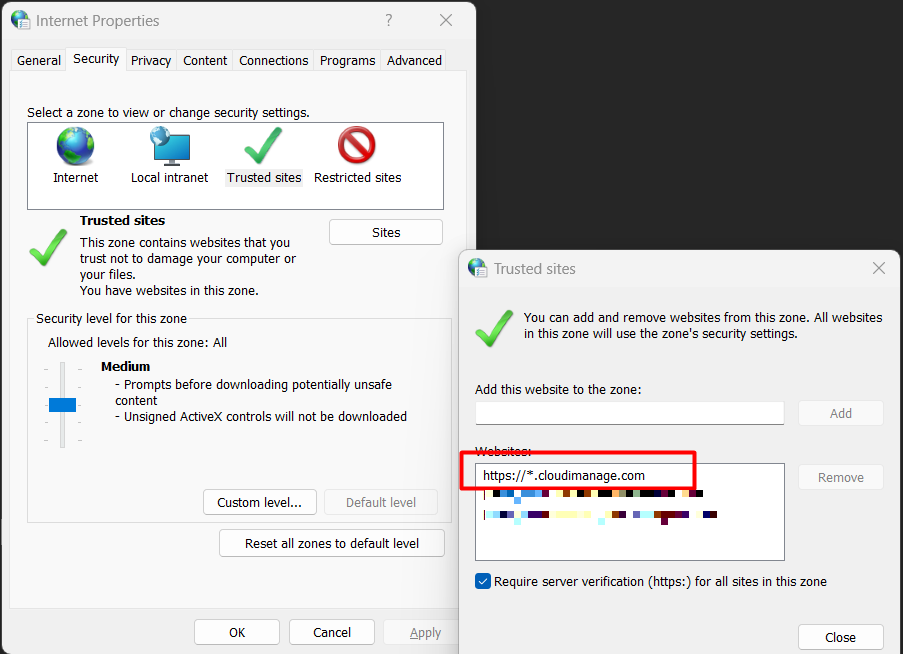 Figure: Adding iManage Work at cloudimanage.com to trusted sites
Transitioning from iManage Work Desktop for Windows Co-authoring to iManage Work Next Generation Co-authoring
If you've installed iManage Work Desktop for Windows, then the Co-authoring group is also installed and available in Microsoft 365 applications for the desktop ribbon bar.
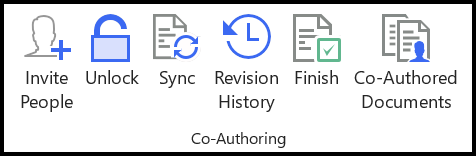
The process of co-authoring using the Co-authoring group is different from co-authoring using iManage Work Next Generation Co-authoring. So, to remove redundancy, administrators might want to disable the iManage Work Desktop for Windows Co-authoring group in the ribbon bar.
WARNING: Before hiding the Co-Authoring group, inform users of the cutover.
Make sure that users are informed that they must finish their co-authoring session and check-in the files to iManage Work.
If the Co-authoring group is hidden before checking in the files, all the edits won’t be saved and will remain in Microsoft SharePoint indefinitely, and the document will remain checked-out.
Additionally, if you forcibly check-in the document, the changes won't be saved to iManage Work, even though the document is marked as checked in.
To hide the group, browse to C:\Program Files\iManage\Work10\(versionNumber) and in each of the Microsoft Office ribbon XML files comment out the GroupCoauthoring section as shown in the following figure.
After the content is commented out in the ribbon XML files, administrators must upload the XML files in iManage Control Center by browsing to Office > Configuration to deploy the files to all users.
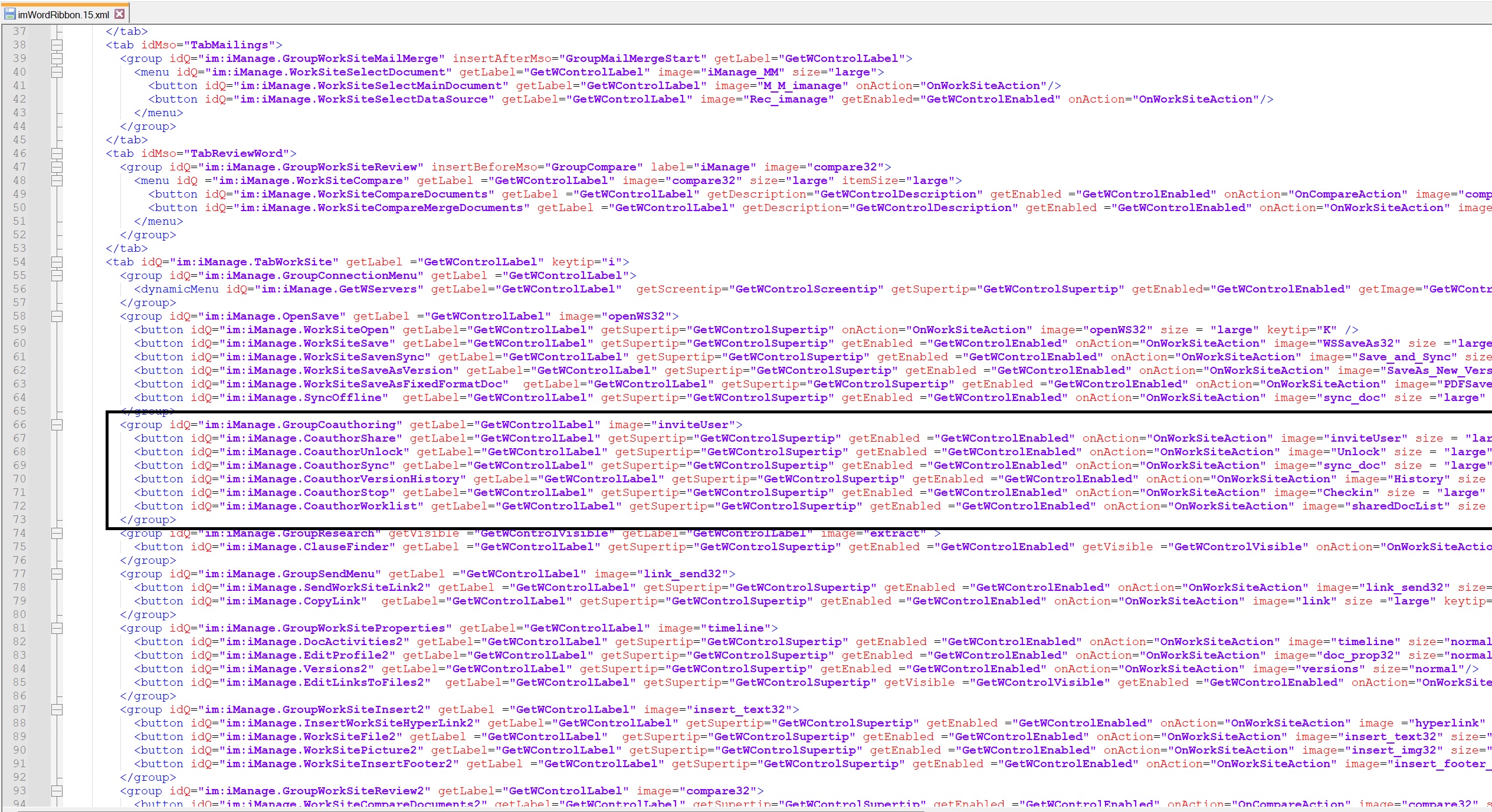
Example text to comment out:
<group idQ="im:iManage.GroupCoauthoring" getLabel="GetWControlLabel" image="inviteUser"> <button idQ="im:iManage.CoauthorShare" getLabel="GetWControlLabel" getSupertip="GetWControlSupertip" getEnabled ="GetWControlEnabled" onAction="OnWorkSiteAction" image="inviteUser" size = "large" keytip="CA" /> <button idQ="im:iManage.CoauthorUnlock" getLabel="GetWControlLabel" getSupertip="GetWControlSupertip" getEnabled ="GetWControlEnabled" onAction="OnWorkSiteAction" image="Unlock" size = "large" keytip="CU" /> <button idQ="im:iManage.CoauthorSync" getLabel="GetWControlLabel" getSupertip="GetWControlSupertip" getEnabled ="GetWControlEnabled" onAction="OnWorkSiteAction" image="sync_doc" size = "large" keytip="CU" /> <button idQ="im:iManage.CoauthorVersionHistory" getLabel="GetWControlLabel" getSupertip="GetWControlSupertip" getEnabled ="GetWControlEnabled" onAction="OnWorkSiteAction" image="History" size = "large" keytip="CV" /> <button idQ="im:iManage.CoauthorStop" getLabel="GetWControlLabel" getSupertip="GetWControlSupertip" getEnabled ="GetWControlEnabled" onAction="OnWorkSiteAction" image="Checkin" size = "large" keytip="CT" /> <button idQ="im:iManage.CoauthorWorklist" getLabel="GetWControlLabel" getSupertip="GetWControlSupertip" getEnabled ="GetWControlEnabled" onAction="OnWorkSiteAction" image="sharedDocList" size = "large" keytip="CW" /> </group>Turning off browser notifications
When users open a document using Edit (Co-author), a browser notification is displayed prompting them to allow the URL to open links in the associated Microsoft 365 application. Users can dismiss this individually by selecting the Always allow <url> top-open links to this type in the associated app check box, but you can suppress the notification organization-wide using the following registry keys.
NOTE: If the registry paths don’t exist on the device, you must create them.
Microsoft Edge (Microsoft Windows device)
Location:
HKEY_LOCAL_MACHINE\SOFTWARE\Policies\Microsoft\EdgeType:
REG_SZName:
AutoLaunchProtocolsFromOriginsValue:
[{"allowed_origins":["cloudimanage.com"],"protocol":"ms-excel"},{"allowed_origins":["cloudimanage.com"],"protocol":"ms-powerpoint"},{"allowed_origins":["cloudimanage.com"],"protocol":"ms-word"}]Google Chrome (Microsoft Windows device)
Location:
HKEY_LOCAL_MACHINE\SOFTWARE\Policies\Google\ChromeType:
REG_SZName:
AutoLaunchProtocolsFromOriginsValue:
[{"allowed_origins":["cloudimanage.com"],"protocol":"ms-excel"},{"allowed_origins":["cloudimanage.com"],"protocol":"ms-powerpoint"},{"allowed_origins":["cloudimanage.com"],"protocol":"ms-word"}]NOTE: The value is in compacted JSON format. You can use a tool like https://jsonformatter.org/json-minify to format and validate the value before deploying.
URL schemes for invoking Microsoft 365
The registry values above reference the following URL scheme names used to invoke Microsoft 365 applications:
ms-word:ms-powerpoint:ms-excel:
Ensure the Quick Access toolbar is enabled on your Microsoft 365 applications for the desktop
The Microsoft Quick Access Toolbar (QAT) provides users with a visual indicator of their co-authoring state. When a document is open for co-authoring using iManage Work Next Generation Co-authoring, the AutoSave toggle in the QAT is enabled. This is the easiest way for users to confirm that a file is in a collaborative state rather than exclusively being checked out.
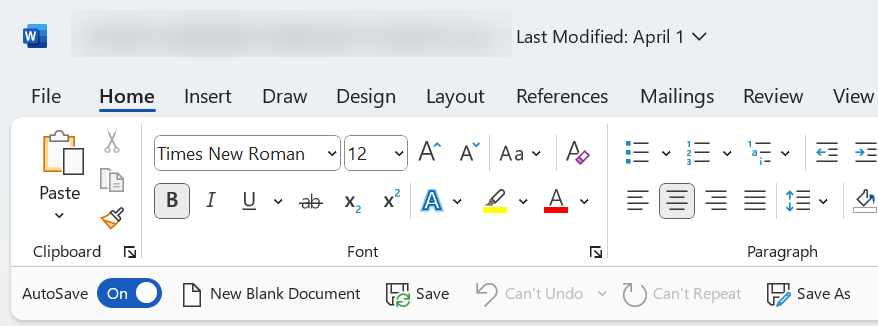
You can control the placement and visibility of the QAT across your organization using the following registry setting:
Location:
Software\Microsoft\Office\16.0\Common\ToolbarsType:
DWORDName:
QuickAccessToolbarStyleValue:
10- displays the QAT above the ribbon11- displays the QAT below the ribbon111- hide from view
NOTE: Hiding the QAT removes the AutoSave toggle from the user’s view. If you choose to hide the QAT, ensure users have an alternative way to confirm their co-authoring state before doing so.
Migrating from the iManage Microsoft Office for the web application to iManage Work Next Generation Co-authoring
If you have previously enabled iManage Microsoft Office for the web application to allow co-authoring using Microsoft 365 for the web and want to migrate to the new iManage Work Next Generation Co-authoring feature, you can follow the steps provided in Switching from the iManage Work Office for the web Co-authoring Application to iManage Work Next Generation Co-authoring.
Configuring the Microsoft 365 feedback policy for users experiencing an issue with Microsoft 365 for desktop applications
iManage Work Next Generation Co-authoring is built in partnership with Microsoft as part of the Microsoft Cloud Storage Partner Program Plus (CSPP+). Because the feature relies on technology from both iManage and Microsoft, errors can occasionally occur. Allowing users to submit feedback directly to Microsoft helps both organizations investigate and resolve issues more effectively, and we recommend keeping this option enabled.
You can control whether the feedback option is available to users using either of the following approaches:
Group Policy Objectives (GPO)
The feedback policy settings are located under User Configuration > Policies > Administrative Templates > Microsoft Office 2016 > Privacy > Trust Center.
The key policy is "Allow users to submit feedback to Microsoft". Turning off this policy removes the option for users to submit feedback from the Help menu.
For information on these policies, refer to https://learn.microsoft.com/en-us/microsoft-365/admin/manage/manage-feedback-ms-org?view=o365-worldwide. If an admin disables this policy, you won't be able to submit feedback to Microsoft.
Registry-based approach: For older Microsoft Office versions or more granular control, admins can set the
HKEY_CURRENT_USER\SOFTWARE\Policies\Microsoft\Office\Common\Restrictionsregistry setting with a DWORD value NoHelpItemSendFeedback set to 1 to remove the Send Feedback option from the Help menu.
Registry-based approach
For older versions of Microsoft Office, or where more granular control is required, you can remove the Send Feedback option from the Help menu using the following registry setting:
Location:
HKEY_CURRENT_USER\SOFTWARE\Policies\Microsoft\Office\Common\RestrictionsType: DWORD
Name:
NoHelpItemSendFeedbackValue:
1—removes the Send Feedback option from the Help menu
NOTE: If users report that the Feedback button is missing and you haven't intentionally disabled it, verify that the GPO or registry setting hasn't been applied by another policy in your environment.
Resolving the scenario when a Microsoft 365 document opens to a blank screen
If you see a blank document in Microsoft 365 desktop apps when opening a file with iManage Work Next Generation Co-authoring, the cause is an expired user access token that doesn't refresh automatically.
From the knowledge worker’s perspective, there's no guided recovery path that currently leads through re-authentication.
Perform the following steps to recover your document:
Select File in your Microsoft 365 desktop app.
Select Open from the set of options in the left pane.
Select iManage (the one with the user’s credential).
In the sign-in dialog that displays, enter your iManage Work credentials.
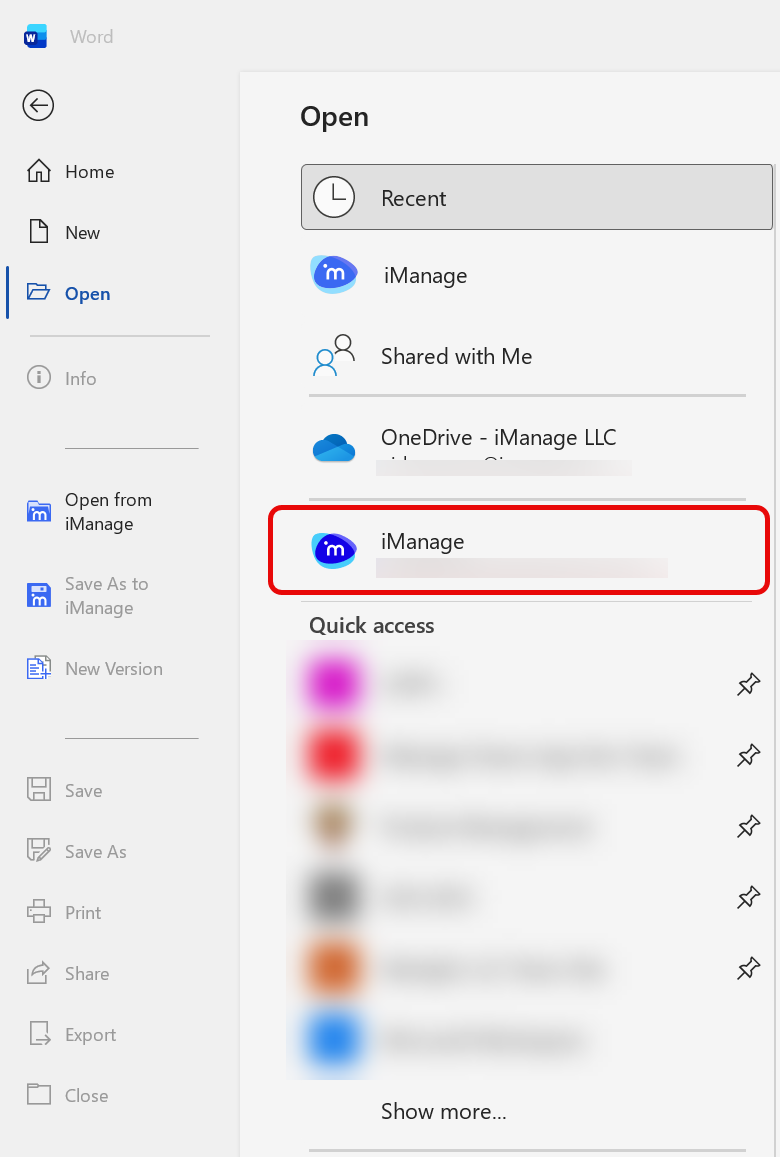 Figure: Re-authenticate to iManage Work Next Generation Co-authoring
Close the Microsoft 365 desktop application.
Reopen the document that was previously opened blank.