This section contains the following:
Resolved issues for iManage Work and Microsoft Windows devices
Table: Resolved issues for iManage Work and Microsoft Windows devices
Area | Reference number | Description |
|---|---|---|
General | NT-170773 | To support collaboration link users, we had added all possible errors that can be displayed when users try to open a document using Edit (Co-author) and Copy Edit Link options. To enrich user experience, we have modified our application to display the following message when users select any of the above-mentioned options: “Opening a document for the first time or seeing issues using this? Please read the below and action as needed:” Users have to select the message or select the down arrow to view the complete information about the possible errors and their solutions. |
General | NT-159182 | In some cases, users couldn’t join a co-authoring session when using Microsoft 365 for the web. |
General | NT-158863 28126 | When editing a Microsoft Word document using Microsoft 365 for the web, the total number of pages in the document was displayed as # - page x of <#>. |
General | NT-158308 28081 | Randomly, a second user joining an active co-authoring session in Microsoft Word received the following message for certain files, “This file is locked for editing by another user.” |
General | NT-156824 | When users create a file using Microsoft 365 for the web, the breadcrumbs display the workspace and folder names. However, selecting the workspace name displayed Recent Documents page and selecting the folder name displayed the folder where the file is saved. This happened only for the first time. |
General | NT-155964 27873 | The Microsoft PowerPoint application became unresponsive randomly, when users tried to open a file using Edit (Co-author). |
General | NT-154243 | When users opened multiple files for co-authoring using Microsoft 365 for the web and left them open until they were prompted to re-authenticate, upon selecting Refresh on the first tab in which one of the files is open, the browser redirected to the users Recent Documents tab instead of re-opening the document in the tab. |
General | NT-150102 | When the first person to start a co-authoring session on a document opened the document in Microsoft 365 for the web, in the iManage Properties panel of the document, the Checkout location field displayed an IP address instead of the user’s name. |
General | NT-149585 NT-149469 26924 | If one user’s access is removed during a co-authoring session, all other users who are co-authoring the document could lose access to the document briefly and had to do one of the following:
Also, if a user who no longer has access continued to make changes after losing access, Microsoft tries to remove the last changes made by that user. This in turn, removed edits made by other active users in the same session and edits made since the last save to iManage Work weren’t saved and were only present in the local copy(s) of the document. It takes 1–4 minutes for the Microsoft 365 applications to detect that the user no longer has access and remove them from the document. |
General | NT-148979 | When opening a document to co-author in Microsoft 365 applications for the desktop), by default, iManage Work added the document number and version to the document title. If a user then chose to save this document as a new document by navigating to the iManage node, by default, the file name still retained the document and version number of the original document. NOTE: Users had to manually remove the original document and version number from the new copy of the document when saving the document to avoid potential confusion. |
General | NT-148572 26955 | Trying to rename a Microsoft 365 document opened for co-authoring in Microsoft Word for the desktop by editing the file name directly within the Microsoft Word application caused the document to show that it is saving the latest edit for up to 10 minutes. NOTE: Users also required full access to rename a document using this method. |
General | NT-144472, NT-147630
| When users lost access to a file that they were co-authoring in Microsoft 365 for the web, refreshing the browser displayed the following error message: { "status": 400, "title": "Document profile not found for document: {\u0022DocumentId\u0022:\u002214941\u0022,\ |
General | NT-143309 26934 | When co-authoring a Microsoft PowerPoint document, the following discrepancy existed between Microsoft PowerPoint 365 for the web and Microsoft PowerPoint applications.
This caused confusion when different users were co-authoring a presentation using both Microsoft PowerPoint 365 for the web and Microsoft PowerPoint. |
General | NT-141813 26935 | Trying to rename a Microsoft PowerPoint document in Microsoft PowerPoint 365 for the web using the file title option, displayed the following error message: “We couldn’t Rename the File”, even if users have full access to the file. |
General | NT-136205 27606 | When co-authoring a Microsoft PowerPoint document with multiple users in Microsoft 365 for the web, if a user switches from Editing mode to Viewing mode and then back to Editing mode while other users are making edits, the user no longer saw the location of the other users in the document. Edits will still were shown as they were made. |
General | 26953 | As per Microsoft, up to 100 users in a concurrent co-authoring session is supported. However, it was seen that as the number of users actively co-authoring a document increased, there was a degradation in performance that would lead to delays in seeing other user’s real-time edits. |
General | 26925 | The Microsoft Help option in Microsoft PowerPoint for the web ribbon bar was intermittently not available during an active co-authoring session. |
iManage node navigation | NT-143083 26933 26946 | Opening the same file multiple times caused a new instance of the file to open every time. This also caused Microsoft 365 applications to become unresponsive. NOTE: This issue has been resolved by Microsoft and is available in Current Channel with build 16.0.17531.20120 onwards. |
iManage Timeline | NT-157586 | If a document is being actively co-authored and it’s security is changed to either View or Read-only, then a large number of View entries appeared in the timeline for all users in the document whose permissions were changed to View, but were still making edits until they close the document. |
iManage Timeline | NT-149920 26951 | When co-authoring in Microsoft Excel 365 for the web, intermittently, the Modified by action captured in the document’s timeline displayed N/A for the application, instead of Microsoft 365 for the web as expected. |
iManage Timeline | NT-149247 | During a co-authoring session with multiple users editing a file simultaneously and where an additional user entered the document in edit mode but didn’t made any direct changes, the Timeline incorrectly showed a Modified by event for the additional user alongside the other users who made the edits. |
iManage Timeline | NT-141554 | When copying a file within iManage Work at cloudimanage.com, either using the iManage Work Copy item menu option or when users have a document checked out explicitly and select to save it as a new document back to iManage Work at cloudimanage.com using iManage Save as dialog, one or both of the following actions were captured in the timeline of both documents as standard. However, when opening a document through the iManage node and then selecting to save it as a new document back to a location by browsing to the iManage node, neither of the below audit history entries were recorded. In the original document: (iManage Work Copy item menu option)
The below was added to the newly created document
|
Large files | NT-149843 26927 | When selecting the View in MS Word for the Web option for any Microsoft Word files whose size is larger than 100 MB, the following error was displayed, “Sorry, Word ran into a issue opening this document in a browser. To view this document please open it in the desktop version of Microsoft Word.“ NOTE: Users had to select the Edit in Desktop App option in the error message to edit documents. |
Unlock | NT-153015 | In some cases, files weren’t released and showed as checked out in iManage Work even after the co-authoring session was completed. NOTE: To address this, users had to open the document again for co-authoring using one of the following options in iManage Work, edit the document, and then close it again. The document was then checked-in.
|
Resolved limitations for iManage Work and Microsoft Windows devices
Table: Resolved issues for iManage Work and Microsoft Windows devices
Area | Reference number | Description |
|---|---|---|
Deployment | NT-142585 | The Add Application wizard in iManage Control Center didn’t honor the Refresh Token settings set for the application package. |
General | NT-160624 | When co-authoring a file, it was seen only the first user could rename the file if they had read/write access to the file. Other users who joined the co-authoring session couldn’t rename the file even if they had read/write access to the file. |
General | NT-152316 | When opening a large file using the Edit (Co-author) menu option in iManage Work, if the file size of the file selected is greater than the file size limit in Microsoft 365 for the web, the following error was displayed: “Document size exceeds limit allowed for editing. You might not be able to open this document for editing in the web. Proceed anyway” |
General | NT-150321 26926 | When a user re-opened a Microsoft Word document they had previously co-authored using the Microsoft 365 applications for the desktop, but they had also in between edited the file in Microsoft 365 for the web, the user saw an Uploading dialog being displayed and the document didn’t open. NOTE: Users had to select Cancel on the Uploading dialog. The document then opened with all the latest edits. |
General | NT-150109 NT-148395 NT-146955 NT-148944 NT-142212 26931 26943 26950 | When co-authoring with multiple users on the same document in both Microsoft 365 for the web and Microsoft 365 applications for the desktop simultaneously, users sometimes noticed a delay in seeing the location of the other users in the document and didn't see their edits being made in real-time. This can potentially led to users overwriting each other’s edits inadvertently. This behavior wasn’t seen when all users were co-authoring a file only in Microsoft 365 applications for desktop, or when all users are only co-authoring in Microsoft 365 for the web. |
General | NT-149566 | If a user’s refresh token expires, the user wasn’t automatically prompted to sign-in when trying to access the iManage node in Microsoft 365 applications for the desktop. The user would be able to browse list views in a node but a “We didn’t find anything to show here“ message was displayed. NOTE: Users had to remove the iManage node from File > More > Connected Services and add it back using Add a Place. |
General | NT-148434 | Users couldn’t co-author files that contained OLE links (links to other workbooks) because this wasn’t supported by Microsoft. Additionally, files that contained embedded files couldn’t be opened in Microsoft 365 for the web, and when user tries to open an embedded file, the following error was displayed: “We’re sorry. We can’t open the workbook in the browser because it uses these unsupported features: Charts or objects with external references (links to other work books) Do you want to open the file in the desktop app instead?” 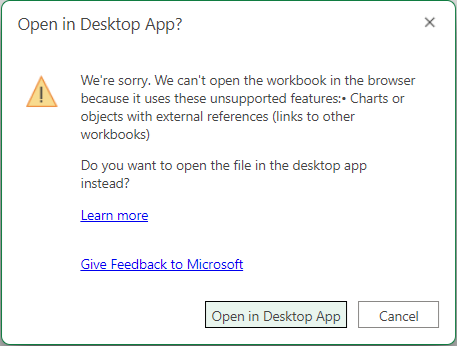 |
General | NT-143436 | The iManage Work footer functionality didn’t update automatically when users opened a file using the iManage navigation in Microsoft 365 applications for the desktop or the Edit (Co-author) option available in iManage Work at cloudimanage.com. NOTE: To make sure any document version opened for co-authoring had the correct version number in the footer and so on, users had to open any new version first using one of the iManage Work exclusive checkout options:
This required iManage Work Desktop for Windows to be installed on the user’s device. |
General | NT-141440 | When using the iManage Work Edit (Co-author) menu option to open a document to co-author, iManage Work did not auto-refresh in user’s browser to display a globe icon denoting that the document is now open in co-authoring mode. |
General | 26973 | When creating a new file using the New File menu option on iManage Work at cloudimanage.com, if a user then entered text into the newly created file using Microsoft 365 for the web and then pressed Enter, the file was renamed automatically to contain the text just entered into the body of the document. |
iManage Timeline | NT-161095 26938 | When multiple users were co-authoring a document using Microsoft 365 applications for the desktop and left the document inactive for sometime and then reconnected, further edits within the document by a single user incorrectly showed in the timelines as modified by another user who still had the document open. |
iManage Timeline | NT-144864 | When opening a file for the first time through the iManage node in any Microsoft 365 applications for the desktop, the file could open in Microsoft’s Protected View. When this happened, the timeline for the file didn’t capture the viewed action. Instead, the following actions were recorded for the Microsoft 365 applications for the desktop::
|
Unlock | NT-141643 26965 2800 | When two users were co-authoring, and both released the file, the file was shown as checked out in co-authoring mode for up to 30 minutes. This is because Microsoft has various background processes that need to run to validate that a co-authoring session has been exited by all users. |
Resolved issues for iOS devices
Area | Reference number | Description |
|---|---|---|
General | NT-156148 27904 | Trying to open a Microsoft Word or Microsoft PowerPoint file from iOS app, when another file is already open in Microsoft Word or Microsoft PowerPoint, the previously opened file is closed, but it remained checked out incorrectly. NOTE: Users had to close their file before opening a new file using one of the co-authoring menu options, including view. |
General | NT-155669 | When opening a document to co-author in Microsoft Word for iOS, Microsoft Excel for iOS, Microsoft PowerPoint for iOS, or the Microsoft 365 applications for iOS, by default, iManage Work adds the document number and version to the document title. If a user then chose to save this document as a new document by navigating to the iManage node, by default, the file name still retained the document and version number of the original document. NOTE: Users had to manually remove the original document and version number from the new copy of the document when saving the document to avoid potential confusion and to avoid possible issues with the iManage Work mobility Send a Copy functionality. |