We’re committed to providing you with the best possible experience with our iManage Work Next Generation Co-authoring feature. Based on feedback gathered during our 8-month Early Access Program (EAP), we’ve identified device settings and configuration choices that have the greatest impact on your day-to-day co-authoring experience.
These best practices are designed to:
Reduce friction: Minimize unnecessary clicks and suppress prompts and dialogs that interrupt your workflow.
Help you get the best results: Learn the settings and habits that keep your co-authoring sessions running smoothly.
Following these recommendations will help you get the most out of iManage Work Next Generation Co-authoring.
- Make sure to sign in using the Microsoft 365 applications for the desktop
- Version handling in iManage Work Next Generation Co-authoring
- Turning off browser notifications
- Ensure the Quick Access toolbar is enabled on your Microsoft 365 applications for the desktop
- Enable Microsoft AutoSave when using iManage Work Next Generation Co-authoring
- Disabling Microsoft Create new files in the cloud automatically option
- Sending feedback when experiencing an issue with Microsoft 365 for desktop applications
Make sure to sign in using the Microsoft 365 applications for the desktop
Before using the iManage Work Next Generation Co-authoring features, you must perform a one-time authentication in any one of the Microsoft 365 applications for the desktop (Microsoft Word, Microsoft Excel, or Microsoft PowerPoint).
If you don’t do this, you'll receive a notification when trying to open a document from iManage Work.

For information about how your administrators can configure iManage on your device, refer to Guided user authentication for iManage Work storage provider in Microsoft 365 applications for desktop.
Additionally, you can also refer to the iManage Work Next Generation Authentication video for a step by step sign-in process.
Version handling in iManage Work Next Generation Co-authoring
When you edit files using either of the iManage Next Generation Co-authoring options, (Edit (Co-author) or Edit (Co-author) in Microsoft <appname> for the web), you currently can’t save the file as a new version in editing mode. All the edits made are automatically saved to the current version of the file.
This is because creating a new version of the file isn’t supported while multiple collaborators are editing the file. However, we're working on an update to iManage Work Desktop for Windows to let users create a new version when opening it using iManage Work Next Generation Co-authoring, if there's only one user for the file. We expect this update to be available in the second half of 2025.
Until then, if you want to save your changes to a new version of the file, you should create a new version of the file before starting the co-authoring or editing session by doing either of the following:
Select the Edit (Co-author) new version option available in iManage Work at cloudimanage.com. This opens a version of the document in the relevant Microsoft 365 for the desktop applications.
Or select the Edit (Co-author) new version in Microsoft <app> for the web option available in iManage Work at cloudimanage.com. This opens a new version of the document in Microsoft 365 for the web.
IMPORTANT: It's possible your administrator has configured your Open context menu to only include one of the above options and therefore you may not have access to one or both options.
Right-click the document and select Copy as new version in iManage Work. After a copy is created, you can use the Edit (Co-author) option to edit this new version of the document.
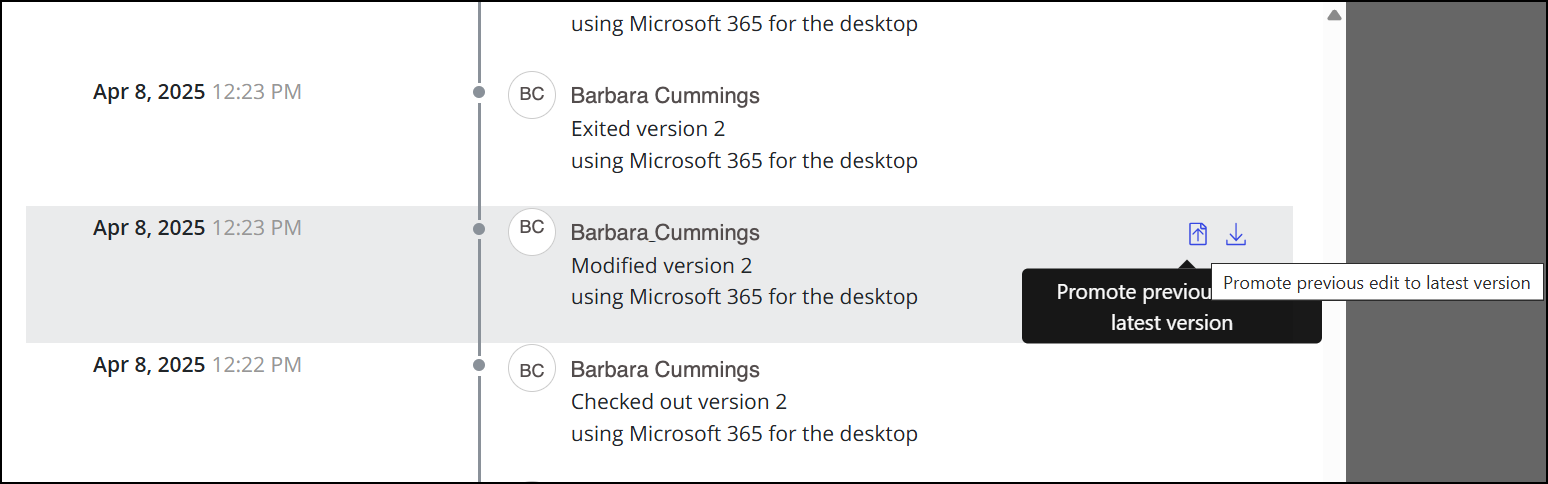
Additionally, you can promote a previous version of the file as a new version using Timelines in iManage Work at cloudimanage.com. To do this:
In iManage Work at cloudimanage.com, right-click the file and browse to Timeline.
On the Timeline page, select List to view the recent activities.
To promote the previous edit to latest version, select a timeline with Modified version <number> and then select the Promote previous edit to latest version
 .
When you perform the above steps, all edits from the current version of the file are rolled back, the file is restored to this previously saved state, and a new version of the file is created. Any edits made to the current version of the file aren't available in this new version.
Turning off browser notifications
When you open a document using Edit (Co-author), a browser notification as shown in the following figure is displayed.
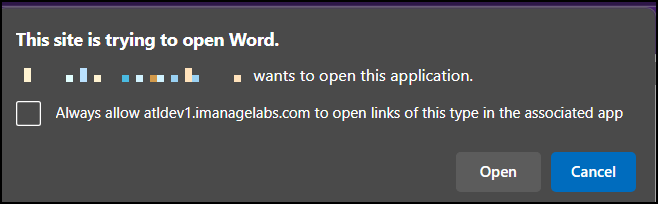
To turn off this notification, select the Always allow <url> to open links of this type in the associated app check box. This is a one-time action and the notification won’t appear again for subsequent co-authoring sessions.
If the notification continues to appear, contact your administrator.
Ensure the Quick Access toolbar is enabled on your Microsoft 365 applications for the desktop
When you open documents using iManage Work Next Generation Co-authoring, the easiest way to confirm that the file is open in a collaborative state and not exclusively checked out is to check the AutoSave toggle in the Mirosoft Quick Access Toolbar (QAT).
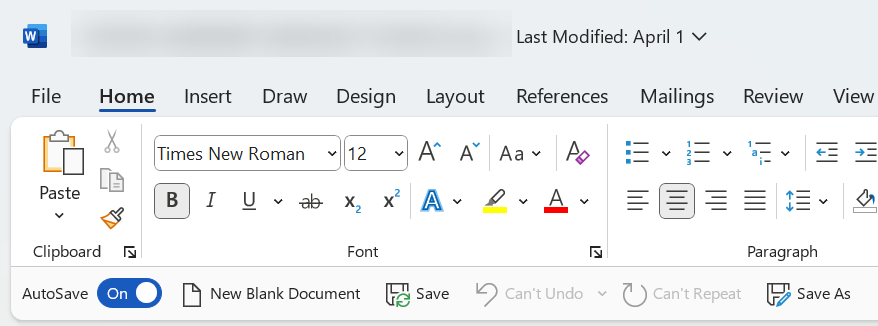
When AutoSave is on, your edits are continuously saved back to iManage Work in real time. If AutoSave is off, the file may be exclusively checked out rather than open for co-authoring.
You can also customize the QAT to add frequently used functions and actions for easy access, so you don’t have to switch between ribbon tabs to find what you need.
NOTE: Your administrator controls whether the QAT is displayed and where it appears relative to the ribbon. If the QAT is not visible, contact your administrator.
Administrators can place the QAT above or below the ribbon, turn off the QAT, or hide it from your view by using the following registry setting:
Location:
Software\Microsoft\Office\16.0\Common\ToolbarsType:
DWORDName:
QuickAccessToolbarStyleValue:
10- displays the QAT above the ribbon11- displays the QAT below the ribbon111- hide from view
Enable Microsoft AutoSave when using iManage Work Next Generation Co-authoring
For documents stored in iManage Work to be co-authored seamlessly with Microsoft 365 desktop applications, Microsoft AutoSave must be turned on. This ensures that your edits and changes are continuously saved back to iManage Work in real time, and prevents conflicts or data loss during a co-authoring session.
To enable AutoSave, do the following:
In your Microsoft Word, Excel, or PowerPoint desktop application, select File > Options.
In the Options dialog, select the Save category.
Ensure that the AutoSave files stored in the Cloud by default in Word/Excel/PowerPoint check box is selected.
Select OK to apply your changes. You'll need to restart your Microsoft application.
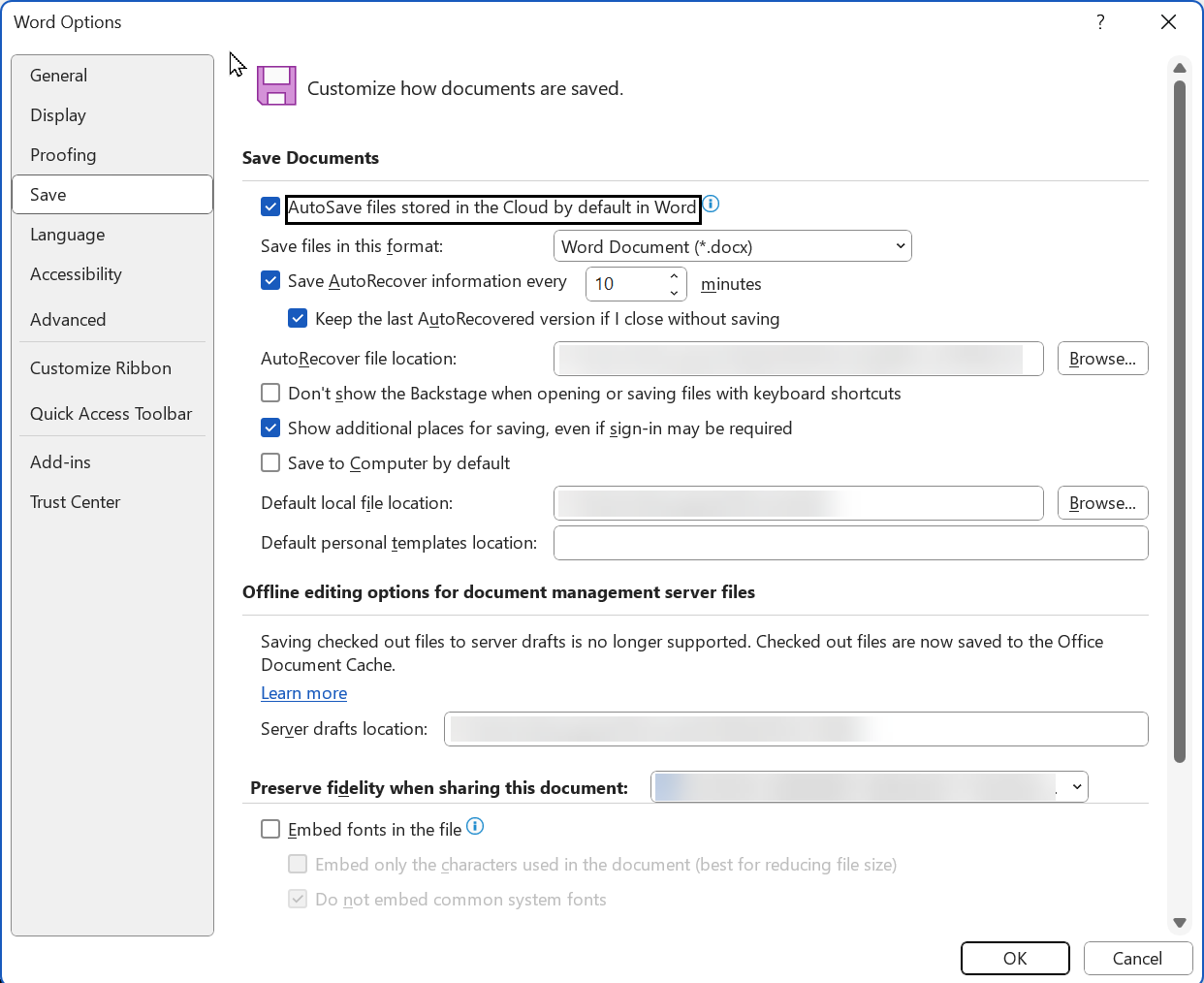
Once enabled, AutoSave will be active whenever you open and edit iManage documents in Microsoft 365 desktop applications using the Next Generation Co-authoring options.
Disabling Microsoft Create new files in the cloud automatically option
Microsoft is introducing a new option Create new files in the cloud automatically (currently in the Preview channel of Microsoft 365 applications for the desktop). When this setting is enabled, any new documents you create in Microsoft Word, Microsoft Excel, or Microsoft PowerPoint are automatically saved to Microsoft OneDrive, Microsoft SharePoint, or iManage Work.
Saving all new documents to an iManage Work workspace automatically can cause issues if files aren’t moved into the appropriate workspace or renamed accordingly. At this time, we recommend that you disable this option until we have adequate workflows developed.
To disable the setting, do the following:
In your Microsoft Word, Excel, or PowerPoint desktop application, select File > Options.
In the Options dialog, select Save.
Deselect the Create new files in the cloud automatically check box.
Select OK to save your changes.
Disabling this setting ensures that new files can be managed appropriately, keeping your content consistent with your organization’s document management practices.
NOTE: This setting is still in Preview channel and hasn't been deployed to the M365 current channel yet. This setting may not be displayed until your Microsoft 365 environment is updated.
Sending feedback when experiencing an issue with Microsoft 365 for desktop applications
We've built the iManage Work Next Generation Co-authoring feature as part of Microsoft Cloud Storage Partner Program Plus (CSPP+). So, for the product to function seamlessly, we rely on technology from both iManage and Microsoft. Sometimes an error might occur when using the application with Microsoft 365 for desktop applications. In such cases, you can report these incidents by sending feedback. This will help us and Microsoft to troubleshoot the issue.
To send feedback, do the following:
Select the Help tab.
Select Feedback.
In the Feedback to Microsoft task pane, select Report a problem.
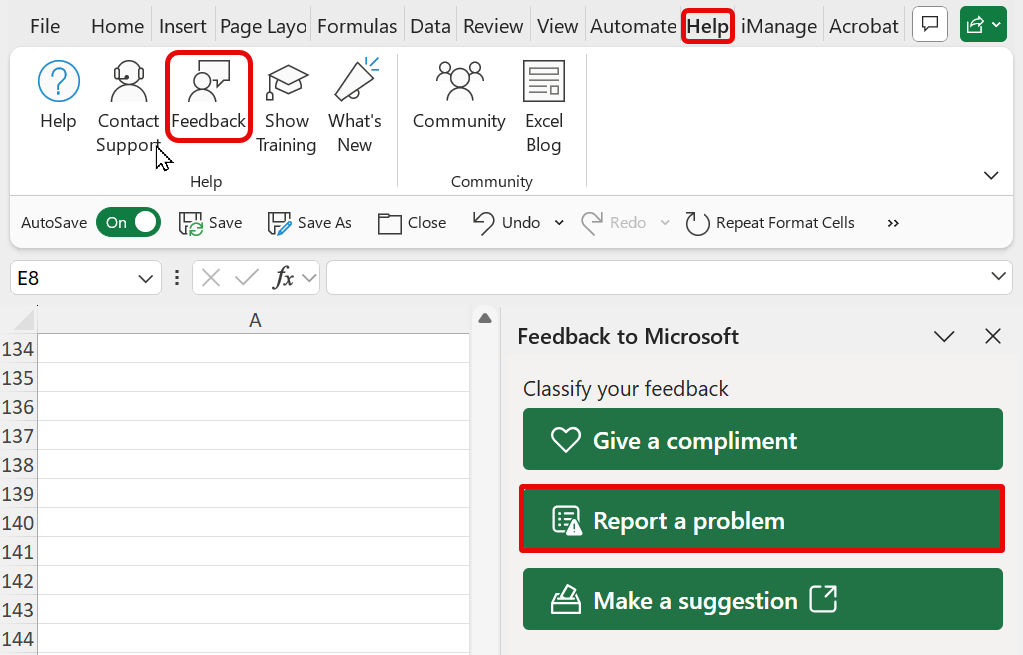
In the dialog that opens, enter: #iManage (along with a description of the issue) and select Submit.
NOTE: Providing feedback when encountering an issue with Microsoft 365 online follows the same process, although the user interface may look a bit different.
Q: Why is the Feedback button missing from my Microsoft environment?
A: It's possible that your administrator has disabled the option to supply feedback.
Primary Group Policy Objects (GPO) policy: The feedback policy settings are located under User Configuration > Policies > Administrative Templates > Microsoft Office 2016 > Privacy > Trust Center. For information on these policies, refer to https://learn.microsoft.com/en-us/microsoft-365/admin/manage/manage-feedback-ms-org?view=o365-worldwide. The key policy is "Allow users to submit feedback to Microsoft". If an admin disables this policy, you won't be able to submit feedback to Microsoft.
Registry-based approach: For older Microsoft Office versions or more granular control, admins can set the
HKEY_CURRENT_USER\SOFTWARE\Policies\Microsoft\Office\Common\Restrictionsregistry setting with a DWORD value NoHelpItemSendFeedback set to 1 to remove the Send Feedback option from the Help menu.