To configure Ask iManage for your instance of cloudimanage.com, the iManage Ask iManage Web Extension must be added and configured in iManage Control Center.
If the extension isn't on the Applications page in iManage Control Center yet, it's not added to your environment. Follow the steps below to add the applications in iManage Control Center.
NOTES:
If the applications are listed, but they're disabled, refer to Enabling/disabling iManage Ask iManage Web Extension in iManage Control Center.
To add an application in iManage Control Center, the user signed in to iManage Control Center must be assigned to a Global Management role that has the App Management privilege. For more information, refer to Global privilege descriptions
After signing in to iManage Control Center, select Settings in the left navigation pane and then select Applications.
Figure: Settings > Applications tab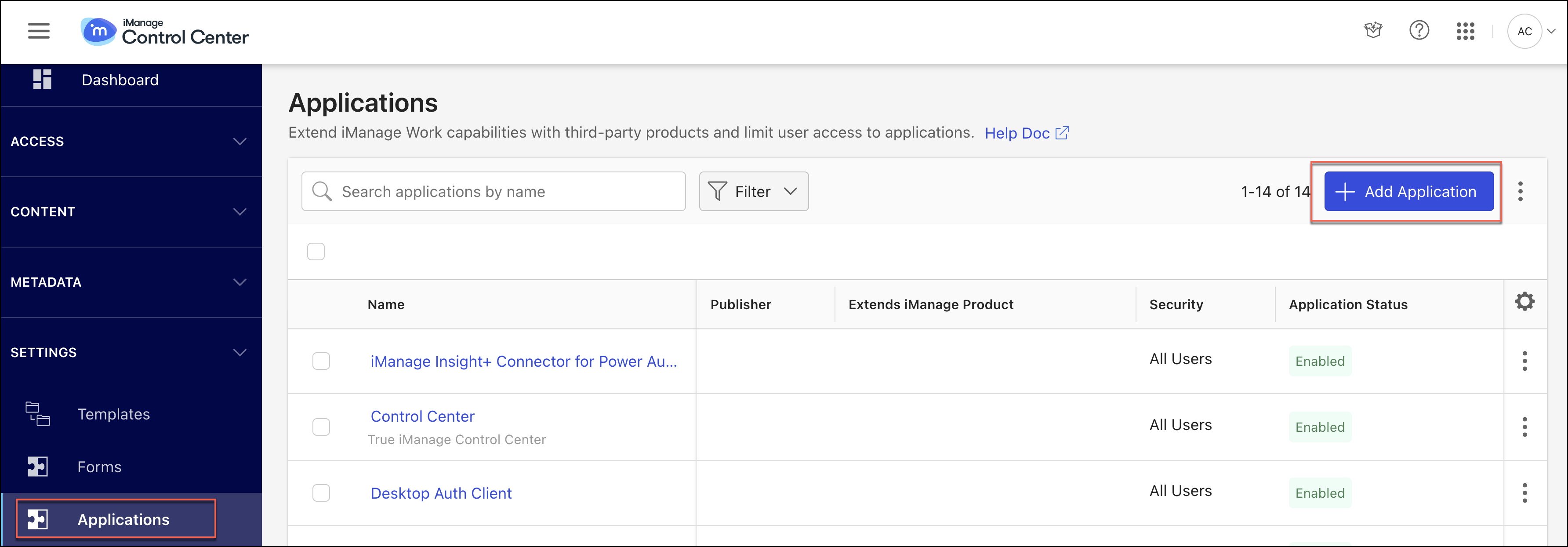
Select Add Application.
Figure: Add Application dialog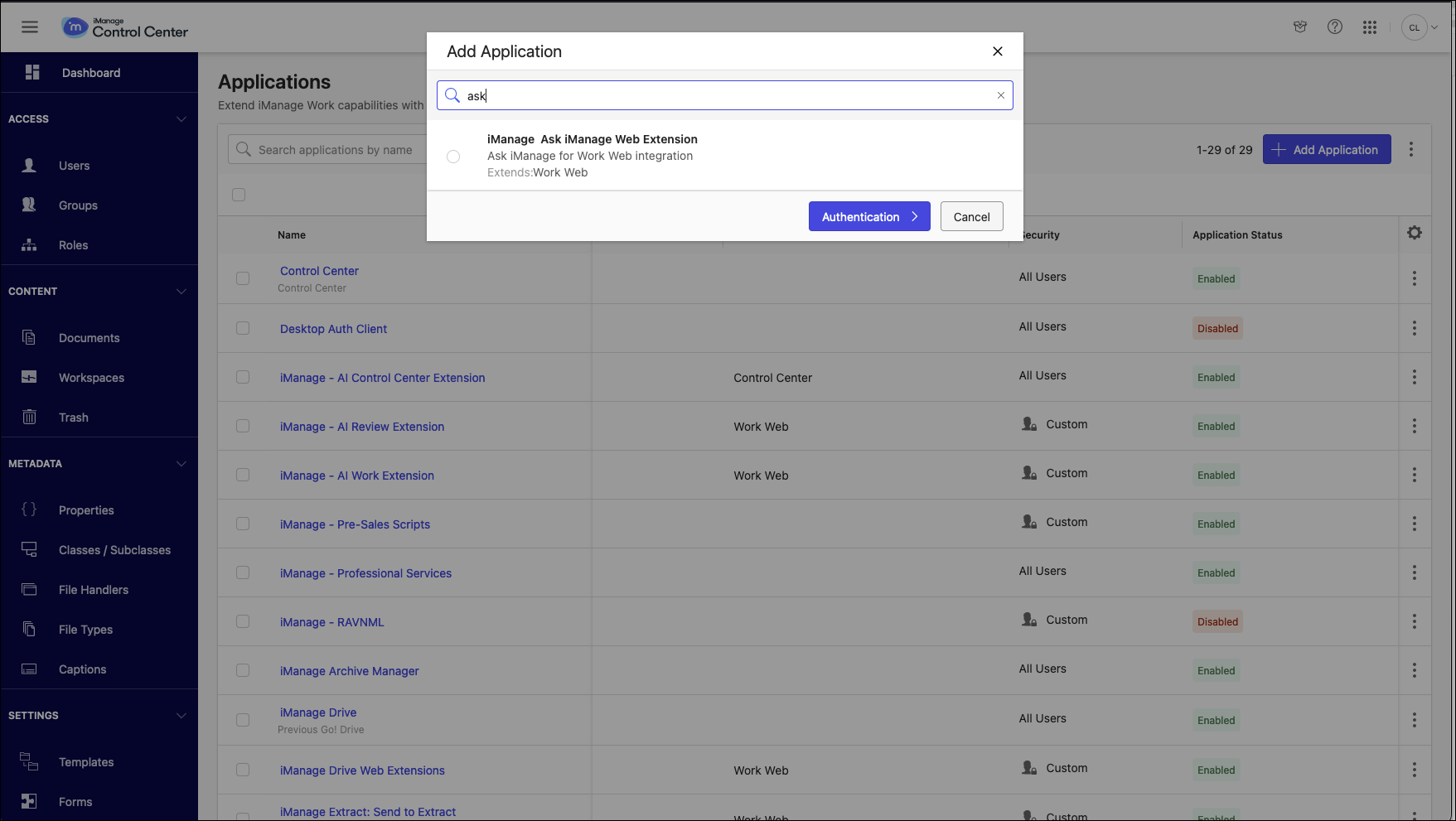
In the Add Application dialog, from the available list of applications, select iManage Ask iManage Web Extension and then select Authentication.
NOTE: If the extension isn’t listed, it implies that the extension isn’t added for your tenant. We recommend that you contact iManage Support for help on adding the extension to your tenant.
After you receive a confirmation from iManage Support, add the application by following the process from Step 2 onward.
In the Add Application dialog, the authentication step displays the following options:
Set Allow Refresh Token to Yes.
Set Access Token Expiry interval. By default, the access token is set to expire after 30 minutes of inactivity. Ensure this value is greater or equal to the Access Token Expiry interval for the Work Client (web) application.
Select Access and then select from one of the following options:
Allow access to All Users: This is the default setting.
Custom: If you select this option, search for the users you want to provide access to and select them.
Select Settings. Enter the domain URL from where iManage Work Web and Ask iManage will be accessed. By default, this is cloudimanage.com. However, in case your instance of cloudimanage.com has a custom prefix, add it to the domain name: <subdomain>.cloudimanage.com.
Example: cloudimanage.comSelect Review, and then select Finish. A success message is displayed informing you that the application is added.
Refresh the iManage Control Center page.
The extension is listed in the Applications page in iManage Control Center.