Go to the Ask iManage side panel or the Ask iManage page. For instructions about how to browse to either of these, refer to Accessing Ask iManage in iManage work at cloudimanage.com.
To display the question list dialog, select Question list.
There are two kinds of question lists.
Organization: These question lists are available for everyone in the organization to select from.
Personal: These question lists are created by users for their specific use and are visible only to the user who created it.
To select a question list:
From the listed question lists, select the question list you want. Scroll down to browse through the question list.
In Search for a question list, enter the name of the question list you want. As you enter the name, the system will refine the results in the drop-down list, helping you select the required question list.
Select the All drop-down menu, to refine the question list to be displayed in the Select question list drop-down. You can choose between All, Organization, and Personal.
Figure: Selecting a question list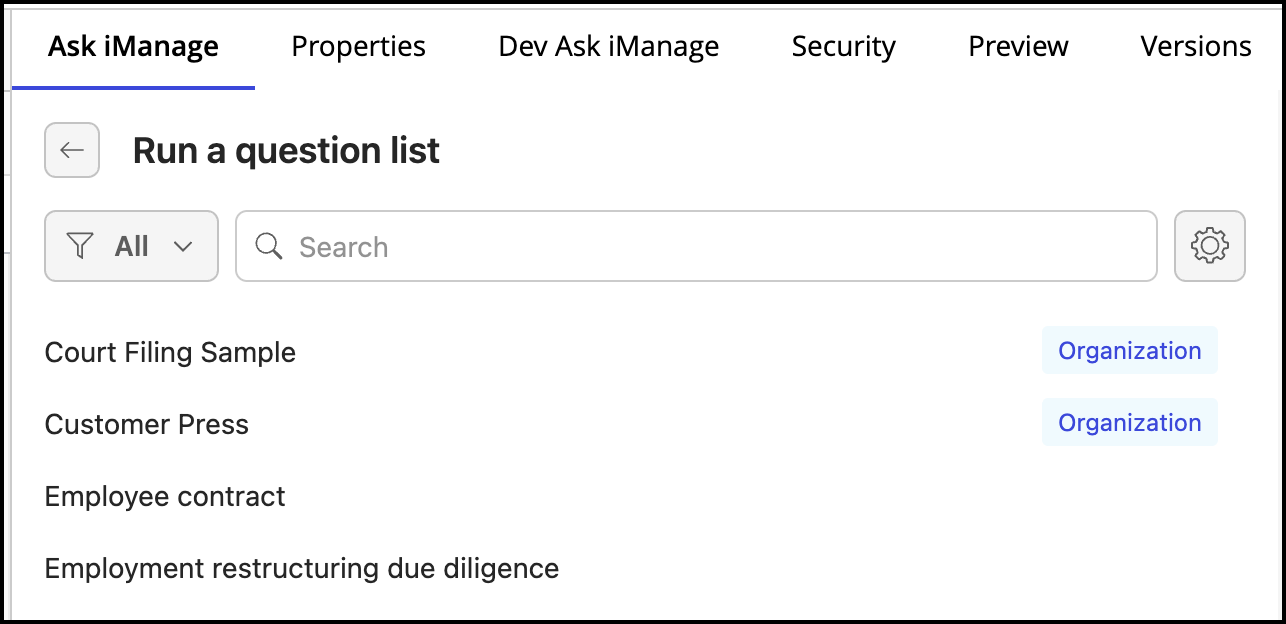
NOTES:
In case you're using Ask iManage for the very first time, there's a possibility that no question lists are available. You must create a question list and add questions to it. For instructions about how to work with question lists, refer to Working with question lists and questions.
Select the star
 icon next to the question list to mark it as a favorite. This'll help you quickly identify the most important question lists for you. Clear the selected star icon to remove the question list from your favorites list.
Ask iManage starts reading through the document and generates answers. Note that it may take a few minutes for the answers to get generated.
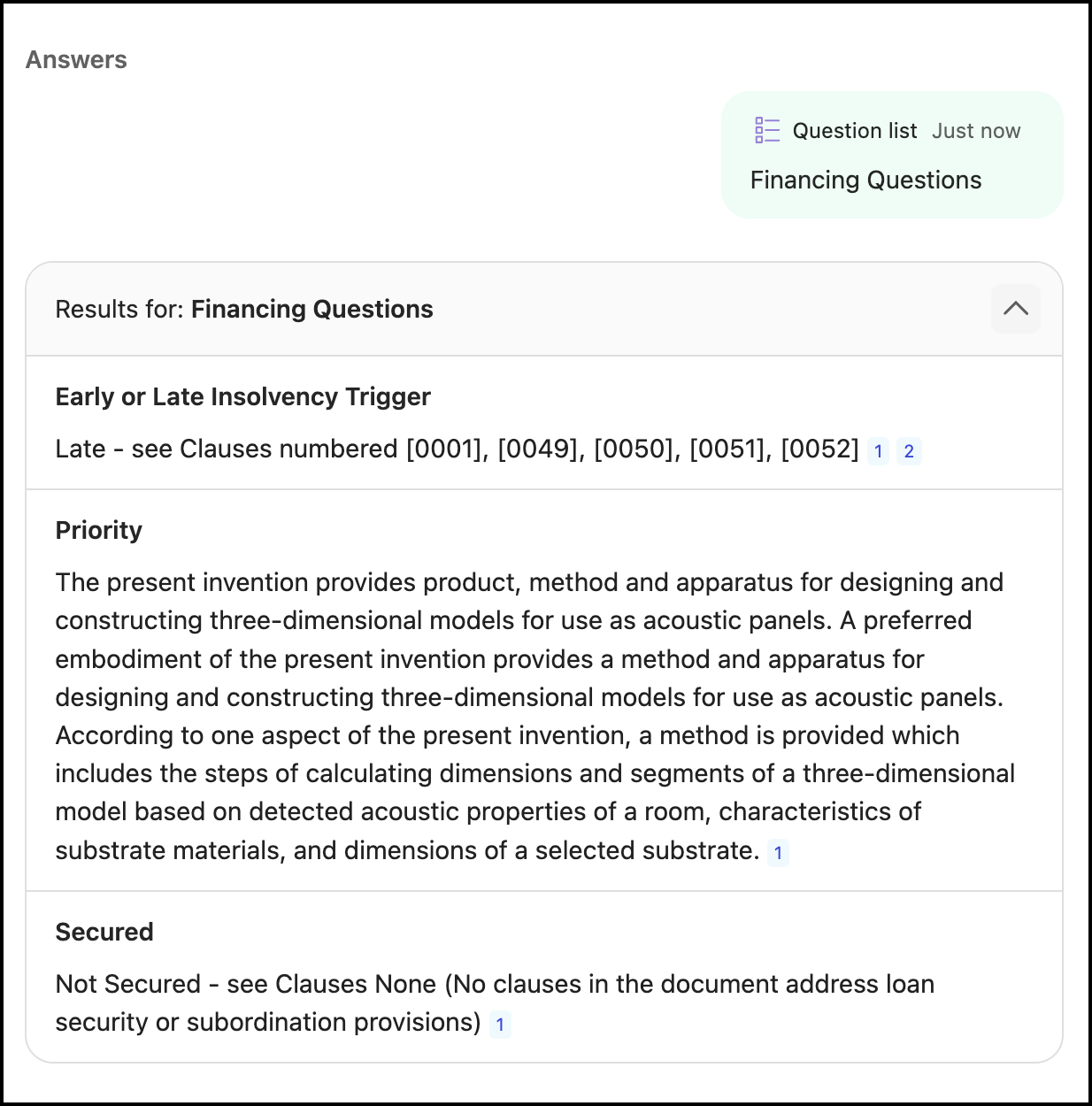
NOTE: If Ask iManage fails to find the relevant information in the document or relevant information doesn't exist for the question being asked, an “Answer not found” response is displayed.
The system saves the responses, and they'll be displayed for you when you sign in again. Further, the responses are visible to every user in your environment, provided they have access to the document and the question list.
The system saves only the responses from the last-run question list for a document. If you or any other user re-runs the question list or runs a different question list for the document, the current set of responses are deleted, and the system saves the latest responses.
However, if you select a different document and run a question list against it, then the system saves those responses also. So, the system saves one set of responses per document, which is based on the last-run question list on that document.