You can use projects and add documents or emails using any one of the following methods:
NOTES:
The projects created by you can be viewed only by you and can’t be viewed by other users.
You can add up to 50 documents or emails to a project.
Ask iManage now automatically names the project based on the first action taken within it. You can however, rename the project as per your choice.
Using the Ask iManage home page
In iManage Work at cloudimanage.com, select Ask iManage from the left navigation pane.
Figure: Selecting Ask iManage in side panel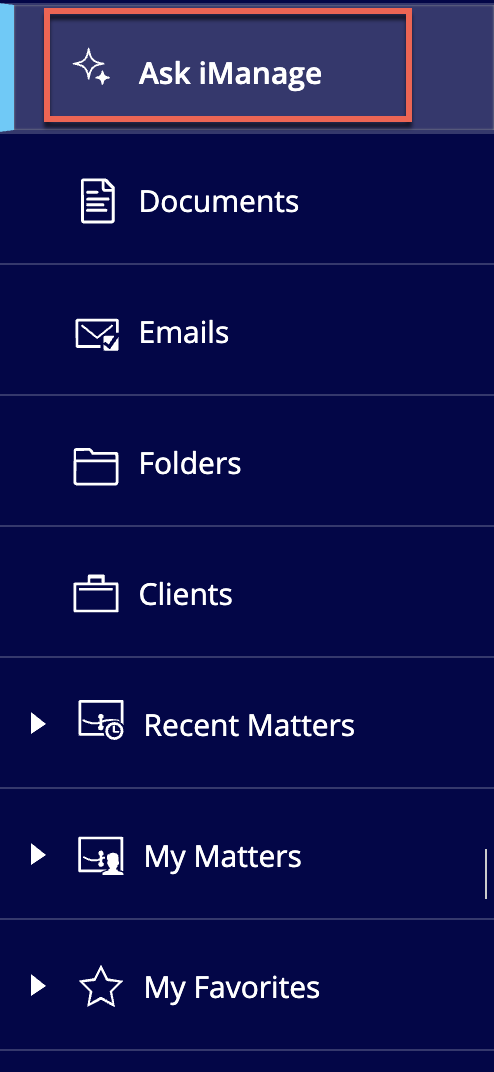
In the Ask iManage home page that appears, select Create a review project.
Figure: Selecting create a review project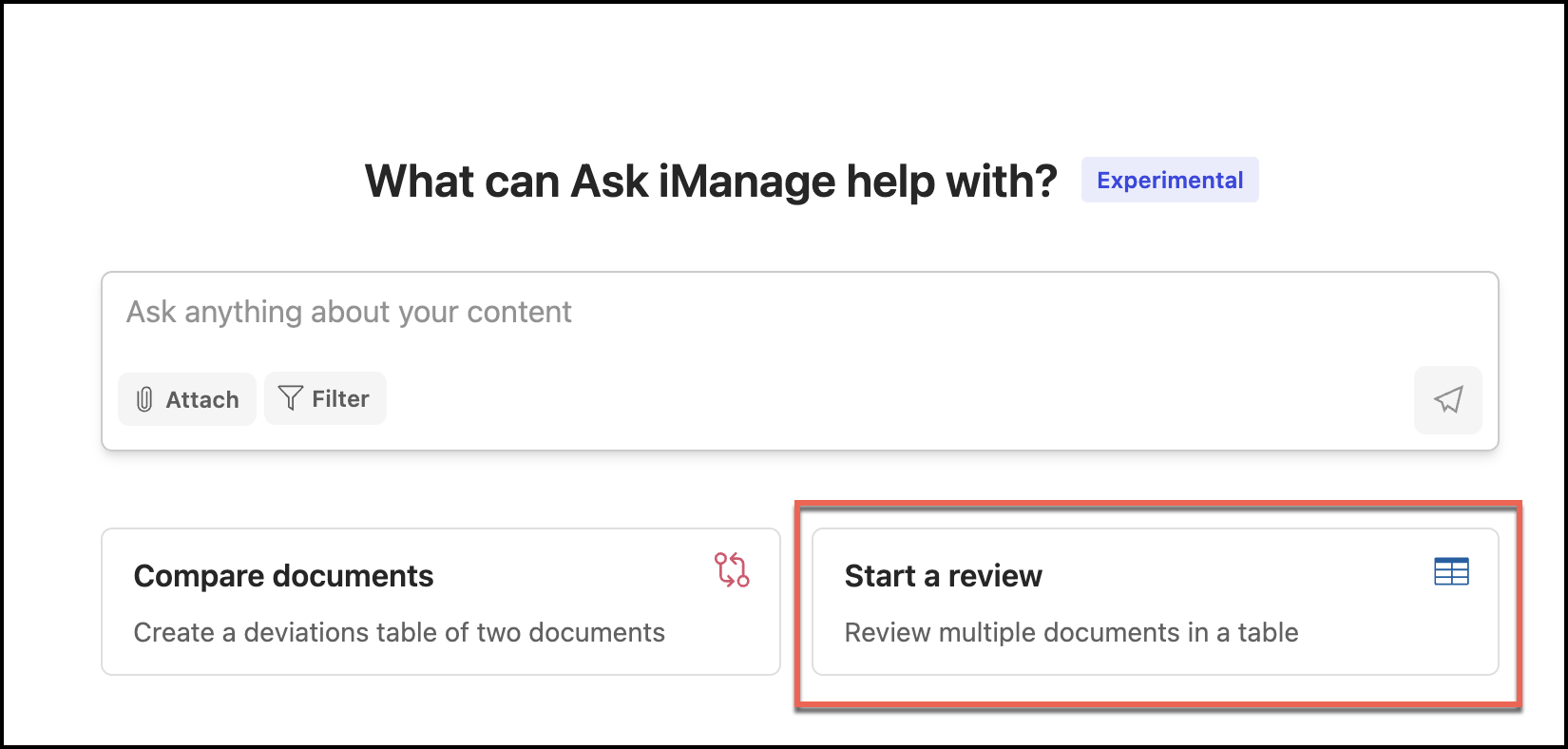
In the Select documents dialog that appears, select the documents you want to add to the project.
Figure: Selecting documents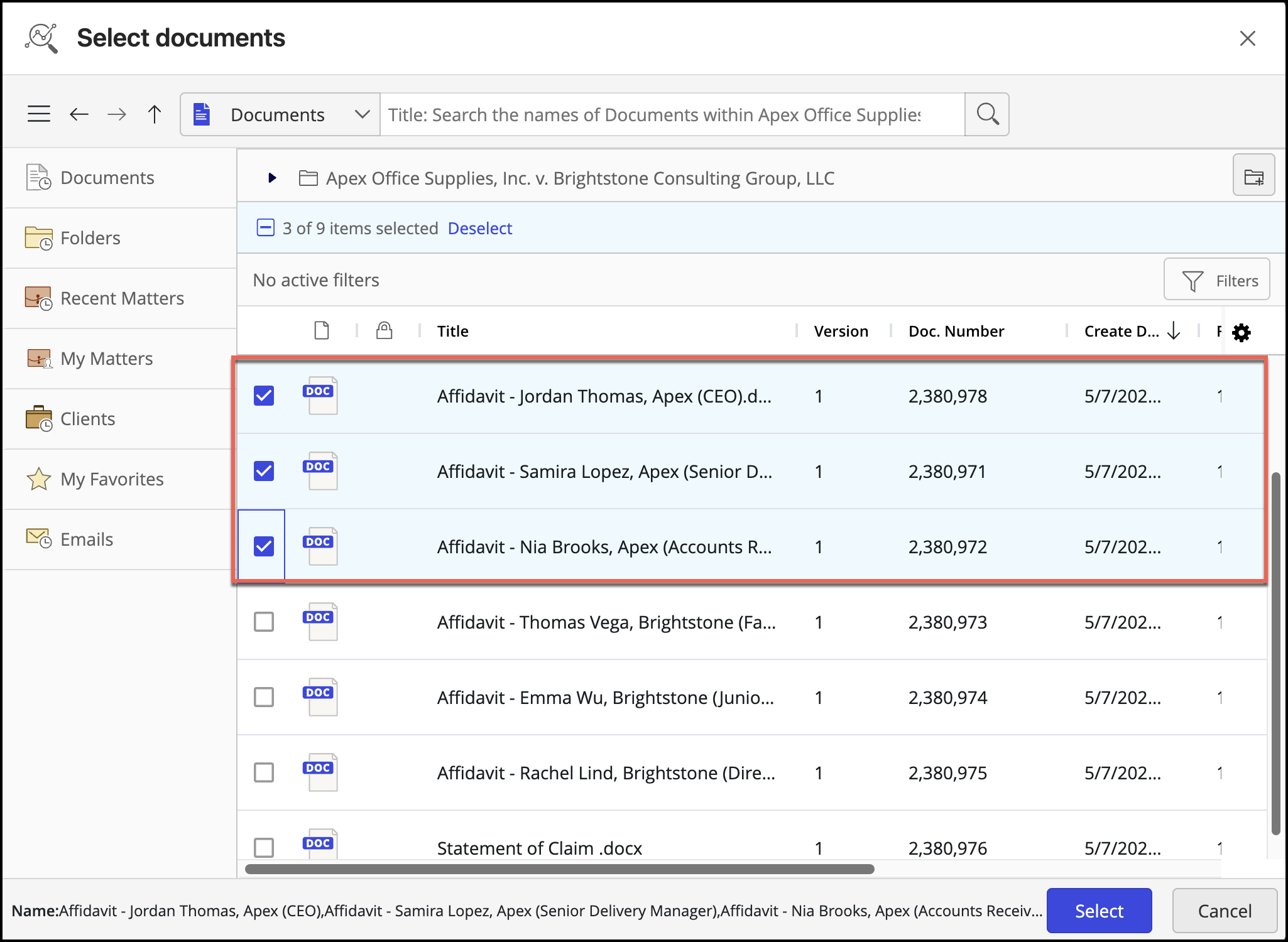
Alternatively, you can also search for documents using the search option in the Select documents dialog.
Figure: Searching for documents using search in iManage Work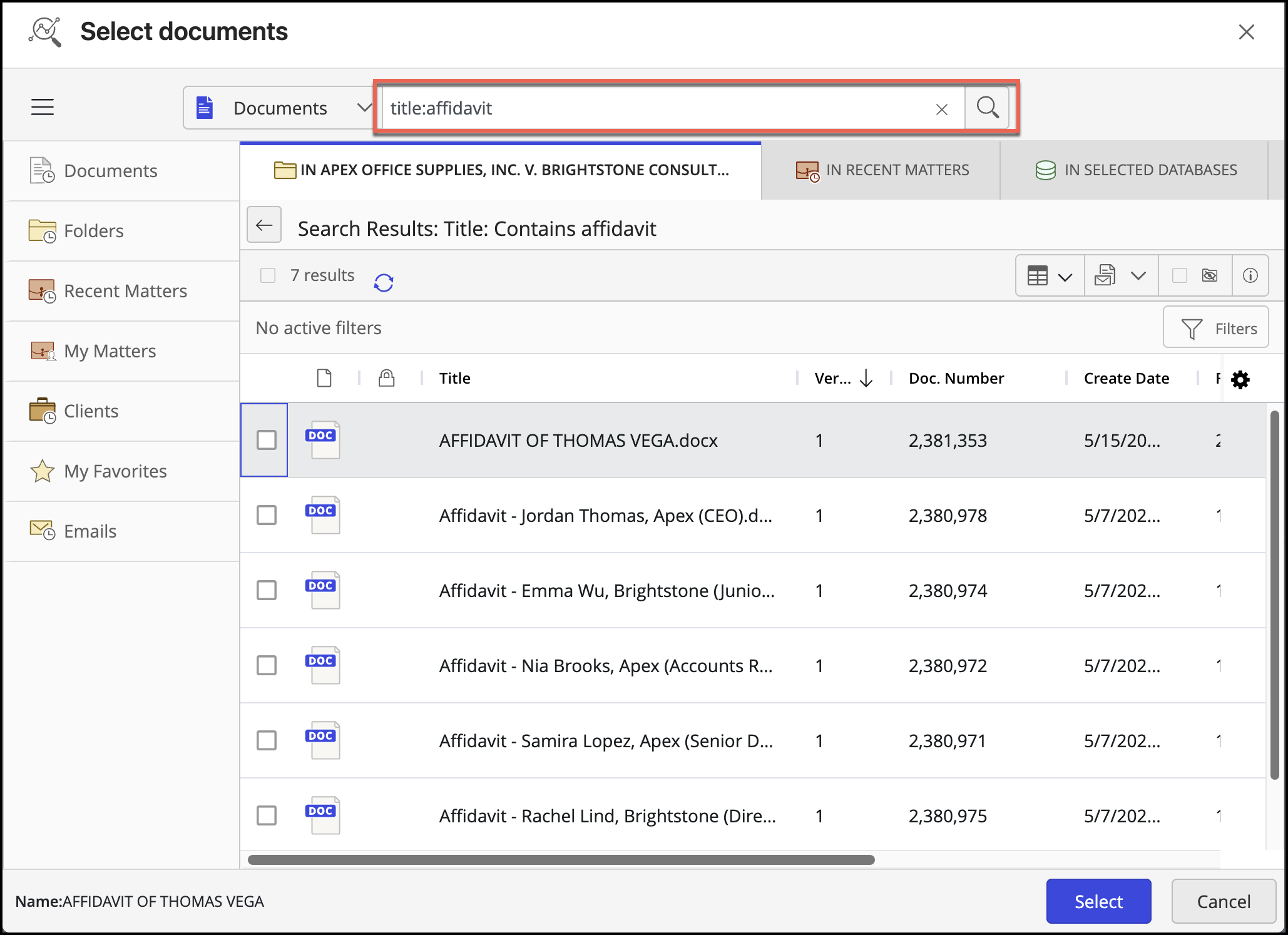
After you have selected all the documents, you want to add, click Select. The documents are added to the project on the Ask iManage home page.
Figure: Creating a review project in Ask iManage home page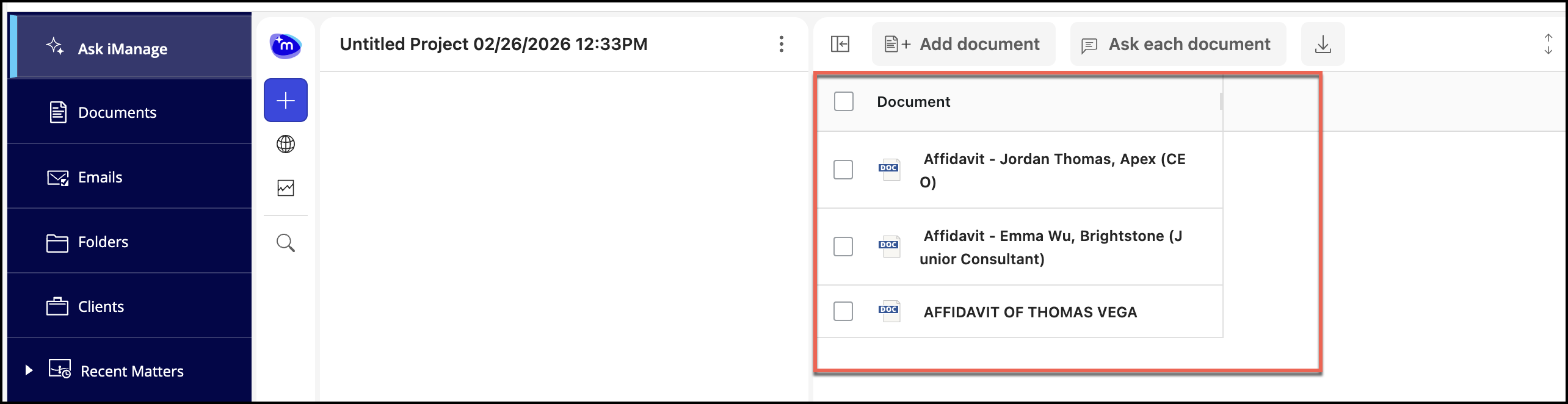
Using the Ask iManage icon on the menu ribbon
In iManage Work at cloudimanage.com, select the documents/emails of your interest, and select
 and then select Start a review.Figure: Selecting documents to open in matrix view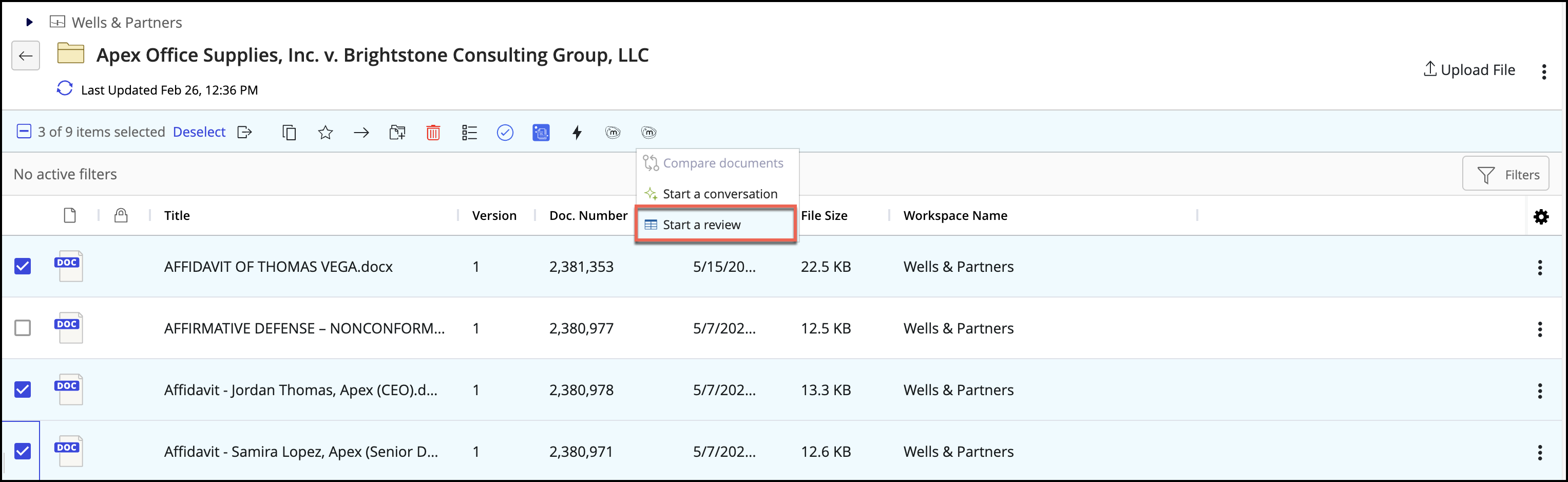
The documents are added and appear on the Ask iManage home page, as shown in the following figure:
Figure: Creating a review project in Ask iManage home pageThe documents you have selected are added to the project by default. To add additional documents, select Add document. In the Select documents dialog that appears, select the documents you want to add to the project.
Figure: Adding additional documents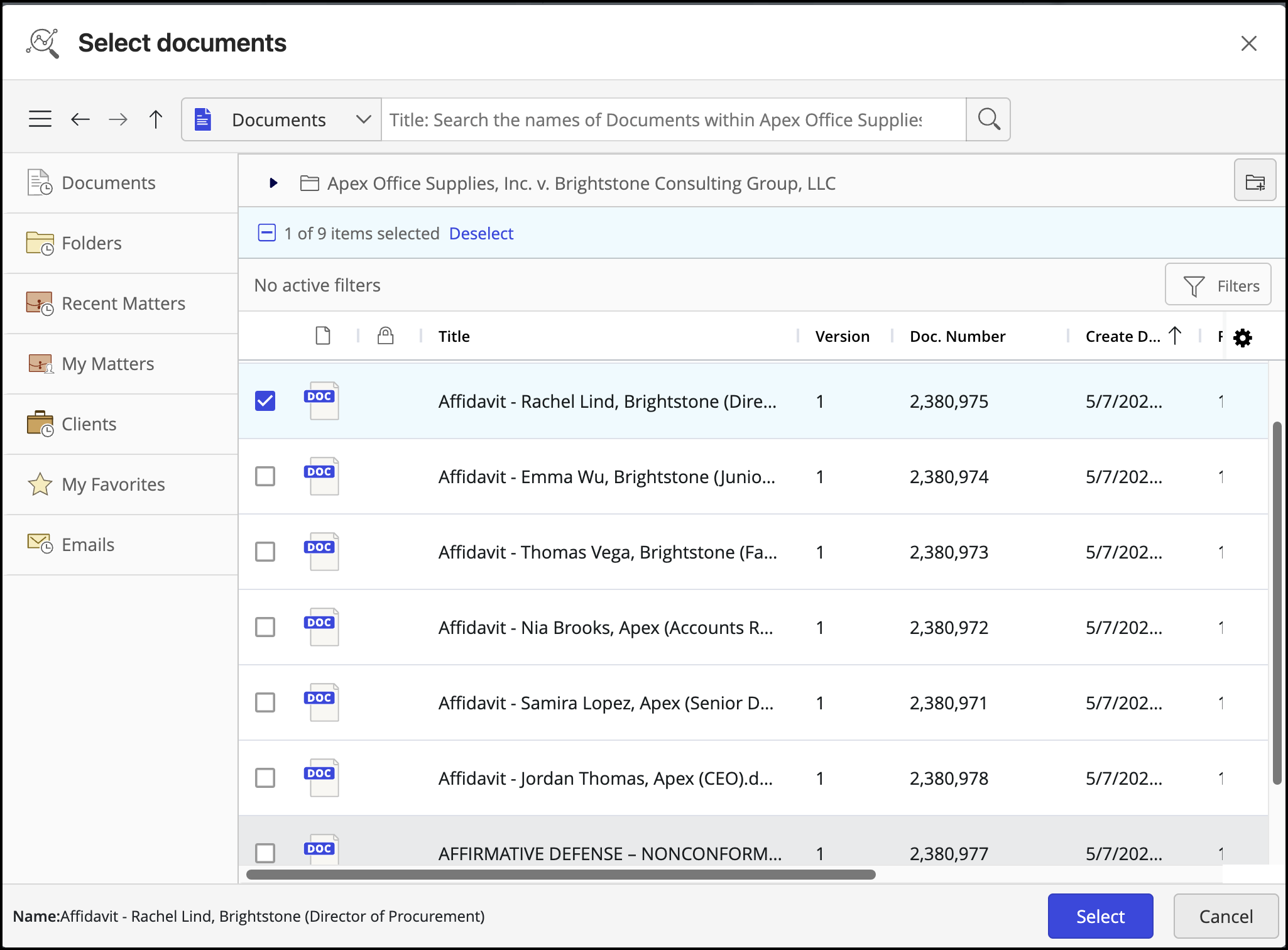
Alternatively, you can also search for documents using the search option in the Select documents dialog as shown in the following figure:
Figure: Searching for documents to be addedClick Select. The selected documents are posted to the project as shown in the following figure:
Figure: Additional documents added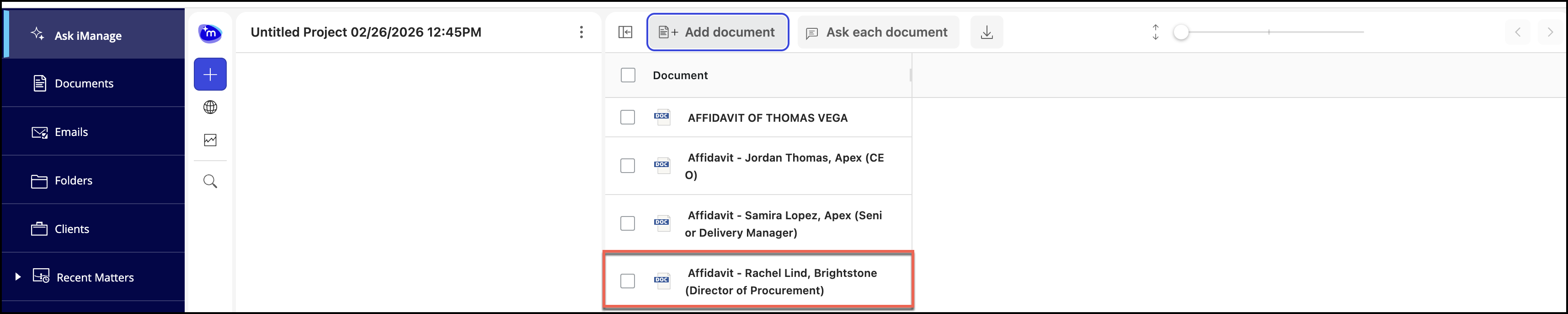
Using the Ask iManage icon from the right-click options
In iManage Work at cloudimanage.com, go to the document/email of your interest and do one of the following:
Select the more options
icon next to it.
Right-click the document.
Select Ask iManage from the right-click menu.
Figure: Selecting Ask iManage from right-click options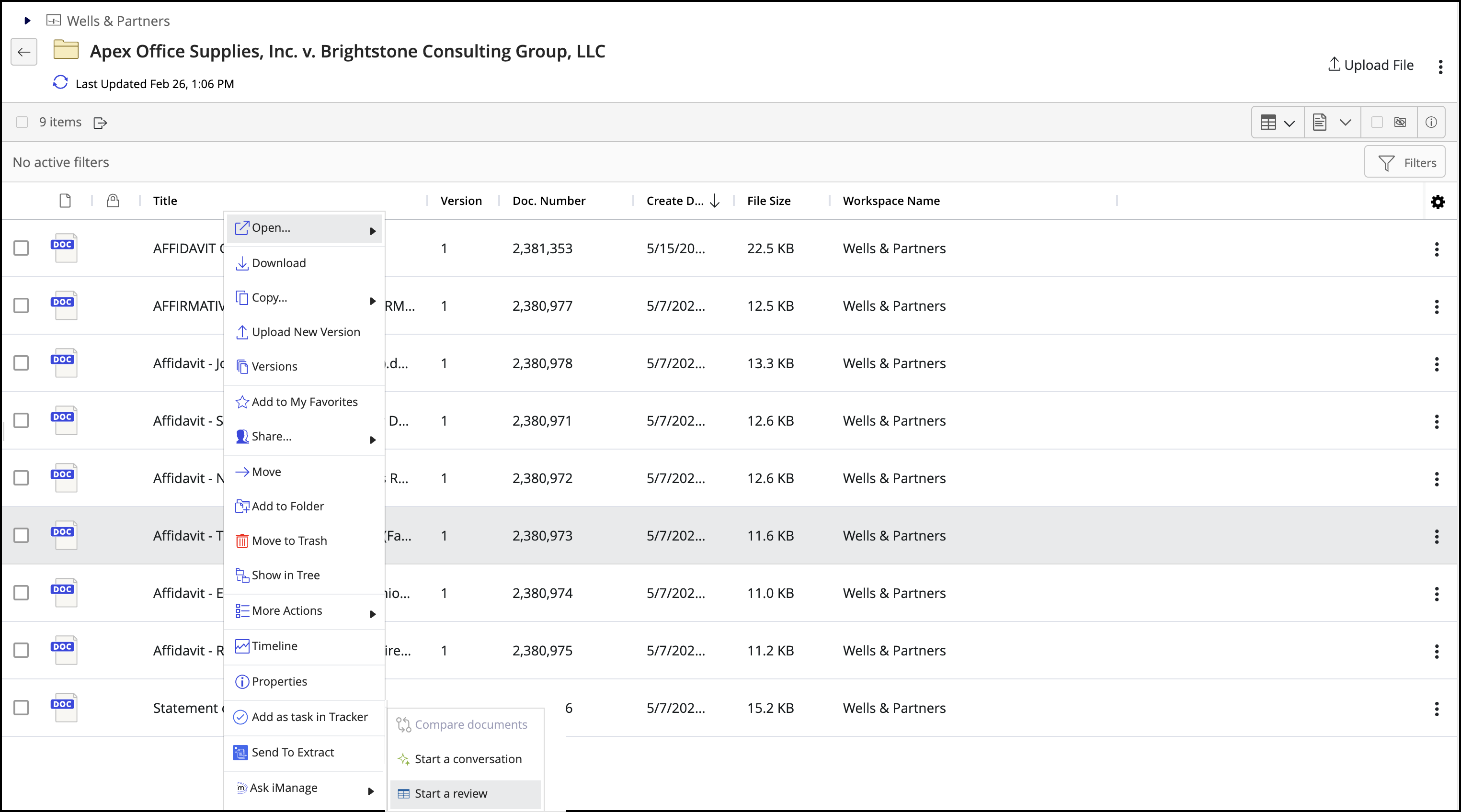
The documents you have selected are added to the project and open on Ask iManage home page, by default.
Figure: Selected documents added to project
To add additional documents, select Add document. In the Select documents dialog that appears, select the documents you want to add to the project.
Figure: Adding additional documentsAlternatively, you can also search for documents using the search option in the Select documents dialog as shown in the following figure:
Figure: Searching for documents to be addedClick Select. The selected documents are posted to the project as shown in the following figure:
Figure: Additional documents added
Using Ask iManage icon in the document preview page
In iManage Work at cloudimanage,com, select the document/email of your interest.
After the document opens in preview mode, select
 and then select Start a review.Figure: Opening the document in Preview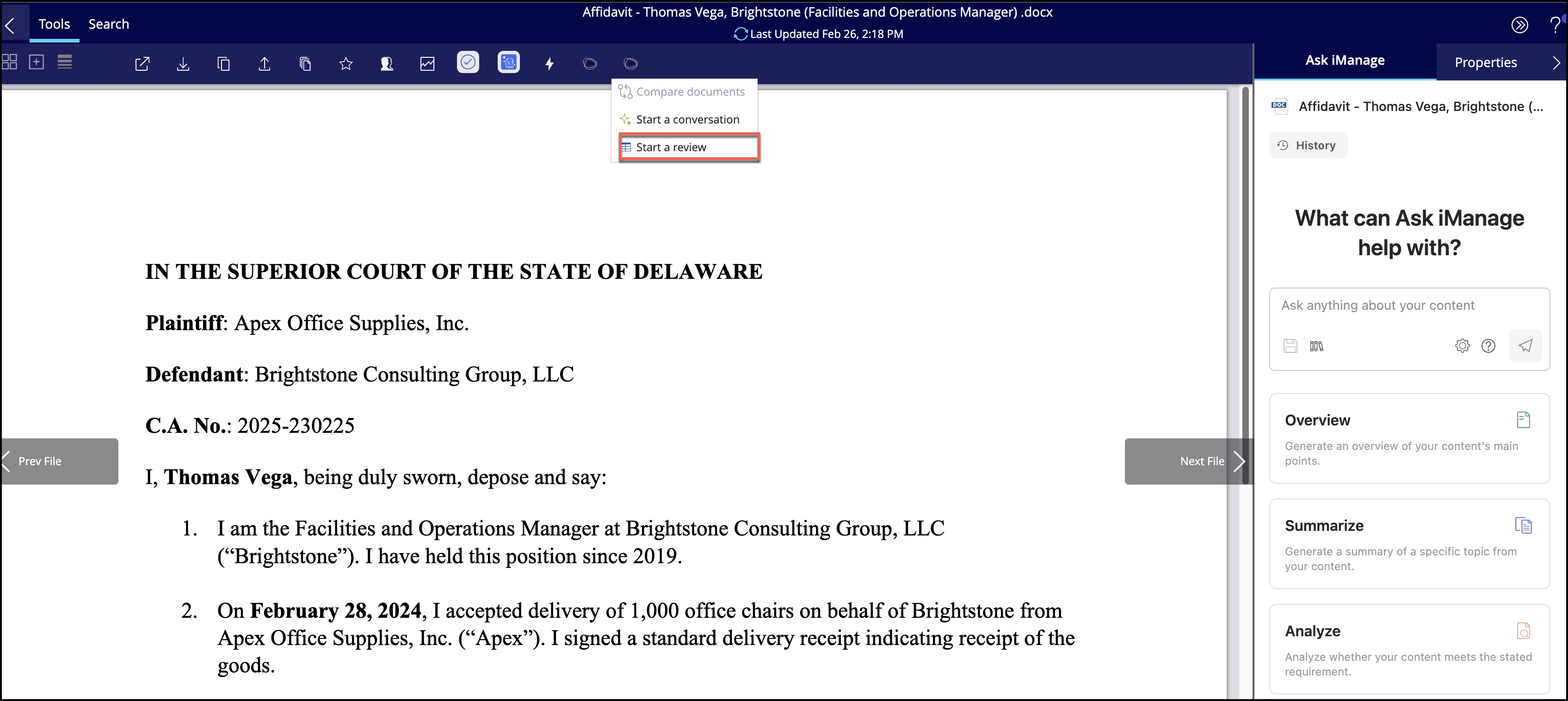
To add additional documents, select Add document. In the Select documents dialog that appears, select the documents you want to add to the project.
Figure: Adding additional documentsAlternatively, you can also search for documents using the search option in the Select documents dialog as shown in the following figure:
Figure: Searching for documents to be addedClick Select. The selected documents are posted to the project as shown in the following figure:
Figure: Additional documents added