You can add workspace shortcuts from the center panel to My Favorites/My Matters or the desired category inside them in the tree using
drag-and-drop.
Select the workspace(s) to which you wish to add a shortcut.
Hover over the tree nodes to expand the My Favorites or My Matters node in the tree.
When you approach My Favorites/My Matters or the destination category inside them in the tree, drop the workspace.
Figure: Adding workspace shortcuts using drag-and-drop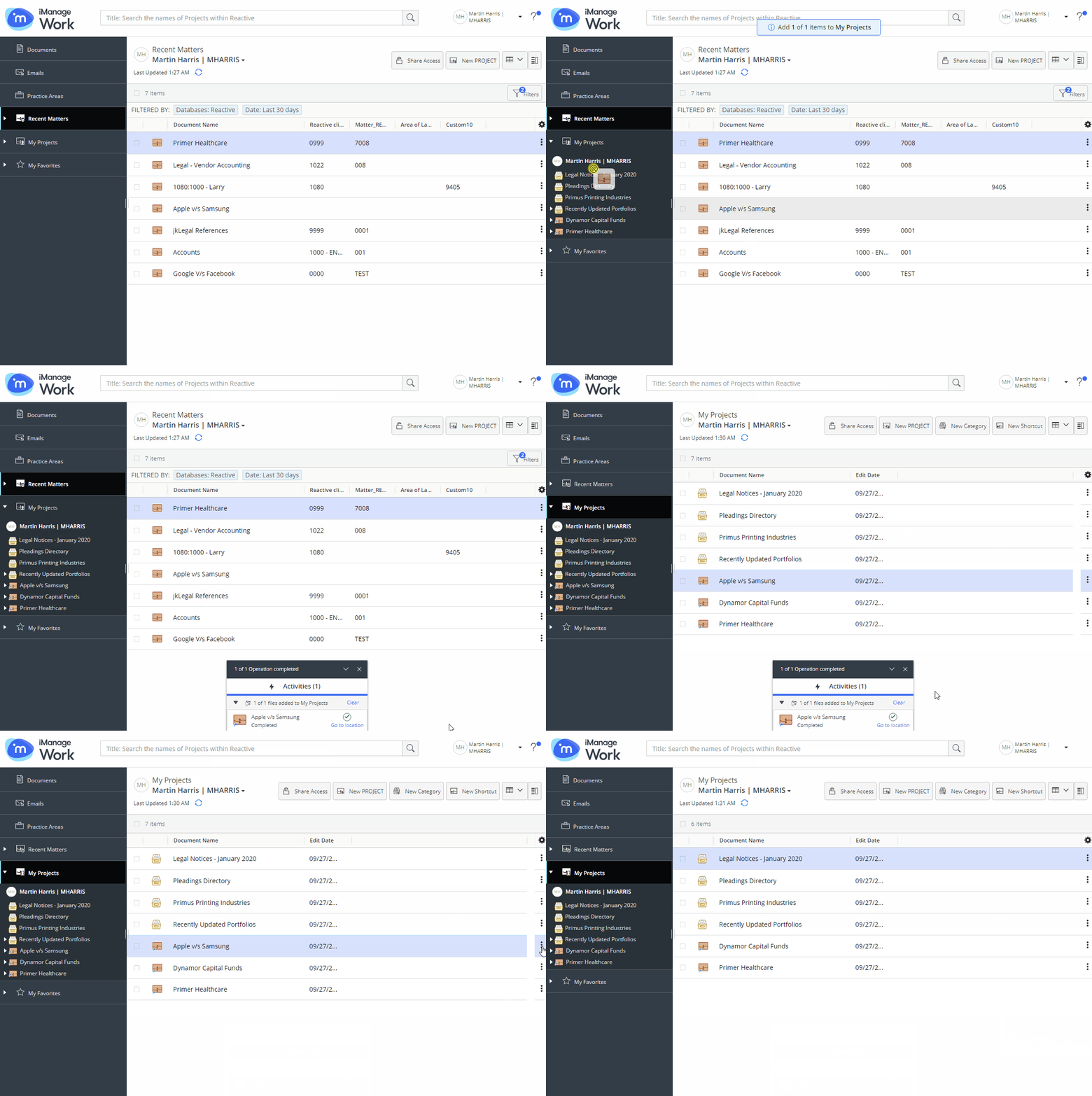
A progress dialog appears.
Figure: Progress dialog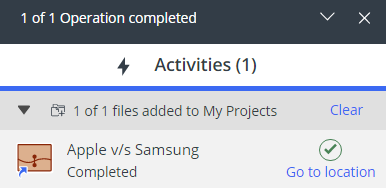
Selecting Go to location directs you to My Favorites/My Matters or the destination category inside them containing the new workspace shortcut.
NOTE:
After adding the workspace shortcut, you can select Remove from My Favorites or Remove from My Matters if you wish to delete the workspace shortcut.