When iManage grants a tenant access to iManage Partner Portfolio, the provisional administrator for that tenant automatically receives administrative permissions for the Partner Portfolio section in iManage Admin Portal. This access is intended to allow the administrator to delegate ongoing access to appropriate users, while also allowing them to sign in to Admin Portal to view and export customer reports.
NOTE: For most Partners, the provisional admin account is cloudadmin@<domain>.com—the initial administrative account created during tenant setup.
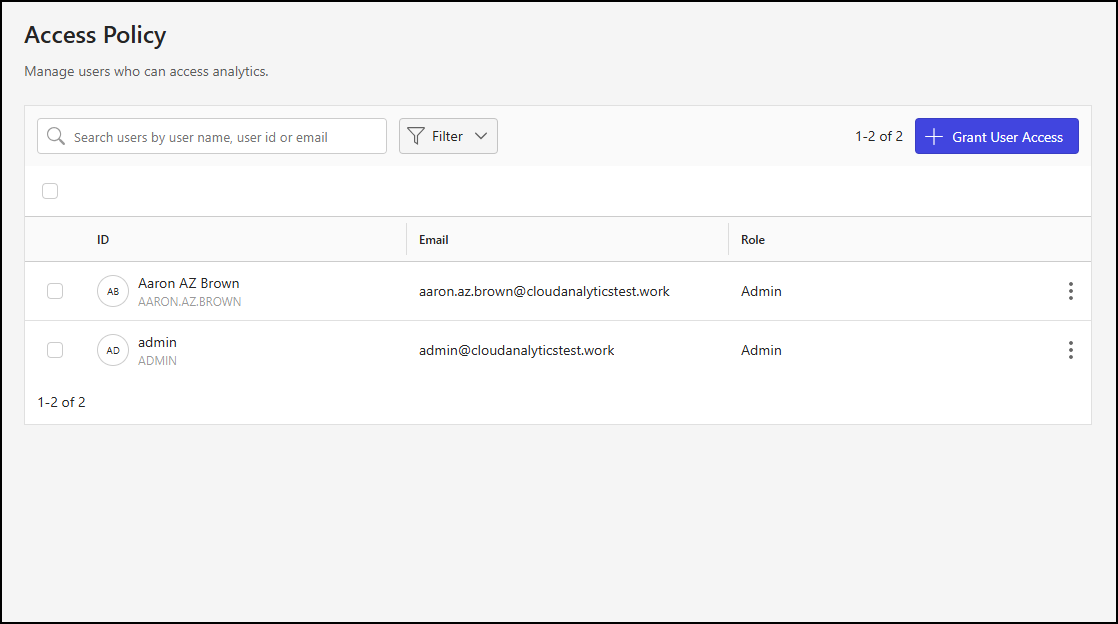
The Access Policy page in the Partner Portfolio section is where you control user access to these reports. From this page, you can add, remove, and manage users. Only users who have the Partner Portfolio Admin role can open and manage the Access Policy page.
The following Partner Portfolio access roles are available for assignment to tenant users:
Admin: Users with this role can view the Partner Portfolio section and export reports, as well as manage Partner Portfolio roles by adding, removing, and editing user access.
Viewer: Users with this role can view the Partner Portfolio section and export reports.
An example of the Access Policy page is shown in the figure below.
This section includes the following topics:
Grant access to a user
To grant Partner Portfolio access to a user in iManage Admin Portal:
Go to https://cloudimanage.com/admin/ and sign in with your iManage credentials.
NOTE: To add a user, the user account used to sign in to iManage Admin Portal must be assigned the Partner Portfolio Admin role.
Browse to Partner Portfolio > Access Policy.
On the Access Policy page, select + Grant User Access.
In the Grant User Access dialog, select the Search field. A list of users assigned to the tenant in iManage Control Center displays.
Find and choose a user by scrolling through the list or entering a search term to filter the options.
Figure: Grant User Access dialog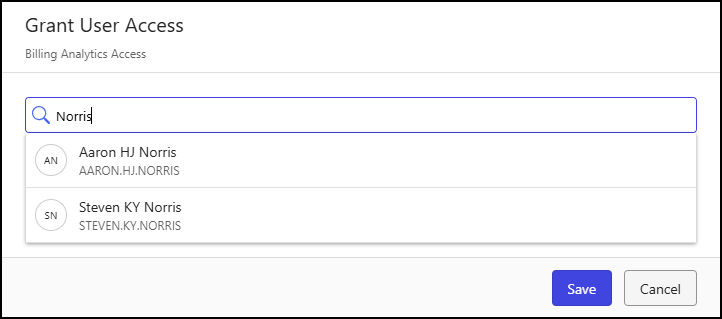
When a user is selected, they’re copied to a workspace in the Grant User Access dialog. In this workspace, you can choose an access level for the user or select X to remove them.
Figure: Grant User Access dialog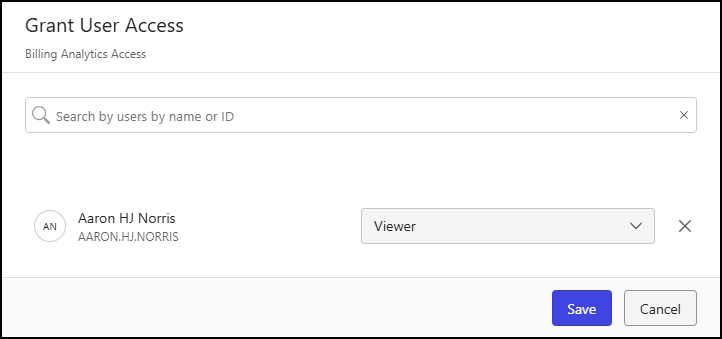
The following access levels are supported:
Admin: Users with this role can view the Partner Portfolio section and export reports, as well as manage Partner Portfolio roles by adding, removing, and editing user access.
Viewer: Users with this role can view the Partner Portfolio section and export reports.
Repeat Steps 4 and 5 to add more users and assign them Partner Portfolio roles, as needed.
Select Save.
Access Policy page actions
In the Access Policy user table, you can choose one, multiple, or all users to perform actions on the selected users.
To select all users, select the check box above the Access Policy user table.
To select one or more users, select the check box of each user within the Access Policy user table.
When one or more users are selected, actions are displayed in the toolbar menu, as shown in the figure below.
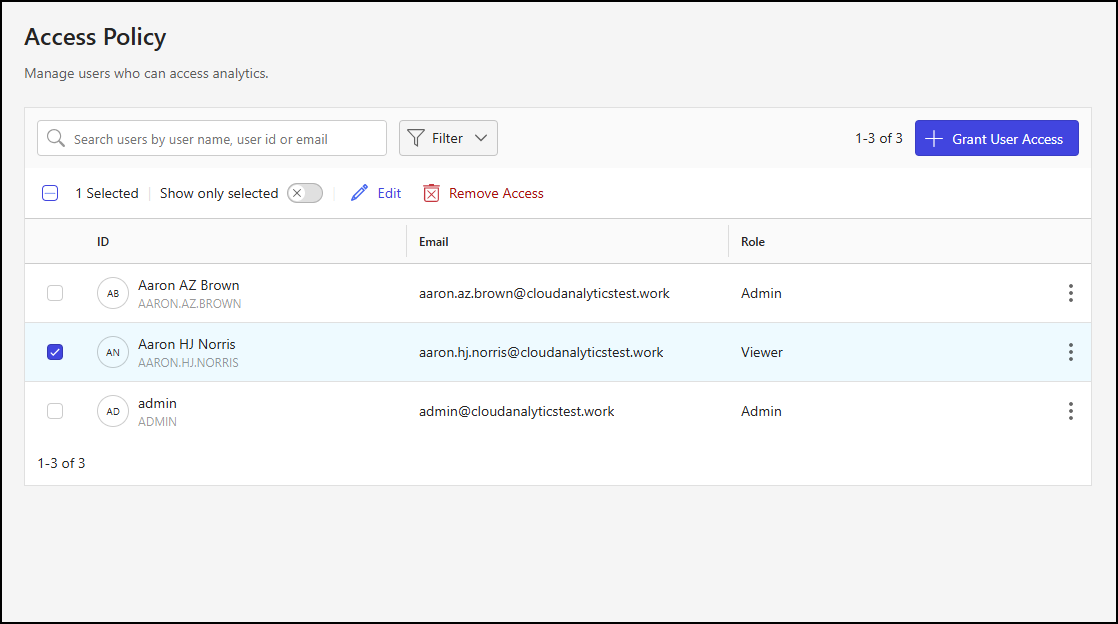
The following toolbar menu actions are supported:
Show only selected: Shows only the selected Partner Portfolio users.
Edit: Lets you update the Partner Portfolio role assigned to the selected users. For more information, refer to Edit a Partner Portfolio role.
Remove Access: Deletes Partner Portfolio access for the selected users. If a user is deleted, they'll no longer have access to Partner Portfolio reports. For more information, refer to Remove access to Partner Portfolio.
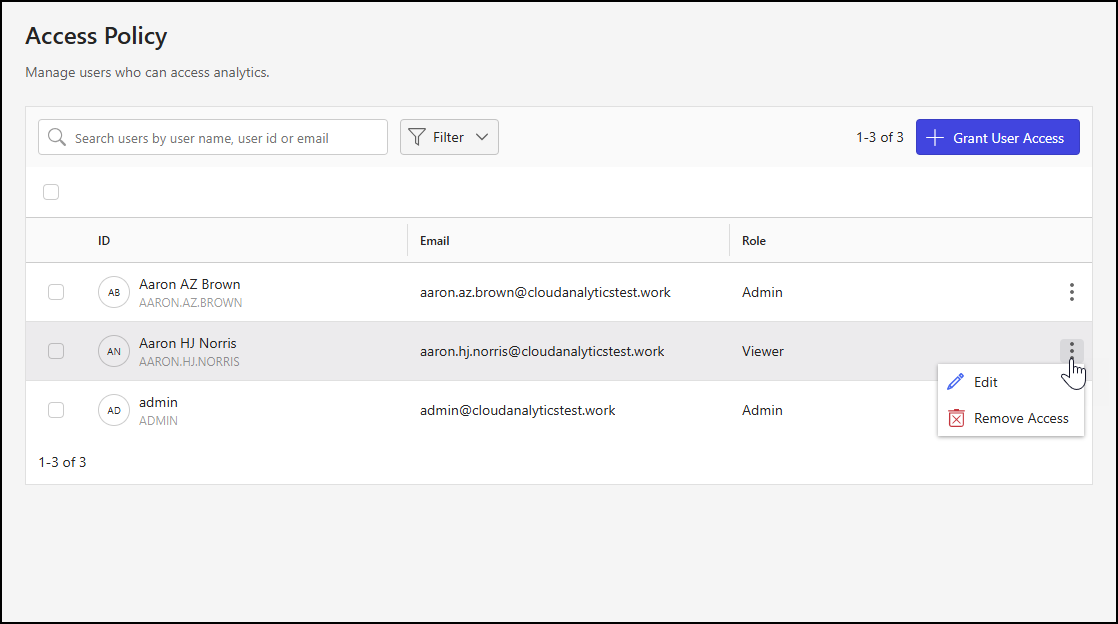
The Edit and Remove Access actions are also available for individual users by:
Right-clicking a user row.
Selecting the kebab in a user row.
An example of the kebab menu is shown in the figure below.
Edit a Partner Portfolio role
To update the Partner Portfolio role of a user:
Go to https://cloudimanage.com/admin/ and sign in with your iManage credentials.
Browse to Partner Portfolio > Access Policy.
Choose a user from the Access Policy user table and, using the toolbar, right-click menu, or kebab menu, select Edit. An example of the right-click menu is shown in the figure below.
Figure: Access Policy page - right-click Edit action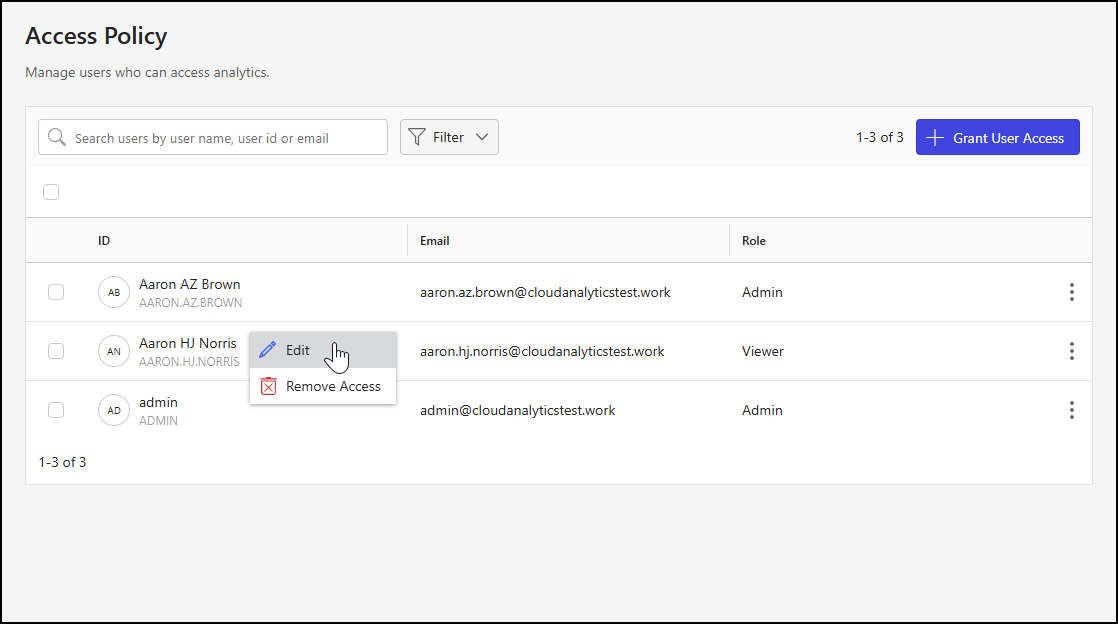
In the Edit User Access dialog, select a role from the Analytics Role drop-down list.
Figure: Edit User Access dialog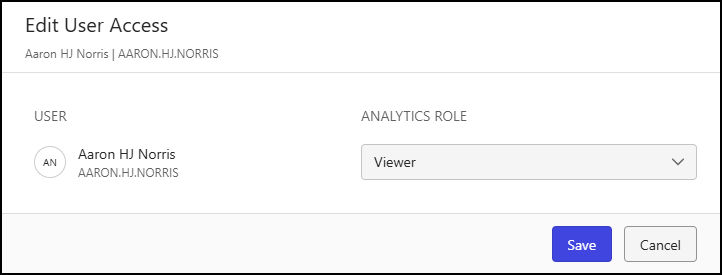
The following Partner Portfolio roles are available:
Admin: Users with this role can view the Partner Portfolio section and export reports, as well as manage Partner Portfolio roles by adding, removing, and editing user access.
Viewer: Users with this role can view the Partner Portfolio section and export reports.
Select Save.
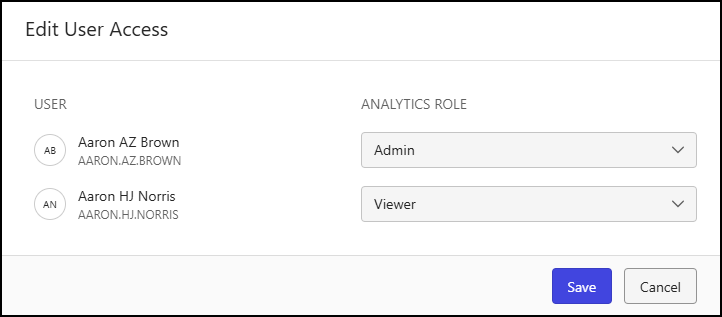
NOTE: You can update the Partner Portfolio role for multiple users by selecting more than one user check box on the Access Policy user table, and then choosing Edit from the toolbar menu. An example of the Edit User Access dialog when multiple users are selected is shown in the figure below.
Remove access to Partner Portfolio
To remove Partner Portfolio access for a user:
Go to https://cloudimanage.com/admin/ and sign in with your iManage credentials.
Browse to Partner Portfolio > Access Policy.
Choose a user from the Access Policy user table and, using the toolbar, right-click menu, or kebab menu, select Remove Access. An example of the toolbar menu is shown in the figure below.
Figure: Access Policy page - toolbar menu Remove Access action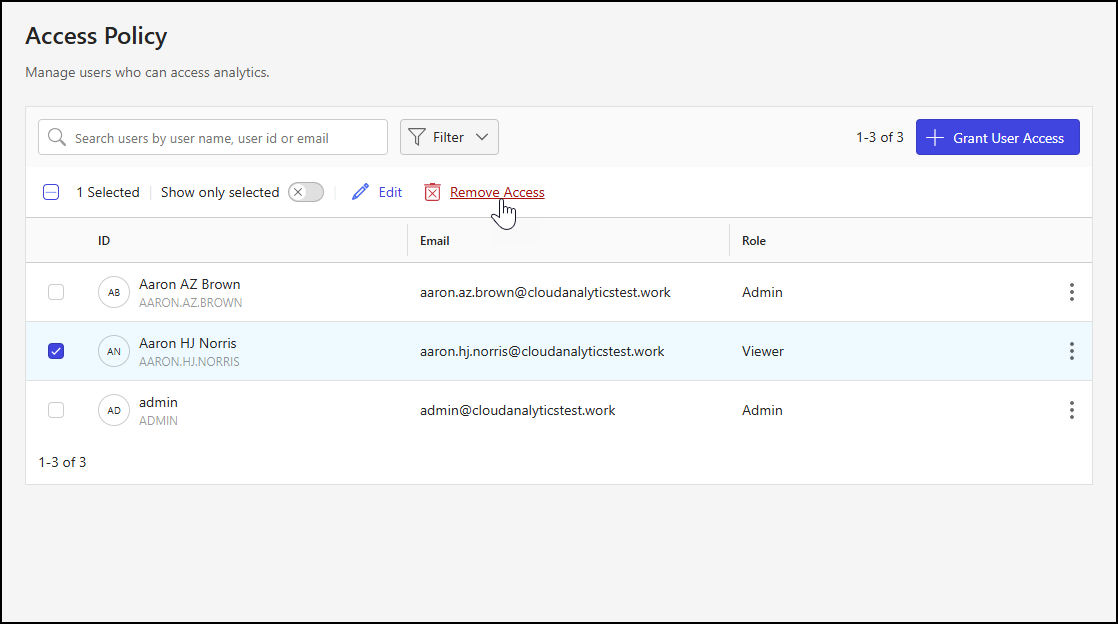
In the Remove User Access dialog, select Remove Access.
Figure: Remove User Access dialog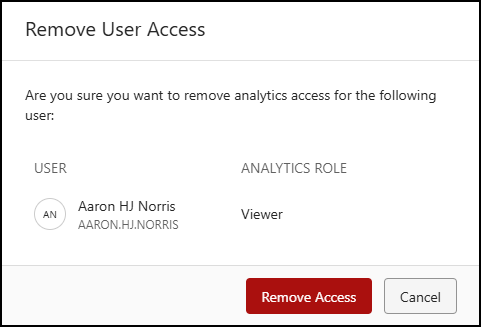
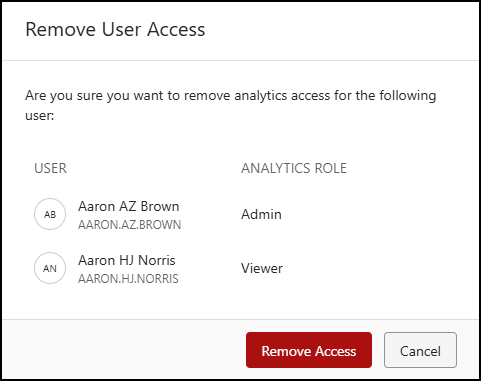
NOTE: You can remove Partner Portfolio access for multiple users by selecting more than one user check box on the Access Policy user table, and then choosing Remove Access from the toolbar menu. An example of the Remove User Access dialog when multiple users are selected is shown in the figure below.
User table data output options
The following data output options are available for the Access Policy user table:
Search: Filter data output to match the provided user search string. For example, enter test in this field to display users test ca2, TEST CA 3, and Test_CA.
Figure: Search field
Filter: Filter data output based on values in the Role column of the Access Policy user table.
Select Filter > Role.
Figure: Role filter options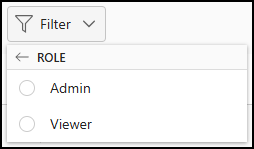
In the Role filter dialog, select a role. The Access Policy user table updates to display only those users assigned to the selected role.
The Partner Portfolio role selected for filtering displays, as shown in the figure below.
Figure: Role filter
To remove role filtering:
Select X next to the Role filter display.
Select Clear all.