The high-level product summary pane displays product subscription and activation metrics for the product. An example of this pane is shown in the following figure.
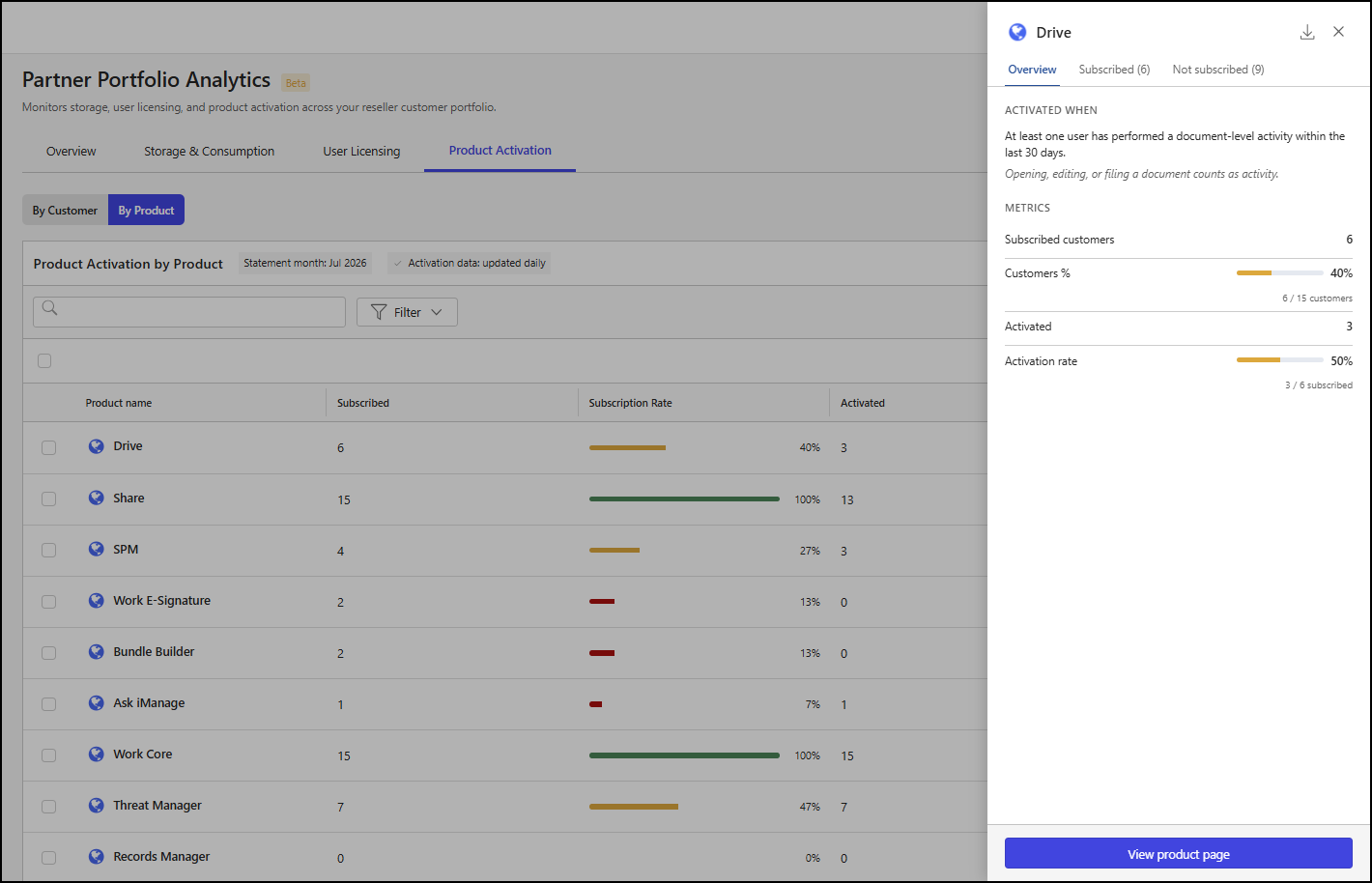
The subscription and activation metrics provide an overview of product adoption across your customer portfolio.
NOTE: In this context, customer portfolio refers to your reseller-contracted customers who were live on cloudimanage.com during the selected billing period.
The high-level product summary pane contains these tabs:
Overview: Explains the criteria that determine when the selected product is considered activated and shows customer subscription and activation metrics.
Subscribed: Contains subtabs that list customers subscribed to the selected product and indicate whether each customer has activated it.
Not subscribed: Lists customers who haven’t subscribed to the selected product.
This section includes the following topics:
Overview tab
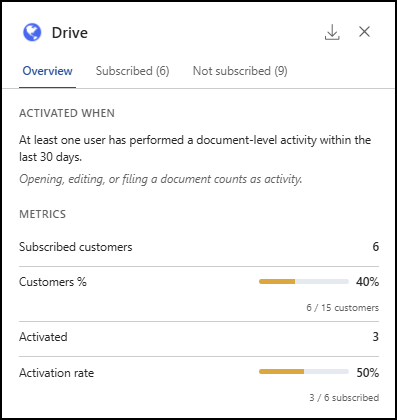
An example of the Overview tab of the high-level product summary pane is shown in the following figure.
Overview tab metrics
The Overview tab includes an explanation of the criteria used to determine when the selected product is considered activated. It also includes a metrics section that includes the following details:
Subscribed customers: The number of customers subscribed to the product.
Customers %: This metric includes the following information about customer subscription to the product:
Bar chart: This shows a segmented bar that displays the following details as applicable:
Subscribed: The number of customers in your portfolio who’ve subscribed to the product.
Total: The total number of customers in your portfolio.
x%: This indicates the percentage of your customers who’ve subscribed to the product.
x / y customers: This indicates the number of customers subscribed to the product (x) and the total number of customers in your portfolio (y).
Activated: The number of customers in your portfolio who’ve activated the product.
Activation rate: This metric includes the following information about customer activation for the product:
Bar chart: This shows a segmented bar that displays the following details as applicable:
Activated: The number of customers in your portfolio who’ve activated the product.
Total: The total number of customers who’ve subscribed to it.
x%: This indicates the percentage of customers who’ve subscribed to the product and activated it.
x / y subscribed: This indicates the number of customers who’ve activated the product (x) and the total number of customers who’ve subscribed to it (y).
Subscribed tab
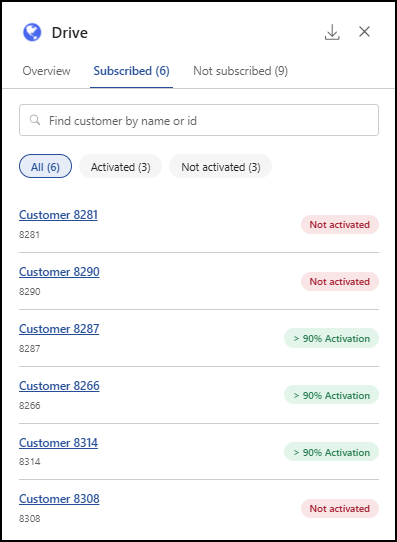
An example of the Subscribed tab of the high-level product summary pane is shown in the following figure.
Subscribed tab metrics
The Subscribed tab includes the following subtabs:
All: Lists all customers in your portfolio who've subscribed to the selected product.
Activated: Lists all customers in your portfolio who've subscribed to the selected product and activated it.
Not activated: Lists all customers in your portfolio who've subscribed to the selected product but haven’t activated it.
For each customer listed in these subtabs, the data includes:
Customer name: The name of the customer.
Customer ID: The unique identifier for the customer.
Activation status: Indicates whether the product is Not activated or has >x% Activation for the customer.
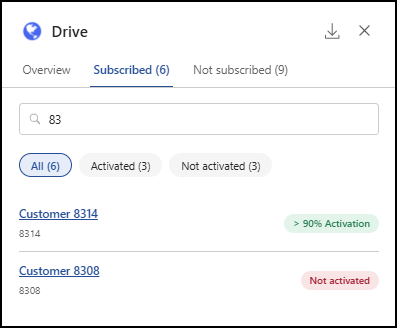
Search for customers
To search for a customer in the Subscribed tab, enter a search string in the Find customer by name of id field.
Not subscribed tab
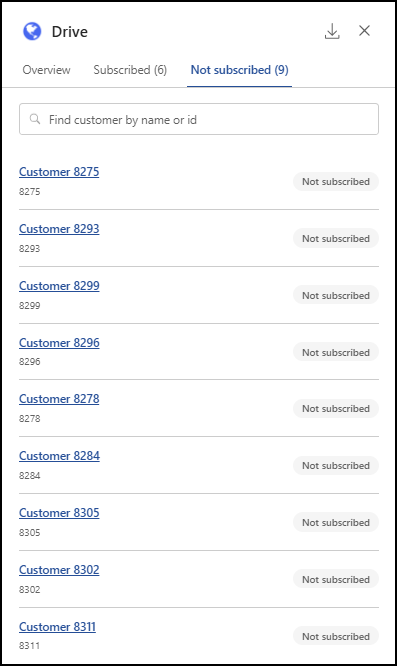
An example of the Not subscribed tab of the high-level product summary pane is shown in the following figure.
Not subscribed tab metrics
For each customer listed in the Not subscribed tab, the data includes:
Customer name: The name of the customer.
Customer ID: The unique identifier for the customer.
Activation status: Indicates that the customer is Not subscribed to the product.
Search for customers
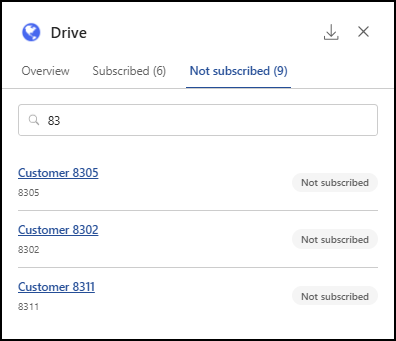
To search for a customer in the Not subscribed tab, enter a search string in the Find customer by name or id field.
View a more detailed report
To view more detailed information about the iManage product from the high-level product summary pane, select View product page. This will open a page with additional details about the selected product. For more information, refer to Product detail page.