The Views tab on the Web Client page lets you customize view attributes for the Documents, Emails, Matters, Client, and Folders objects in iManage Work client applications. You can tailor the document object view for each library to include a field related to collaboration links.
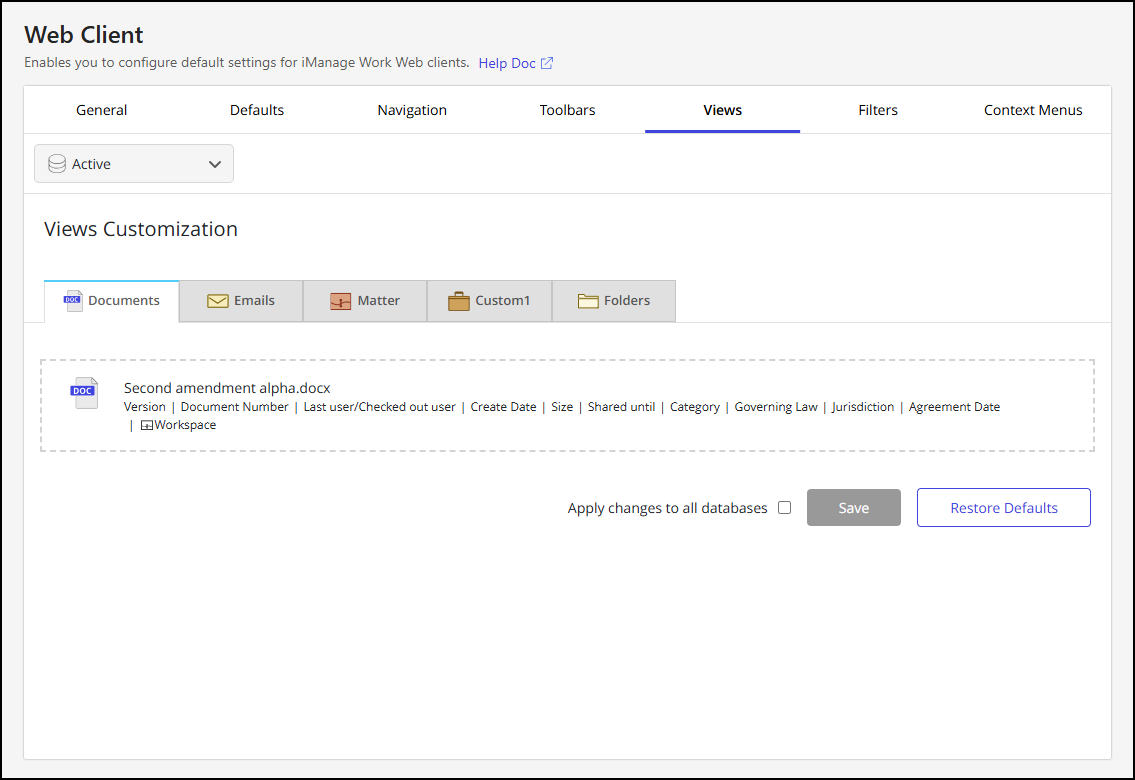
For more information about working with views, refer to Views.
The following collaboration link attribute is available to customize the Documents object:
Shared until: Shows the date when the collaboration link is scheduled to expire for the document.
Add the collaboration link field to the Documents view
Complete these steps to add the Shared until field to the Documents object:
In iManage Control Center, browse to Work Clients > Web Client and select the Views tab.
Select the library from the library drop-down list.
In the Views Customization section, select the Documents object tab.
In the Documents object panel, hover over the sample document object and select the
 icon to enable customization.Figure: Web Client - Views Customization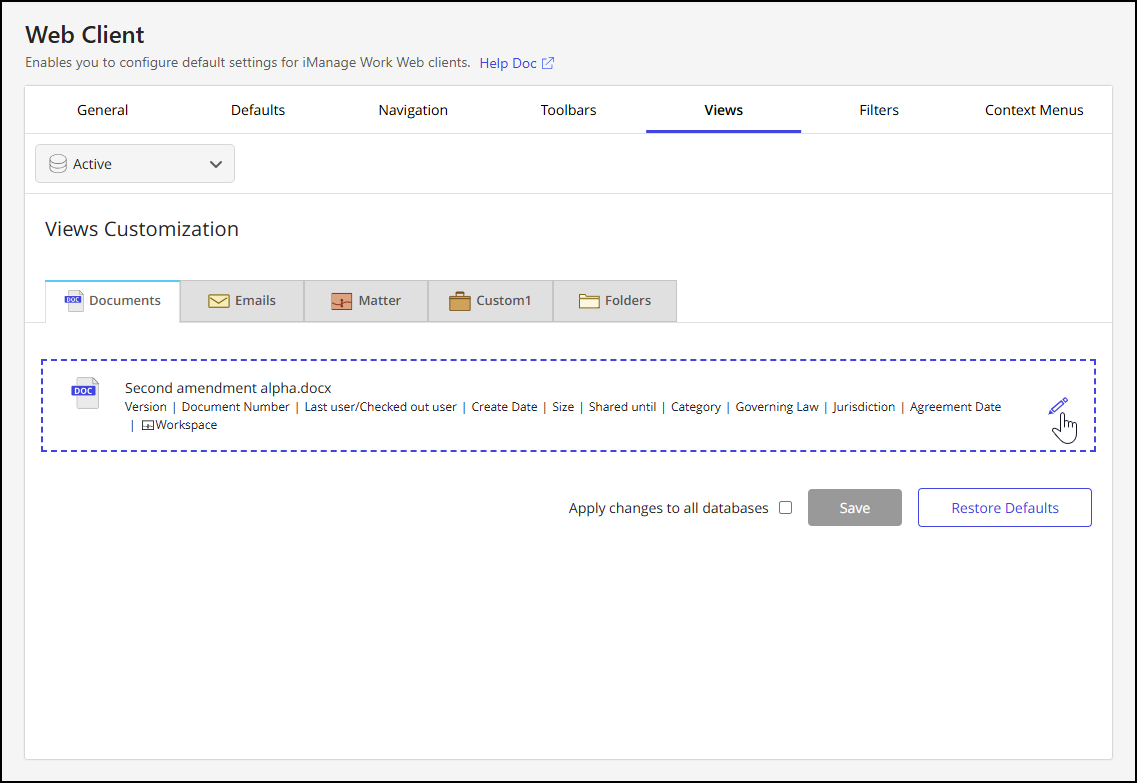
Select + Add.
Select the Shared until field to add it to the view.
Drag the fields to change their order.
Select the
 icon to confirm the list of fields and disable editing.
(Optional) To apply the view field changes to all libraries, select Apply changes to all databases. This option is available only if there’s more than one library.Select Save to save the settings. The customized Documents view is now displayed to users in iManage Work client applications.
NOTE: You can select Restore Defaults to revert to the default Documents view.
Remove the collaboration link field from the Documents view
Complete these steps to remove the Shared until field from the Documents object:
In iManage Control Center, browse to Work Clients > Web Client and select the Views tab.
Select the library from the library drop-down list.
In the Views Customization section, select the Documents object tab.
In the Documents object panel, hover over the sample document object and select the
icon to enable customization.Figure: Web Client - Views CustomizationHover over the Shared until field and select the X icon to remove it from the view.
Select the
icon to confirm the list of fields and disable editing.
(Optional) To apply the view field changes to all libraries, select Apply changes to all databases. This option is available only if there’s more than one library.Select Save to save the settings. The customized Documents view is now displayed to users in iManage Work client applications.
NOTE: To revert to the default Documents view, select Restore Defaults.