The Context Menus tab on the Web Client page lets you customize the context menus displayed for the Documents, Emails, Matters, Client, and Folders objects in iManage Work client applications. You can tailor the document context menu to include actions related to collaboration links.
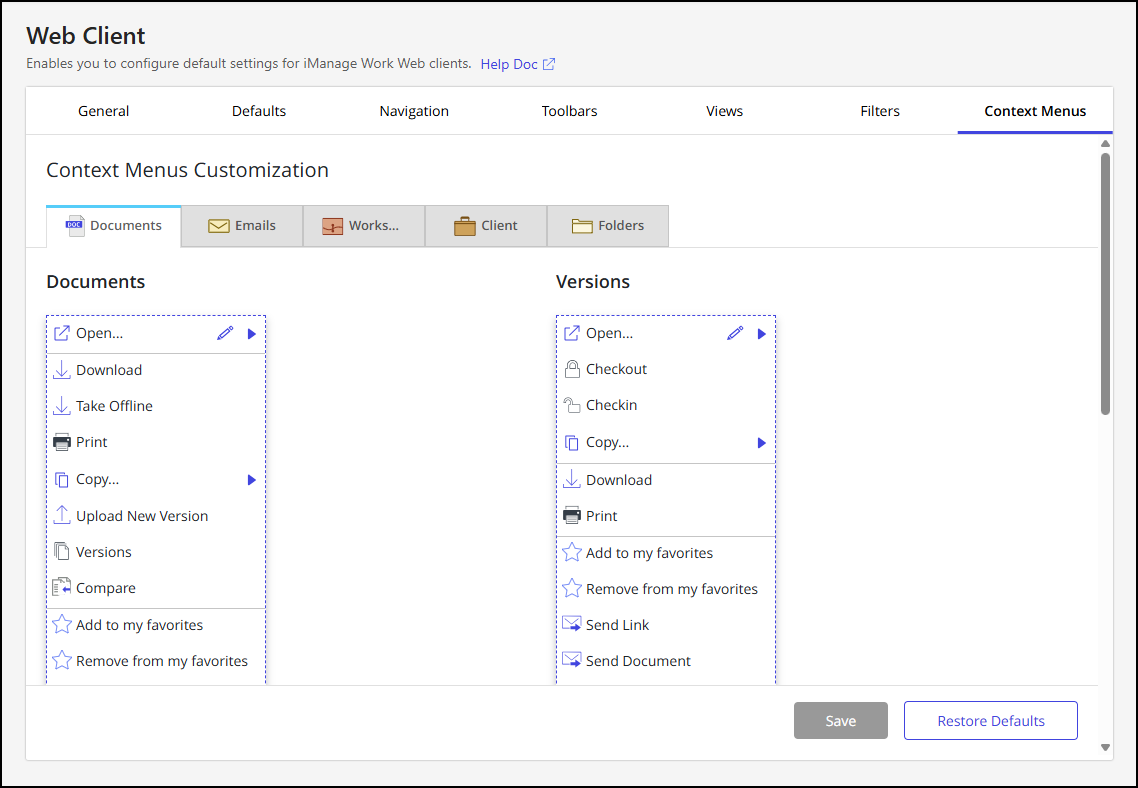
For more information about working with context menus, refer to Context Menus.
The following collaboration link actions are available to customize the Documents context menu:
Share Document: Send a collaboration link to one or more users and set their access level (read/write or read-only).
Stop Sharing: Disable the previously shared collaboration link and remove all collaborators.
View Shared Document: Allow users with view-only document access, or those without permission to share collaboration links, to view collaboration link details.
NOTES:
Collaboration links are available only for document types supported by Next Generation Co-authoring, such as .docx, .pptx, .xlsx, and so on. For more information about the supported document types, refer to Comparing iManage Work Next Generation Co-authoring with our existing Co-authoring applications.
After a collaboration link is sent, users can reselect the Share Document action to view and edit the link.
Add collaboration link actions to the Documents context menu
Complete these steps to add collaboration link actions to the Documents context menu:
In iManage Control Center, browse to Work Clients > Web Client and select the Context Menus tab.
In the Context Menus Customization section, select the Documents tab.
On the Documents menu, hover over the Share sub-menu.
The Share sub-menu will expand to show the currently assigned share actions and provide options to add, remove, and reorder them.To add a collaboration link action, select the
 icon in the upper-right corner of the Share sub-menu.Figure: Web Client - Context Menus Customization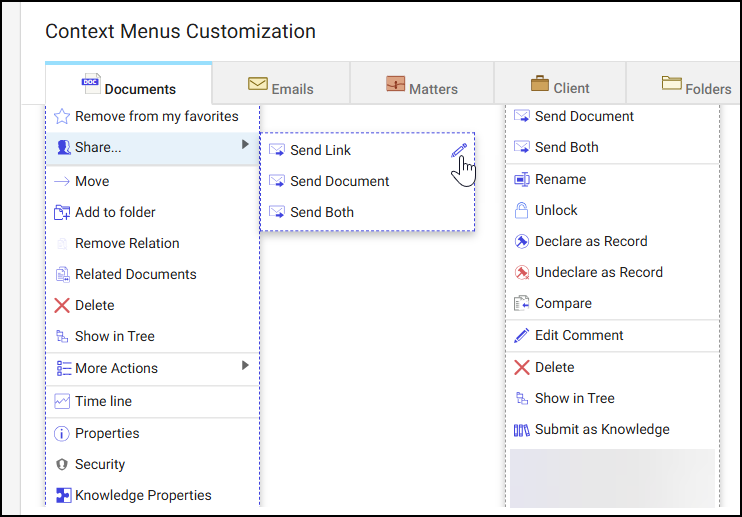
Select Add action.
Locate and select a collaboration link action (Share Document, Stop Sharing, or View Shared Document). This adds the action to the bottom of the Share sub-menu list.
(Optional) You can drag the context menu action to a new location in the list.
NOTE: We recommend moving the Share Document, Stop Sharing, and View Shared Document actions to the top of the Share sub-menu. This will make it easier for users to view and access these collaboration link actions.
Repeat Steps 5 and 6 until all desired context menu actions are added.
Select the
 icon to save your changes to the Share sub-menu.
Select Save.
Remove collaboration link actions from the Documents context menu
Follow these steps to remove collaboration link actions from the Documents context menu:
In iManage Control Center, browse to Work Clients > Web Client and select the Context Menus tab.
In the Context Menus Customization section, select the Documents tab.
On the Documents menu, hover over the Share sub-menu. The Share sub-menu will expand to show the currently assigned share actions and provide options to add, remove, and reorder them.
To remove a collaboration link action, select the
icon in the upper-right corner of the Share sub-menu.Identify the collaboration link action you want to remove and select the X icon.
Figure: Web Client - Context Menus Customization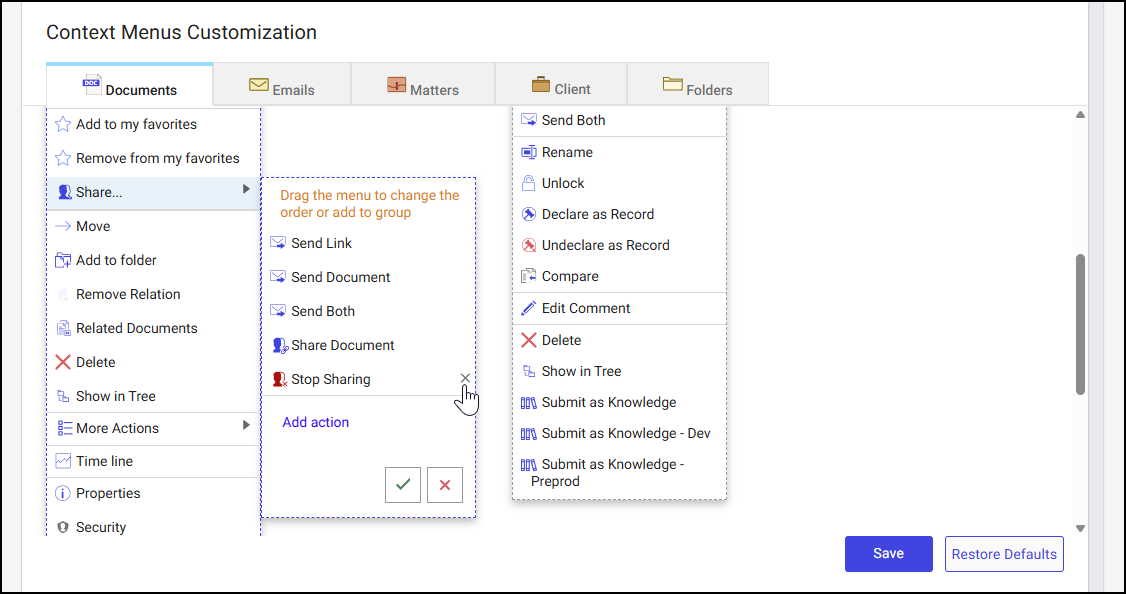
Select the
icon to save your changes to the Share sub-menu.Select Save.