The iManage Control Center Forms page lets you customize the search and properties forms for workspaces, folders, documents, and emails displayed in iManage Work client applications. You can define which properties are visible and their order on the property forms, thereby controlling how these properties are displayed in the iManage Work client applications.
- Manage collaboration link document properties
- Add collaboration link properties to the Document Properties form
- Remove collaboration link properties from the Document Properties form
- Manage collaboration link document search properties
- Add collaboration link properties to the Document Search Properties form
- Remove collaboration link properties from the Document Search Properties form
Manage collaboration link document properties
Document properties are configured using the Document and Email Properties section on the Properties tab of the Forms page. This section lets you define document and email properties displayed in iManage Work clients when a user is editing/viewing a document or email profile. This is done through the Edit Document and Email Properties dialog.
NOTES:
The Edit Document and Email Properties dialog is used to set up properties for both documents and emails. However, collaboration links apply only to documents.
Collaboration links are available only for document types supported by Next Generation Co-authoring, such as .docx, .pptx, .xlsx, and so on. For more information about the supported document types, refer to Comparing iManage Work Next Generation Co-authoring with our existing Co-authoring applications.
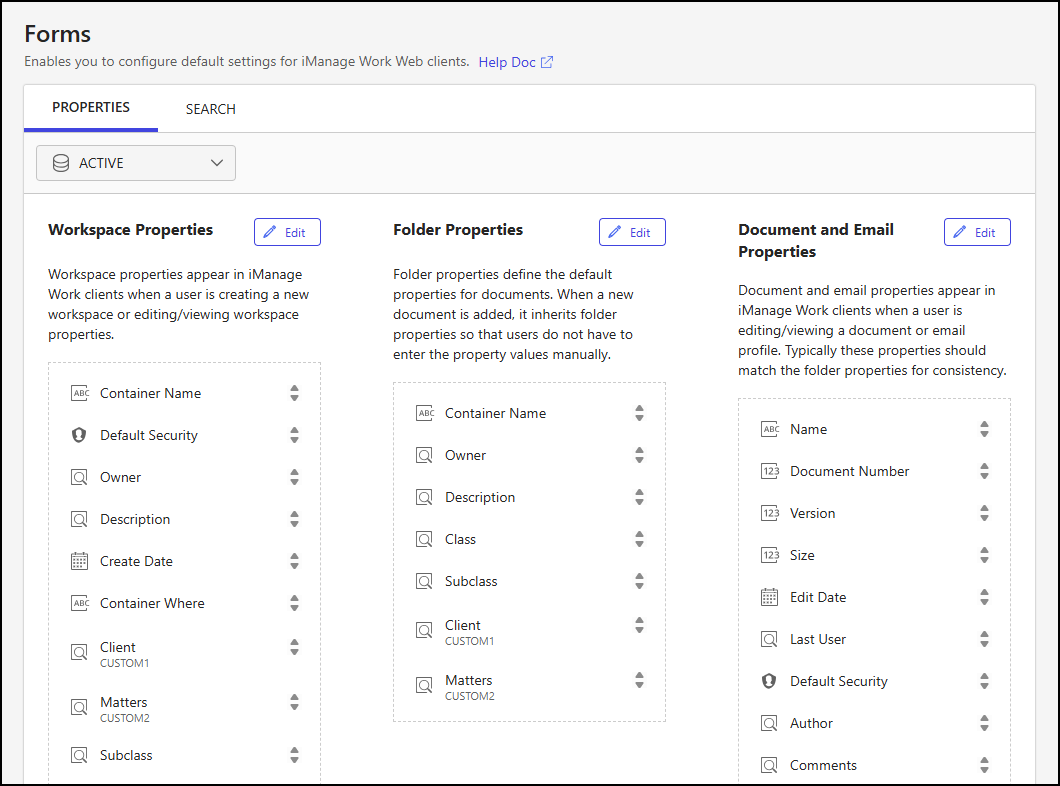
For more information about customizing the document property form, refer to Forms.
The following collaboration link properties are available for customization in the document property form:
Shared Until: Shows the date when the collaboration link for the document is scheduled to expire.
Shared: Indicates whether a collaboration link is enabled for the document.
Add collaboration link properties to the Document Properties form
In iManage Control Center, browse to Forms and select the Properties tab.
Select the library from the library drop-down list.
In the Document and Email Properties section, select Edit.
Scroll to the bottom of the Edit Document and Email Properties dialog and select + Add New.
Figure: Edit Document and Email Properties dialog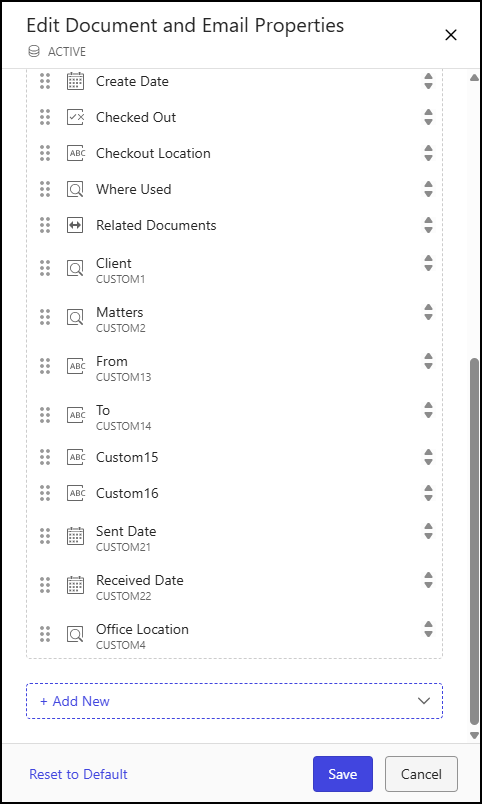
Locate and select a collaboration link property (Shared or Shared Until). This action adds the property to the bottom of the properties list.
(Optional) You can drag the property to a new location in the list.
NOTE: We recommend moving the Shared and Shared Until properties to the top of the Properties form. This will make it easier for users to view if the document version they're working on is actively shared with guest users.
Repeat Steps 4 and 5 until both the Shared and Shared Until properties are added.
Select Save.
Remove collaboration link properties from the Document Properties form
In iManage Control Center, browse to Forms and select the Properties tab.
Select the library from the library drop-down list.
In the Document and Email Properties section, select Edit.
Locate the collaboration link property you want to remove (Shared or Shared Until) and select the
 icon.Figure: Edit Document and Email Properties dialog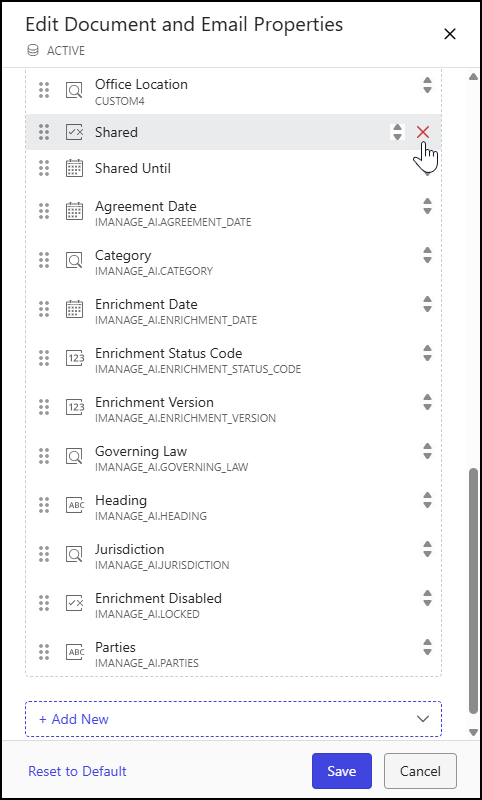
Select Save.
Manage collaboration link document search properties
Document search properties are configured using the Document and Email Search Properties section on the Search tab of the Forms page. This section lets you define document and email search properties displayed in iManage Work clients when a user is performing an advanced document or email search. This is done through the Edit Document and Email Search Properties dialog.
NOTE: The Edit Document and Email Search Properties dialog is used to set up search properties for both documents and emails. However, collaboration links apply only to documents.
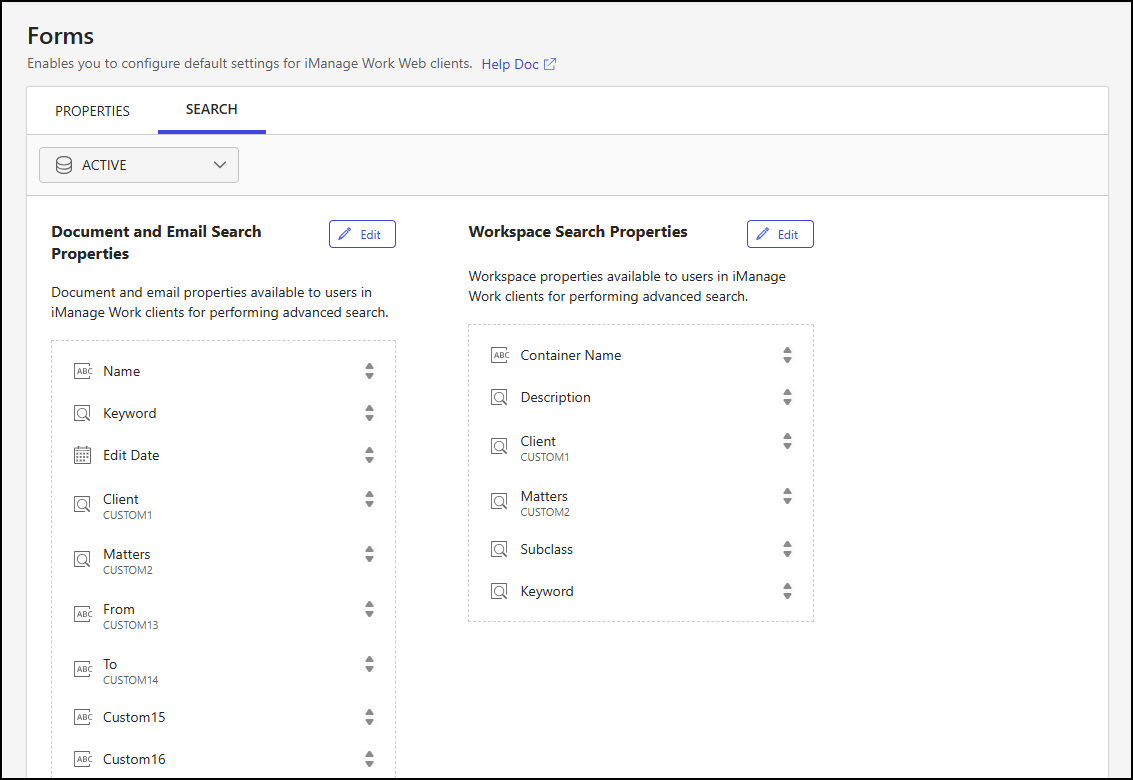
For more information about customizing the document search property form, refer to Forms.
The following collaboration link properties are available for customization on the document search property form:
Shared Until: Shows the date when the collaboration link for the document is scheduled to expire.
Shared: Indicates whether a collaboration link is enabled for the document.
Add collaboration link properties to the Document Search Properties form
In iManage Control Center, browse to Forms and select the Search tab.
Select the library from the library drop-down list.
In the Document and Email Search Properties section, select Edit.
Scroll to the bottom of the Edit Document and Email Search Properties dialog and select + Add New.
Figure: Edit Document and Email Search Properties dialog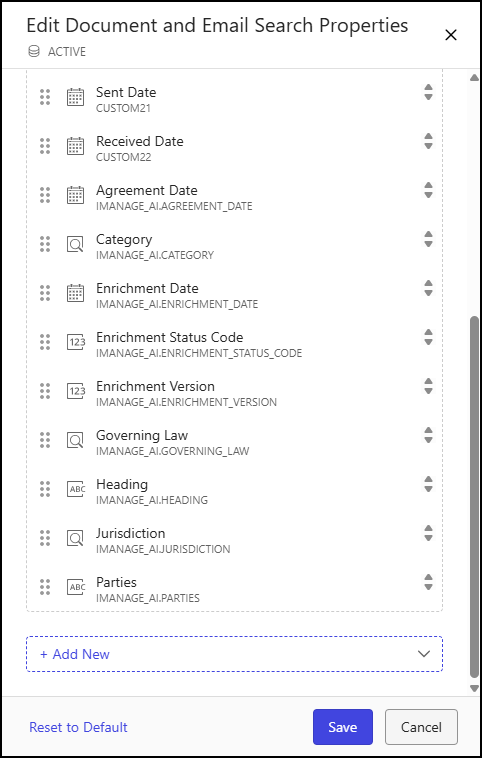
Locate and select a collaboration link property (Shared or Shared Until). This action adds the property to the bottom of the properties list.
(Optional) You can drag the property to a new location in the list.
NOTE: We recommend moving the Shared and Shared Until properties to the top of the Properties form. This will make it easier for users to view if the document version they're working on is actively shared with guest users.
Repeat Steps 4 and 5 until both the Shared and Shared Until properties are added.
Select Save.
Remove collaboration link properties from the Document Search Properties form
In iManage Control Center, browse to Forms and select the Search tab.
Select the library from the library drop-down list.
In the Document and Email Search Properties section, select Edit.
Locate the collaboration link property you want to remove (Shared or Shared Until) and select the
icon.Figure: Edit Document and Email Search Properties dialog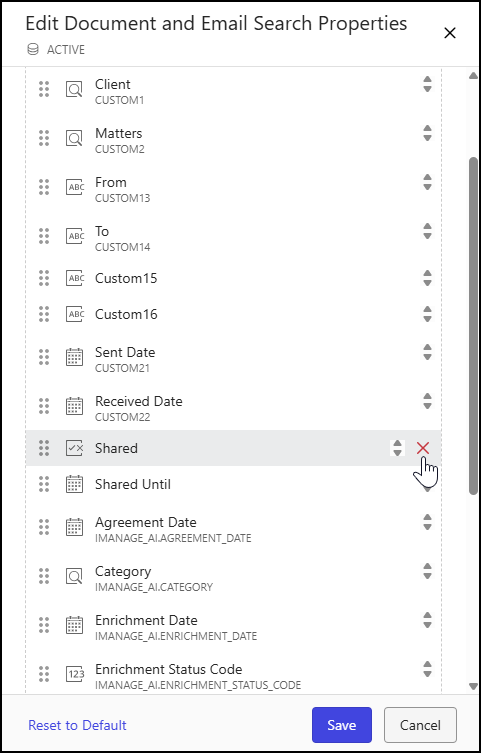
Select Save.