If no site security policy is enabled by your administrator, you can set upload and download preferences for each of the websites using either of the following methods.
Method 1
Open the third-party website to upload or download files.
Select the upload or download option on the website.
Enter your iManage Work credentials, if prompted.
When iManage dialog is displayed, select the local computer option. A notification asks if you want to always upload from or download to your device.
Figure: Notification displayed for upload
Select Yes to set your device as the upload from or download to location to your device.
The website is added to Site preferences as shown below.Figure: Domain added for site preferences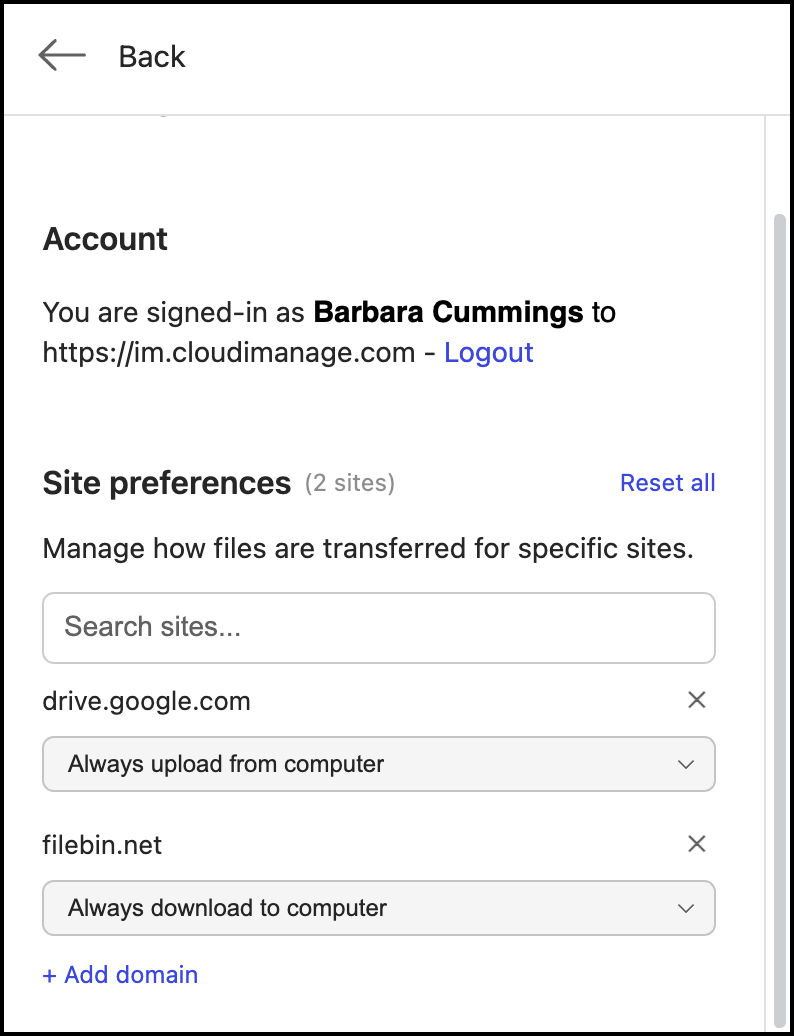
(Optional) Change the preference by selecting one of the following options:
Always upload from & download to iManage: iManage Open or Save dialogs are always displayed for upload and download. You can select the local computer option as needed.
Always upload from computer: Always displays the location of your device to select a document to upload.
Always download from computer: Always displays the location of your device to save your document.
Always upload from and download to computer: Always displays the location of your device to upload or save your document.
(Optional) Select the
 icon to remove added site preferences.
Select Reset all to remove all added site preferences. The following dialog is displayed.Figure: Resetting all added domains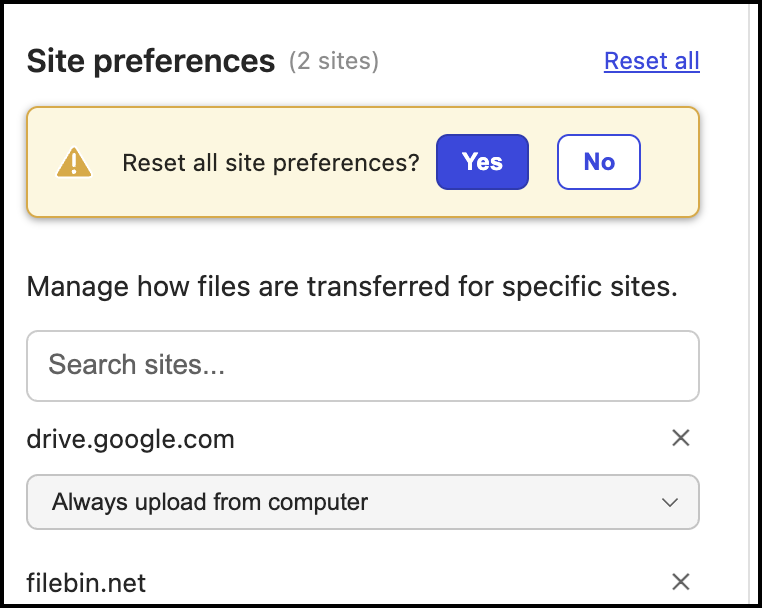
Select Yes to confirm the reset.
Method 2
Sign in to iManage File Transfer extension.
Select Settings.
In the Settings dialog, select Add domain.
Figure: Selecting Add domain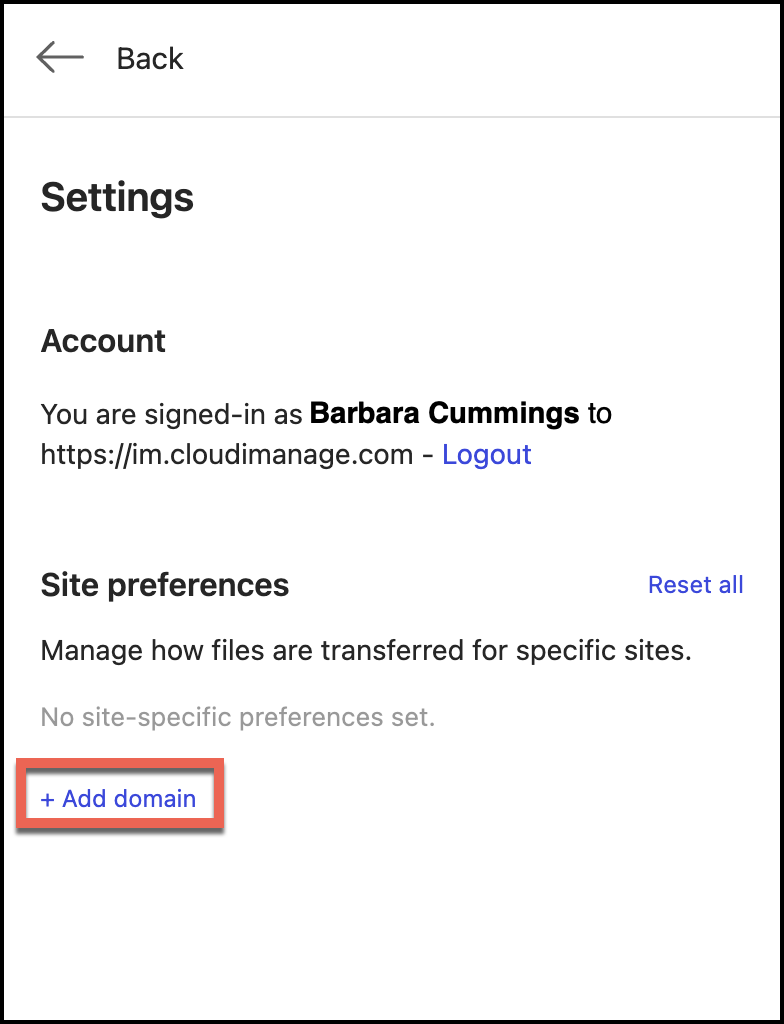
Enter the website URL, select your preferences from one of the following values, and then select Add.
Always upload from computer
Always download from computer
Always upload from and download to computer
Figure: Adding a website name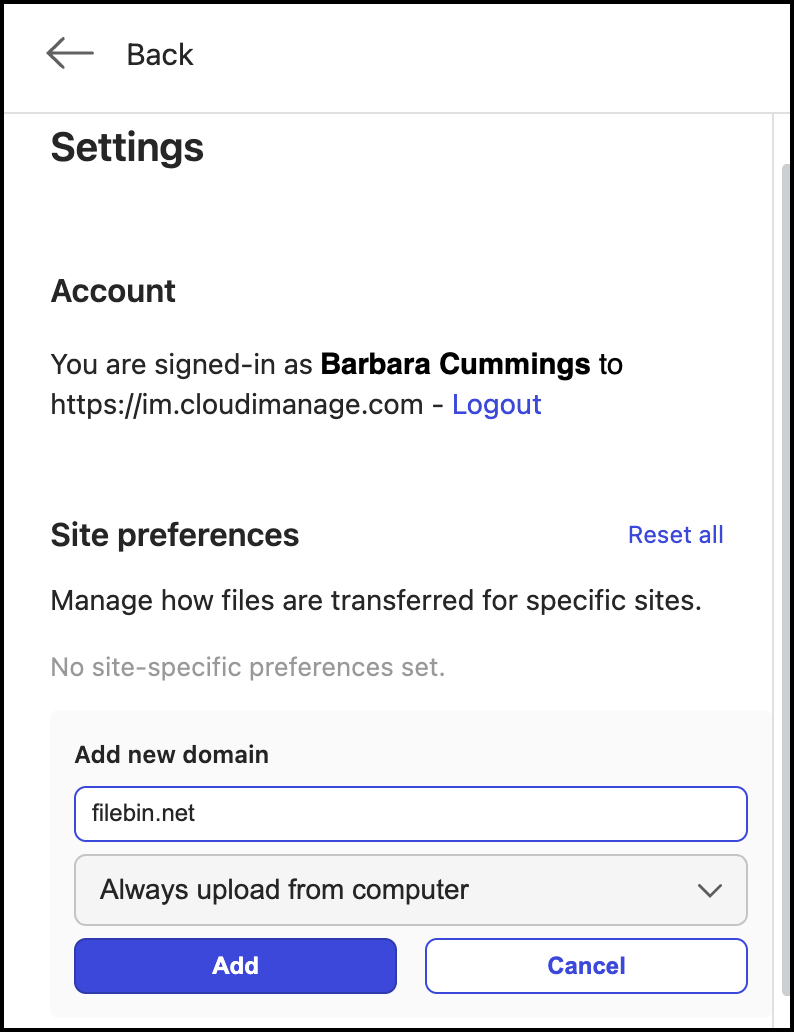
The domain is added as shown in the following figure.
Figure: Domain added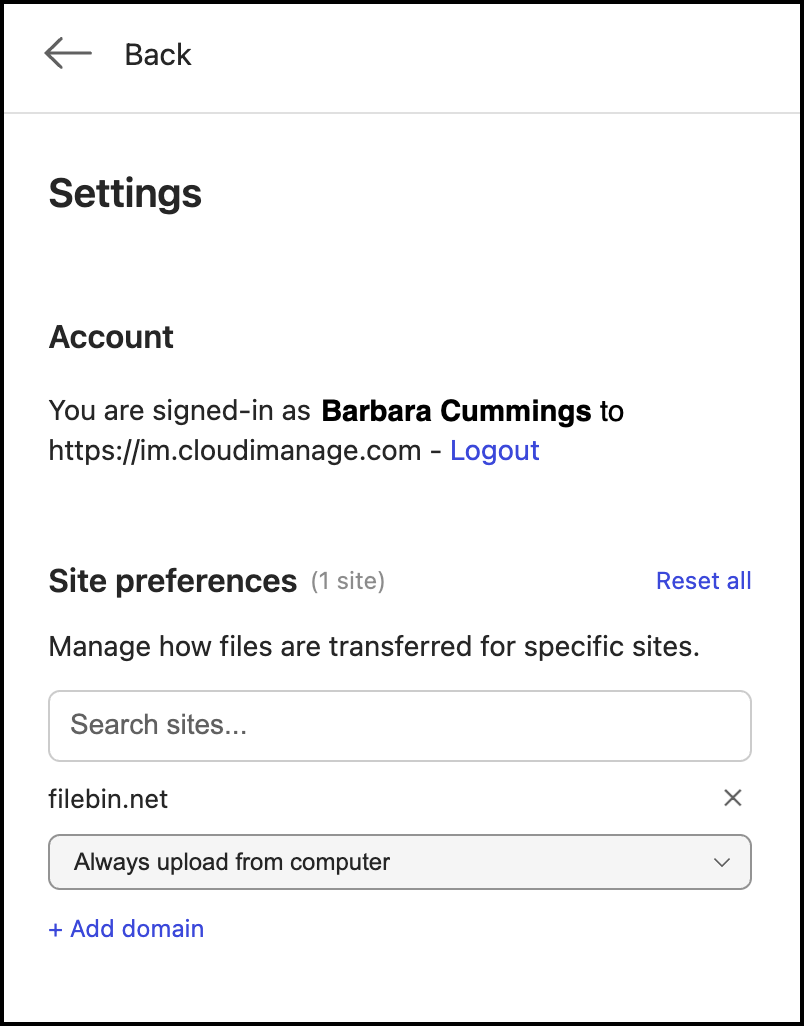
Repeat Step 3 and step 4 to add more domains. You can add any number of domains to your site preferences.
(Optional) Change the preference by reselecting any of the following options:
Always upload from & download to iManage: iManage Open or Save dialogs are always displayed for upload and download. You can select the local computer option as needed.
Always upload from computer: Always displays the location of your device to select a document to upload.
Always download from computer: Always displays the location of your device to save your document.
Always upload from and download to computer: Always displays the location of your device to upload or save your document.
(Optional) Select the
icon to remove the site preferences you've added.
Select Reset all to remove all the site preferences you've added. When you select Reset all, the following dialog is displayed.Figure: Resetting all the domains addedSelect Yes to confirm the reset.