To save files to iManage Work as a new version from a third-party website, do the following:
Open the third-party website from which you want to download files.
Select the download option that's available on the website.
Enter your iManage Work credentials, if prompted.
Check for the following:
If the Select file to save a new version option is already enabled, the Select file to save as new version dialog appears. Browse and select the file.
Figure: Select the file as new version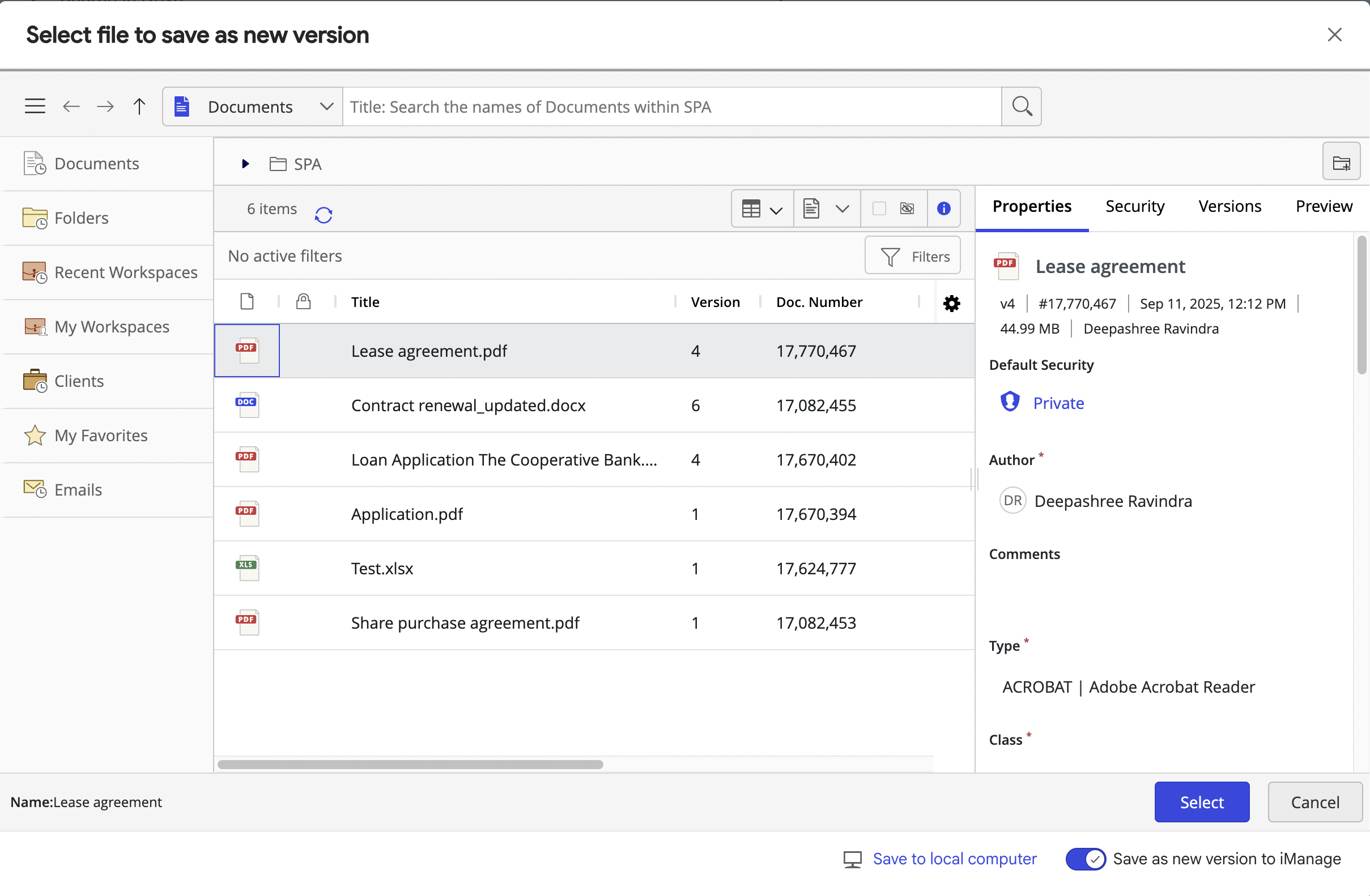
If the Save as new version to iManage option is not enabled, then the Save file to iManage dialog appears. Slide the Save as new version to iManage slider to the right to enable this option.
Figure: Enabling Saves as new verstion to iManage option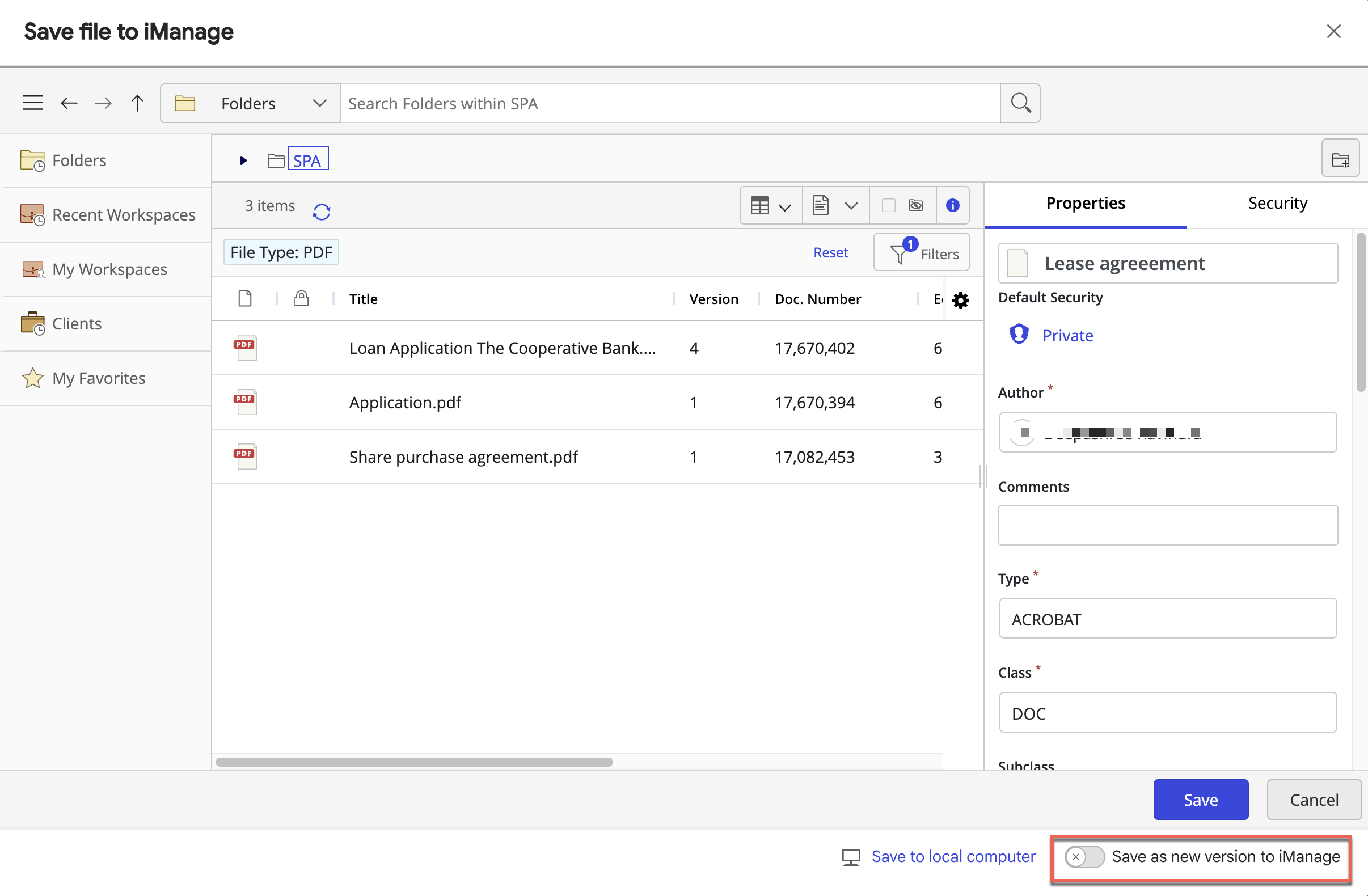
In the Select file to save as new version dialog that appears, browse and select the file.
Figure: Saving the file as a new versionA progress message indicating the save action is displayed as shown in the following figure:
Figure: Save-in-progress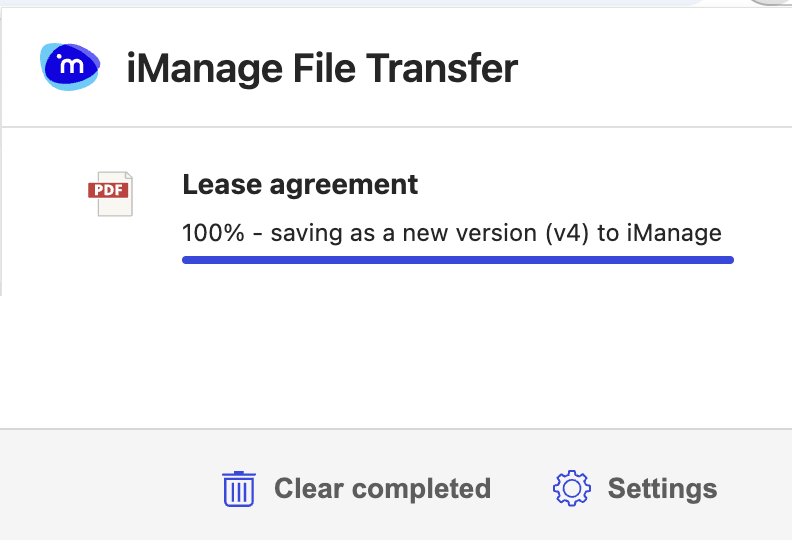
After the file is saved as a new version to iManage Work, the following message is displayed:
Figure: Transfer complete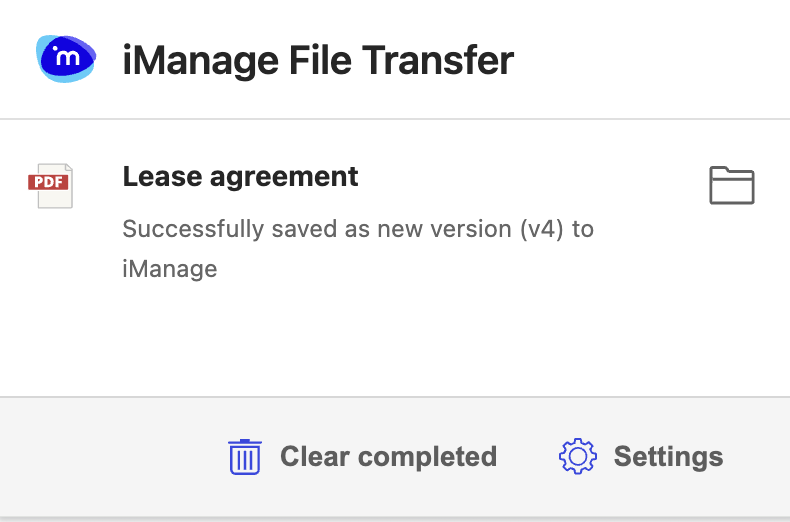
Select the document to open it in Preview. You can also select the folder
 icon to browse to the folder where the document was saved.
(Optional) To clear all the saved files, select
 Clear completed.
NOTES:
When saving files to iManage Work, they're saved temporarily on your device and get deleted when the upload completes.
To save the files on your device, select Save to local computer (refer to the option in the image) in Step 4.
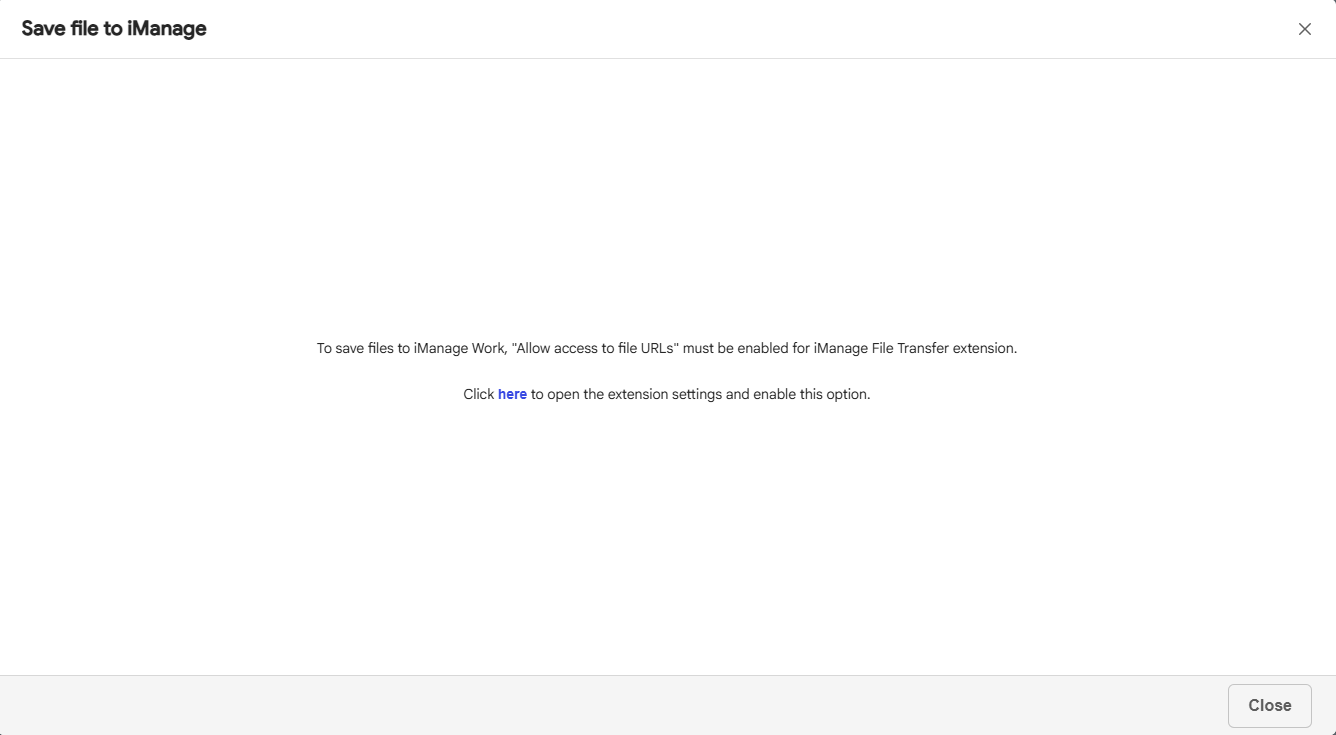
IMPORTANT: When saving files, if Allow access to URLs option isn't enabled in Chrome or Edge, then it's possible that you can’t save files to iManage Work and the following dialog might be displayed. In this case, select here to view the extension details and enable Allow access to URLs to save your files.