Review pre-approved tasks as Records Manager
In the Review Mode, if Item destruction is pre-approved unless denied by an authorized reviewer. is selected, as a Records Manager, you can deny tasks that are already pre-approved.
In the left view pane, under Retention, select Disposition Review.
Figure: Selecting Disposition Review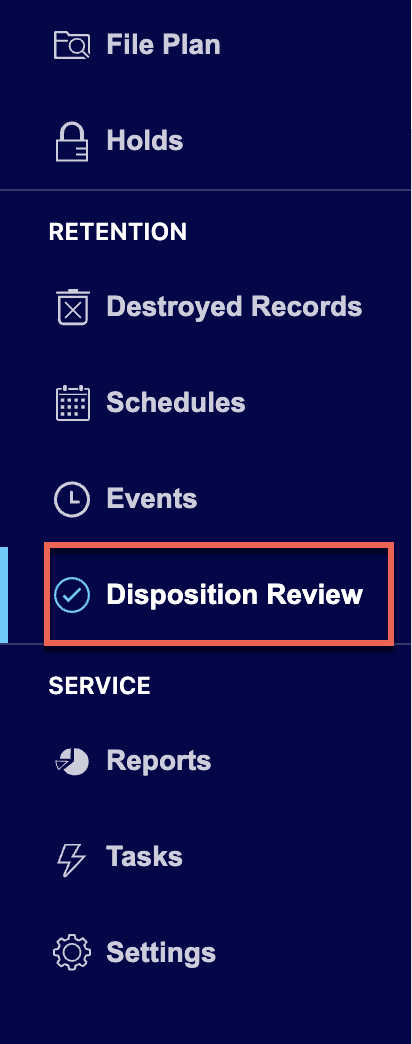
Select the
 kebab menu next to the task you want to deny and then select Deny. Figure: Denying pre-approved tasks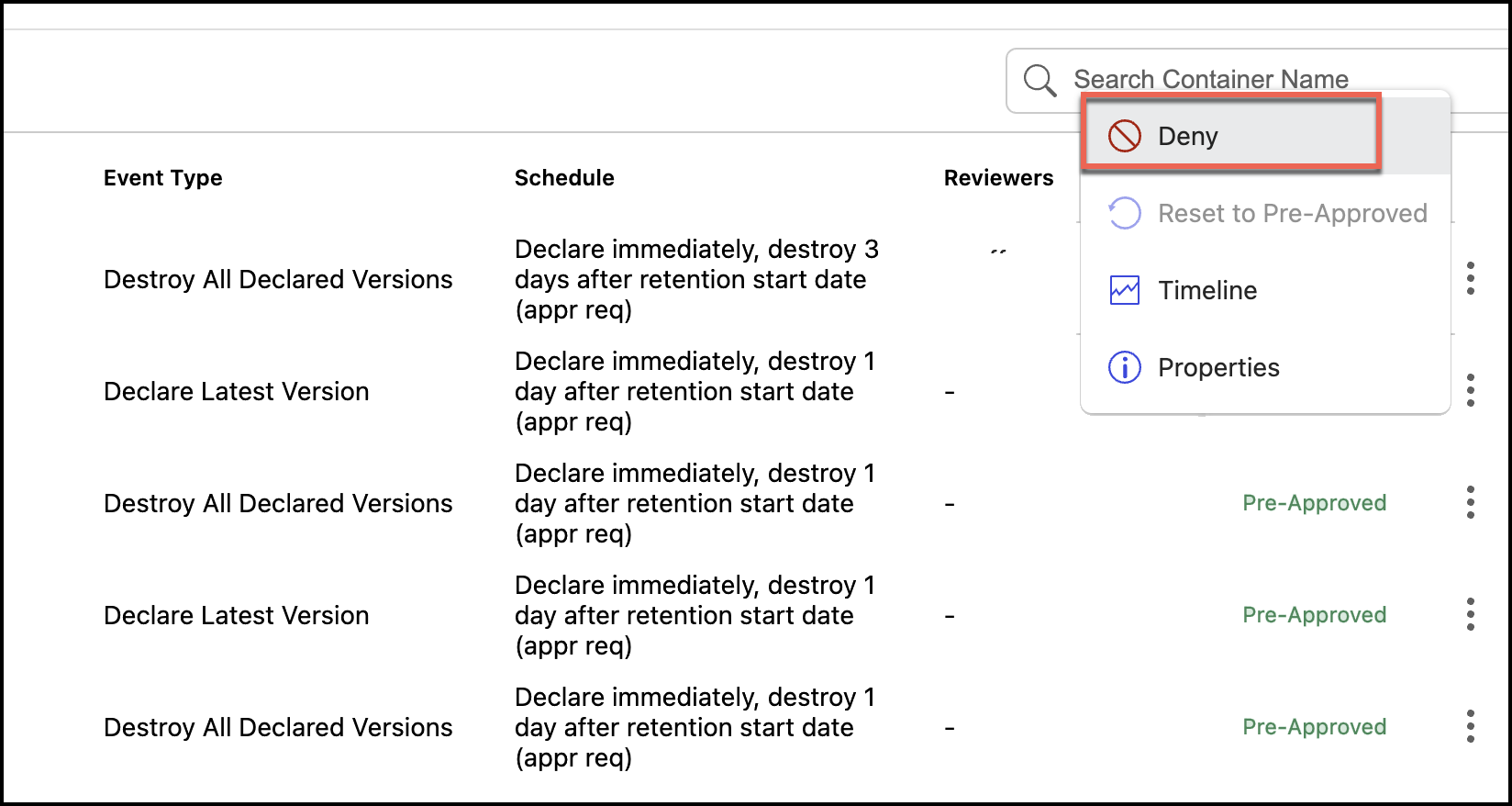
Enter the reason for denying the task and select Yes, Deny.
Figure: Enter the reason for denial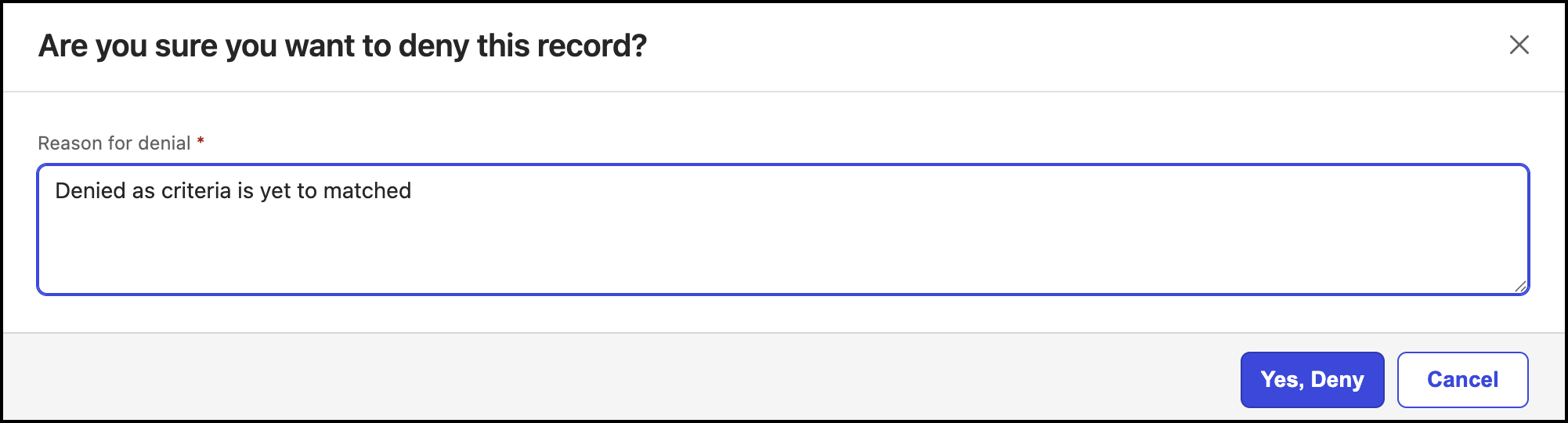
The status of the tasks changed to Denied.
(Optional) As a Records Manager, you can also select the
 kebab menu for the task that is denied and select Reset to Pre-approved to change the status of the task to Pre-Approved.
Review preapproved tasks as an authorized reviewer
If the Records Manager has selected the Items are not destroyed until approval is received by an authorized reviewer option in Review mode, as an authorized reviewer, you can review these tasks by doing the following:
In the left view pane, under Retention, select Disposition Review.
Figure: Selecting Disposition Review
Select the
kebab menu next to the task you want to deny and then select Deny. Figure: Denying pre-approved tasks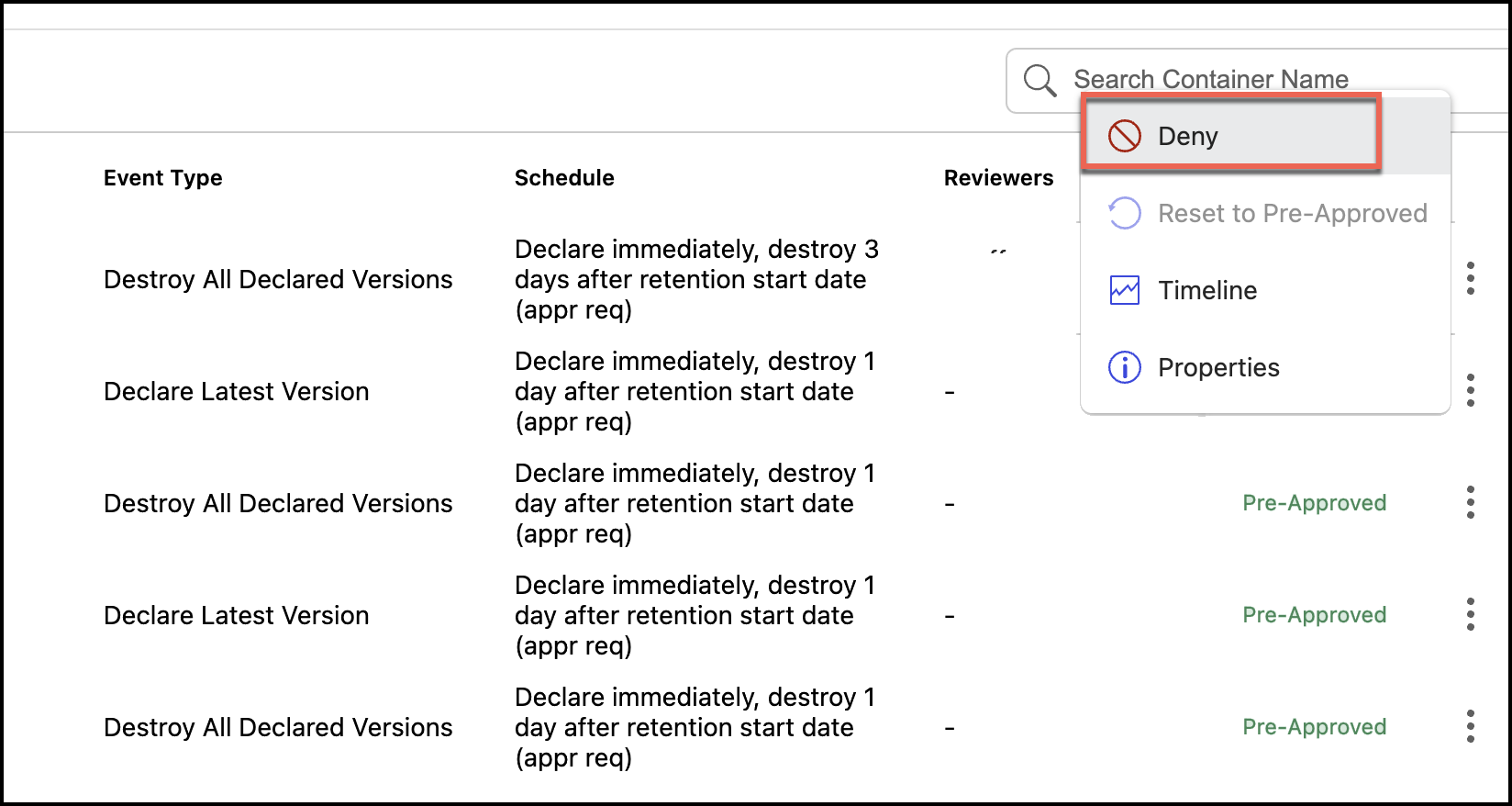
Enter the reason for denying the task and select Yes, Deny.
Figure: Enter the reason for denialThe status of the tasks changes to Denied.
Reviewing tasks in bulk
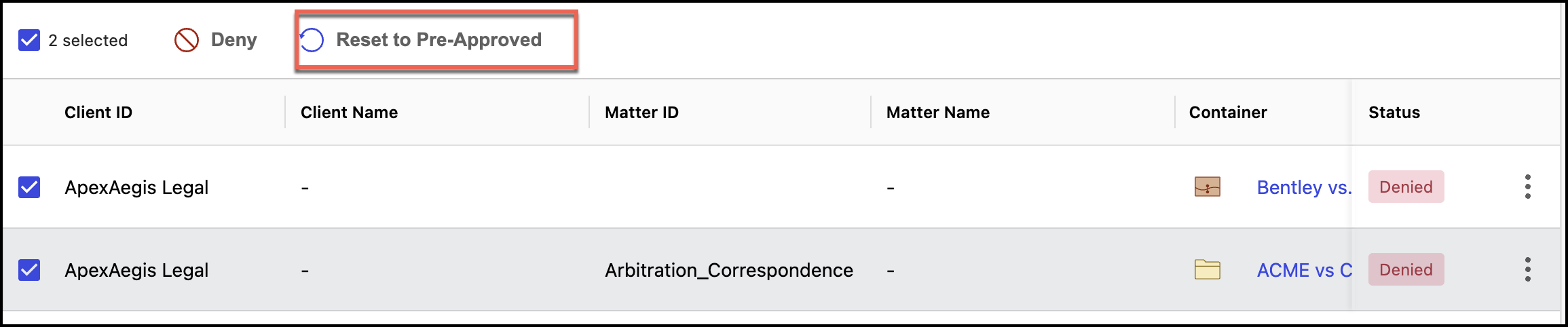
If the Review mode is set to Item destruction is pre-approved unless denied by an authorized reviewer, then Records Managers and Disposition Reviewers can select multiple tasks and then select Deny for the selected pre-approved tasks. The status of the tasks changes to Denied.
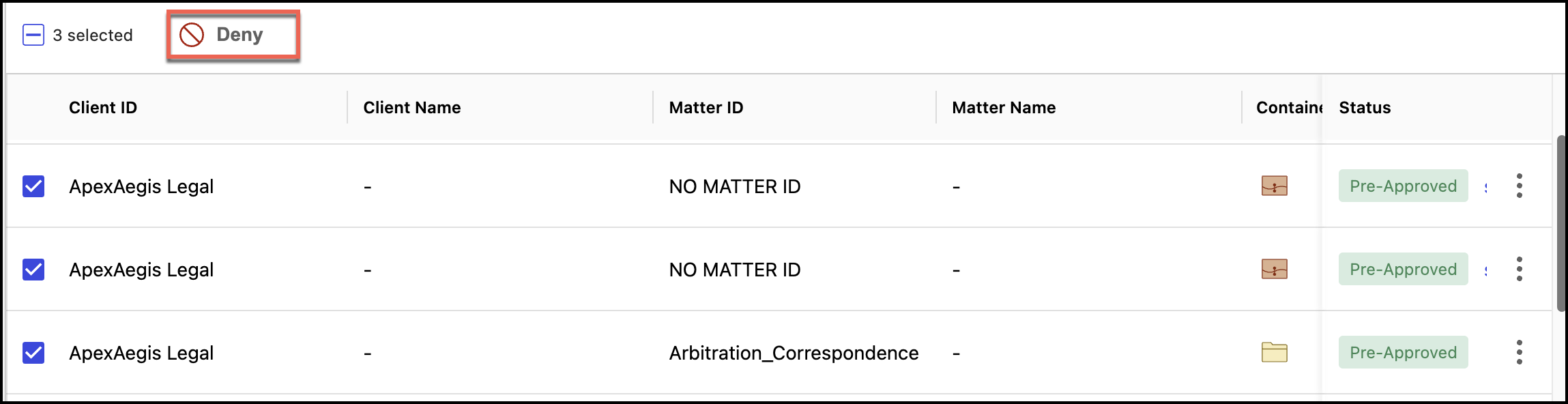
Additionally, Records Managers can change the status of any denied task to Reset to Pre-Approved as shown in the following figure. The status changes to Pre-approved.