After you create a schedule, you have to apply it to a workspace, folder, or sub-folder by:
IMPORTANT: When records are destroyed, they're deleted from iManage Work at cloudimanage.com and can't be retrieved or restored. Records aren't destroyed immediately when events to destroy records are created or added to a schedule, or applied to workspaces, folders, or subfolders. Records are destroyed when tasks defined by these destroy events are manually or automatically executed.
On the File Plan page, browse to the workspaces, folders, or subfolders to which you want to apply a schedule.
Select the
 icon next to the workspace, folder, or subfolder, select Add to schedule, and then select the schedule to be added. The schedule is applied and then is displayed under the Schedule column on the File Plan page and in the Properties pane.Figure: Select a schedule to be applied to a folder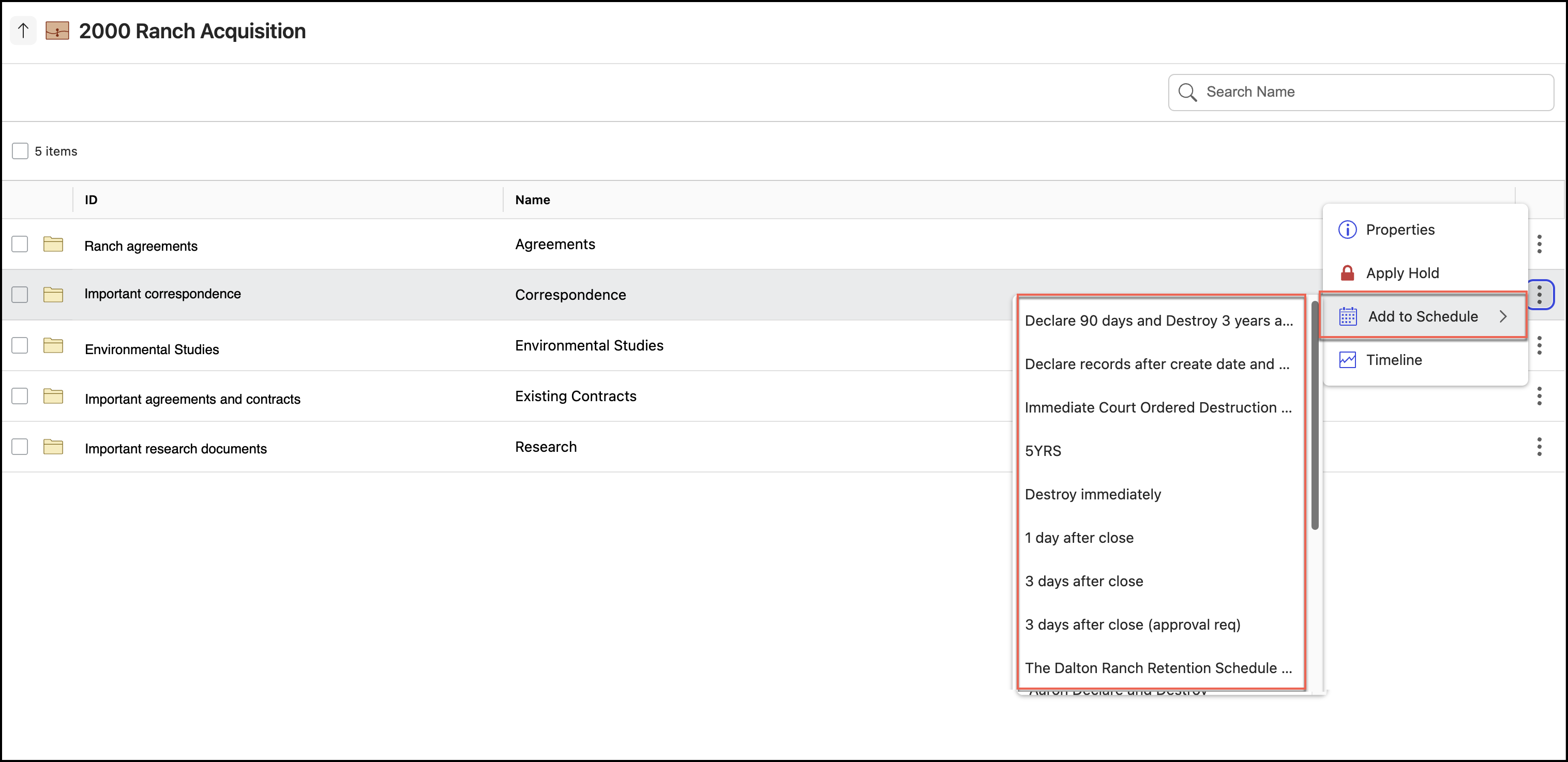
Also, you can apply a schedule to multiple workspaces, folders, or subfolders by selecting the check box next to them and then selecting Apply Schedule as shown in the following figure.
Figure: Select folders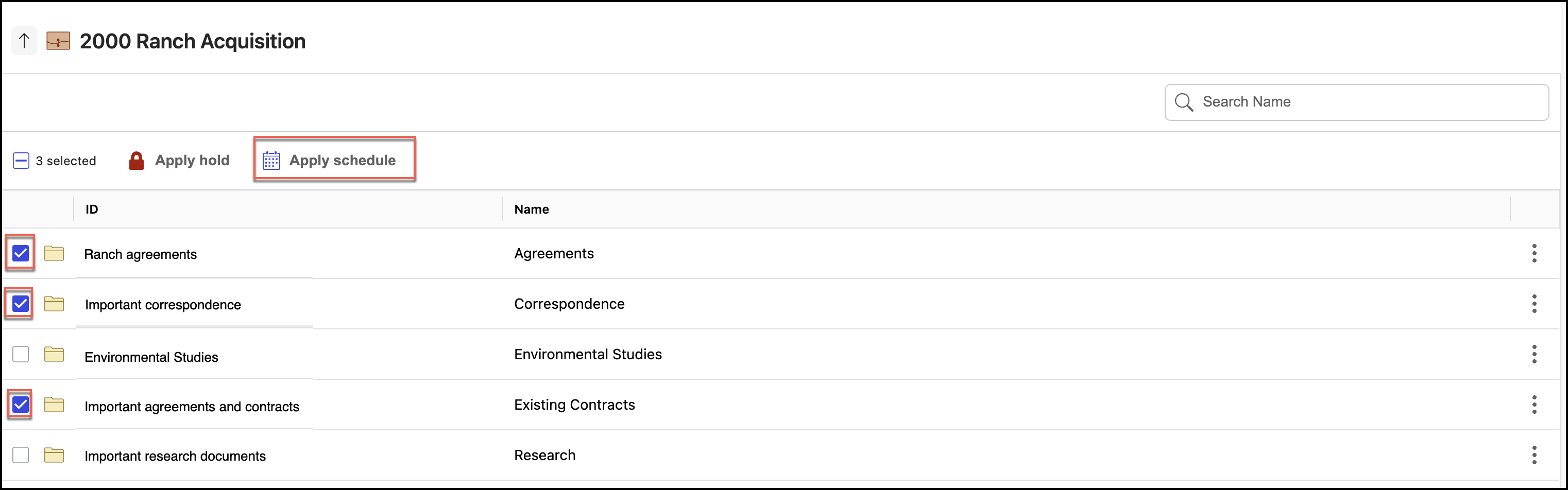
In the Apply Schedule dialog that opens, select the schedule to be applied and then select Apply. The schedule is applied to the workspaces, folders, or subfolders selected.
Figure: Select a schedule to be applied to multiple folders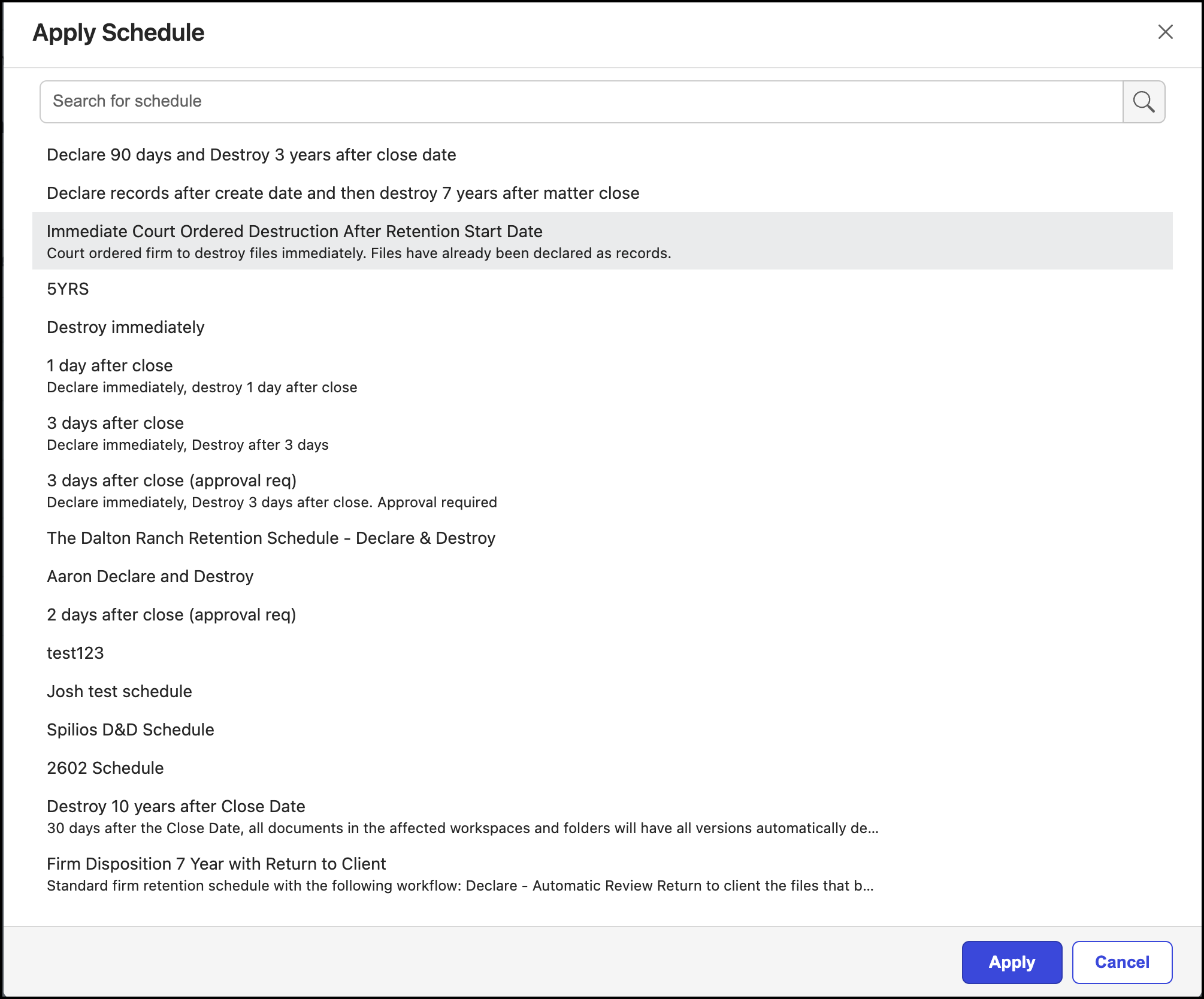
If a retention ID is applied in iManage Work at cloudimanage.com and if it exactly matches the retention ID added to an existing schedule in iManage Disposition Manager, that schedule is automatically applied to the workspace or folder.
If the retention ID doesn’t match any existing schedule in iManage Disposition Manager, a warning icon is displayed next to the retention ID in the Properties pane and no schedule is applied.
NOTES:
To change the schedule, repeat Step 2 and select the schedule to be added. The previous schedule is replaced with the new schedule.
To remove a schedule, select the
icon next to the workspace, folder, subfolder, or record, and then select Remove from schedule. The schedule is removed and no action is taken on the workspace, folder, or subfolder from where the schedule is removed, if no other schedules are added.
If the retention ID is applied from iManage Work at cloudimanage.com, Records Managers can overwrite it with a schedule described in iManage Disposition Manager.