Administrators need to define the IRM_RECORD_MANAGER group for iManage Disposition Manager. This group provides admin access to iManage Disposition Manager. Users with this access can set up and edit retention schedules, approve, run, and re-run tasks, and create and manage holds in iManage Disposition Manager.
All other users who have access to iManage Work automatically have reviewer status to iManage Disposition Manager. They can review and approve tasks for which they're reviewers, without having to be part of any group.
Creating the group
To create this group, do the following:
Sign in to iManage Control Center.
In the left navigation pane, under Access, select Groups.
Figure: Select Groups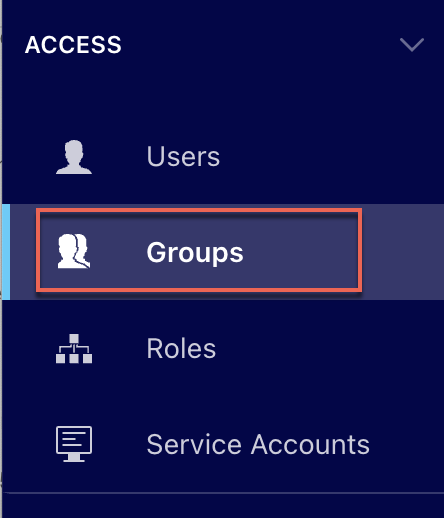
In the Groups drop-down menu, select Global Management.
Figure: Select Global Management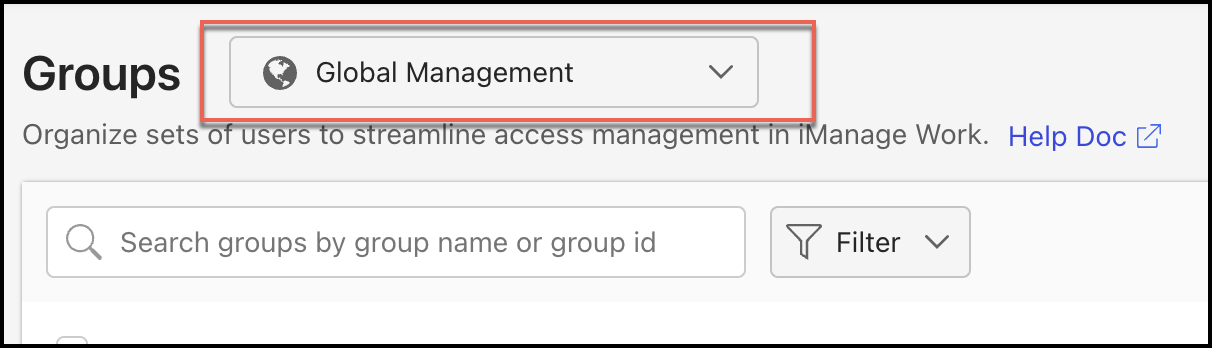
Select Create Global Group.
Figure: Select Create Global Group
In the Create Group dialog, enter IRM_RECORD_MANAGER in both the Group ID and the Name fields.
Figure: Creating groups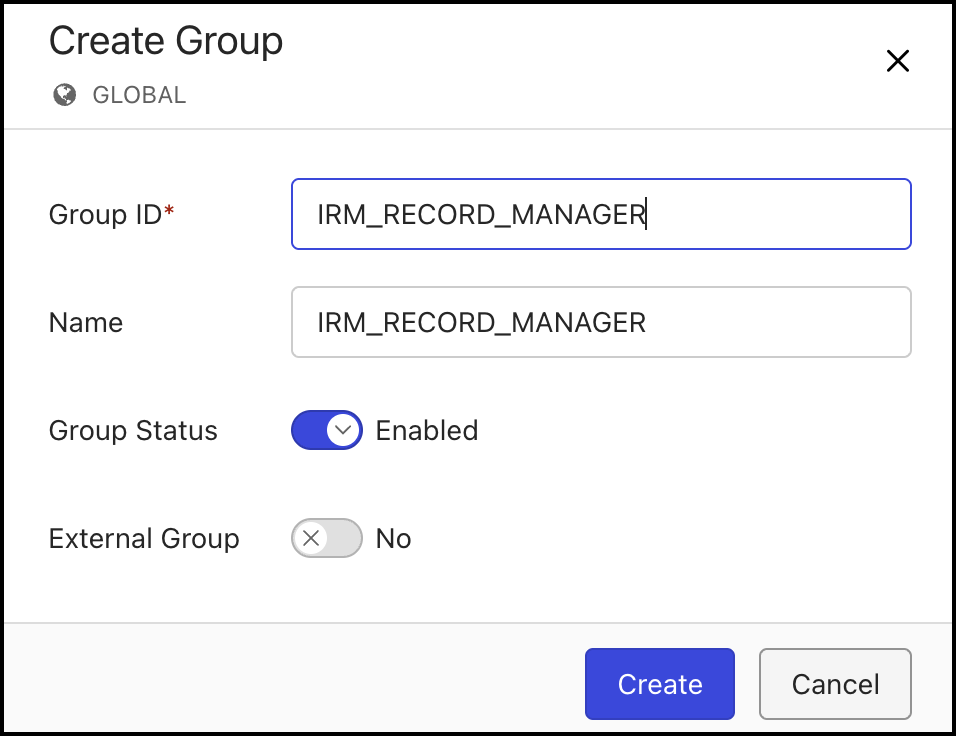
Set Group Status to Enabled. The group is created and added.
Figure: Group created and added
Enabling the groups
In some cases, if the groups created aren’t enabled, you can enable them by doing the following:
Check if the IRM_RECORD_MANAGER group is set to enabled.
Figure: Check if the group is enabledIf the group is disabled, do any of the following to enable the group:
Select IRM_RECORD_MANAGER and in the ribbon bar, select Enable Group.
Figure: Select Enable Group
Select the
 icon next to the group you want to enable and then select Enable Group.Figure: Select Enable Group using kebab menu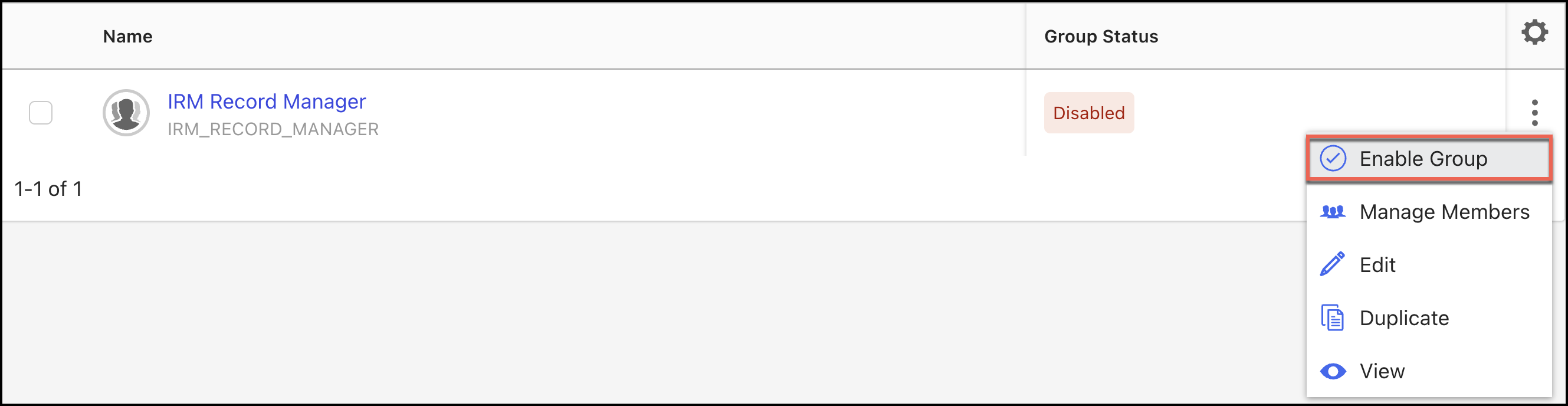
Right-click the option you want to enable and then select Enable Group.
Figure: Select Enable Group using the right-click menu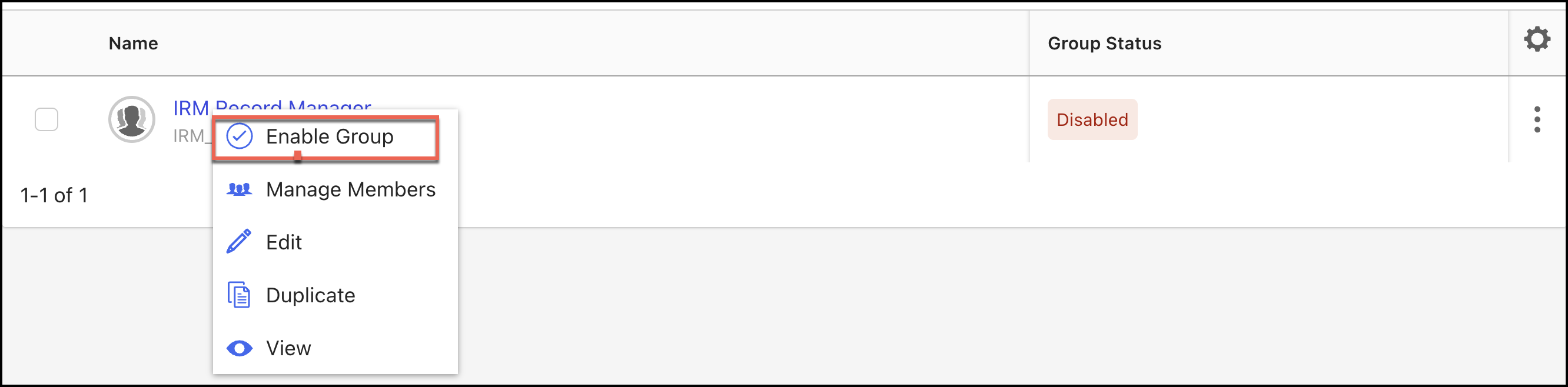
For more information, refer to the Groups section in iManage Control Center Help.