You have to assign Records Managers users to the following group defined in iManage Control Center.
IRM_RECORD_MANAGER
Records Managers can create events and schedules, assign schedules to workspaces and folders, configure and assign holds, configure metadata mapping, assign additional reviewers, view upcoming and triggered tasks, and view reports.
There are two ways to assign users to the IRM_RECORD_MANAGER group:
Method 1
Sign in to iManage Control Center.
In the left navigation pane, under Access, select Users.
Figure: Select users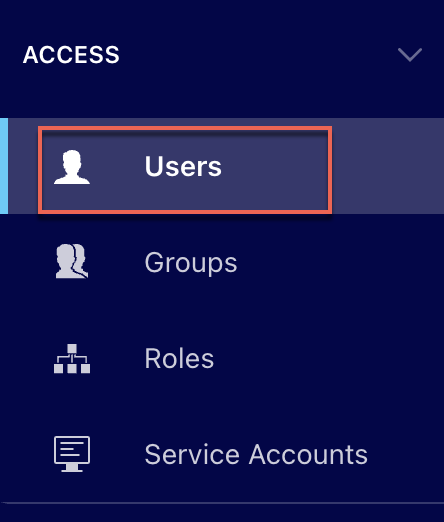
In the list of users that’s displayed, do any of the following. Alternatively, search for a user using the search option.
Select one or more users in the ribbon bar and then select Add to Groups.
Figure: Select Add to Groups
Select the
kebab icon next to the user you want to add to a group and then select Add to Groups.
Figure: Select Add to Groups using kebab menu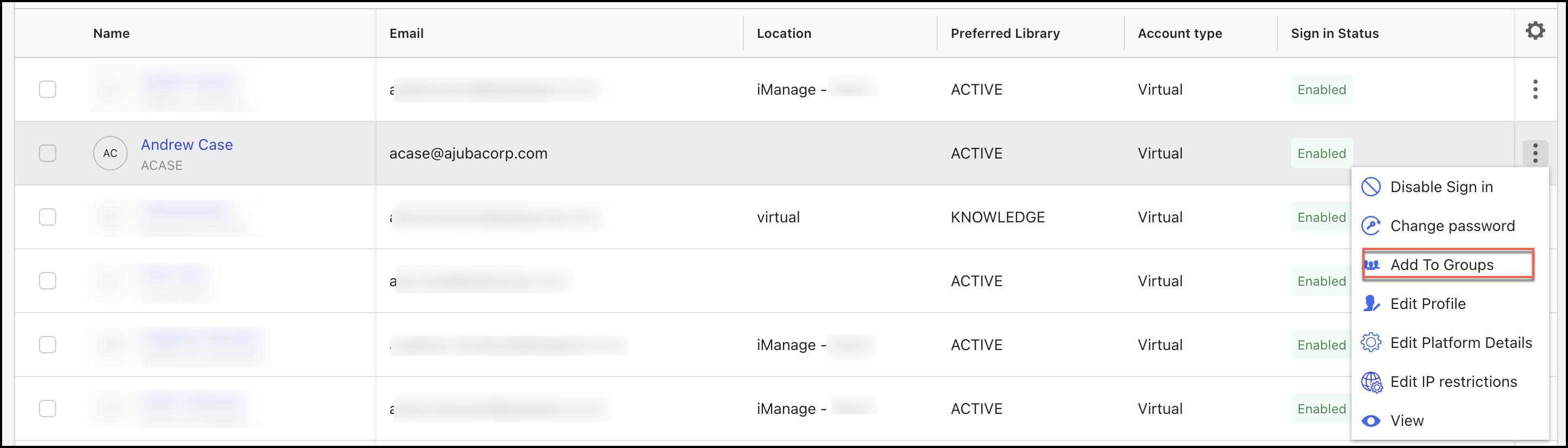
Right-click the user you want to add to a group and then select Add to Groups.
Figure: Select Add to Groups using right-click menu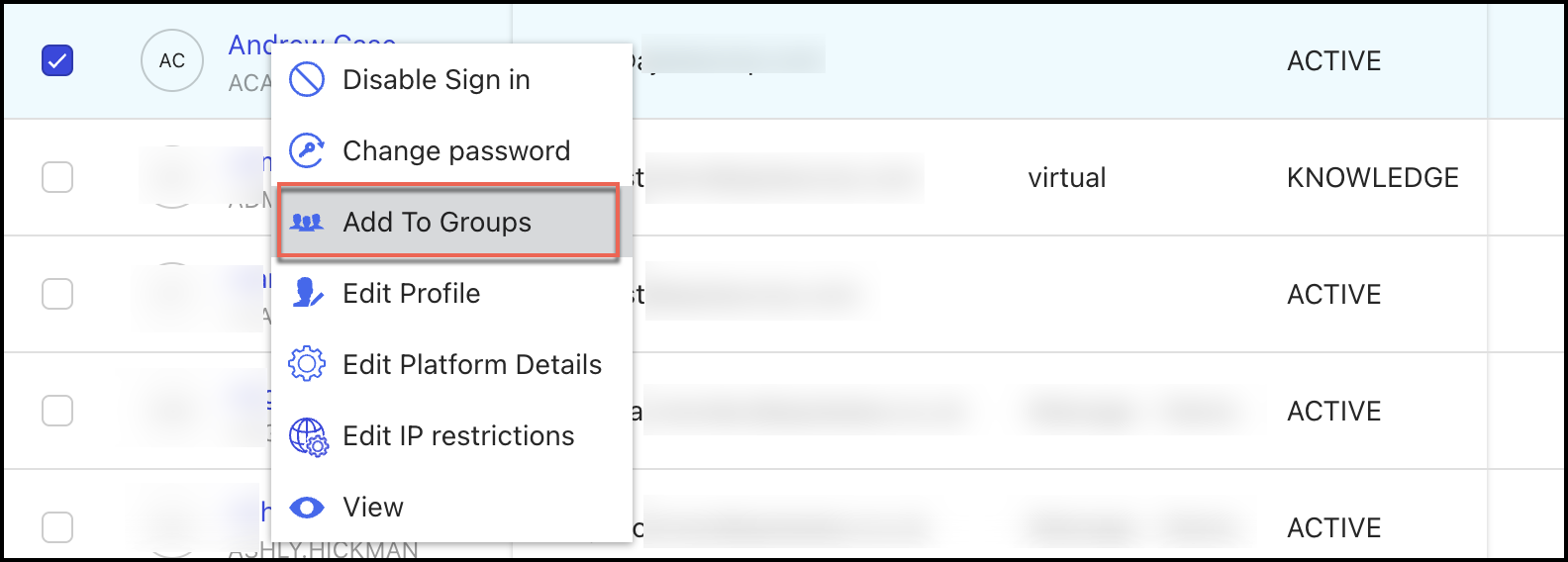
In the Add Users to Groups dialog, select groups from the groups list or look for groups using the search field and then select Add.
Figure: Add user to groups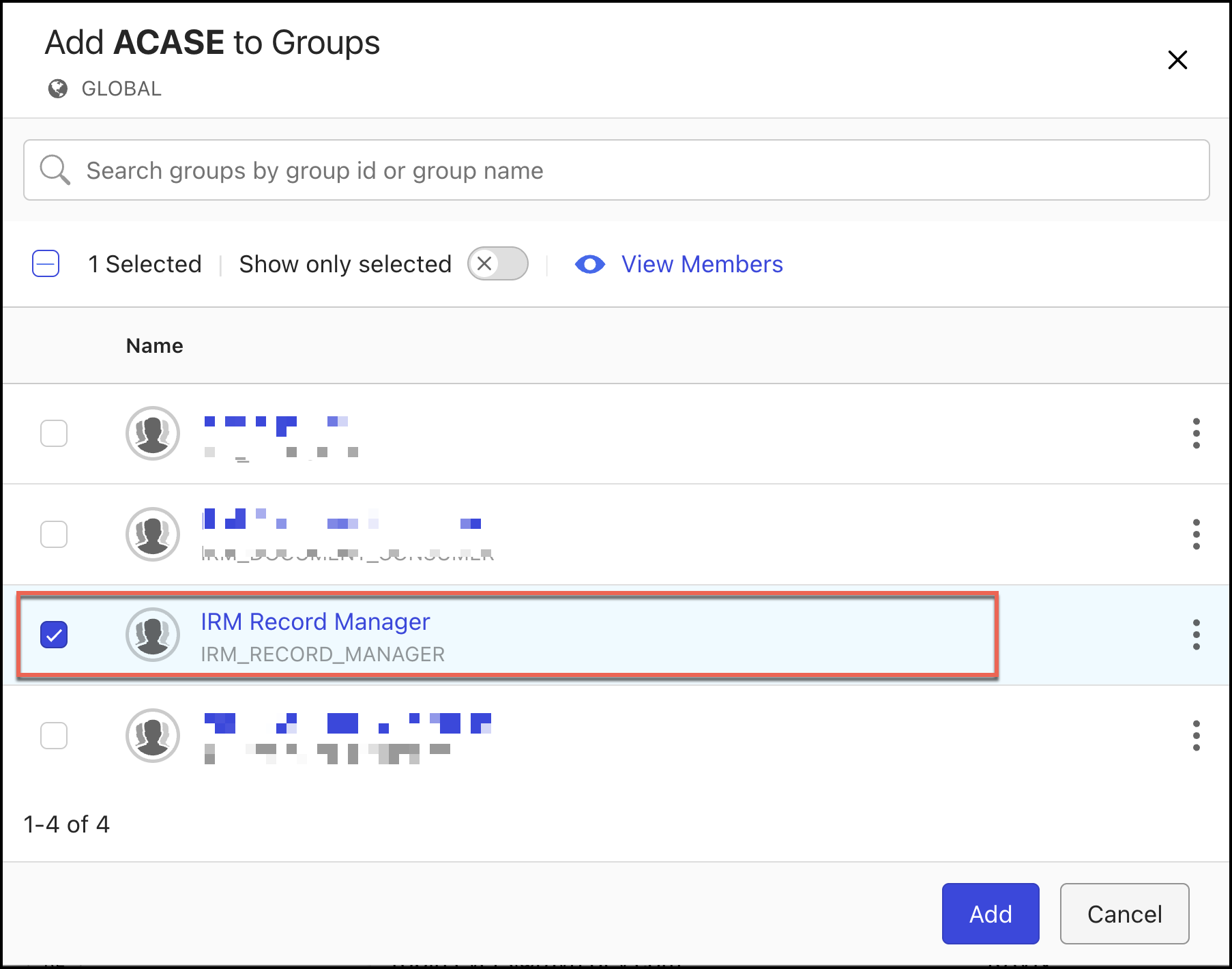
Method 2
Sign in to iManage Control Center.
In the left navigation pane, under Access, select Groups.
Figure: Selecting Groups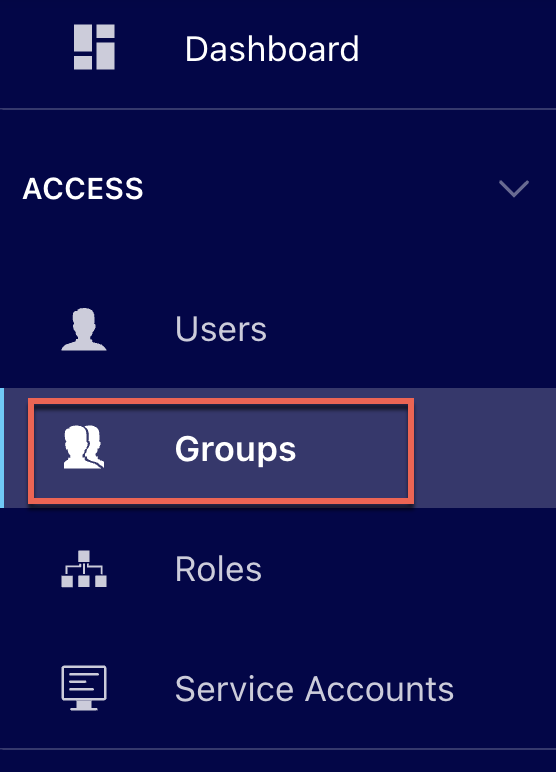
On the Groups page, select Global Management and then select IRM Record Manager.
On the IRM Record Manager page, select MEMBERS and then select Add Members.
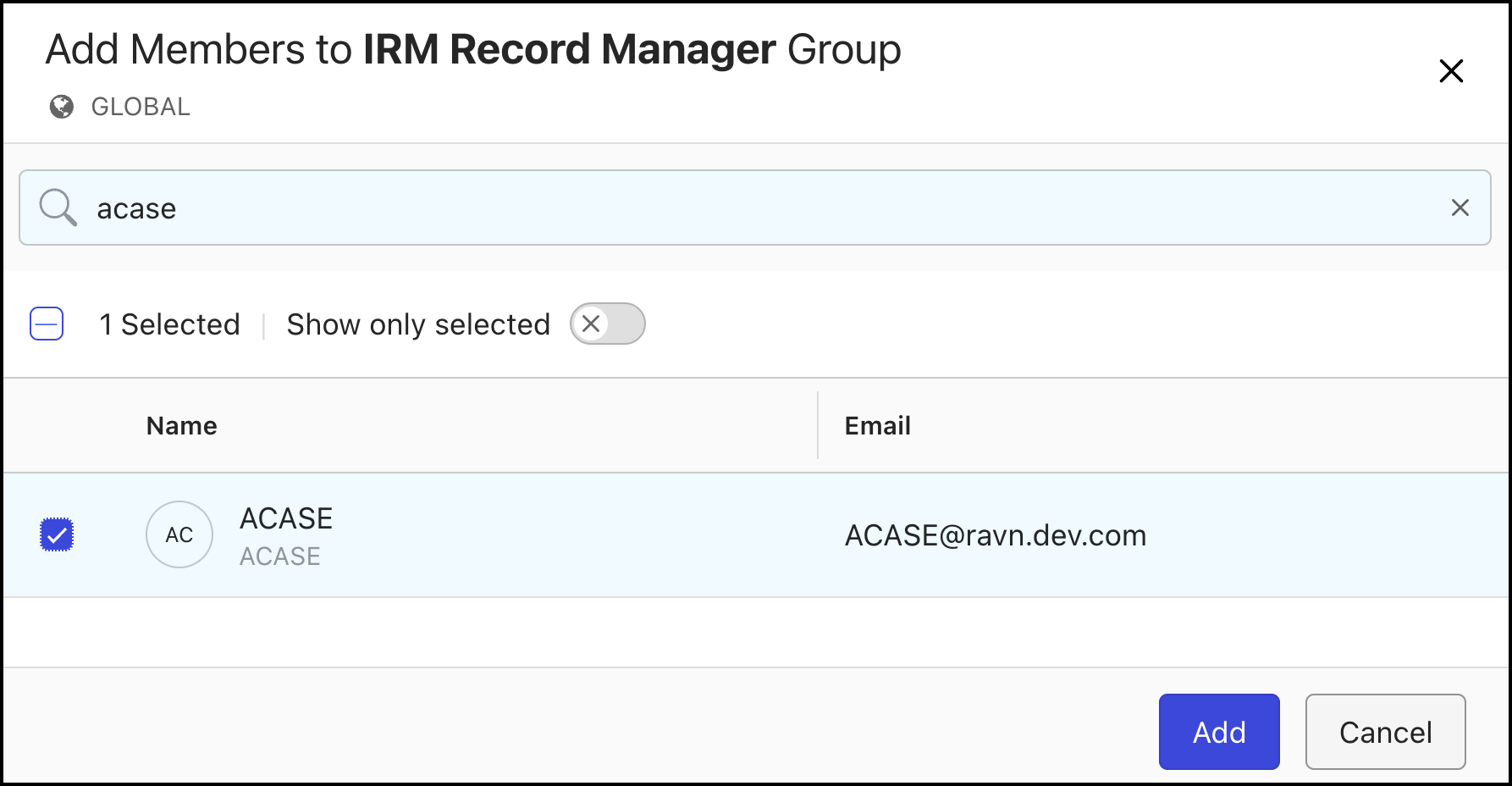
Search for the user name, select it as shown in the following figure, and then select Add.
Figure: Adding users to groups