In the Timeline pane that's displayed, you can:
Select Download CSV to download the timeline to your device.
Search for a specific timeline using the Search option.
Select Filters to view the filters pane. In the Date section, select one of the following:
All: View all the changes made to the selected option. This is the default option.
Today: View the changes made to the selected option on the same day.
Yesterday: View the changes made to the selected option the previous day.
Last 7 Days: View the changes made to the selected option in the last 7 days.
Custom Range: View the changes made to the selected option for the custom range. Select the Start Date and End Date from the date picker dialogs.
Figure: Timeline pane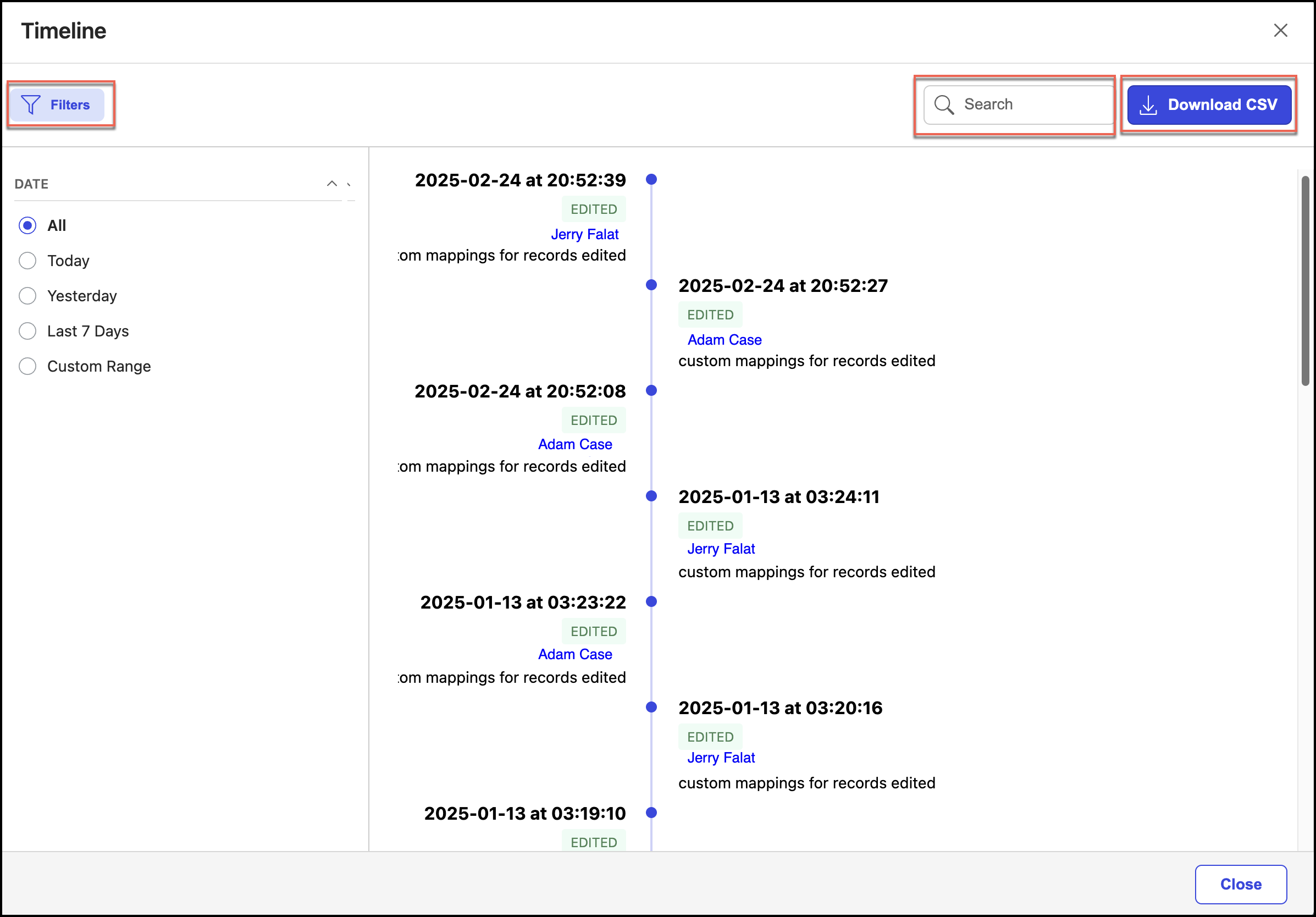
NOTE: If the filters pane is already visible, selecting Filters hides the pane.