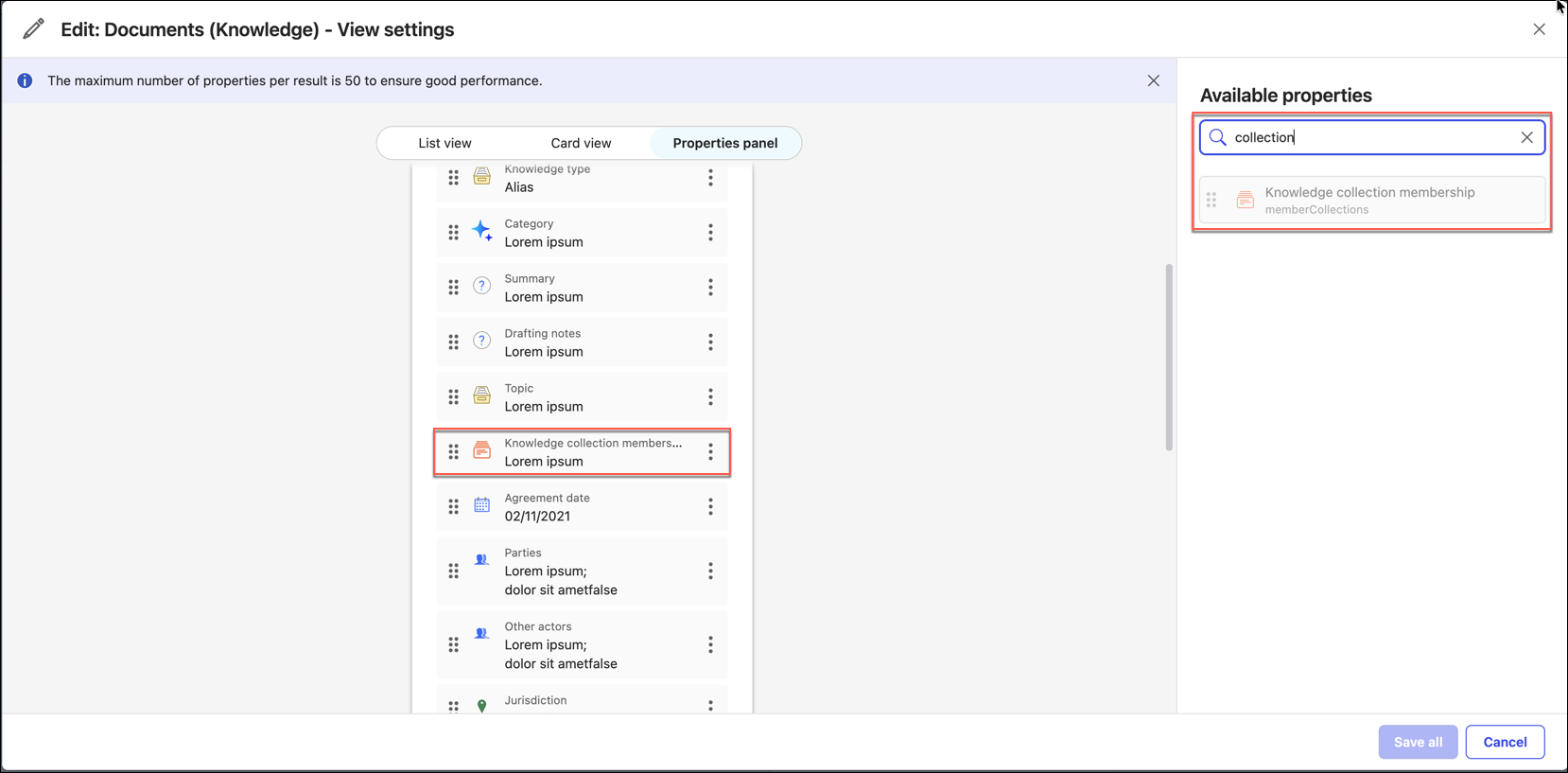
As an administrator, you can add the Knowledge collection membership property to the Properties panel of knowledge documents in iManage Insight+ Admin > Content types. The property shows users which Knowledge Collections a document belongs to, so they can move from a single document to the wider set of related content without searching for it.
The property is displayed only for documents that belong to at least one Knowledge Collection. For all other documents, it is hidden, so users don't see an empty field. When a document belongs to more than one Collection, each is listed separately. Each collection name is a link, so users can select it to open the dashboard of that Collection, which is displayed.
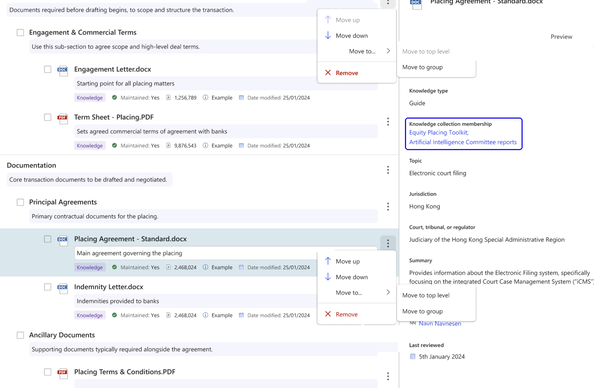
The property isn't displayed by default. You must add it to the properties panel before users can see it.
To add the Knowledge collection membership property:
In iManage Insight+ Admin, select Content types > Documents (Knowledge).
Select Edit, next to View settings.
Select the Properties panel tab.
In the Available properties list, search for Knowledge collection membership, or you can search for it.
To add it as part of the properties panel, drag Knowledge collection membership into the list of properties in the panel. To set its position, you can drag it up or down.
Select Save all.