The tabs visible in the search interface are configurable and provide context to the search.

There's no limit to the number of tabs you can create.
However, we recommend not adding too many because of possible fragmentation of the user search experience.
For each tab, you select its name, the search experience it runs, and the scope of its content using filters.
NOTE: Confirm that the tab content and the selected search experience are compatible. For example, if you limit tab content to the Knowledge Library, don't select the Matter search experience for it because that wouldn't return any results.
We recommend the following tab configurations, at the minimum, by tier:
Essentials tier:
Indexing the Knowledge Library only: Configure a Knowledge tab so users can search across all Knowledge Library content.
Indexing the Knowledge Library and the full DMS: Configure a Knowledge tab and a Search & Find tab.
Indexing the full DMS only (no Knowledge Library): If no Knowledge Library exists, configure only the Search & Find tab.
Professional tier:
Indexing the full DMS only (no Knowledge Library): Configure a Search & Find tab and a Matters tab.
Indexing the full DMS and the Knowledge Library: Configure a Search & Find tab, a Matters tab, and a Knowledge tab.
INFO: The tabs can be labeled as per your preference. The following provides more detail about each of the suggested standard tabs:
The Everything tab Search & Find experience allows for an extensive search. You can use the scope filters to customize it—for example to search across:
Your iManage Work Active Library and Knowledge Library
Only your iManage Work Active Library
The Knowledge tab search experience displays results related to curated knowledge documents.
The Knowledge Library, a subset of iManage Work Active Library, displays curated knowledge documents retrieved from the Knowledge Library.
In iManage Work at cloudimanage.com, curation means selecting representative documents and copying them to Knowledge Library.
These documents are then moved to the iManage Insight+ Knowledge Library, curated, and then published.
During the curation process, to refine the documents, they go through multiple stages like In Draft, Submitted, Rejected, Published, Retired, and Unpublished states.
Those documents that are published get displayed in the search results pane on the Knowledge tab. As an administrator, you may see all the documents marked for curation and under various stages, including the Published stage, are displayed on the Search & Find / Everything tab and can be identified by the label Knowledge in front of the document names. Your organization’s users will only see published documents.
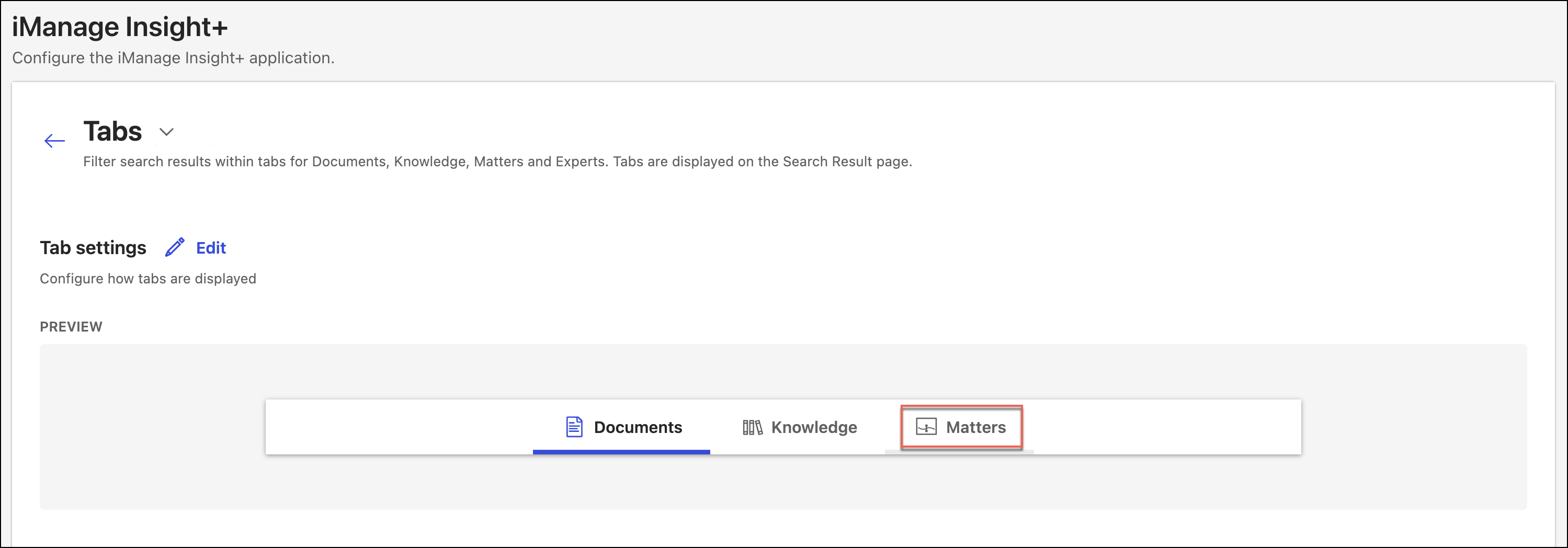
The Matters tab matters search experience is specific to matters, or projects.
The Matter search experience enables efficient searching for specific matters or projects using criteria like name, description, ID, and matter.
You can enable matter-specific filters to refine your search results.
Matter Dashboards provide an overview of key information, related documents, and functionality for each matter or project.
NOTE:
Changing the search experience for a tab updates the search query and the type of results that are returned, reflecting the specific tab's search experience settings. As an administrator, you must ensure that the search experience aligns with the tab name to avoid unexpected or suboptimal results, for example—using Search & Find experience in the Knowledge tab.
Future releases will allow the configuration of additional tabs, including Deals and Experts.
Use this option to configure different search experiences as Tabs in iManage Insight+ search interface.
On the Configuration page, select Tabs. It lists all the defined tabs.
Figure: Configuration page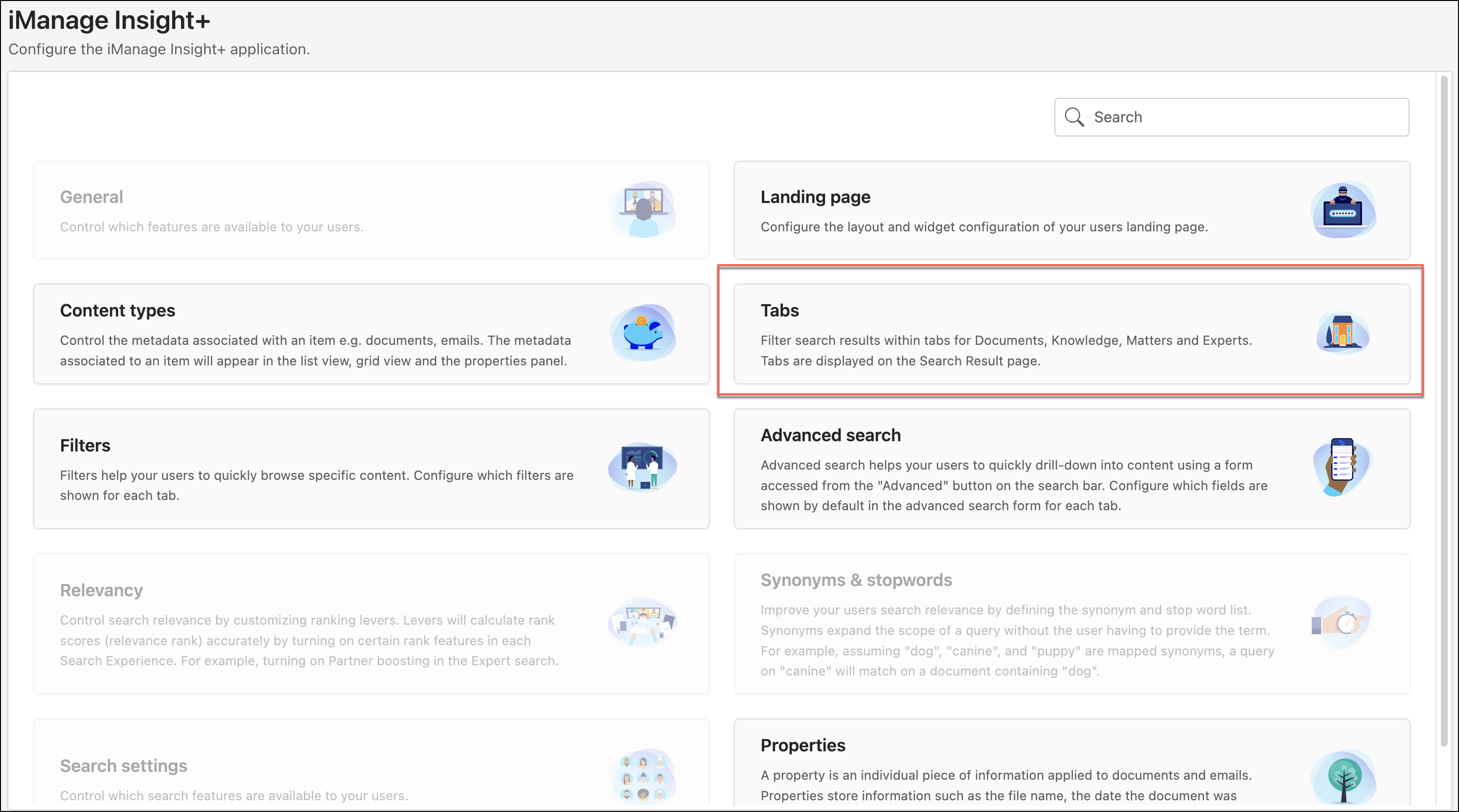
To configure a new tab, select Edit.
In the Edit: Tab settings dialog, select Create new tab.
Figure: Edit: Tab settings dialog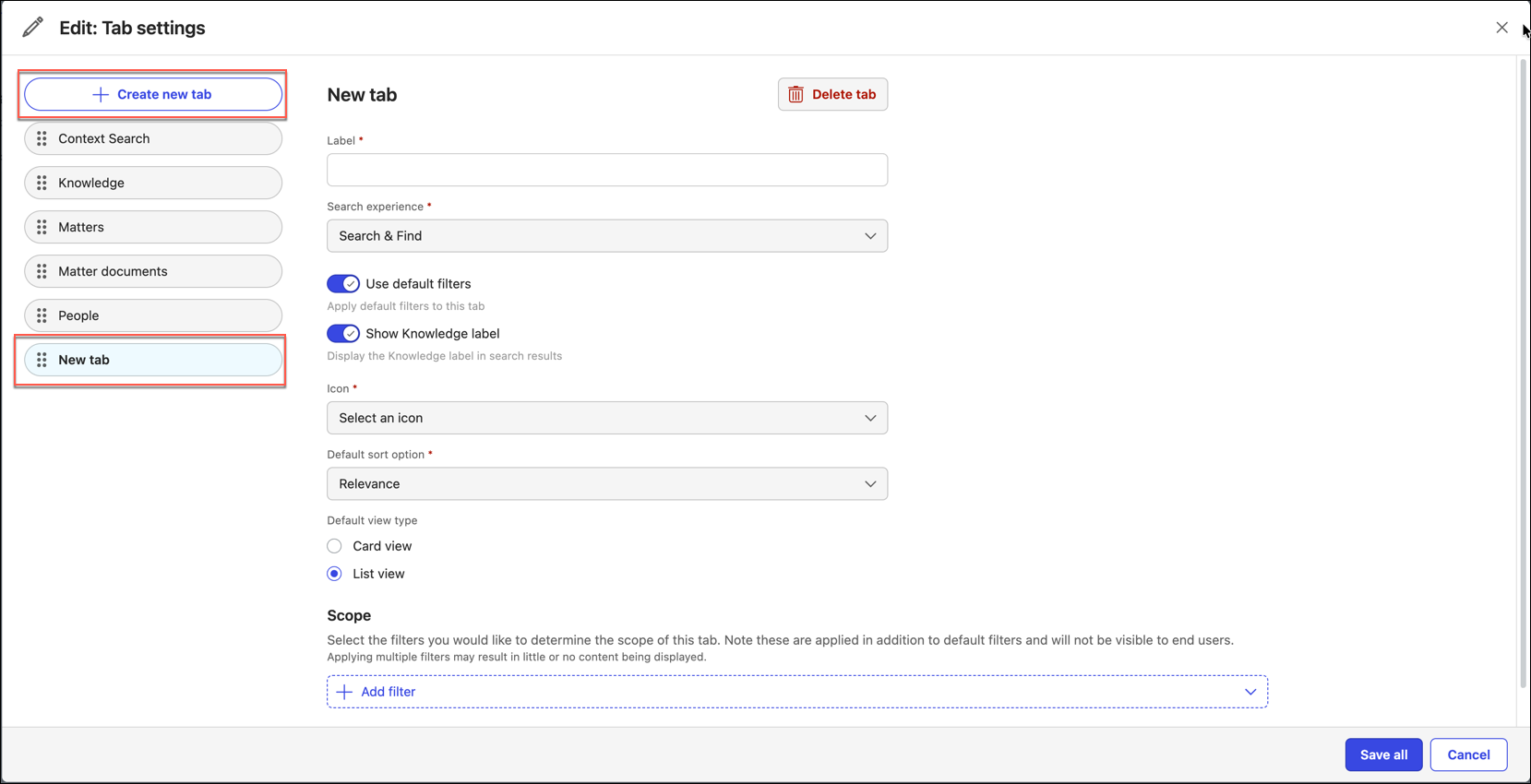
In the New tab dialog, under Label, enter a user-friendly name for the contextual tab you want to create. This is a mandatory field.
From the Search experience drop-down list, select an option. This is a mandatory field.
Search & Find: A wide-range of search feature that include all the content in the iManage Insight+ repository.
NOTE: If you select the Search & Find search experience, you can then select whether the search runs across your iManage Work active library and your Knowledge Library; or only across the iManage Work active library.Knowledge Search Experience: For specific searches for content within the Knowledge Library in iManage Insight+.
Matter Search experience: To search specifically for matters or projects by searching for name, description, and ID.
You must ensure that the search experience you select is reflected in the tab name. For example, using the S&F experience in the knowledge tab would result in unexpected, and sub-optimal results.
Select Search & Find, or Knowledge Search from the drop-down list.
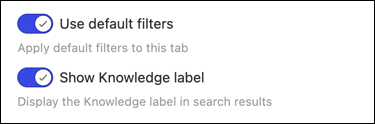
Move the Use Default Filters slider to the right to enable default filters on the selected tab, or to the left to disable them.
NOTE: When enabled, the default filters set for a profile are applied in addition to any scoped filters already defined for that tab.Move the Show Knowledge Label slider to the right, to display the Knowledge label in search results. Move it to the left to hide the label.
From the Icon drop-down list, select a relevant icon that represents the new contextual tab. This is a mandatory field.
From the Default sort option drop-down list, select the sort order for displaying the search results.
In Default view type, select between List view and Card view—that'll be the default display for search results.
NOTE:
The Include Knowledge Documents toggle has been removed. Previously, this switch let you enable or disable the inclusion of knowledge documents in a tab's search results.
This control is now managed through the tab Scope. For more information, refer to Scope tab.
You can configure the order in which the tabs display in iManage Insight+ by dragging the tabs to the left using the reorder icon (
 ).
).Changing the Search experience for a Tab alters the search query and expected results that are displayed.
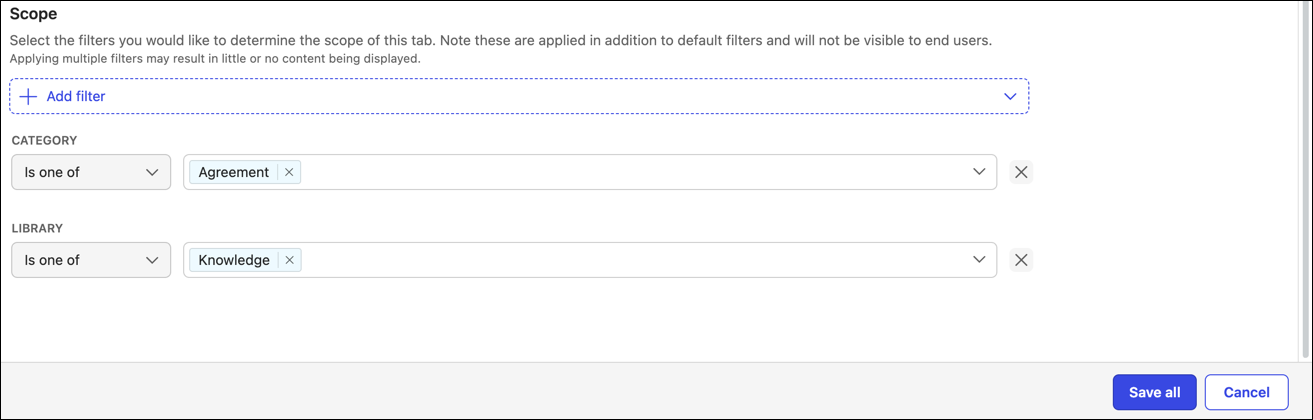
Under Scope:
Select Add filter or use the drop-down arrow to select the property you want to filter on—for example, Category or Library.
Select Is one of or Is none of, then select the values to include or exclude them. For example, set Category as Is one of Agreement, or Library Is none of Knowledge.
(optional) Repeat steps a- b to add additional filters.
NOTE:
Updates made to Scope take 3–5 minutes to take effect for the user.
Scope filters are applied in addition to the selected tab's default filters and aren't visible to users. Applying multiple filters can result in little or no search results being displayed. Add filters needed to define the scope you want.
Use the Library filter in the tab Scope to control whether knowledge documents are included in a tab's search results.
To exclude knowledge documents, set LIBRARY to Is none of Knowledge.
To include knowledge documents, set LIBRARY to Is one of Knowledge.
After configuring the tab scope, verify that the tab displays as expected. If no results get displayed, adjust the filters accordingly in your scope.
Select Save all to add the tab with all the settings.
This newly added tab is displayed on the tabs page, and as a result, in the iManage Insight+ search interface.
NOTE: If you move to another tab after entering the mandatory fields without saving the changes, they persist and when you return to the tab, the changes remain visible.