As an iManage Insight+ administrator in your organization, you can add a customized logo or use an existing logo from iManage Work to be displayed in the iManage Insight+ application.
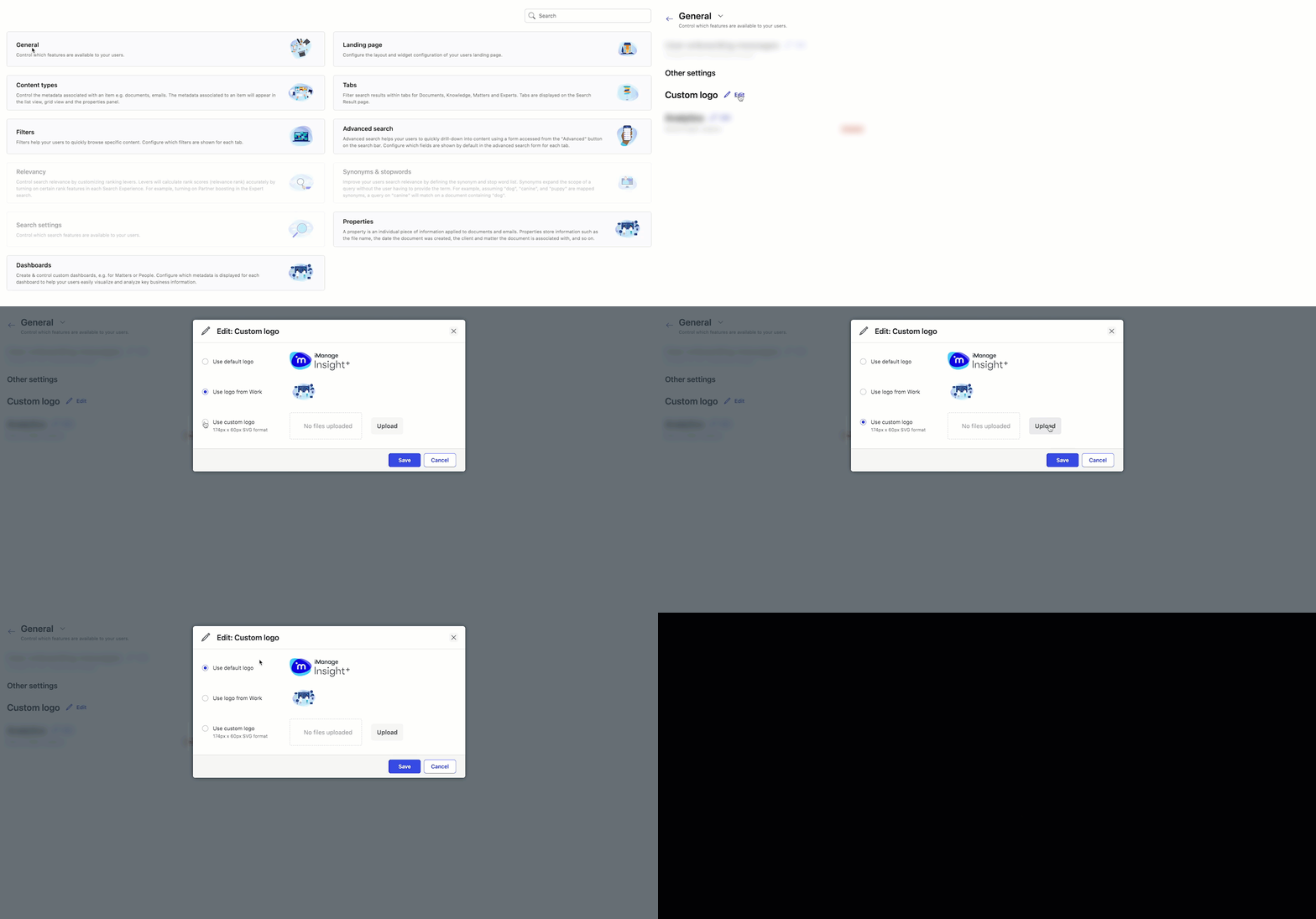
On the iManage Insight+ Admin page, select General.
Next to Custom logo, select Edit.
In the Edit: Custom logo dialog, select one of the following:
Use default logo: To continue using iManage Insight+ logo, selected by default.
Use logo from Work: To re-use the logo uploaded in iManage Work.
NOTE: The Use logo from Work isn’t displayed if no custom logo is being used by your organization for iManage Work.Use custom logo: To upload a new custom image.
To upload a new image:Select Upload.
Browse and select the desired logo.
Select Open, and then select Save.
NOTE: The Upload button is displayed initially for new image uploads. After you upload an image, it's replaced by the Change button, letting you update the existing image.Figure: Options available to upload custom logo.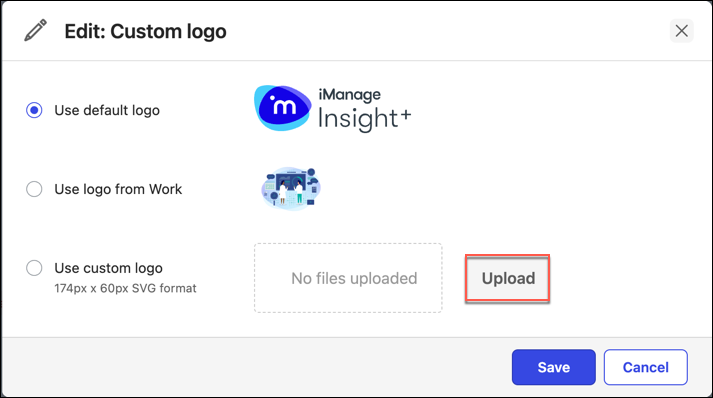
Select Save.